
PEIOUS KB7001+MS2237
PEIOUS Ergonomic Wireless Keyboard and Mouse Combo Instruction Manual
Model: KB7001+MS2237
For Windows Computers and Laptops
Introduction
This manual provides comprehensive instructions for setting up, operating, and maintaining your PEIOUS Ergonomic Wireless Keyboard and Mouse Combo. Please read this manual thoroughly before use to ensure optimal performance and longevity of your devices.

Image: The PEIOUS Ergonomic Wireless Keyboard and Mouse Combo, showcasing the full-size keyboard with integrated palm rest and the ergonomic wireless mouse.
Setup
1. Battery Installation
Both the keyboard and mouse require AAA batteries (not included). Ensure correct polarity when inserting batteries.
- Keyboard: Requires two AAA batteries. The battery compartment is located on the underside of the keyboard.
- Mouse: Requires two AAA batteries. The battery compartment is located on the underside of the mouse.
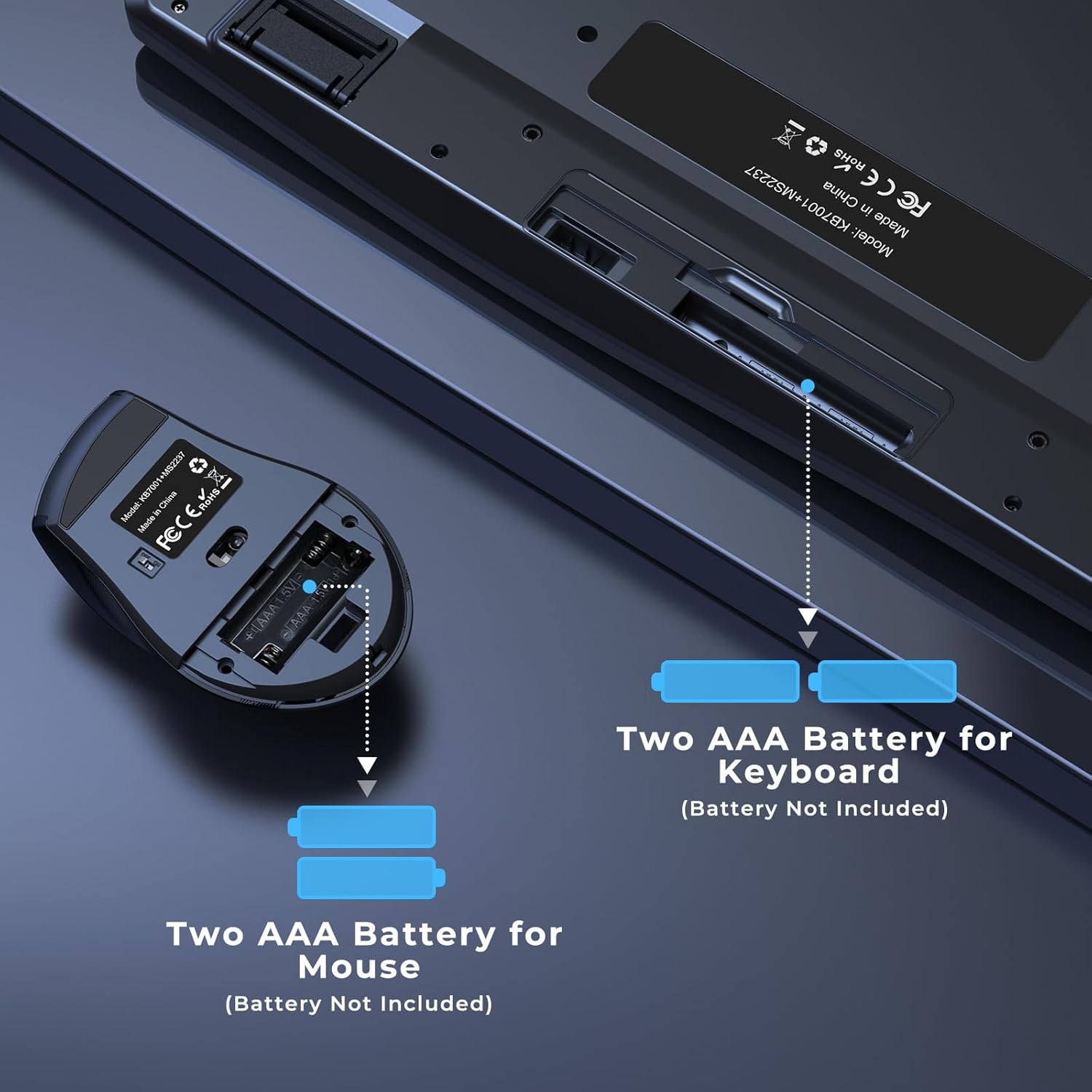
Image: Diagram showing the battery compartments for both the keyboard and mouse, indicating the need for two AAA batteries for each device.
2. USB Receiver Connection
The combo uses a single USB receiver for both the keyboard and mouse. The receiver is typically stored in a dedicated slot on the back of the keyboard for convenience.
- Locate the USB receiver in its storage slot on the back of the keyboard.
- Plug the USB receiver into an available USB port on your computer or laptop.
- Your computer should automatically detect and install the necessary drivers. This may take a few moments.
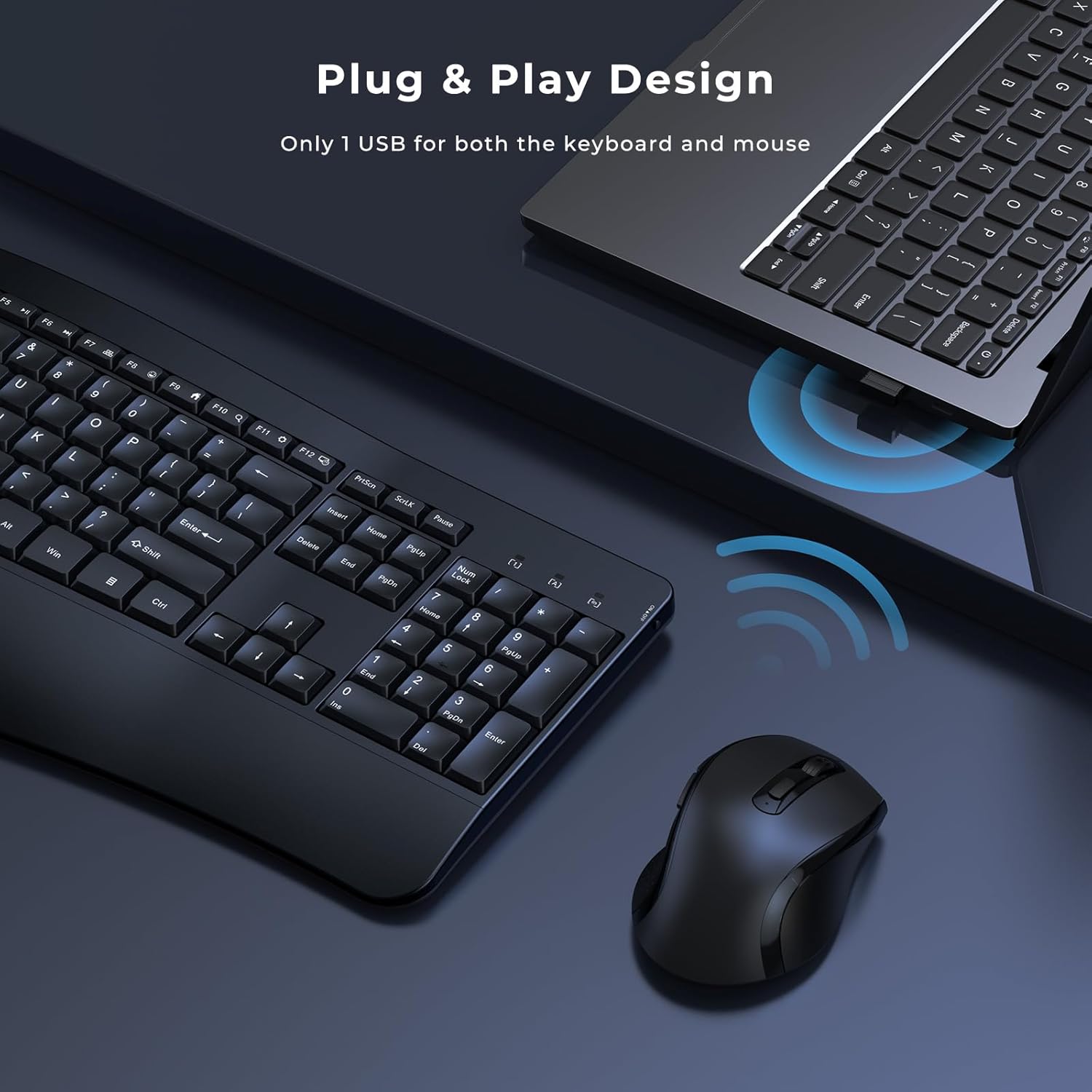
Image: A close-up view showing the wireless mouse and keyboard with the USB receiver plugged into a laptop, illustrating the plug-and-play design.
3. Powering On
After installing batteries and connecting the USB receiver, turn on both devices:
- Keyboard: Locate the ON/OFF switch on the right side of the keyboard and slide it to the 'ON' position.
- Mouse: Locate the ON/OFF switch on the underside of the mouse and slide it to the 'ON' position.
The devices should now be ready for use. If they do not respond, refer to the Troubleshooting section.
Video: A user demonstrates the setup process for the PEIOUS Ergonomic Keyboard and Mouse Combo, including battery installation and connecting the USB receiver to a laptop.
Operating Instructions
Keyboard Features
- Ergonomic Design: The keyboard features an integrated palm rest and a wave-like design to promote a natural typing posture, reducing wrist strain during extended use.
- Quiet Keys: Low-profile keys provide a soft and quiet keystroke, ideal for quiet work environments.
- Full-Size Layout: Includes a numeric pad and isolated keys for efficient data entry and a complete typing experience.
- Multimedia Keys: Dedicated function keys (F1-F12) allow quick access to multimedia controls (volume, play/pause) and common functions (search, email).
- Adjustable Angle: The keyboard includes kickstands on the underside, offering two different incline levels for personalized comfort.

Image: Illustrates the integrated palm rest of the keyboard for wrist support and the ergonomic shape of the mouse for a comfortable grip.

Image: Highlights key features of the keyboard including comfortable key design, increased comfort from the palm rest, full-size layout with number pad, and the mouse's adjustable DPI settings (800-1200-1600 DPI).
Mouse Features
- Ergonomic Shape: Designed to fit comfortably in your hand, providing a good grip and reducing fatigue.
- Adjustable DPI: A dedicated DPI button allows you to adjust the cursor speed (800-1200-1600 DPI) to suit your preference and task.
- Programmable Buttons: Features additional side buttons that can be programmed for various functions, such as navigating web pages forward or backward.
- Smooth Scrolling: The scroll wheel provides smooth and precise navigation.
Video: A detailed review of the PEIOUS Ergonomic Keyboard and Mouse, demonstrating its features and ergonomic design.
Maintenance
- Cleaning: Use a soft, dry cloth to clean the surfaces of the keyboard and mouse. For deeper cleaning, a slightly damp cloth with mild soap can be used, ensuring no liquid enters the device.
- Battery Replacement: Replace batteries when performance degrades. Always use fresh AAA batteries and dispose of old batteries responsibly.
- USB Receiver Storage: When not in use or during transport, store the USB receiver in its dedicated slot on the back of the keyboard to prevent loss.
- Storage: Store the keyboard and mouse in a cool, dry place away from direct sunlight and extreme temperatures.
Troubleshooting
- Devices not responding:
- - Ensure both the keyboard and mouse are switched ON.
- - Check if the USB receiver is securely plugged into a working USB port on your computer.
- - Replace the batteries in both the keyboard and mouse with fresh AAA batteries.
- - Try plugging the USB receiver into a different USB port.
- - Restart your computer.
- Mouse pointer is erratic or not moving smoothly:
- - Ensure the mouse is on a clean, flat, and non-reflective surface.
- - Adjust the DPI setting using the DPI button on the mouse to find a suitable sensitivity.
- - Check for any obstructions around the mouse's optical sensor.
- Keyboard keys are sticky or unresponsive:
- - Clean the keyboard thoroughly, especially around the affected keys, to remove any debris.
- - Ensure the keyboard is powered on and has fresh batteries.
Specifications
| Brand | PEIOUS |
| Model | KB7001+MS2237 |
| Connectivity Technology | 2.4G Wireless (USB Receiver) |
| Keyboard Type | Full-Size Ergonomic with Palm Rest |
| Mouse Type | Ergonomic Wireless Mouse |
| DPI Settings (Mouse) | 800-1200-1600 DPI |
| Power Source | AAA Batteries (2 for Keyboard, 2 for Mouse) |
| Compatible Devices | Windows Computers, Laptops |
| Keyboard Dimensions | Approximately 17.4 x 8.46 x 1.77 inches (with wrist rest) |
| Mouse Dimensions | Approximately 4.72 x 2.95 x 1.38 inches |
| Item Weight | 2.33 pounds (combined) |

Image: Visual representation of the dimensions for both the PEIOUS ergonomic keyboard and mouse.
Warranty and Support
For warranty information and technical support, please refer to the product packaging or contact PEIOUS customer service directly. Keep your purchase receipt for warranty claims.
Ask a question about this manual
Ask about setup, troubleshooting, compatibility, parts, safety, or missing instructions. Manuals+ will review the question and use this page’s manual context to help answer it.