
CHESONA iPad Pro 11 inch (M4) 2024
CHESONA Magnetic Detachable Keyboard Case for iPad Pro 11-inch (M4 2024/M5 2025)
User Manual
1. Product Overview
This manual provides instructions for the CHESONA Magnetic Detachable Keyboard Case, designed for the iPad Pro 11-inch (M4 2024/M5 2025). This accessory combines a protective case with a wireless, rechargeable keyboard, enhancing your tablet's functionality for various uses.
2. Compatibility
This keyboard case is specifically designed for the following iPad models:
- iPad Pro 11-inch (M4 2024) - Model Numbers: A2836, A2837, A3006
- iPad Pro 11-inch (M5 2025)
Important: Please verify your iPad model number on the back of your device before use. This case is not compatible with iPad Air 11-inch (M2) 2024 or previous generations of iPad Pro 11-inch (4th/3rd/2nd/1st Gen).

Image: Compatibility chart for CHESONA keyboard case, highlighting supported iPad Pro 11-inch M4 models and explicitly stating incompatibility with other models.
3. Package Contents
Upon opening your package, ensure all the following items are present:
- 1 x CHESONA Keyboard Case for iPad Pro 11-inch (M4)
- 1 x USB-C Charging Cable
- 1 x User Manual
Note: The iPad tablet and Apple Pencil are not included with this product.
4. Features
4.1. Magnetic Detachable Keyboard
The keyboard is magnetically attached to the case, allowing for easy detachment and reattachment. This feature enables seamless switching between a lightweight tablet and a laptop-like setup. The strong magnetic connection ensures stability during use.

Image: The keyboard can be easily detached from the case, offering flexibility for different usage scenarios.
4.2. Multiple Angle Adjustment
The case supports multiple viewing angles, allowing you to adjust the iPad's tilt for optimal typing and viewing comfort. This versatile design helps reduce fatigue during extended use and promotes better posture.

Image: The case allows for multiple viewing angles to suit user preference.
4.3. Integrated Apple Pencil Holder
The case features a dedicated slot for your Apple Pencil, ensuring it is securely stored and readily accessible. It also supports direct charging of the Apple Pencil when placed in the designated upper flat area.
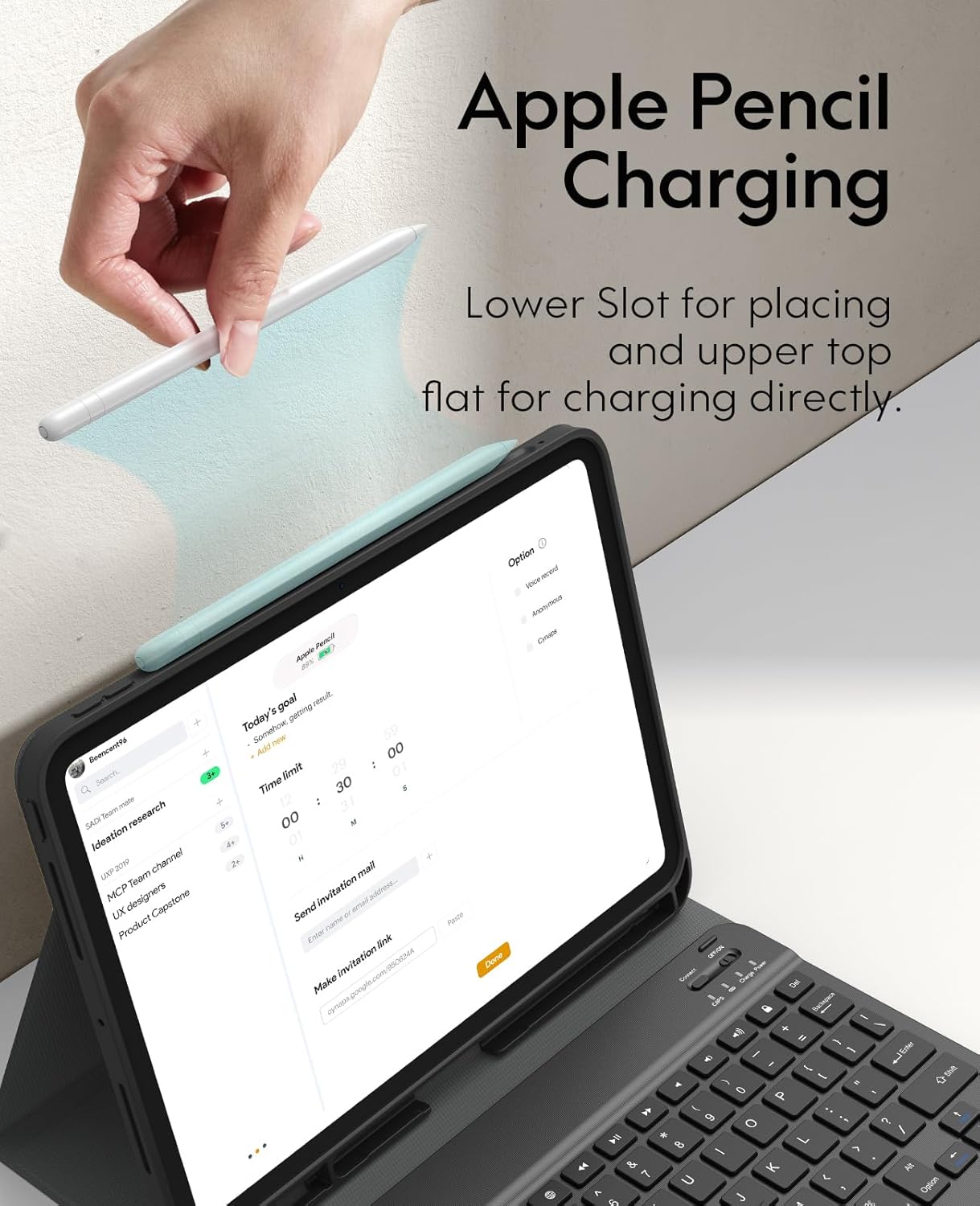
Image: The case includes a secure holder for the Apple Pencil, supporting charging.
4.4. USB-C Rechargeable Keyboard
The keyboard is equipped with a built-in rechargeable battery. It charges via a USB-C cable, providing approximately 60 hours of usage on a 2-hour charge. This eliminates the need for disposable batteries.
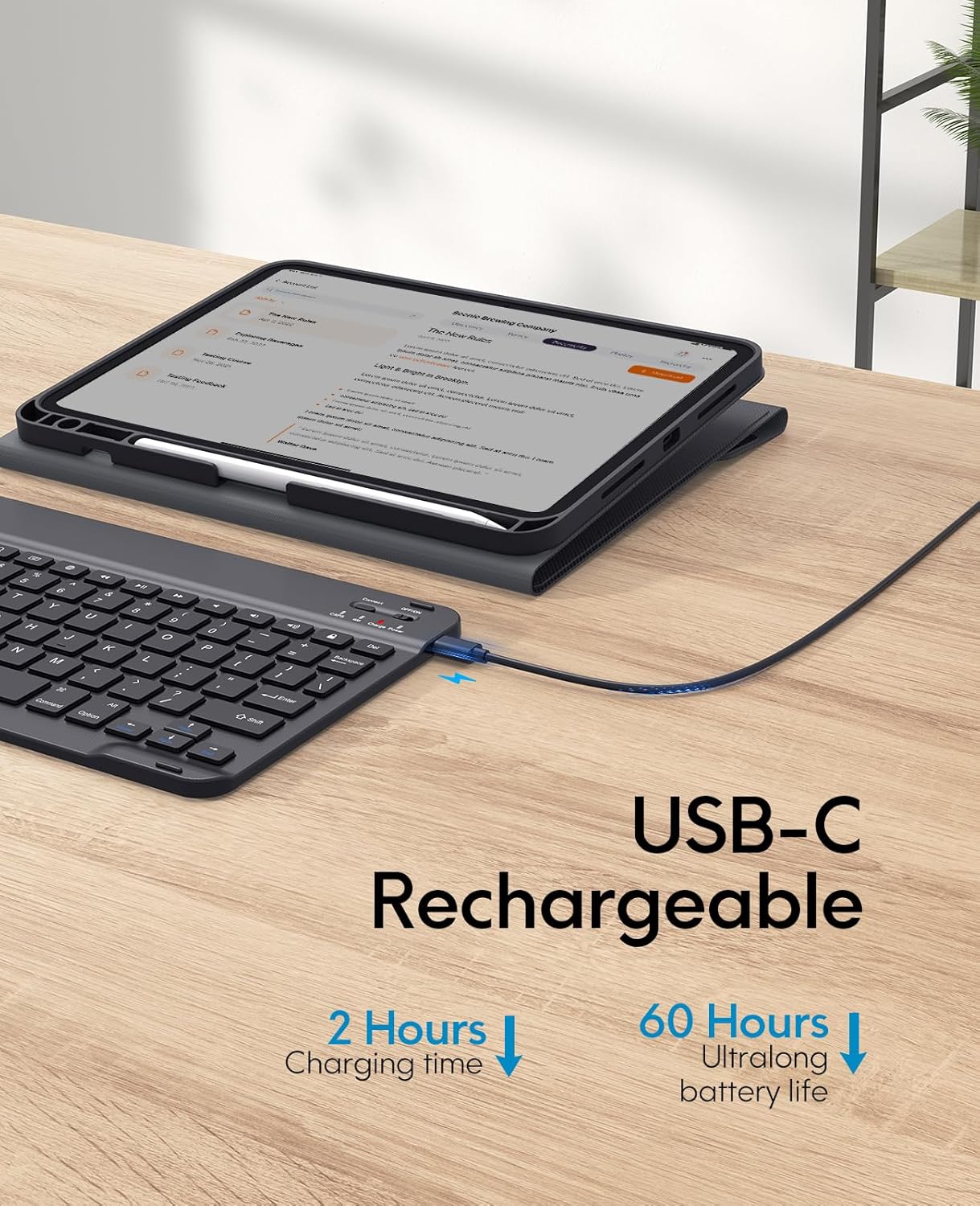
Image: The keyboard charges via USB-C, offering long battery life.
4.5. Precision Cutouts & Comprehensive Protection
The case features precise cutouts for all iPad functions, including the camera, speakers, and ports, ensuring full accessibility without obstruction. Constructed from high-quality twill material, it provides full-edge protection against bumps, scratches, and daily wear.

Image: The case provides comprehensive protection with a soft and smooth twill cover.
5. Setup Instructions
5.1. Installing Your iPad
- Gently align your iPad Pro 11-inch (M4) with the case.
- Press the iPad firmly into the case, ensuring all edges are securely seated and all cutouts align with the iPad's ports and buttons.
5.2. Initial Keyboard Charging
Before first use, fully charge the keyboard. Connect the provided USB-C charging cable to the keyboard's charging port and the other end to a USB power adapter (not included) or a computer's USB port. The charging indicator light will illuminate during charging and turn off when fully charged.
5.3. Pairing the Keyboard via Bluetooth
- Ensure the keyboard is charged.
- Turn on the keyboard by sliding the power switch to the "ON" position. The indicator light will briefly flash.
- Press the "Connect" button on the keyboard. The Bluetooth indicator light will start blinking, indicating it's in pairing mode.
- On your iPad, go to Settings > Bluetooth.
- Turn on Bluetooth. Your iPad will search for available devices.
- Select "Bluetooth Keyboard" (or similar name) from the list of devices.
- If prompted, enter the pairing code displayed on your iPad and press Enter on the keyboard.
- Once paired, the Bluetooth indicator light on the keyboard will stop blinking, and your iPad will show the keyboard as "Connected."

Image: Press the 'Connect' button to initiate Bluetooth pairing with your iPad.
6. Operating Instructions
6.1. Using the Keyboard
Once paired, the keyboard functions like a standard external keyboard. You can type, navigate, and use various shortcuts. The keyboard features comfortable and silent keys for an improved typing experience.
Video: Demonstrates the features of the CHESONA iPad Pro 11 Inch M4 2024 Case with Keyboard, including the built-in Apple Pencil holder and comfortable keys.
6.2. Function Keys
The keyboard includes dedicated function keys for quick access to iPad features. These typically include media controls, volume adjustment, screen lock, and home screen access.

Image: Overview of the keyboard's function keys for quick control.
6.3. Adjusting Viewing Angle
To adjust the viewing angle, simply reposition the iPad within the case's grooves. The magnetic design allows for stable positioning at various angles.
Image: The case offers multiple stable viewing angles.
7. Charging the Keyboard
When the keyboard's battery is low, the indicator light will flash. Connect the provided USB-C cable to the keyboard's charging port and a power source. A full charge takes approximately 2 hours and provides up to 60 hours of continuous use.
Image: Charging the keyboard with the USB-C cable.
8. Maintenance and Care
- Keep the keyboard and case away from liquids and extreme temperatures.
- Clean the case with a soft, damp cloth. Do not use harsh chemicals.
- To clean the keyboard, use a soft, dry cloth. Avoid spraying cleaners directly onto the keys.
- When not in use for extended periods, turn off the keyboard to conserve battery life.
9. Troubleshooting
| Problem | Solution |
|---|---|
| Keyboard not connecting to iPad. |
|
| Keys are not responding. |
|
| Keyboard not charging. |
|
10. Specifications
| Feature | Detail |
|---|---|
| Brand | CHESONA |
| Compatible Devices | Apple iPad Pro 11-inch (M4 2024/M5 2025) |
| Connectivity Technology | Wireless (Bluetooth) |
| Keyboard Layout | QWERTY |
| Number of Keys | 78 |
| Special Features | Portable, Rechargeable, Magnetic Detachable Keyboard, Pencil Holder, Multiple Angle Adjustment |
| Material | Acrylonitrile Butadiene Styrene (ABS) |
| Color | Black |
| Power Source | Battery Powered (USB-C Rechargeable) |
| Charging Time | Approx. 2 hours |
| Battery Life | Up to 60 hours (continuous use) |
| Minimum Required Operating System | iPadOS 13 |
11. Warranty and Support
This CHESONA product comes with a 1-Year Warranty from the date of purchase. This warranty covers manufacturing defects and material flaws under normal use.
For technical support, warranty claims, or any questions regarding your product, please contact CHESONA customer service through the retailer where the product was purchased or visit the official CHESONA website for contact information.
Please retain your proof of purchase for warranty purposes.
Related documentsiPad Pro 11 inch (M4) 2024


Ask a question about this manual
Ask about setup, troubleshooting, compatibility, parts, safety, or missing instructions. Manuals+ will review the question and use this page’s manual context to help answer it.