
MAMBASNAKE K86
Contents
MAMBASNAKE ATTACK SHARK K86 Wireless Mechanical Keyboard Instruction Manual
Model: K86 | Brand: MAMBASNAKE
Introduction
Thank you for choosing the MAMBASNAKE ATTACK SHARK K86 Wireless Mechanical Keyboard. This advanced keyboard features a 1.2-inch TFT color display, a customizable CNC knob, triple-mode connectivity (2.4GHz, Bluetooth, Wired), hot-swappable switches, and vibrant RGB backlighting. This manual provides detailed instructions to help you set up, operate, and maintain your keyboard for an optimal user experience.
Package Contents
Please ensure all items are present in your package:
- ATTACK SHARK K86 Wireless Mechanical Keyboard
- USB-C Cable
- USB Receiver (2.4GHz dongle)
- Keycap Puller
- Switch Puller
- Colored PBT Keycaps (13 pieces)
- User Manual

Image: The ATTACK SHARK K86 keyboard box open, displaying the keyboard, USB cable, USB receiver, keycap and switch pullers, and a set of colored PBT keycaps. The keyboard itself is gray with white and gray keycaps.
Setup
1. Connectivity Modes
The K86 keyboard supports three connectivity modes: 2.4GHz wireless, Bluetooth 5.0, and USB Type-C wired.
- 2.4GHz Wireless Mode:
- Locate the toggle switch on the back of the keyboard.
- Slide the switch to the 2.4G position.
- Remove the USB receiver (dongle) from its storage slot on the keyboard.
- Plug the USB receiver into an available USB port on your computer. The keyboard will automatically connect.
- Bluetooth Mode:
- Slide the toggle switch on the back of the keyboard to the BT position.
- Press and hold the FN + 1, FN + 2, or FN + 3 key combination for 3-5 seconds to enter pairing mode. The TFT screen will indicate pairing status.
- On your device (Windows, macOS, or Bluetooth-enabled mobile device), search for "RK-K86" or "ATTACK SHARK K86" in the Bluetooth settings and select it to pair.
- You can pair up to three Bluetooth devices and switch between them using FN + 1/2/3.

Image: A diagram illustrating the Bluetooth connection method for the K86 keyboard, showing the toggle switch, FN key combinations for BT1, BT2, BT3, and a visual representation of a computer and mobile devices connecting.
- Wired Mode:
- Slide the toggle switch on the back of the keyboard to the OFF position.
- Connect the keyboard to your computer using the provided USB-C cable. The keyboard will automatically switch to wired mode and begin charging.

Video: A short demonstration of the K86 keyboard highlighting its tri-mode wireless connectivity (2.4GHz, Bluetooth, wired) and RGB hot-swappable keys.
2. System Compatibility
The K86 keyboard is compatible with Windows and macOS operating systems. You can switch between Windows and Mac layouts using the dedicated switch or through the software.
Operating Instructions
1. TFT Color Display & CNC Knob Functions
The 1.2-inch TFT color display and CNC metal knob provide intuitive control over various keyboard settings.
- Adjusting Display: Rotate the CNC knob to navigate through display options. Press the knob to select.
- Volume Control: In default mode, rotate the CNC knob to adjust system volume. Press the knob to mute/unmute.
- Lighting Effects: Use the knob to cycle through different RGB lighting effects and adjust brightness/speed.
- Switching Devices: Rotate the knob to select between paired Bluetooth devices or 2.4GHz/wired modes.

Image: A detailed view of the K86 keyboard's 1.2-inch TFT color display and the CNC metal knob. The screen shows battery level, WIN/MAC system indicator, connection mode, date, and time. Instructions for adjusting volume and switching modes using the knob are also displayed.

Video: A brief overview of the K86 gaming keyboard, showcasing its 1.2-inch TFT screen and the functionality of the CNC knob for various controls.
2. Customization with Open-Source Software
Unlock full customization potential by downloading the open-source software from the official MAMBASNAKE website. The software allows you to:
- Reprogram key assignments and create custom FN combinations.
- Upload static or dynamic images/GIFs to the TFT display.
- Adjust key sensitivity for a personalized typing experience.
- Control RGB lighting effects, colors, brightness, and speed.
- Ensure automatic updates and seamless integration through the cloud-driven system.
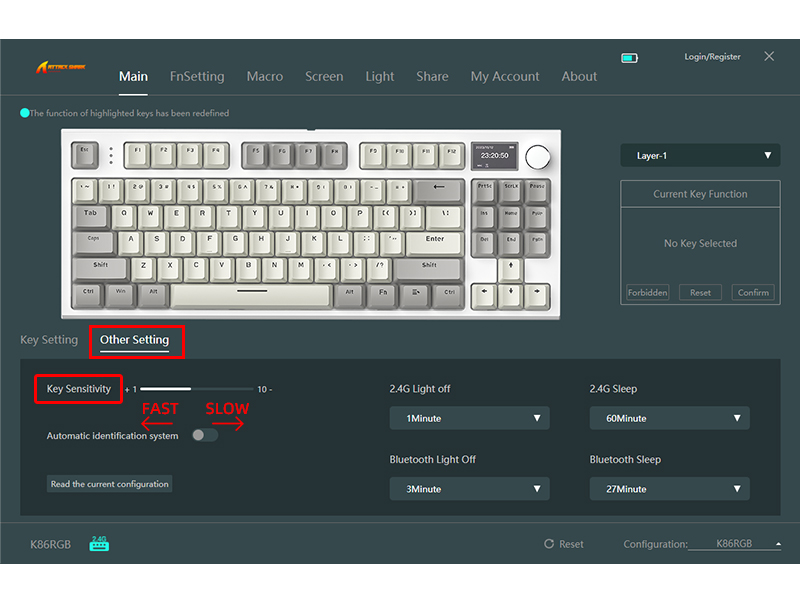
Image: A screenshot of the K86 keyboard's customization software, showing options for key settings, screen customization, and lighting effects. The software interface displays a virtual keyboard layout for easy programming.

Video: A quick look at the K86 customizable keyboard, demonstrating its open-source software for RGB lighting and PBT keycap customization.
3. RGB Lighting Effects
The K86 features 27 dynamic RGB lighting effects and side RGB lighting. You can customize these using FN key combinations or the software.
- Switch Light Mode: Press FN + \ |
- Sidelight Mode Switch: Press FN + C
- Further adjustments for colors, brightness, and speed can be made via the CNC knob or software.

Image: The K86 keyboard showcasing its full RGB backlight and side RGB lighting. The image highlights the FN + \ | combination for switching light modes and FN + C for sidelight mode.
4. Hot-Swappable Switches
The keyboard is equipped with TTC hot-swappable sockets, allowing you to easily change switches without soldering. It is compatible with most 3-pin and 5-pin switches.

Image: A close-up view of the K86 keyboard with several keycaps removed, revealing the hot-swappable TTC sockets and custom Blue Whale switches. A switch puller tool is also shown.
5. Gasket Mount Design
The K86 features a full gasket mount and full foam padding, contributing to a premium, quiet, and stable typing experience by reducing sound and enhancing keystroke feel.

Image: A cutaway diagram of the K86 keyboard's internal structure, highlighting the gasket mount design and multiple sound-absorbing layers, including pre-lubed stabilizers, PC plate, EVA sound absorbing foam, IXPE switch pad, and another layer of EVA sound absorbing foam.
6. Battery Check
To check the battery level in wireless mode, press the FN + Backspace key combination. The TFT display will show the current battery percentage.
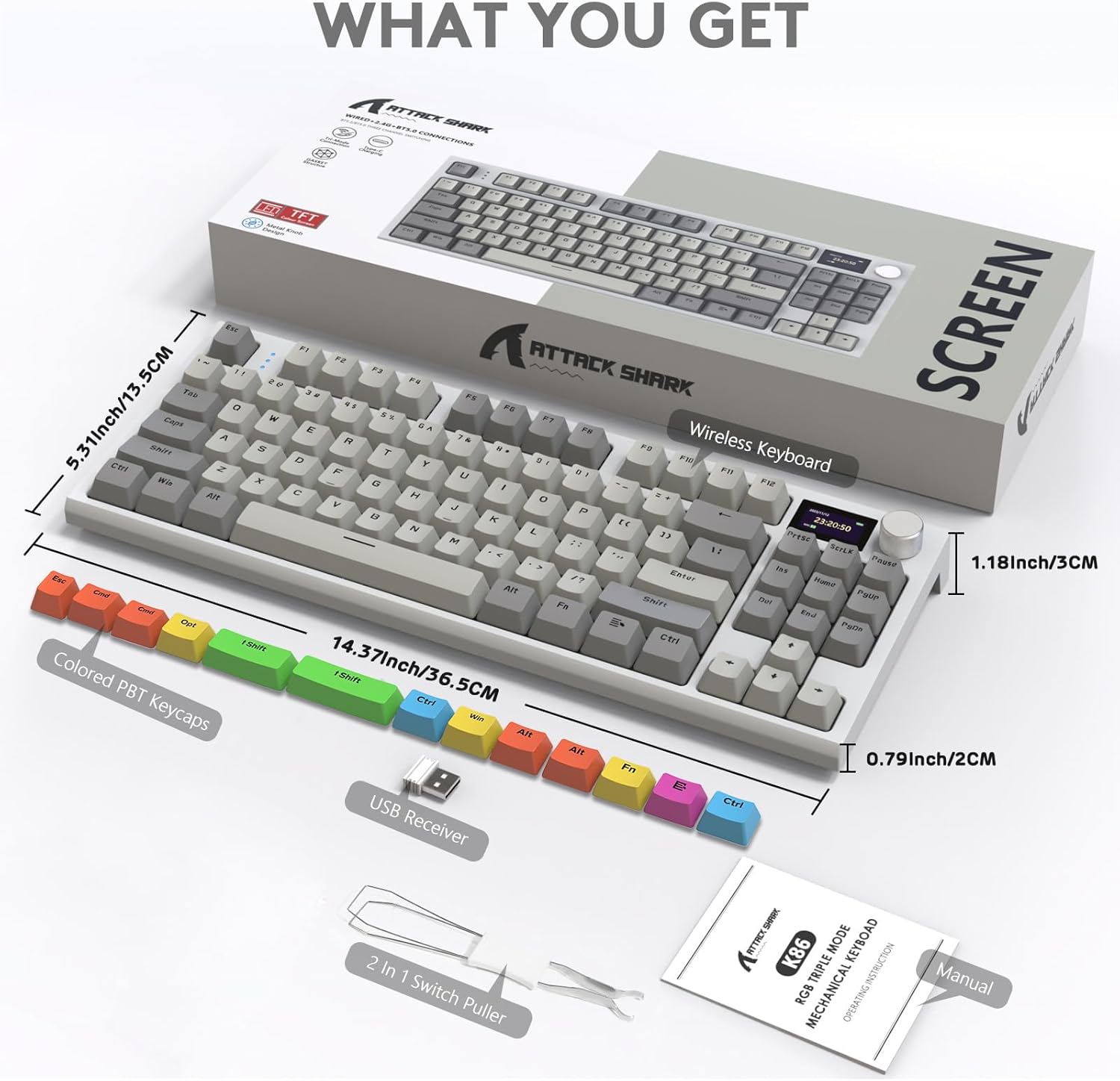
Image: The K86 keyboard with its TFT screen displaying battery levels (25%, 50%, 75%, 100%) and the FN + Backspace key combination highlighted for checking battery status.
Maintenance
- Cleaning: Use a soft, dry cloth to clean the keyboard surface. For deeper cleaning, remove keycaps using the provided keycap puller and use compressed air to clear debris.
- Keycap/Switch Replacement: Use the provided tools to carefully remove and replace keycaps or switches. Ensure proper alignment when reinserting.
- Storage: Store the keyboard in a dry, cool place away from direct sunlight and extreme temperatures.
Troubleshooting
- Keyboard not responding:
- Ensure the keyboard is charged or connected via USB-C.
- Check the toggle switch on the back for the correct mode (2.4G, BT, or OFF for wired).
- For 2.4GHz, ensure the USB receiver is securely plugged in.
- For Bluetooth, re-pair the device if connection is lost.
- RGB lighting not working:
- Check lighting settings via the CNC knob or software.
- Ensure the keyboard battery has sufficient charge.
- TFT display not showing information:
- Ensure the keyboard is powered on.
- Check display settings through the CNC knob.
- If using custom images, ensure they are correctly uploaded via the software.
- Software issues:
- Ensure the keyboard is connected in wired mode when performing firmware updates or extensive software customization.
- Download the latest software version from the official MAMBASNAKE website.
Specifications
| Feature | Detail |
|---|---|
| Model | K86 |
| Connectivity | 2.4GHz Wireless, Bluetooth 5.0, USB Type-C Wired |
| Display | 1.2-inch TFT Color Display |
| Knob | CNC Metal Multifunction Knob |
| Switches | Hot-Swappable TTC Sockets (compatible with 3-pin/5-pin switches) |
| Keycaps | PBT Keycaps |
| Backlight | RGB Backlit (27 dynamic effects) |
| Layout | 75% Layout |
| Battery | 4000mAh |
| Compatibility | Windows, macOS, Bluetooth-enabled devices |
| Dimensions | 14.37 x 5.31 x 1.18 inches (36.5 x 13.5 x 3 cm) |
| Weight | 2.51 pounds |
Warranty and Support
For warranty information, technical support, or further assistance, please refer to the official MAMBASNAKE website or contact their customer service directly. Keep your purchase receipt for warranty claims.
Documents and downloads
Ask a question about this manual
Ask about setup, troubleshooting, compatibility, parts, safety, or missing instructions. Manuals+ will review the question and use this page’s manual context to help answer it.