
1. Introduction
Thank you for choosing the WELOCK Smart Door Lock PBL21EBL41. This smart lock provides secure keyless entry solutions for your home or office, offering multiple unlocking methods including password, smartphone application, and emergency USB power. This manual will guide you through the installation, setup, operation, and maintenance of your new smart lock. Please read these instructions carefully before installation and use to ensure proper function and safety.
2. Safety Information
- Do not expose the lock to water or direct sunlight for extended periods.
- Use only specified AAA batteries. Do not mix old and new batteries or different types of batteries.
- Keep your passwords confidential and change them regularly.
- Ensure the door is properly closed and locked after entry or exit.
- Do not attempt to disassemble or repair the lock yourself. Contact customer support for assistance.
- Keep the QR code and lock ID in a safe place, as they are required for app setup.
3. Package Contents
Verify that all components are present in the package:
- 1 x WELOCK Smart Door Lock Cylinder
- 1 x User Manual
- 2 x Screwdrivers (for installation)
- (Note: 3 x AAA batteries are required but not included.)
4. Product Overview
The WELOCK Smart Door Lock PBL21EBL41 is designed for convenience and security. It features a digital keypad, Bluetooth connectivity for smartphone app control, and an emergency USB power port.

Figure 1: WELOCK Smart Door Lock PBL21EBL41. This image displays the complete smart door lock cylinder with its integrated digital keypad and a smartphone screen showing the WELOCK app interface.
4.1 Unlocking Methods
The lock supports multiple convenient unlocking methods:
- Password Unlock: Enter your predefined digital code on the keypad.
- Smartphone App Unlock: Use the WELOCK app via Bluetooth.
- Emergency USB Unlock: In case of battery depletion, connect a power bank via the USB port to temporarily power the lock.

Figure 2: Multiple Unlocking Methods. This image illustrates the three primary ways to unlock the WELOCK smart door lock: via the smartphone app, by entering a password on the keypad, and using a USB power bank for emergency access.
4.2 Temporary Password Sharing
The WELOCK app allows you to generate and share temporary passwords with visitors. These passwords can be set with specific validity periods, expiring automatically after use or a set time.
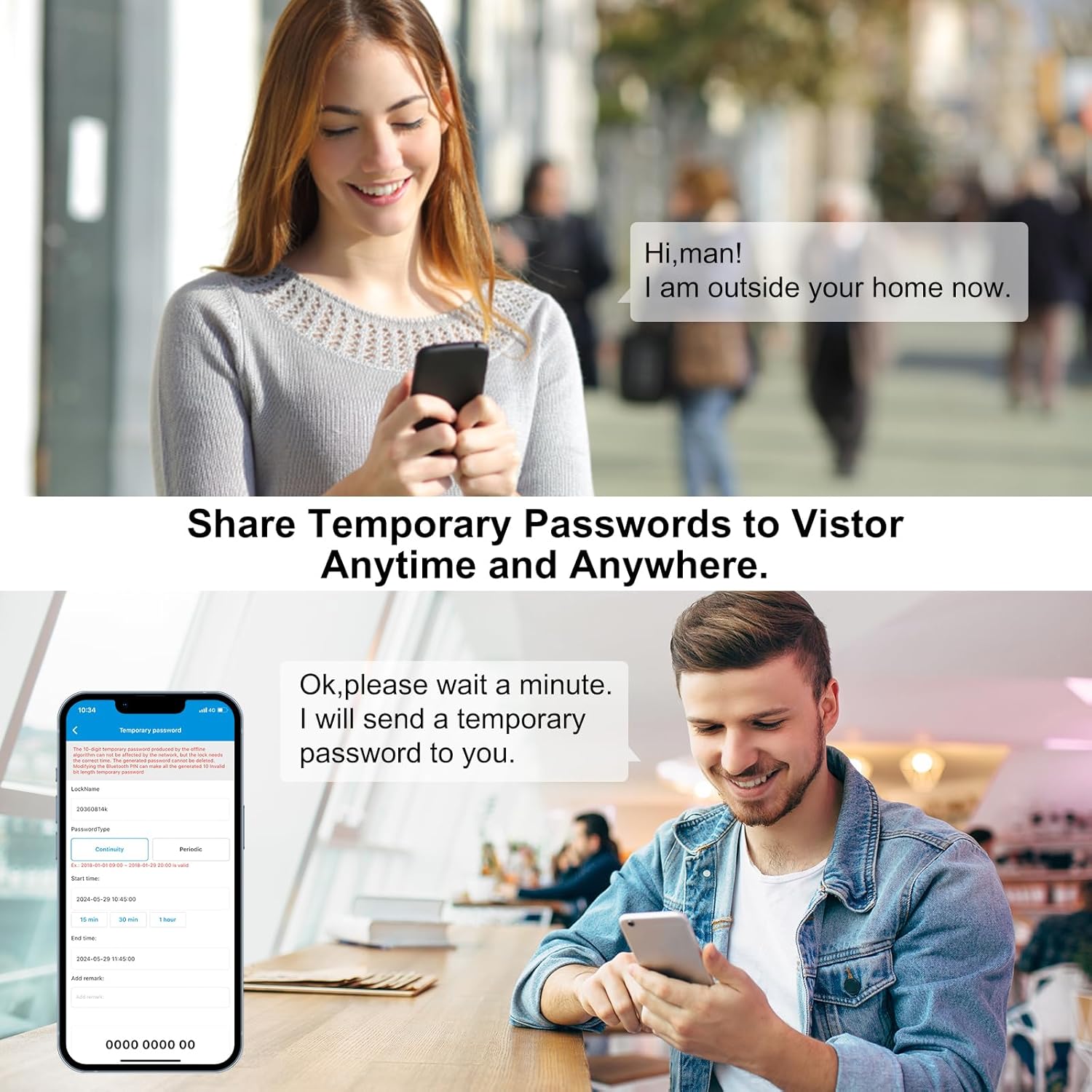
Figure 3: Temporary Password Sharing. This image depicts the process of sharing temporary passwords through the WELOCK app, enabling controlled access for guests or service providers.
4.3 Remote Control (Optional Gateway)
For remote unlocking capabilities and integration with smart home systems like Alexa, an optional WiFi gateway (not included) is required. This allows you to control your lock from anywhere.

Figure 4: Remote Control via Gateway. This image illustrates how the WELOCK smart lock can be controlled remotely using a smartphone app and an optional WiFi gateway, potentially integrating with smart home devices like Alexa.
5. Installation
The WELOCK Smart Door Lock is designed for easy installation, typically without the need for professional assistance or drilling.
5.1 Compatibility Requirements
- Door Thickness: Compatible with doors ranging from 50mm to 100mm thick.
- Keyhole to Door Frame Distance: The distance from the center of the keyhole to the door frame must be 40mm or greater.
- Cylinder Type: Designed to replace existing European standard cylinders. Not compatible with Swiss round cylinders or vintage door locks.

Figure 5: Compatibility Check. This image illustrates the critical dimensions for installation, including door thickness (50-100mm) and the minimum distance from the keyhole center to the door frame (≥40mm). It also shows incompatible lock types.
5.2 Installation Steps
- Remove Existing Cylinder: Locate the retaining screw on the edge of your door that secures the existing cylinder. Unscrew it and carefully pull out the old cylinder.
- Adjust WELOCK Cylinder Length: The WELOCK cylinder is adjustable. Measure your door's thickness and adjust the cylinder's length accordingly by loosening the grub screws on the internal and external handles, sliding them to the correct position, and then tightening the screws. Refer to Figure 6 for dimensions.
- Insert Batteries: Before inserting the new cylinder, open the battery compartment (usually by removing a cover or part of the handle) and insert 3 AAA batteries. Ensure correct polarity.
- Insert New Cylinder: Slide the WELOCK smart lock cylinder into the door's mortise lock. Ensure it is flush with the door edge.
- Secure Cylinder: Reinsert and tighten the retaining screw on the door edge to secure the WELOCK cylinder in place.
- Test Functionality: After installation, test the lock's rotation and keypad functionality before closing the door.

Figure 6: Product Dimensions and Adjustment. This image provides detailed measurements of the WELOCK smart lock components, including the adjustable cylinder length (50-100mm) and the dimensions of the keypad and internal knob.
6. Setup
6.1 App Download and Installation
Download the official WELOCK application to your smartphone. You can scan the QR code on the lock or visit the official download page: WELOCK App Download.
6.2 Pairing the Lock with the App
- Enable Bluetooth on your smartphone.
- Open the WELOCK app and create an account or log in.
- Follow the in-app instructions to add a new device. You will likely need to scan the QR code located on the lock cylinder or manually enter the lock ID. Ensure you note down the lock ID before fully installing the cylinder if it becomes hidden.
- Once paired, the app will display the lock's status and allow you to configure settings.
6.3 Setting Up Passwords
- Administrator Password: The first password set is typically the administrator password. This password has full control over the lock.
- User Passwords: You can set up to 10 user passwords through the app.
- Temporary Passwords: Generate temporary passwords with specific timeframes for guests or service personnel via the app.
Refer to the in-app guide for detailed steps on password management.
7. Operating Instructions
7.1 Unlocking with Password
- Wake up the keypad by touching it.
- Enter your 6-digit password.
- Press the '#' key to confirm. The lock will unlock, and you can turn the handle to open the door.
7.2 Unlocking with Smartphone App
- Ensure Bluetooth is enabled on your smartphone and you are within range of the lock.
- Open the WELOCK app.
- Select your lock from the device list.
- Tap the "Unlock" button in the app. The lock will unlock.
7.3 Emergency USB Power Unlock
If the batteries are completely depleted, you can still unlock the door using a power bank:
- Locate the micro-USB port on the external handle (usually at the bottom or side).
- Connect a power bank to the USB port using a micro-USB cable.
- Once powered, the lock will activate, allowing you to unlock it using the app or a valid password.
7.4 Locking the Door
The WELOCK Smart Door Lock automatically locks after a short delay once the door is closed. You can also manually lock it by turning the internal knob or using the app.
8. Maintenance
8.1 Battery Replacement
The lock operates on 3 AAA batteries. When the battery level drops below 20%, you will receive a low battery warning via the app and potentially on the lock's display.
- Access the battery compartment (refer to installation steps for location).
- Remove the old batteries.
- Insert 3 new AAA batteries, ensuring correct polarity.
- Close the battery compartment securely.
8.2 Cleaning
Wipe the lock's surface with a soft, dry cloth. Avoid using abrasive cleaners or solvents that could damage the finish or electronic components.
9. Troubleshooting
- Lock not responding: Check battery level. If low, replace batteries or use emergency USB power.
- App not connecting: Ensure Bluetooth is enabled on your phone and you are within range. Restart the app or your phone. Re-pair the lock if necessary.
- Password not working: Double-check the entered password. Ensure the keypad is active.
- Lock is loose after installation: Ensure the retaining screw on the door edge is tightened and the grub screws on the handles are secure.
For further assistance, please contact WELOCK customer support.
10. Specifications
| Brand | WELOCK |
| Model Number | PBL21EBL41 |
| Model Name | PBL41 |
| Dimensions (L x W x H) | 18 x 4 x 4 cm (7.09 x 1.57 x 1.57 inches) |
| Weight | 480 Grams (1.06 lbs) |
| Color | Silver |
| Power Source | 3 x AAA Batteries (not included) |
| Door Thickness Compatibility | 50mm - 100mm |
| Keyhole to Frame Distance | ≥ 40mm |
| Unlocking Methods | Password, Bluetooth App, Emergency USB Power |
11. Warranty and Support
WELOCK provides customer support and warranty services for its products.
- Warranty: Please refer to your purchase documentation or the official WELOCK website for specific warranty duration and terms.
- Technical Support: For any questions regarding installation, setup, or troubleshooting, please contact WELOCK customer service. Contact information can typically be found on the official website or your product packaging.


