
Introduction
Thank you for choosing the AULA SC580X Wireless Gaming Mouse. This manual provides detailed instructions for setting up, operating, and maintaining your new gaming mouse. The SC580X offers versatile tri-mode connectivity (2.4G wireless, Bluetooth 5.0, and USB-C wired), 6 programmable buttons, and adjustable DPI up to 12,000, designed for an optimal gaming and work experience across various devices.
What's in the Box
Please verify that all items are present in the package:
- Gaming Mouse x1
- User Manual x1
- USB Cable x1
- Non-slip stickers
Setup
Initial Charging
Before first use, it is recommended to fully charge the mouse. Connect the included USB-C cable to the mouse's Type-C interface and the other end to a USB power source (e.g., computer USB port, USB wall adapter). The charging indicator will provide feedback on the battery status.

Image: The AULA SC580X mouse being charged via its USB-C port, demonstrating the built-in rechargeable battery feature.
Connectivity Modes
The AULA SC580X supports three connection modes: 2.4G Wireless, Bluetooth 5.0, and USB-C Wired. You can quickly switch between modes using the buttons on the bottom of the mouse.

Image: The AULA SC580X mouse demonstrating its tri-mode connectivity, showing connections to a desktop, laptop, tablet, and smartphone.
2.4G Wireless Connection
- Locate the USB receiver stored in the compartment on the bottom of the mouse.
- Plug the USB receiver into an available USB port on your computer.
- Slide the switch on the bottom of the mouse to the '2.4G' position. The mouse should connect automatically.
Bluetooth 5.0 Connection
- Slide the switch on the bottom of the mouse to the 'BT' position.
- Press and hold the BT Mode Switch Button (Forced Code Matching Button) on the bottom of the mouse until the indicator light flashes, indicating pairing mode.
- On your device (PC, laptop, tablet), go to Bluetooth settings and search for 'AULA SC580X'.
- Select the mouse to pair. The indicator light will become solid when connected.
USB-C Wired Connection
- Connect the included USB-C cable to the mouse's Type-C interface.
- Connect the other end of the USB-C cable to a USB port on your computer.
- The mouse will automatically switch to wired mode and function without needing battery power.
Driver Software Installation (for Programmable Buttons)
To utilize the 6 programmable buttons and advanced customization features, download the official driver software. This software is compatible only with Windows systems and functions in 2.4GHz wireless and USB-C wired modes (Bluetooth mode is not supported for driver customization).
- Download the driver from the official AULA website or use the provided link: bit.ly/m/AULA
- Follow the on-screen instructions to install the software.
- Once installed, open the software to customize button assignments, DPI levels, polling rate, and sleep time settings.
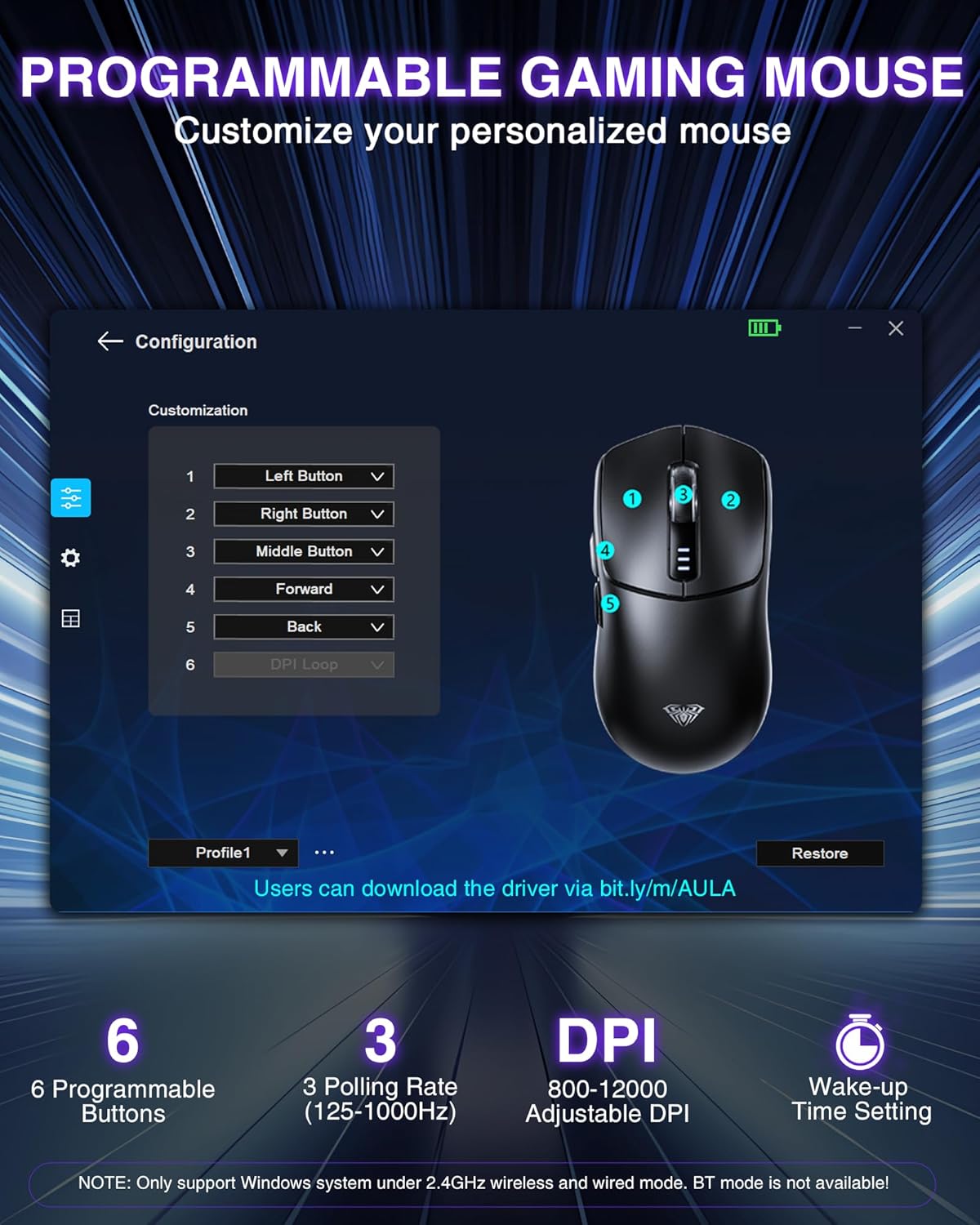
Image: A screenshot of the AULA SC580X customization software interface, illustrating how users can program the mouse's 6 buttons and adjust settings.
Operating Instructions
Button Functions
The AULA SC580X features 6 buttons, including the standard left/right click, scroll wheel, DPI button, and two side buttons (forward/backward). These buttons can be customized via the driver software.
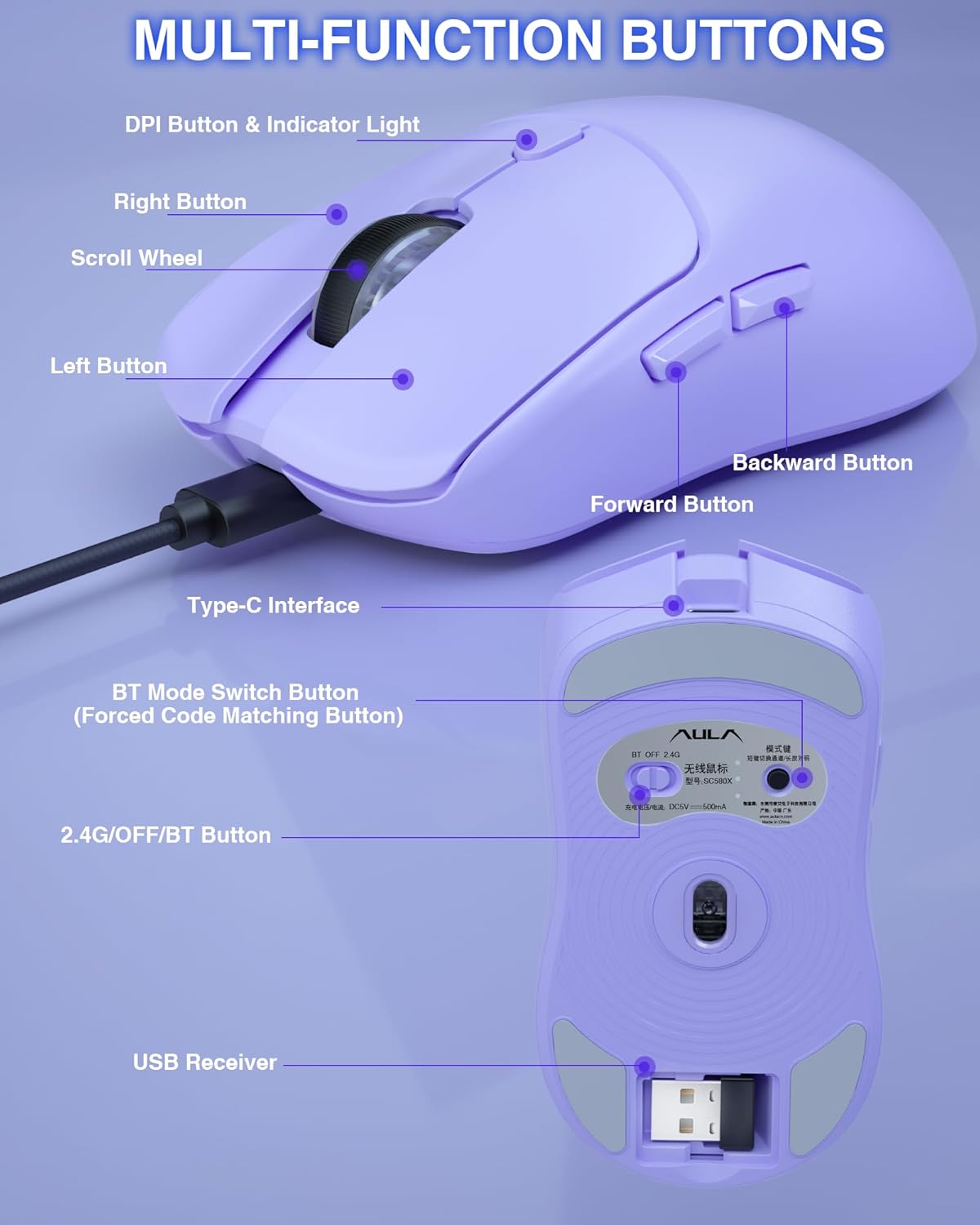
Image: A detailed diagram of the AULA SC580X mouse, pointing out and labeling its various buttons and interfaces, including the DPI button, scroll wheel, and USB receiver slot.
- Left Button: Primary click function.
- Right Button: Secondary click function (context menu).
- Scroll Wheel: Scroll up/down, middle click.
- DPI Button: Cycles through DPI levels (see below).
- Forward Button (Side): Navigates forward in web browsers/applications.
- Backward Button (Side): Navigates backward in web browsers/applications.
Adjusting DPI Levels
The mouse features 6 adjustable DPI levels (800/1600/2400/3200/6400/12,000). Press the DPI button located on the top of the mouse to cycle through these settings. Each DPI level may be indicated by a specific color or pattern of the indicator light.

Image: The AULA SC580X mouse with a visual representation of its 6 adjustable DPI settings, ranging from 800 to 12000, highlighting precision control.
Ergonomic Design and Grip Styles
The SC580X is designed for right-handed users with an ergonomic shape and lightweight build (84g) to reduce hand fatigue during extended use. It accommodates various grip styles, including palm, fingertip, and claw grips.
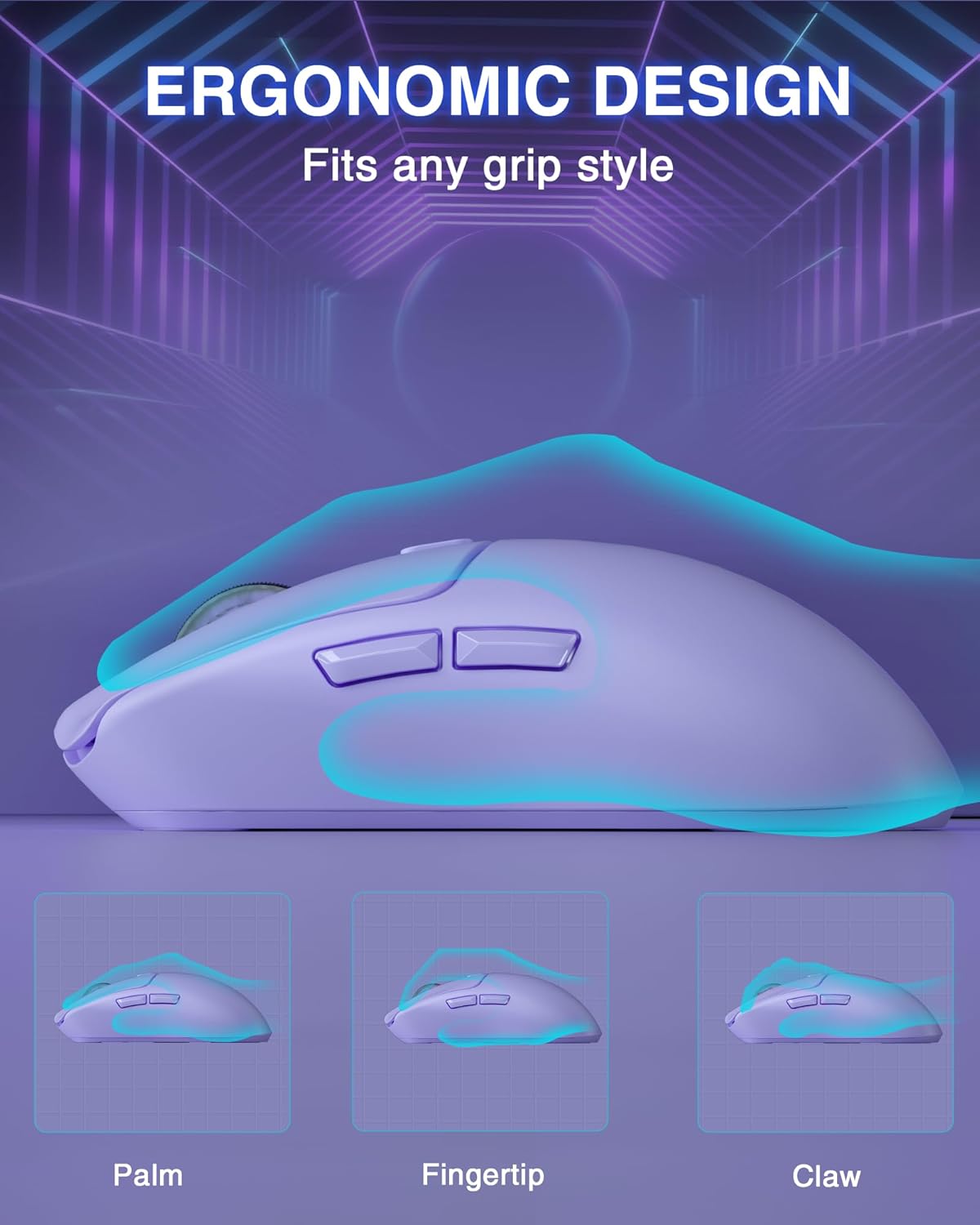
Image: An illustration demonstrating how the ergonomic design of the AULA SC580X mouse supports different hand grip styles: palm, fingertip, and claw.
Non-Slip Stickers
The mouse comes with practical non-slip stickers that can be applied to the surface to enhance grip and prevent slippage due to sweat or oil, ensuring a more secure hold during intense gaming sessions.
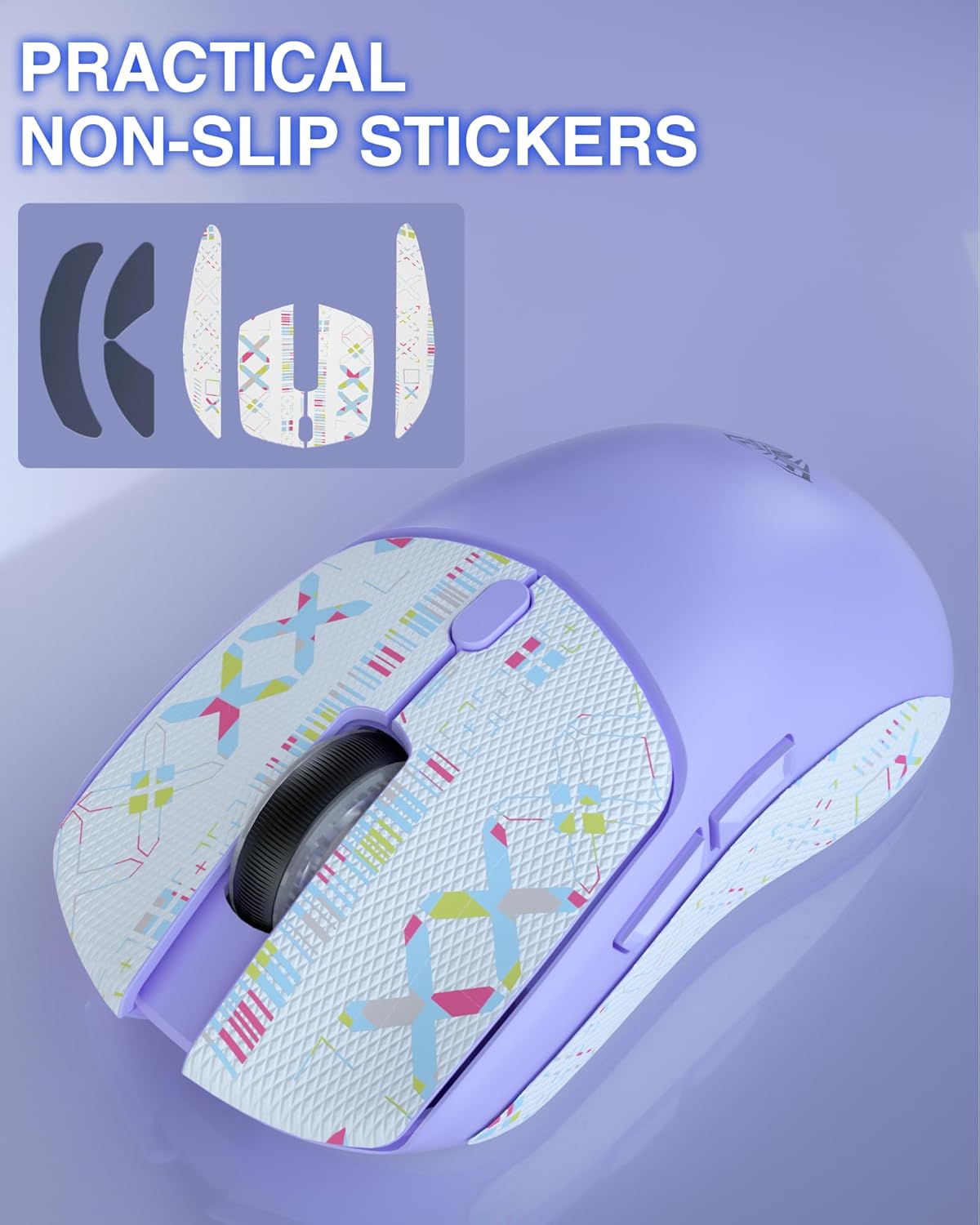
Image: The AULA SC580X mouse with its non-slip stickers applied, alongside a visual of the sticker sheet, highlighting the enhanced grip feature.
Battery Management
The AULA SC580X is equipped with a built-in 500mAh rechargeable battery, offering extended usage time.
- Battery Life: A full charge can last approximately 10-14 days with 5 hours of daily use.
- Charging: Recharge the mouse using the provided USB-C cable.
- Low Battery Indicator: The indicator light will flash red to remind you to recharge the mouse.
- Deep Sleep Mode: Users can set the appropriate deep sleep time (3-10 minutes) via the driver software to conserve battery when idle.
Maintenance
Proper maintenance ensures the longevity and optimal performance of your AULA SC580X mouse.
- Cleaning: Use a soft, dry cloth to wipe the mouse surface. For stubborn dirt, slightly dampen the cloth with water or a mild cleaning solution. Avoid harsh chemicals or abrasive materials.
- Sensor Maintenance: Keep the optical sensor on the bottom of the mouse clean and free from dust or debris to ensure accurate tracking.
- Storage: When not in use for extended periods, store the mouse in a cool, dry place. If storing for a long time, ensure the battery is partially charged (around 50%) to preserve battery health.
- Avoid Extreme Conditions: Do not expose the mouse to extreme temperatures, humidity, or direct sunlight.
Troubleshooting
If you encounter issues with your AULA SC580X mouse, refer to the following common solutions:
| Problem | Possible Solution |
|---|---|
| Mouse not responding (Wireless) |
|
| Mouse cursor erratic or jumpy |
|
| Programmable buttons not working |
|
| Battery drains quickly |
|
| Cannot connect via Bluetooth |
|
If the problem persists after trying these solutions, please contact AULA customer support for further assistance.
Specifications
| Feature | Detail |
|---|---|
| Model Number | SC580X |
| Connectivity Technology | 2.4GHz Wireless, Bluetooth 5.0, USB-C Wired |
| DPI Levels | 800/1600/2400/3200/6400/12,000 (Adjustable) |
| Polling Rate | Up to 1000Hz |
| Programmable Buttons | 6 |
| Battery Type | Built-in 500mAh Lithium Ion rechargeable battery |
| Lifespan | Up to 10 million clicks |
| Product Dimensions | 4.68 x 2.44 x 0.1 inches (11.89 x 6.20 x 0.25 cm) |
| Item Weight | 2.96 ounces (84 grams) |
| Movement Detection Technology | Optical |
| Compatibility | Windows 7/8/10/XP/Vista, Mac OS, Linux, Android |
Warranty and Support
For warranty information and technical support, please refer to the official AULA website or contact their customer service directly. Details regarding warranty periods and support channels are typically provided with your purchase documentation or on the manufacturer's website.
Please note that no official seller videos were found in the provided product data to embed in this manual.


