
Bmax B1 Plus
Bmax B1 Plus Mini PC User Manual
Model: B1 Plus
1. Introduction
The Bmax B1 Plus Mini PC is a compact and powerful computing solution designed for various applications, from office work and online learning to home theater and business presentations. Featuring an Intel Celeron N3350 processor, 6GB DDR3 RAM, and 64GB eMMC storage, it offers efficient performance in a small form factor. This manual provides detailed instructions for setting up, operating, maintaining, and troubleshooting your Bmax B1 Plus Mini PC.

Image: The Bmax B1 Plus Mini PC, showcasing its compact design and sleek black finish.
2. Package Contents
Before you begin, please verify that all items listed below are included in your package:
- 1 x Mini PC B1 Plus 6GB+64GB
- 1 x HDMI Cable
- 1 x US Power Adapter
- 1 x User Manual (this document)
- 1 x VESA Mount with Screws

Image: A visual representation of all items included in the Bmax B1 Plus Mini PC retail package.
3. Product Layout and Ports
Familiarize yourself with the various ports and components of your Bmax B1 Plus Mini PC:
- Front Panel: Power Button, 3.5mm Headset Jack, USB 2.0 ports (x2)
- Rear Panel: VGA Port, HDMI Port, Ethernet (LAN) Port, Power Input, Clear CMOS button
- Side Panel: USB 3.0 ports (x2), Micro SD Card Slot

Image: Detailed view of the Bmax B1 Plus Mini PC's various input/output ports, including USB, HDMI, VGA, and Ethernet.
4. Setup Guide
4.1 Initial Connection
- Connect Display: Connect your monitor or TV to the Mini PC using the provided HDMI cable or a VGA cable (not included). The device supports 4K (3840 x 2160) resolution.
- Connect Peripherals: Plug in your USB keyboard and mouse into the available USB ports.
- Connect Power: Connect the US Power Adapter to the Mini PC's power input port, then plug the adapter into a wall outlet.
- Power On: Press the Power Button on the front panel of the Mini PC. The power indicator light will illuminate.
4.2 VESA Mount Installation
The Bmax B1 Plus Mini PC comes with a VESA bracket, allowing you to mount it behind a compatible monitor or TV for a clean and uncluttered workspace.
- Attach the VESA bracket to the back of your monitor or TV using the provided screws. Ensure it aligns with the VESA mounting holes.
- Slide the Bmax B1 Plus Mini PC onto the mounted bracket until it securely locks into place.

Image: Visual guide demonstrating how to attach the Bmax B1 Plus Mini PC to the back of a monitor using the VESA bracket.
5. Operating Instructions
5.1 First Boot and Operating System
Upon first power-on, the Mini PC will boot into its pre-installed operating system (if applicable) or a setup wizard. Follow the on-screen prompts to complete the initial setup, including language, region, and network settings.
5.2 Dual Display Setup
The Bmax B1 Plus supports dual display output via its HDMI and VGA ports, allowing you to extend your desktop across two screens for increased productivity.
- Connect the first monitor to the HDMI port.
- Connect the second monitor to the VGA port.
- Once both monitors are connected and powered on, the operating system should automatically detect them. You can configure display settings (extend, duplicate, etc.) through your OS display settings.

Image: A setup showing the Bmax B1 Plus Mini PC connected to two monitors, illustrating its dual display capability.
5.3 Storage Expansion
The Mini PC allows for additional storage expansion. You can install an M.2_2280 SATA SSD (up to 2TB, not included) or connect external storage via USB 3.0.
- Power off the Mini PC and disconnect all cables.
- Carefully open the bottom cover of the Mini PC.
- Locate the M.2 slot and gently insert your M.2_2280 SATA SSD. Secure it with the provided screw (if applicable, or use one from the SSD kit).
- Replace the bottom cover and reconnect the cables.

Image: An exploded view demonstrating the process of installing an M.2 2280 SATA SSD into the Mini PC for storage expansion.
5.4 Wireless Connectivity
The B1 Plus supports 802.11ac Dual-Band Wi-Fi (2.4G/5G) and Bluetooth 4.2 for seamless wireless connections.
- Wi-Fi: Access your operating system's network settings to connect to available Wi-Fi networks.
- Bluetooth: Enable Bluetooth in your OS settings to pair with compatible devices like keyboards, mice, or headphones.
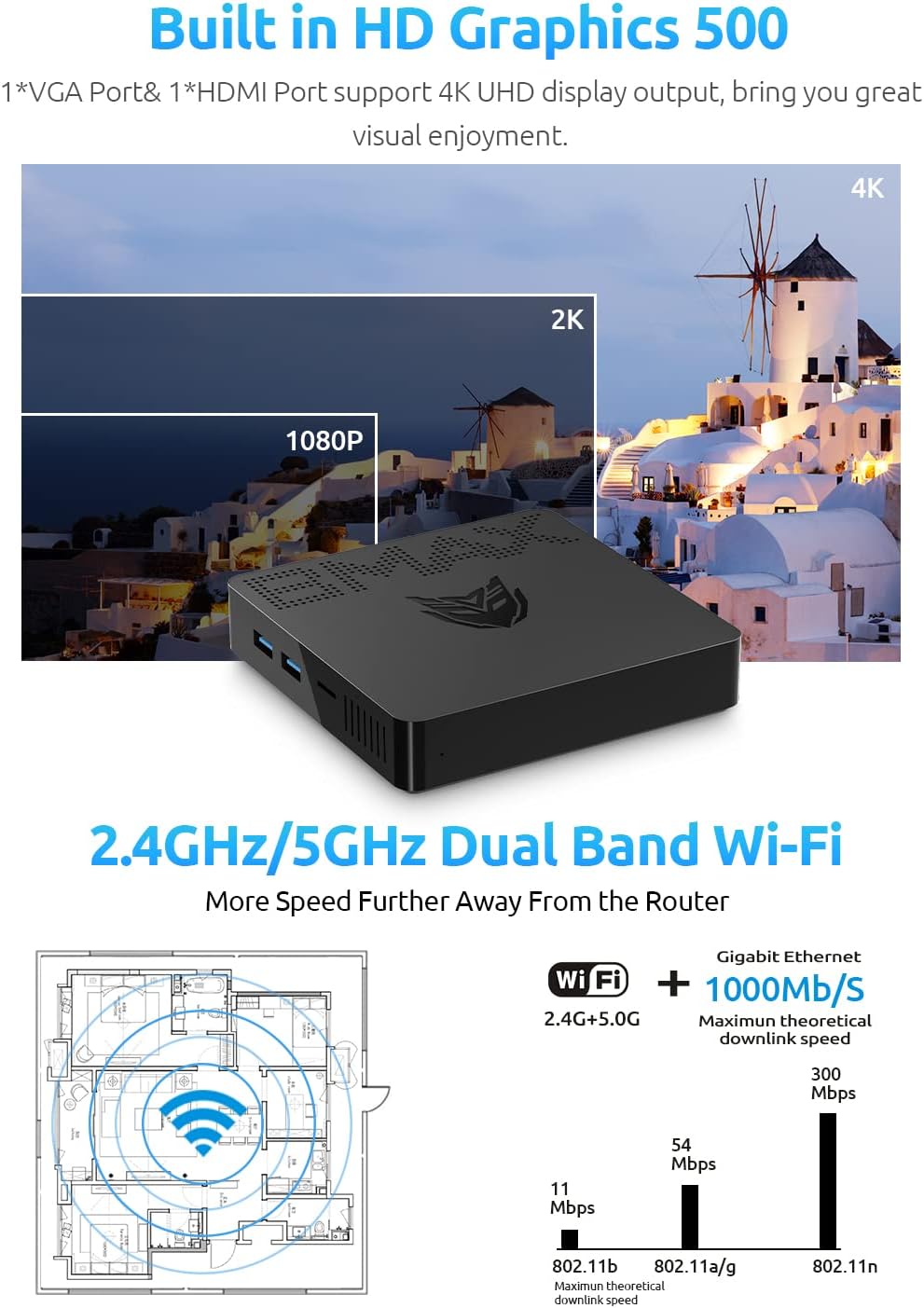
Image: Illustrates the Mini PC's support for 4K UHD display output and its 2.4GHz/5GHz Dual-Band Wi-Fi connectivity.
6. Maintenance
Proper maintenance ensures the longevity and optimal performance of your Bmax B1 Plus Mini PC.
- Cleaning: Use a soft, dry cloth to wipe the exterior of the Mini PC. For dust accumulation in vents, use compressed air. Do not use liquid cleaners directly on the device.
- Software Updates: Regularly check for and install operating system updates and driver updates to ensure system stability and security.
- Ventilation: Ensure the Mini PC is placed in a well-ventilated area. Do not block the ventilation holes to prevent overheating.
- Power Management: Always shut down the Mini PC properly through the operating system. Avoid sudden power disconnections.
7. Troubleshooting
If you encounter issues with your Bmax B1 Plus Mini PC, refer to the following common troubleshooting steps:
| Problem | Possible Cause | Solution |
|---|---|---|
| No Power | Power adapter not connected; Power outlet issue | Ensure power adapter is securely connected to both the Mini PC and a working power outlet. Try a different outlet. |
| No Display Output | Monitor not connected; Incorrect input source on monitor; Faulty cable | Check HDMI/VGA cable connections. Ensure monitor is set to the correct input source. Try a different cable or monitor. |
| Wi-Fi/Bluetooth Connectivity Issues | Drivers not installed; Interference; Router issues | Check device manager for Wi-Fi/Bluetooth drivers. Restart router. Move Mini PC closer to router or away from interference sources. |
| Slow Performance | Too many applications running; Low storage space; Overheating | Close unnecessary applications. Free up storage space. Ensure proper ventilation. |
If the problem persists after trying these solutions, please contact Bmax customer support for further assistance.
8. Specifications
| Feature | Detail |
|---|---|
| Brand | Bmax |
| Series | B1 Plus |
| Item Model Number | B1 Plus |
| Processor | Intel Celeron N3350 (Up to 2.4 GHz) |
| RAM | 6 GB DDR3 |
| Hard Drive | 64 GB eMMC SSD |
| Graphics Coprocessor | Intel HD Graphics |
| Max Screen Resolution | 3840 x 2160 pixels (4K) |
| Connectivity | 802.11ac Dual-Band Wi-Fi (2.4G/5G), Bluetooth 4.2, LAN 1000Mbps |
| Ports | HDMI, VGA, USB 3.0 (x2), USB 2.0 (x2), 3.5mm Headset Jack, Ethernet, Micro SD Card Slot |
| Operating System | OS (Generic, typically Windows or Linux compatible) |
| Item Weight | 1.43 pounds (approx. 0.65 kg) |
| Dimensions | 4.7 x 4.7 x 0.9 inches (approx. 12 x 12 x 2.3 cm) |
| Expansion | M.2_2280 SATA SSD slot (up to 2TB) |
9. Warranty and Support
Bmax provides comprehensive support for your Mini PC:
- Warranty: 12-month satisfaction warranty.
- Technical Support: Lifetime technical support is available.
- Customer Service: 7 days/24 hours serving. Please contact customer service by email for any issues.
For the most up-to-date contact information and support resources, please refer to the official Bmax website or the contact details provided with your purchase.
Related documentsB1 Plus


Ask a question about this manual
Ask about setup, troubleshooting, compatibility, parts, safety, or missing instructions. Manuals+ will review the question and use this page’s manual context to help answer it.