1. Introduction
This manual provides detailed instructions for the setup, operation, and maintenance of your Insoma Smart WiFi Sprinkler Timer, Model SGW05-W-2. This device allows for intelligent control of your irrigation system via a smartphone application, voice commands, and Bluetooth connectivity, ensuring efficient watering for your garden or lawn.
2. Product Overview and Package Contents
The Insoma Smart WiFi Sprinkler Timer system includes the main timer unit and a WiFi hub. The timer connects to your outdoor faucet, and the hub connects to your home's 2.4GHz WiFi network to enable remote control.
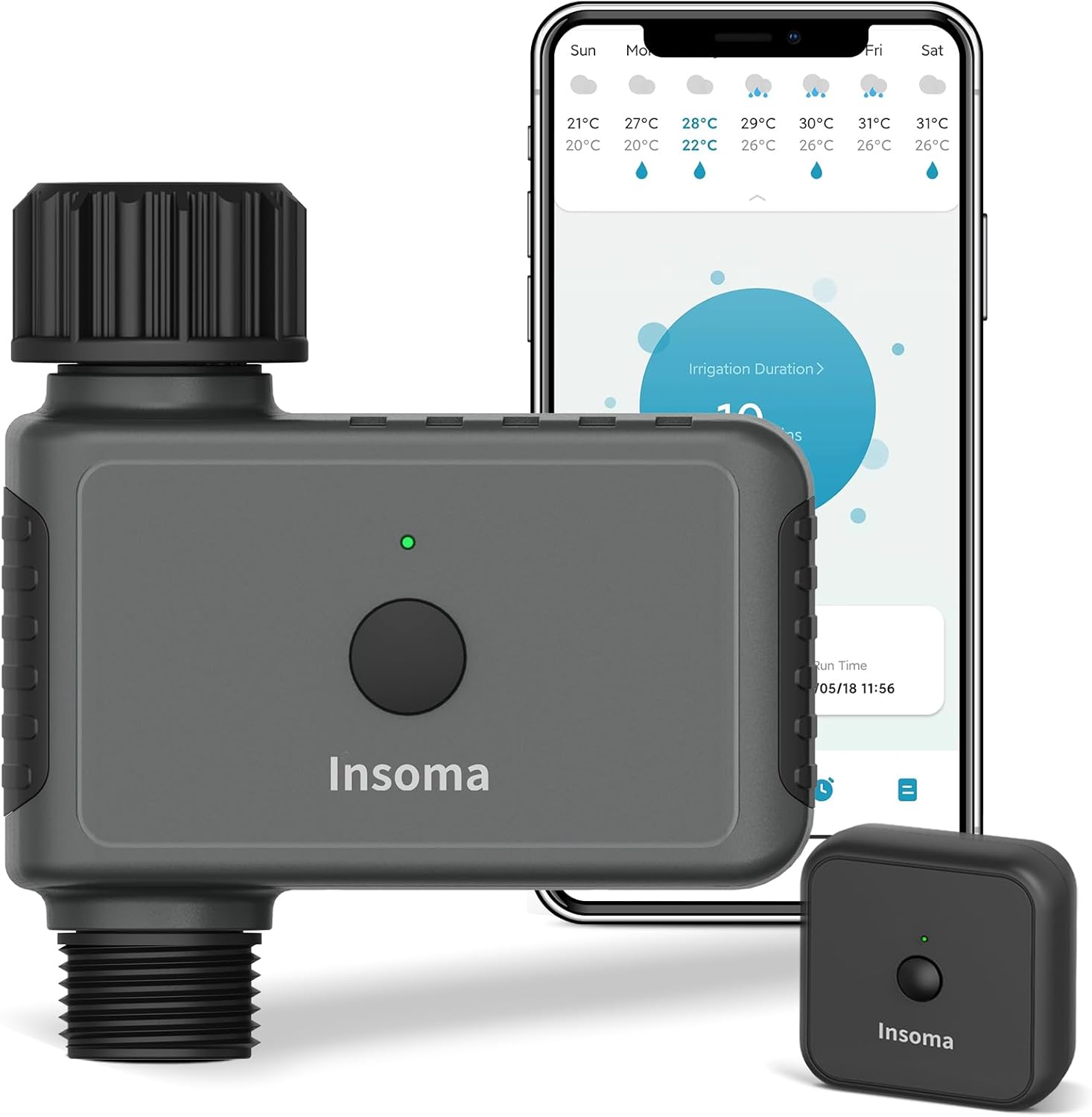
Image: The Insoma Smart WiFi Sprinkler Timer unit, its accompanying WiFi hub, and a smartphone screen showing the irrigation control application.
Package Contents:
- Insoma Smart WiFi Sprinkler Timer (Plastic Inlet)
- WiFi Hub
- User Manual (this document)
- (Batteries and thread seal tape may be included; check product packaging)
3. Key Features
- Smart Voice Control: Compatible with Amazon Alexa and Google Assistant for hands-free operation.
- APP Remote Control: Manage watering schedules from anywhere using the Smart Life APP (requires 2.4GHz WiFi).
- Bluetooth Control: Local control via Bluetooth through the Smart Life APP, even without WiFi connectivity (up to 49.2 ft range).
- Two Irrigation Modes: Timed irrigation and regular/cyclical irrigation for flexible scheduling (up to 20 schedules).
- Rain Delay: Option to pause watering for 24, 48, or 72 hours.
- Manual Watering: Initiate watering manually via the app or directly on the timer button.
- Expandable System: Connect up to 32 WiFi timers to a single WiFi hub.
- Family Sharing: Share control of the irrigation system with family members via the app.
4. Setup Guide
4.1 Physical Installation
- Install Batteries: Open the battery compartment on the timer unit and insert the required batteries (typically AA, check product packaging for specifics).
- Connect to Faucet: Screw the Insoma Smart WiFi Sprinkler Timer onto your outdoor faucet. Ensure a tight fit to prevent leaks. It is recommended to use thread seal tape if available.
- Connect Hose: Attach your garden hose or irrigation system to the outlet of the timer.
- Ensure Water Supply: Turn on your outdoor faucet completely to ensure the timer has a constant water supply. The timer controls the water flow, not the faucet itself.

Image: The Insoma Smart WiFi Sprinkler Timer securely installed on an outdoor water faucet, ready for operation.
4.2 App Download and Account Creation
- Download Smart Life App: Search for "Smart Life" in your smartphone's app store (iOS or Android) and download the application.
- Register/Log In: Open the Smart Life app and either register for a new account or log in with an existing one.
4.3 Connecting the WiFi Hub
- Power On Hub: Plug the WiFi hub into a power outlet within range of your 2.4GHz WiFi router.
- Add Hub to App: In the Smart Life app, tap the "+" icon to add a new device. Select "Gateway" or "Hub" from the device list.
- Follow In-App Instructions: The app will guide you through connecting the hub to your 2.4GHz WiFi network. Ensure your smartphone is also connected to the 2.4GHz network during this process.
- Important Note on WiFi: The Smart Sprinkler Timer and its hub only connect with 2.4GHz WiFi networks. If you have a dual-band router, ensure the 2.4GHz band is enabled and has a distinct name from the 5GHz band.

Image: The Smart Life application interface, demonstrating ease of use for setting up and managing watering schedules.
4.4 Pairing the Timer with the Hub/App
- Add Timer: Once the WiFi hub is connected, select the option to add a sub-device or accessory within the hub's settings in the Smart Life app.
- Activate Pairing Mode: Follow the app's instructions to put the timer into pairing mode (this usually involves pressing and holding a button on the timer).
- Confirm Connection: The app will confirm when the timer is successfully paired. The timer connects to the gateway via RFID technology, offering a stable signal over longer distances (up to 196 ft) compared to direct Bluetooth.

Image: Visual representation of the remote control capabilities, highlighting the connection between the timer, WiFi hub, and the Smart Life app via 2.4GHz WiFi and Bluetooth.
5. Operating Instructions
5.1 APP Remote Control
After successful setup, use the Smart Life APP to create and manage watering schedules from any location with internet access. You can set up to 20 different irrigation schedules.
- Scheduling: Define start times, duration, and frequency (specific days of the week) for watering.
- Real-time Monitoring: View current watering status and history.
5.2 Bluetooth Control Function
In situations where your WiFi hub loses power or internet connection, you can still control the timer via Bluetooth directly from your smartphone using the Smart Life APP. The maximum working range for Bluetooth is approximately 49.2 feet (15 meters) in an open area without obstacles.
5.3 Two Irrigation Modes
The timer offers two distinct irrigation modes to suit various watering needs:
- Timed Irrigation Mode: Set specific start times, durations, and days for watering.
- Regular/Cyclical Irrigation Mode: Define a cycle duration (e.g., water for 20 minutes every 3 hours) and the overall period for this cycle to run.

Image: The Smart Life app interface showing the configuration options for both Timed and Cyclical irrigation schedules.
5.4 Rain Delay
To conserve water during rainy periods, you can activate the rain delay function. This will pause all scheduled watering for a selected duration.
- Delay Options: Choose to delay watering for 24, 48, or 72 hours.
- Activation: Access the rain delay setting within the Smart Life app.

Image: The rain delay feature in action, showing the timer installed outdoors and the app displaying options to delay watering for various durations.
5.5 Manual Watering
You can initiate watering outside of your scheduled programs using two methods:
- Via Smart Life App: Use the app to start and stop watering, setting a custom duration from 1 minute to 23 hours and 59 minutes.
- Via Timer Button: Press the button on the timer unit to initiate a default manual watering cycle (typically 10 minutes, refer to product specifics for exact duration).

Image: A user performing manual watering, with the app interface demonstrating how to control manual watering duration.
5.6 Smart Voice Control
Integrate your Insoma Smart WiFi Sprinkler Timer with Amazon Alexa or Google Assistant for convenient voice commands.
- Setup: Link your Smart Life account to Alexa or Google Assistant through their respective apps.
- Commands: Use voice commands such as "Alexa, turn on the Smart Water Timer" or "Hey Google, turn off the sprinkler."

Image: A user interacting with an Alexa device to control the Insoma Smart WiFi Sprinkler Timer, which is shown irrigating a garden.
5.7 Expanding Your Irrigation System
One WiFi hub can support up to 32 Insoma WiFi timers, allowing you to create a comprehensive smart irrigation system for larger gardens or multiple watering zones.

Image: An illustration of how multiple Insoma Smart WiFi Sprinkler Timers can be connected to a single WiFi hub to create an extensive smart irrigation system for a property.
6. Maintenance
- Battery Replacement: Replace batteries promptly when the low battery indicator appears in the app or on the device. Use high-quality alkaline batteries for optimal performance.
- Cleaning: Periodically inspect the timer's inlet filter for debris and clean it if necessary to ensure unobstructed water flow.
- Winterization: In freezing climates, disconnect the timer from the faucet and store it indoors during winter to prevent damage from ice expansion.
- Leak Checks: Regularly check all connections for leaks and tighten them as needed.
7. Troubleshooting
| Problem | Possible Cause | Solution |
|---|---|---|
| Timer not connecting to WiFi. | Incorrect WiFi frequency (not 2.4GHz), weak signal, incorrect password. |
|
| Timer not watering or stopping. | Low batteries, faucet off, timer not paired, schedule error, water pressure issues. |
|
| Timer continuously waters and does not shut off. | Internal valve malfunction, debris in valve, programming error. |
|
| Voice control not working. | Smart Life account not linked to voice assistant, incorrect device name, internet connectivity issues. |
|
8. Specifications
| Feature | Detail |
|---|---|
| Model Number | SGW05-W-2 |
| Brand | Insoma |
| Material | Plastic Inlet (for this variant) |
| Product Dimensions | 2"D x 4"W x 4"H (approximate) |
| Item Weight | 10.8 ounces (approximate) |
| Number of Settings | Up to 20 irrigation schedules |
| Wireless Connectivity | 2.4GHz WiFi (for hub), Bluetooth (for direct timer control) |
| Bluetooth Range | Up to 49.2 feet (15 meters) in open area |
| WiFi Hub to Timer Range | Up to 196 feet (60 meters) via RFID technology |
| Compatibility | Amazon Alexa, Google Assistant, Smart Life APP (iOS/Android) |
| Water Resistance | IP55 (suitable for outdoor use) |
9. Warranty and Support
For warranty information and technical support, please refer to the contact details provided with your product packaging or visit the official Insoma website. Keep your purchase receipt for warranty claims.
If you encounter any issues not covered in this manual, please contact Insoma customer service for assistance.
10. Video Resources
No official product videos from the seller were available for embedding based on the provided criteria.