
1. Introduction
Thank you for choosing the Rii RK802 60% Mechanical Gaming Keyboard. This manual provides detailed instructions on how to set up, operate, maintain, and troubleshoot your new keyboard. Please read this manual thoroughly before use to ensure optimal performance and longevity of your device.
2. Package Contents
- Rii RK802 60% Mechanical Gaming Keyboard
- USB-C to USB-A Cable
- User Manual
3. Product Overview
3.1 Key Features
- Tri-Mode Connectivity: Supports wired (USB-C), 2.4GHz wireless, and Bluetooth 5.0 connections.
- 60% Compact Layout: Space-saving design without compromising essential functions.
- Red Mechanical Switches: Designed for smooth, linear keystrokes with a 50-million click lifespan.
- Full Key Anti-Ghosting: Ensures every keystroke is registered accurately, even during rapid presses.
- Dynamic RGB Backlighting: Customizable lighting effects with various modes and colors.
- Programmable Macros: Software support for custom key assignments and macro creation.
- Removable Magnetic Frame: Innovative design allows for a clean or traditional aesthetic.
- Multimedia Function Keys: 12 dedicated multimedia functions accessible via Fn key combinations.
- Wide Compatibility: Compatible with Apple and Microsoft operating systems, gaming consoles, PCs, and smart TVs.
3.2 Components
The Rii RK802 keyboard features a standard 60% layout with dedicated function keys accessible via the Fn key. Key components include:
- Keys: 62 keys with red mechanical switches.
- USB-C Port: Located on the top edge for wired connection and charging.
- Connectivity Switch: On the back or side to select wired, 2.4GHz, or Bluetooth mode.
- Adjustable Feet: Located on the bottom for ergonomic typing angles.

Figure 1: Rii RK802 Keyboard Overview

Figure 2: Red Mechanical Switches

Figure 3: Adjustable Keyboard Feet
4. Setup
4.1 Initial Setup and Charging
Before first use, it is recommended to fully charge the keyboard. Connect the provided USB-C cable to the keyboard's USB-C port and the other end to a USB-A port on your computer or a 5V power adapter. The charging indicator (if present) will show charging status and turn off when fully charged.
4.2 Connecting the Keyboard
The Rii RK802 supports three connectivity modes: Wired, 2.4GHz Wireless, and Bluetooth.

Figure 4: Tri-Mode Connectivity
4.2.1 Wired Mode
- Ensure the connectivity switch on the keyboard is set to the wired mode (usually indicated by a cable icon or 'USB').
- Connect the USB-C cable to the keyboard and the USB-A end to your computer.
- The keyboard will be automatically recognized and ready for use.
4.2.2 2.4GHz Wireless Mode
- Locate the 2.4GHz USB receiver (usually stored in a compartment on the keyboard).
- Plug the USB receiver into an available USB-A port on your computer.
- Set the connectivity switch on the keyboard to the 2.4GHz wireless mode (usually indicated by a wireless icon or '2.4G').
- The keyboard should connect automatically. If not, press Fn + 2.4G key (often Fn + R) to initiate pairing.
4.2.3 Bluetooth Mode
The keyboard supports up to three Bluetooth devices (BT1, BT2, BT3).
- Set the connectivity switch on the keyboard to Bluetooth mode (usually indicated by a Bluetooth icon or 'BT').
- Press and hold Fn + BT1 (or BT2, BT3) for 3-5 seconds until the indicator light flashes rapidly, indicating pairing mode.
- On your device (computer, tablet, smartphone), open Bluetooth settings and search for new devices.
- Select "Rii RK802" (or similar name) from the list of available devices.
- Once connected, the indicator light on the keyboard will stop flashing.
- To switch between paired Bluetooth devices, simply press Fn + BT1/BT2/BT3.
5. Operating Instructions
5.1 Key Functions and Layout
The RK802 features a 60% layout, meaning some functions are accessed via the Fn (Function) key in combination with other keys. Refer to the keycaps for secondary functions, often indicated by smaller legends.
5.2 RGB Backlight Customization
The keyboard offers various RGB lighting effects. You can cycle through modes, adjust brightness, and change colors using Fn key combinations or dedicated software.
- Change Lighting Mode: Fn + \| (Backslash/Pipe key)
- Adjust Brightness: Fn + [ (Decrease), Fn + ] (Increase)
- Change Color: Fn + Enter (for some modes)
- Turn Backlight On/Off: Fn + Caps Lock (or similar, check keycap legend)
For advanced customization, including per-key lighting and custom effects, download the official Rii software from the manufacturer's website.
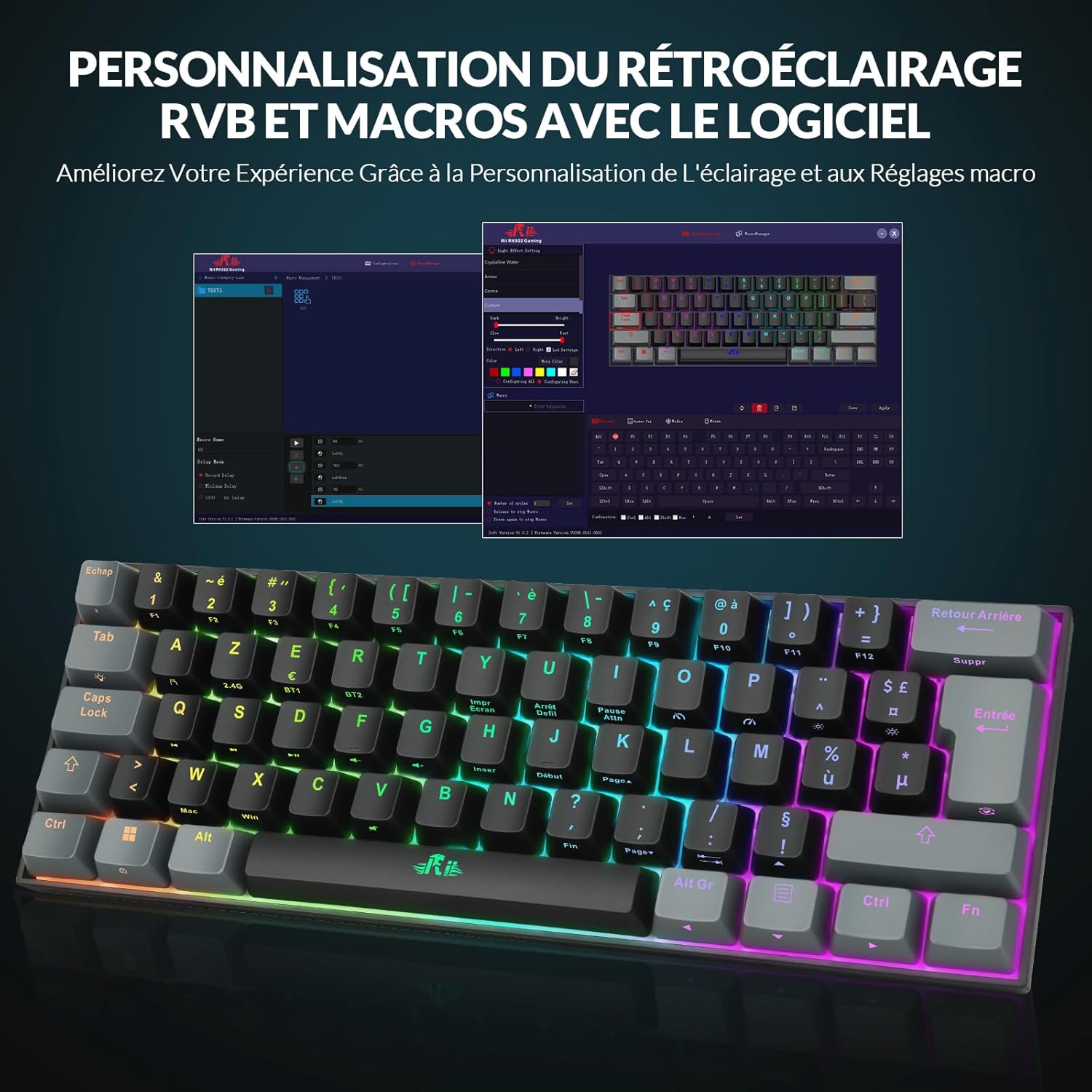
Figure 5: RGB and Macro Customization Software
5.3 Macro Programming
The Rii RK802 supports macro programming to automate complex key sequences. This feature is primarily managed through the dedicated software. Please refer to the software's built-in help or the manufacturer's website for detailed instructions on creating and assigning macros.
5.4 Multimedia Control
Access multimedia functions by pressing the Fn key in combination with the corresponding F-row keys (or other designated keys, check keycap legends). Common functions include:
- Volume Control: Fn + F1 (Mute), Fn + F2 (Volume Down), Fn + F3 (Volume Up)
- Media Playback: Fn + F5 (Previous Track), Fn + F6 (Play/Pause), Fn + F7 (Next Track)
- Web Browser: Fn + F9 (Open Browser)
- Email: Fn + F10 (Open Email Client)
- My Computer: Fn + F11 (Open My Computer/This PC)
- Calculator: Fn + F12 (Open Calculator)
6. Maintenance
6.1 Cleaning
- Disconnect the keyboard from all power sources before cleaning.
- Use a soft, lint-free cloth slightly dampened with water or a mild cleaning solution to wipe the surface.
- For dust and debris between keycaps, use compressed air.
- Avoid using harsh chemicals, abrasives, or solvents.
6.2 Storage
When not in use for extended periods, store the keyboard in a cool, dry place away from direct sunlight and extreme temperatures.
7. Troubleshooting
If you encounter issues with your Rii RK802 keyboard, please refer to the following common solutions:
| Problem | Possible Cause / Solution |
|---|---|
| Keyboard not responding in wired mode. | Ensure the USB-C cable is securely connected to both the keyboard and the computer. Try a different USB port or cable. Ensure the keyboard switch is set to wired mode. |
| 2.4GHz wireless connection unstable or not connecting. | Ensure the USB receiver is properly plugged in. Move the keyboard closer to the receiver. Avoid interference from other wireless devices. Re-pair by pressing Fn + 2.4G key. |
| Bluetooth connection issues. | Ensure Bluetooth is enabled on your device. Make sure the keyboard is in pairing mode (Fn + BT1/BT2/BT3 held until light flashes). Remove the keyboard from your device's Bluetooth list and re-pair. Ensure the keyboard is charged. |
| Backlight not working or stuck. | Press Fn + Caps Lock (or relevant key) to toggle backlight. Try cycling through modes (Fn + \|). Ensure the keyboard is charged. |
| Keys not responding or ghosting. | Ensure the keyboard is clean and free of debris. Try restarting your computer. If specific keys are faulty, contact support. |
| Macros not working. | Ensure the macro software is installed and running. Verify that macros are correctly assigned and enabled. |
If the problem persists after trying these solutions, please contact Rii customer support for further assistance.
8. Specifications
| Feature | Detail |
|---|---|
| Model Number | RK802 |
| Brand | Rii |
| Connectivity | Bluetooth 5.0, 2.4GHz Wireless, USB-C Wired |
| Keyboard Layout | 60% |
| Number of Keys | 62 |
| Switch Type | Red Mechanical Switches |
| Backlight | RGB |
| Battery Composition | Lithium (1 included) |
| Compatible Devices | Gaming Console, Laptop, PC, Smart TV |
| Color | Black |
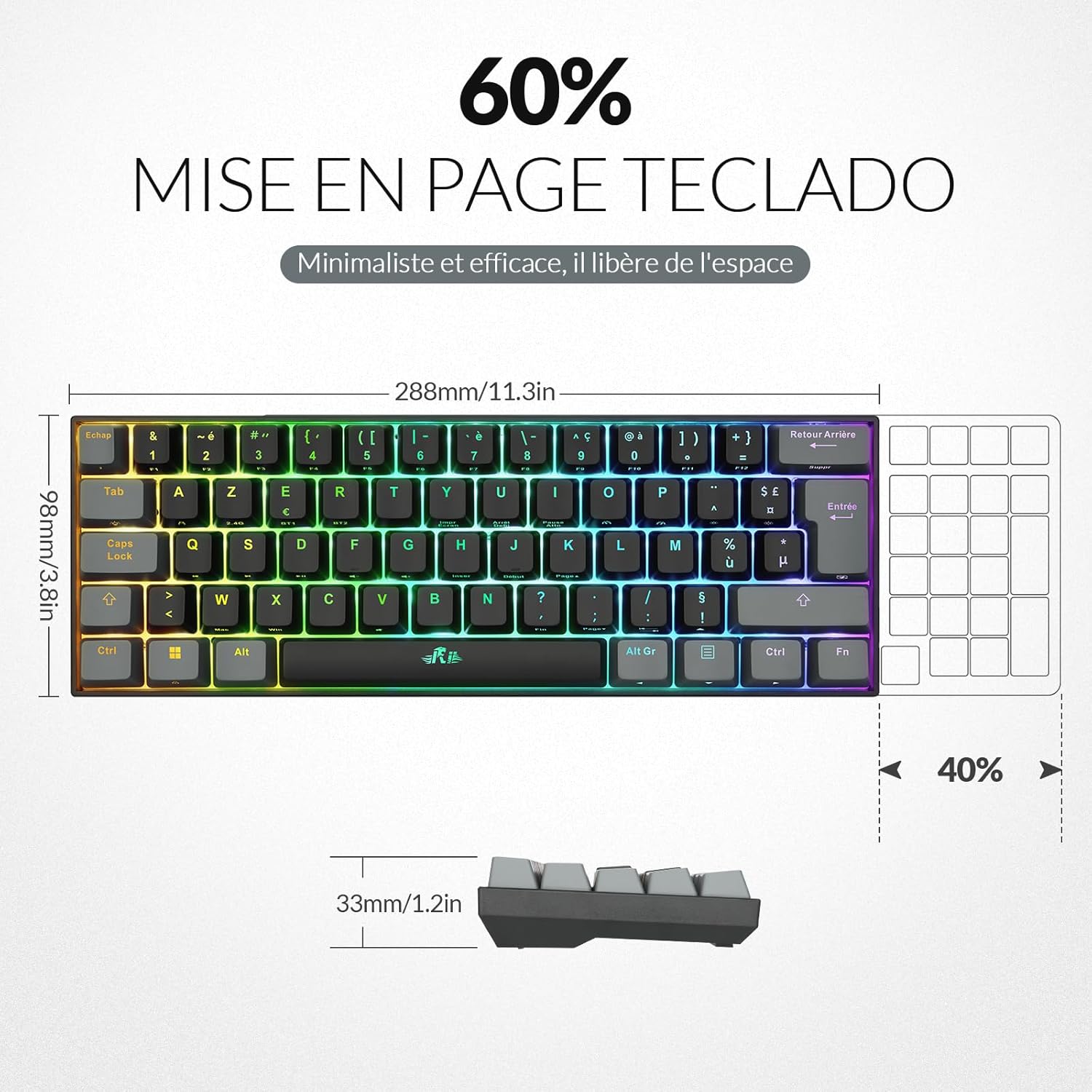
Figure 6: Keyboard Dimensions
9. Warranty and Support
9.1 Warranty Information
The Rii RK802 keyboard comes with a 12-month warranty from the date of purchase. This warranty covers manufacturing defects and malfunctions under normal use. It does not cover damage caused by misuse, accidents, unauthorized modifications, or natural disasters.
9.2 Customer Support
For any questions, technical support, or warranty claims, please contact Rii customer service. Refer to the product packaging or the official Rii website for the most up-to-date contact information.


