1. Introduction
Thank you for choosing the MKETech Electronics MKE 411 Wireless Ambidextrous Computer Mouse. This manual provides detailed instructions for setting up, operating, maintaining, and troubleshooting your new device. Please read this manual thoroughly before use to ensure optimal performance and longevity of your mouse.

Image: MKE 411 Wireless Ambidextrous Computer Mouse, top view, showcasing its sleek design.
2. Setup Guide
Follow these steps to set up your MKE 411 Wireless Mouse:
- Install Battery: Open the battery compartment cover located on the underside of the mouse. Insert one AA battery (not included) ensuring correct polarity (+/-). Close the battery compartment cover.
- Locate USB Receiver: The compact USB receiver is stored inside the battery compartment for convenient travel and storage. Gently remove it.
- Connect USB Receiver: Plug the USB receiver into an available USB port on your computer.
- Power On: Locate the On/Off switch on the underside of the mouse and slide it to the 'On' position.
- Automatic Connection: The mouse will automatically connect to your computer. No additional drivers are typically required for most operating systems (Plug and Play).

Image: Illustration demonstrating the storage location of the USB receiver within the mouse's battery compartment.

Image: The MKE 411 mouse positioned beside a laptop, illustrating its wireless operation.
3. Operating Instructions
The MKE 411 mouse is designed for intuitive use. Here are its primary functions:
- Left Click: Primary button for selecting items, opening files, and executing commands.
- Right Click: Secondary button for accessing context menus and additional options.
- Scroll Wheel: Used for vertical scrolling through documents and web pages. It also functions as a middle click button.
- DPI Adjustment: The MKE 411 features adjustable DPI (Dots Per Inch) settings to control cursor sensitivity. Press the DPI button (located below the scroll wheel) to cycle through 800, 1200, and 1600 DPI settings.
- Ambidextrous Design: The symmetrical design of the MKE 411 mouse ensures comfortable use for both left-handed and right-handed users.
- Power Saving Mode: To conserve battery life, the mouse will enter a sleep mode after a period of inactivity. To wake it up, simply move the mouse or click any button.
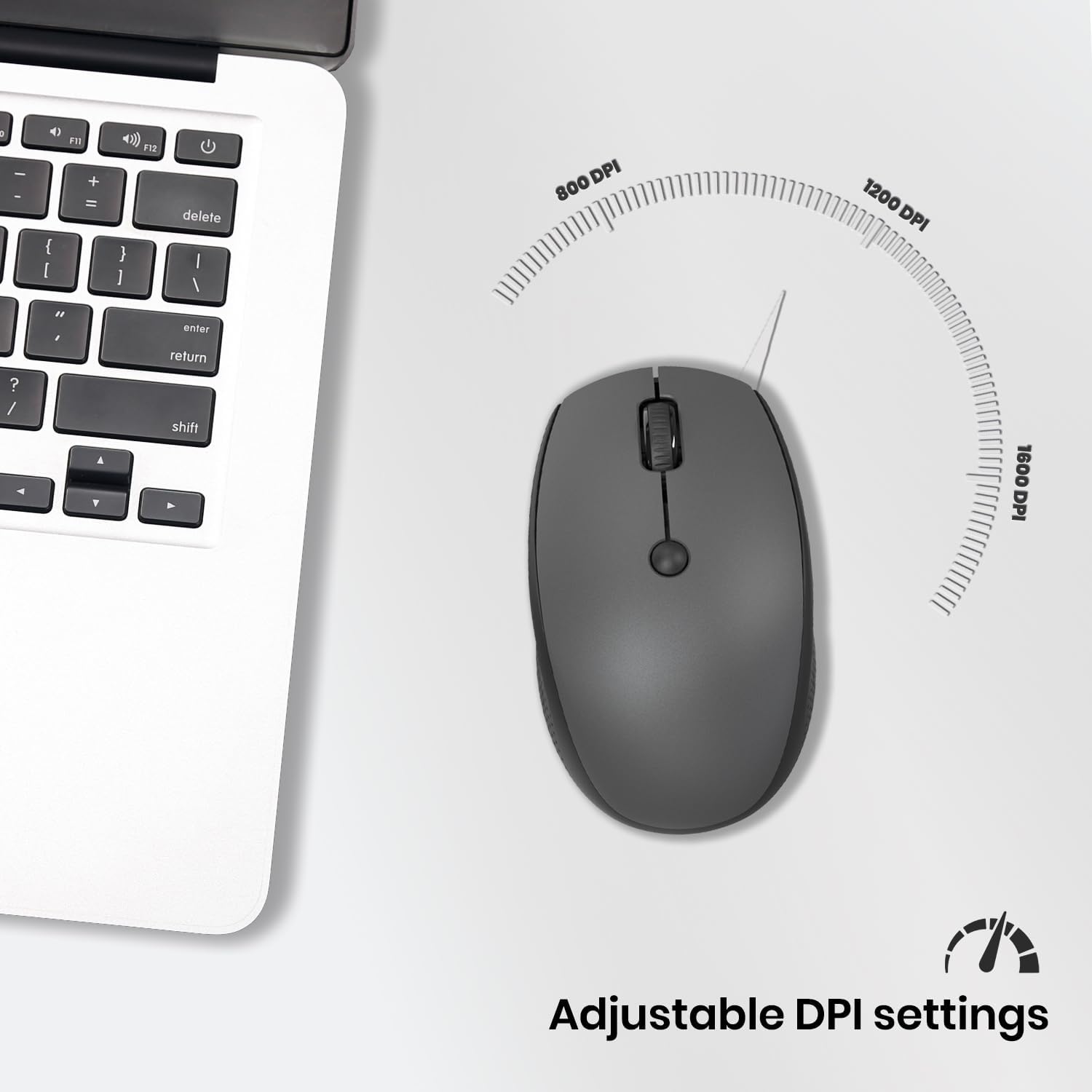
Image: Visual representation of the MKE 411 mouse's adjustable DPI settings, indicating 800, 1200, and 1600 DPI options.

Image: A graphic illustrating key features of the MKE 411 mouse, including its symmetrical design for ambidextrous use, adjustable DPI, wireless connectivity, and plug-and-play functionality.
4. Maintenance
Proper maintenance ensures the longevity and performance of your mouse:
- Cleaning: Use a soft, dry cloth to clean the surface of the mouse. For stubborn dirt, a slightly damp cloth can be used, but ensure no moisture enters the device. Avoid harsh chemicals or abrasive cleaners.
- Battery Replacement: When the mouse performance degrades or it stops responding, it's likely time to replace the AA battery. Follow the battery installation steps in the Setup Guide.
- Storage: When not in use for extended periods, turn off the mouse to conserve battery life. Store the USB receiver inside the mouse's battery compartment to prevent loss.
5. Troubleshooting
If you encounter issues with your MKE 411 mouse, refer to the following common problems and solutions:
| Problem | Possible Cause | Solution |
|---|---|---|
| Mouse not responding | Low battery; USB receiver disconnected; Mouse is off. | Replace battery; Re-insert USB receiver; Turn mouse On. |
| Erratic cursor movement | Dirty optical sensor; Unsuitable surface; Interference. | Clean sensor with a soft cloth; Use a mouse pad or smooth surface; Move mouse closer to receiver. |
| No connection after re-inserting receiver | USB port issue; Driver conflict. | Try a different USB port; Restart your computer. |
6. Specifications
| Feature | Detail |
|---|---|
| Model Number | MKE411 |
| Connectivity Technology | 2.4G Wireless (USB Receiver) |
| DPI Settings | 800 / 1200 / 1600 (Adjustable) |
| Power Source | 1 x AA Battery (not included) |
| Product Dimensions | 1.54 x 4.12 x 2.49 inches |
| Item Weight | 3.52 ounces (approx. 0.12 lb) |
| Movement Detection Technology | Optical |
| Color | Black |
| Country of Origin | China |
7. Warranty Information
MKETech Electronics products are manufactured to high quality standards. For specific warranty terms and conditions, please refer to the warranty card included with your product or visit the official MKETech Electronics website. Keep your purchase receipt as proof of purchase for warranty claims.
8. Customer Support
If you require further assistance or have questions not covered in this manual, please contact MKETech Electronics customer support through the following channels:
- Website: Visit the official MKETech Electronics website for FAQs, support resources, and contact forms.
- Email: Refer to your product packaging or the official website for customer service email addresses.
Please have your product model number (MKE411) and purchase details ready when contacting support.


