
Introduction
Thank you for choosing the Trueque Wireless Keyboard and Mouse Combo. This manual provides detailed instructions for setting up, operating, maintaining, and troubleshooting your new wireless peripheral set. Please read this manual carefully before use to ensure optimal performance and longevity of your product.
Package Contents
Verify that all items are present in your package:
- 1 x Wireless Keyboard
- 1 x Wireless Mouse
- 1 x USB Receiver (stored inside the mouse)
- 1 x User Manual

Product Overview
The Trueque Wireless Keyboard and Mouse Combo is designed for comfort and efficiency, featuring an ergonomic design, a built-in phone holder, and quiet operation.
Keyboard Features:
- Ergonomic Design: Full-sized keyboard with a generous palm rest and adjustable tilt legs to reduce wrist strain.
- Integrated Phone/Tablet Holder: A built-in cradle allows you to prop up your smartphone or tablet for easy viewing.
- Quiet Typing: Soft membrane keys provide a smooth and quiet typing experience.
- Multimedia Hotkeys: Includes 6 dedicated hotkeys for quick access to common functions like web browsing and calculator.

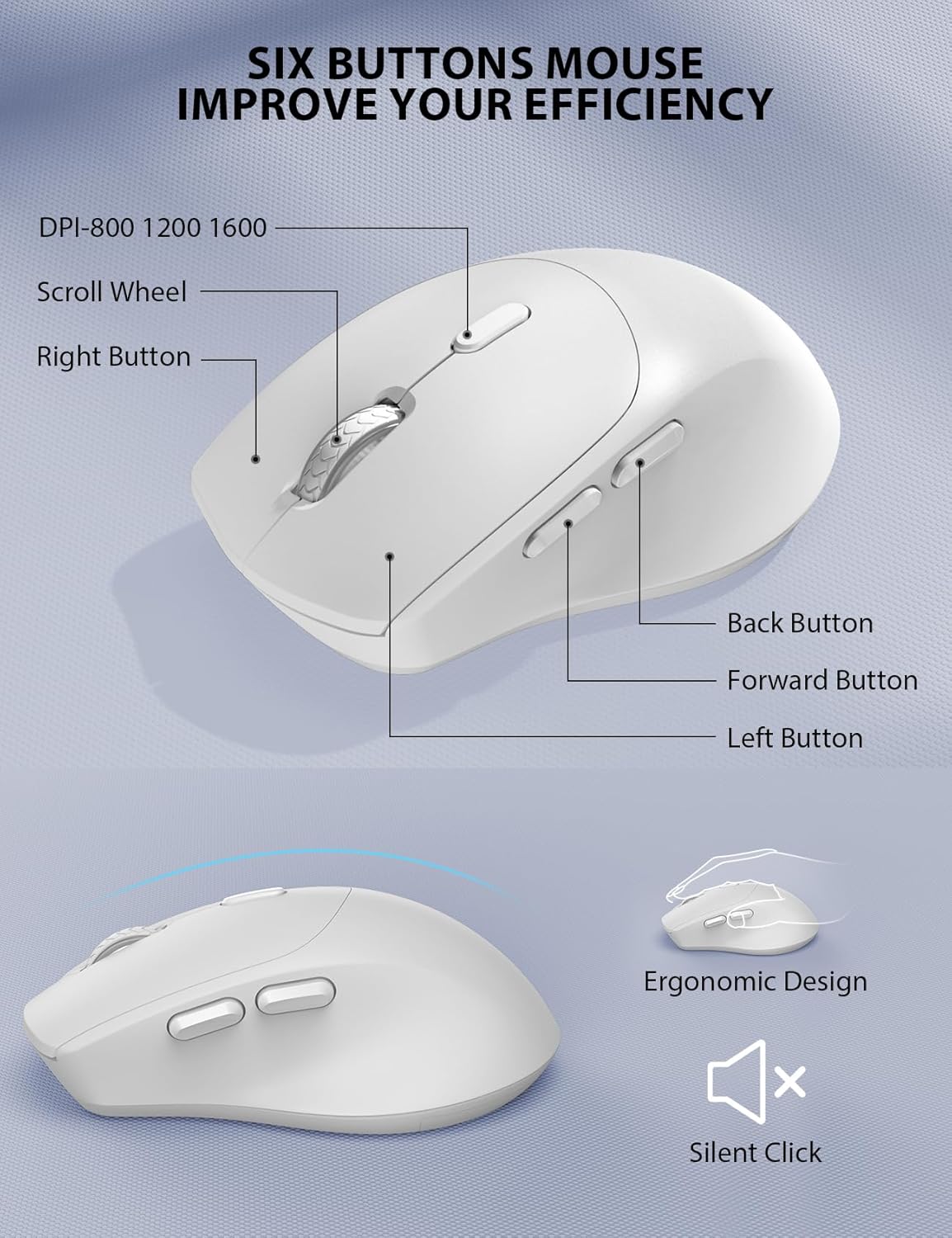
Mouse Features:
- Ergonomic Shape: Contoured grips and a comfortable handshake angle for prolonged use.
- Adjustable DPI: Three DPI settings (800/1200/1600) for customizable cursor sensitivity.
- 6-Button Design: Includes left, right, scroll wheel, DPI button, and forward/backward buttons for enhanced navigation.
- Silent Clicks: Designed to produce 95% less noise than standard mice.
Wireless Connectivity:
- 2.4GHz Wireless Technology: Provides a stable and reliable connection up to 33 feet (10 meters).
- Single USB Receiver: One compact USB receiver connects both the keyboard and mouse to your device.

Setup and Installation
Follow these steps to set up your Trueque Wireless Keyboard and Mouse Combo:
- Install Batteries:
- Keyboard: Open the battery compartment on the underside of the keyboard and insert two (2) AAA batteries (not included), ensuring correct polarity.
- Mouse: Open the battery compartment on the underside of the mouse and insert one (1) AA battery (not included), ensuring correct polarity. The USB receiver is typically stored in this compartment.

Image: The back of the keyboard and mouse, illustrating the battery compartments for 2xAAA (keyboard) and 1xAA (mouse), and the storage slot for the USB receiver. - Connect USB Receiver:
- Remove the USB receiver from the mouse's battery compartment.
- Plug the USB receiver into an available USB port on your computer or laptop.
- Power On:
- Mouse: Turn on the power switch located on the underside of the mouse.
- Keyboard: The keyboard will activate automatically when you press any key.
Video: This video demonstrates how to install batteries and pair the mouse, which is helpful for initial setup and troubleshooting connection issues.
Operation
Keyboard Usage:
- Typing: The full-sized layout with a numeric keypad provides a familiar typing experience.
- Hotkeys: Utilize the dedicated hotkeys (e.g., for web browser, calculator) located above the function keys for quick access to applications.
- Indicator Lights: Observe the Num Lock, Caps Lock, and Power indicator lights to monitor keyboard status. The power light will blink when batteries are low.
Mouse Usage:
- DPI Adjustment: Press the DPI button (usually located behind the scroll wheel) to cycle through 800, 1200, and 1600 DPI settings to adjust cursor speed.
- Navigation Buttons: Use the forward and backward buttons on the side of the mouse for quick web page navigation.
Smart Power Management
The keyboard and mouse are equipped with a smart sleep mode to conserve battery life:
- Keyboard Sleep: The keyboard will enter sleep mode after 15 minutes of inactivity.
- Mouse Sleep: The mouse will enter sleep mode after 10 minutes of inactivity.
- Wake-up: To wake up either device, simply press any button or key.
With smart power management, you can expect extended battery life, reducing the frequency of battery changes.
Compatibility
This wireless keyboard and mouse combo is widely compatible with various operating systems and devices:
- Operating Systems: Windows, Chrome OS, Mac OS.
- Compatible Devices: PCs, Laptops, Desktops, Tablets (with appropriate USB-A port or adapter).

Troubleshooting
If you encounter issues with your wireless keyboard and mouse, please refer to the following common solutions:
- No Connection / Lag:
- Ensure batteries are correctly installed and have sufficient charge. Replace if necessary.
- Verify the USB receiver is securely plugged into a working USB port. Try a different USB port.
- Move the keyboard and mouse closer to the USB receiver to rule out range issues.
- Re-pair the devices: For the mouse, press the scroll wheel and right button simultaneously for 5-8 seconds. For the keyboard, ensure it's powered on and try pressing a key.
- Keys Not Responding / Mouse Not Moving:
- Check battery levels and replace if low.
- Ensure the mouse power switch is in the 'ON' position.
- Clean any debris around the mouse's optical sensor or under the keyboard keys.
- Interference:
- Other 2.4GHz wireless devices (e.g., Wi-Fi routers, cordless phones) may cause interference. Try to minimize their proximity.
Video: This video provides tips for troubleshooting common issues if your keyboard and mouse are not working properly, including battery installation and pairing.
Specifications
| Feature | Detail |
|---|---|
| Brand | Trueque |
| Model | B0D4PJYJB8 |
| Color | White |
| Connectivity Technology | 2.4GHz Wireless |
| Special Features | Ergonomic, Wrist Rest, Phone Holder |
| Compatible Devices | PC, Laptop, Desktop, Tablet |
| Movement Detection | Optical |
| Keyboard Battery | 2 x AAA batteries (Not Included) |
| Mouse Battery | 1 x AA battery (Not Included) |
| Power Source | Battery Powered |
| Keyboard Layout | QWERTY |
| Number of Keys | 104 |
| Keyboard Description | Membrane |
| Mouse DPI Settings | 800/1200/1600 |
| Compatible Operating Systems | Windows, Chrome OS, Mac OS |

Warranty and Support
Your Trueque Wireless Keyboard and Mouse Combo comes with a one-year replacement warranty from the date of purchase. If you experience any issues with your product, please contact our customer service team for assistance.
Customer Service Email: truequeservice@outlook.com
Our professional customer service team is available to help resolve your problems promptly.

