Introduction
This manual provides instructions for the MKETech Electronics Cool Viper MKE 816 Wired Gaming Mouse. Please read this manual carefully before using the product to ensure proper operation and to maximize your gaming experience.

Image: The MKETech Cool Viper MKE 816 Wired Gaming Mouse, showcasing its ergonomic design and vibrant RGB lighting.
Setup
Follow these steps to set up your MKETech Cool Viper MKE 816 Wired Gaming Mouse:
- Connect the Mouse: Plug the USB Type-A connector of the 71-inch braided cable into an available USB port on your computer, laptop, Chromebook, or PS5.
- Driver Installation (Optional but Recommended): For full customization of buttons and RGB lighting, download the official driver from the MKE-TECH official website. The mouse will function with default settings without the driver.
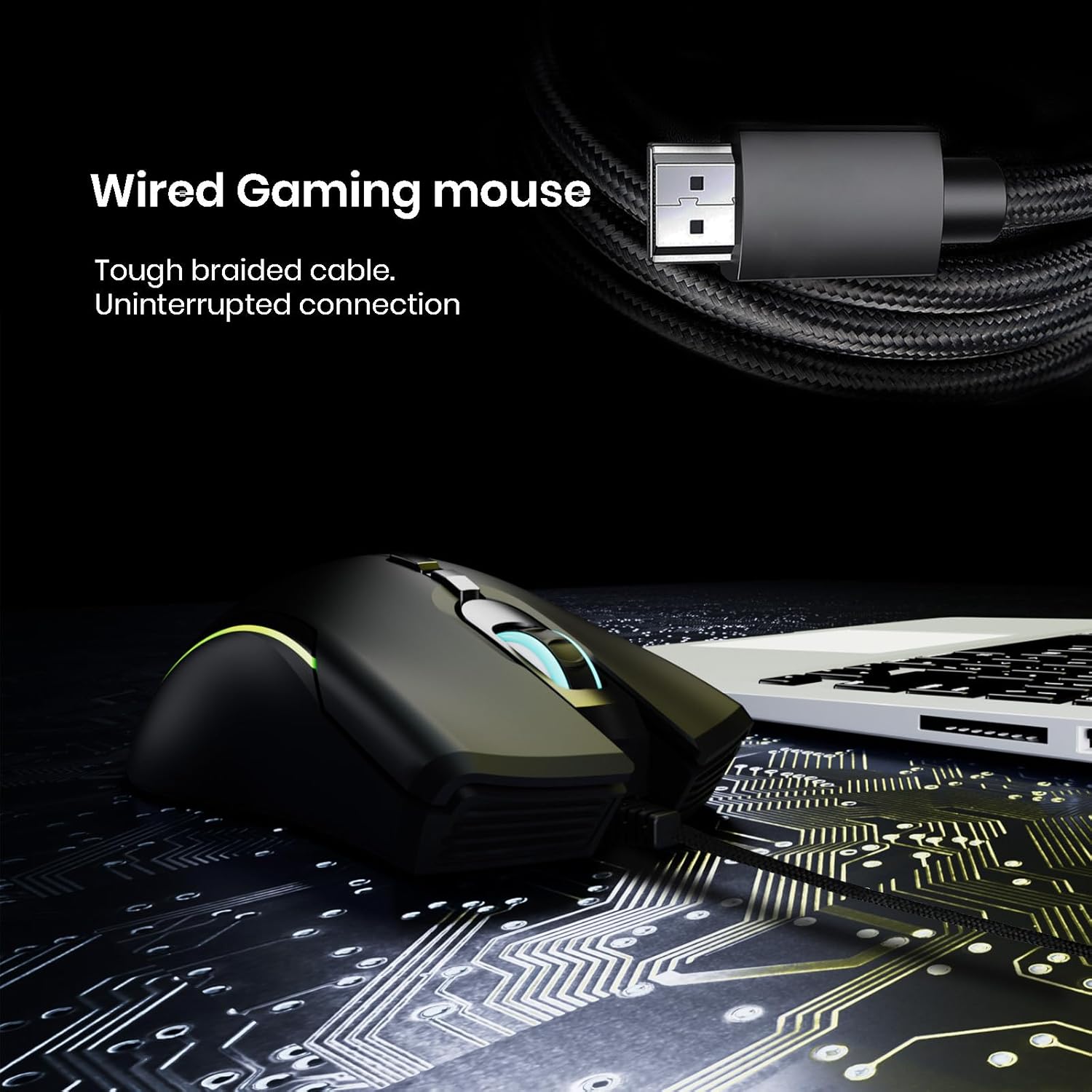
Image: The wired gaming mouse connected to a laptop via its durable braided USB cable, illustrating the simple plug-and-play setup.
Operation
Button Functions
The Cool Viper MKE 816 mouse features 6 programmable buttons for enhanced control:
- Left-Click & Right-Click: Standard mouse functions.
- Scroll Wheel: For smooth vertical scrolling.
- DPI Button: Cycles through 4 preset DPI settings: 1200, 2400, 4000, and 7200 DPI. This allows for quick sensitivity adjustments.
- Forward & Backward Buttons: Located on the side, these buttons can be customized for various functions, such as navigating web pages or executing in-game commands.
- Programmable Buttons: All buttons (except left-click) can be assigned custom commands or macros using the official MKE-TECH driver.

Image: A diagram highlighting the 6 customizable buttons of the mouse, including left/right click, scroll wheel, DPI button, and side buttons, along with its dimensions (125.4mm x 77.7mm).
DPI Settings
The mouse offers four adjustable DPI levels to suit different tasks and gaming styles. Press the dedicated DPI button to cycle through these settings:
| DPI Level | Description |
|---|---|
| 1200 DPI | Suitable for precise tasks and general desktop use. |
| 2400 DPI | A balanced setting for everyday use and some gaming. |
| 4000 DPI | Ideal for faster movements in gaming. |
| 7200 DPI | Maximum sensitivity for rapid movements in fast-paced games. |
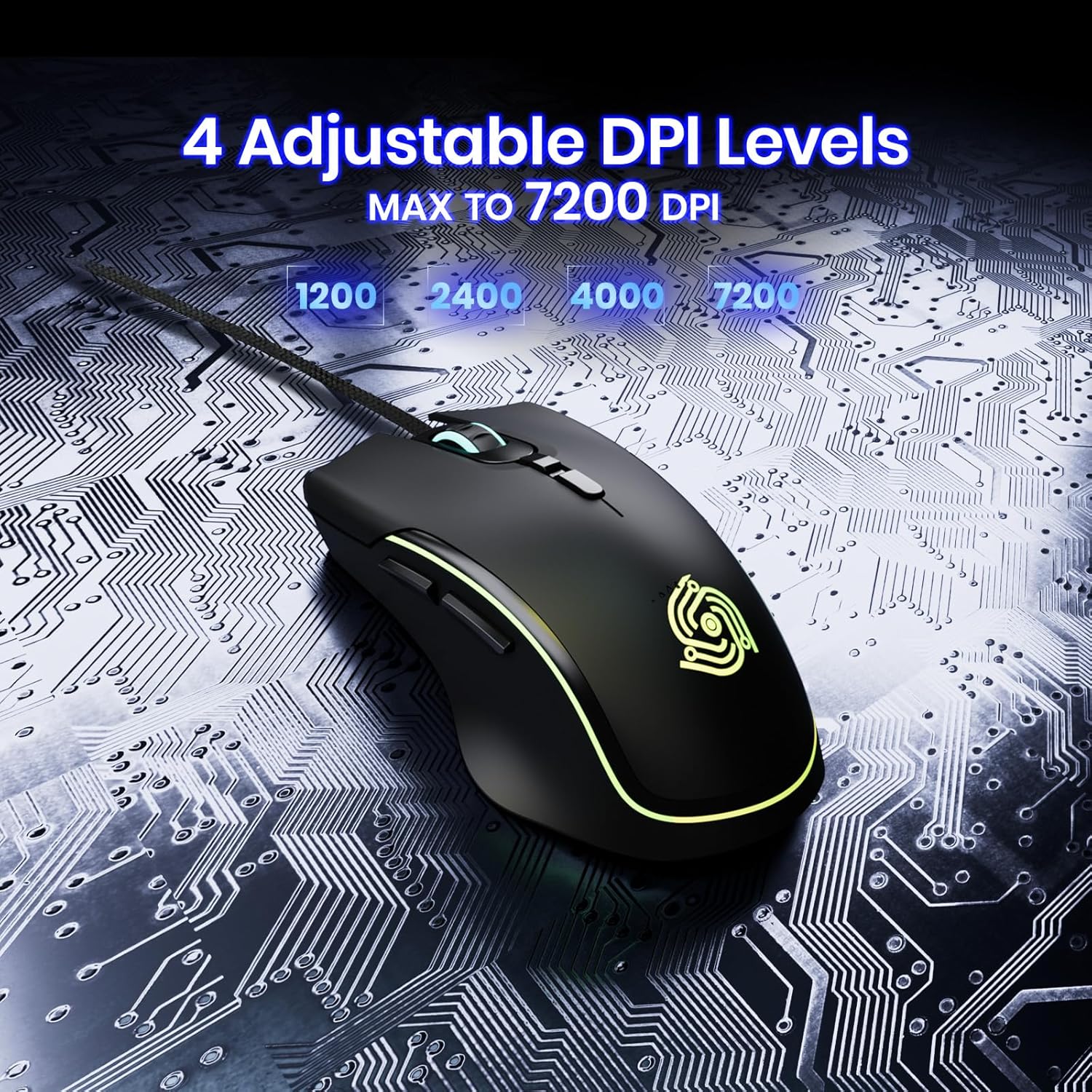
Image: The gaming mouse with an overlay showing the four adjustable DPI settings (1200, 2400, 4000, 7200), indicating its customizable sensitivity.
RGB Lighting
The mouse features a long RGB light bar that provides a flowing rainbow effect. You can customize the LED colors and effects through the official MKE-TECH driver. Being wired, the RGB lighting does not drain battery, ensuring consistent illumination.

Image: The gaming mouse displaying its vibrant RGB lighting, with a superimposed image of the customization software interface.
Ergonomics
The Cool Viper MKE 816 is designed for a claw grip, offering comfort and control during fast movements and extended gaming sessions. Its ergonomic shape helps reduce fatigue, and the 115-gram weight assists in precise target tracking.

Image: A visual guide demonstrating the recommended claw grip for right-handed users on the gaming mouse, emphasizing comfort and control.
Product Video
Video: An official product video from MKETech Electronics showcasing the Wired Gaming Mouse with 6 Programmable Buttons, demonstrating its features and functionality.
Maintenance
To ensure the longevity and optimal performance of your gaming mouse, follow these simple maintenance guidelines:
- Cleaning: Use a soft, dry cloth to wipe down the mouse regularly. For stubborn dirt, slightly dampen the cloth with water or a mild cleaning solution. Avoid harsh chemicals.
- Cable Care: The braided cable is designed for durability. Avoid sharp bends or excessive pulling to prevent damage.
- Storage: When not in use, store the mouse in a clean, dry environment away from extreme temperatures.
Troubleshooting
If you encounter any issues with your MKETech Cool Viper MKE 816 Gaming Mouse, refer to the following common solutions:
- Mouse Not Responding:
- Ensure the USB cable is securely plugged into a working USB port.
- Try plugging the mouse into a different USB port or another computer to rule out port or system issues.
- RGB Lights Remain On After PC Shutdown:
- Some computer systems may continue to supply power to USB ports even when shut down. If the persistent lighting is undesirable, unplug the mouse from the USB port when the PC is off.
- Customization Software Issues:
- If you are experiencing issues with the customization software or cannot find it, please visit the official MKE-TECH website for the latest drivers and support.
- Inconsistent Tracking or Movement:
- Ensure the optical sensor on the bottom of the mouse is clean and free of debris.
- Use the mouse on a clean, uniform surface or a quality mouse pad.
- Adjust the DPI settings using the DPI button to find a suitable sensitivity.
Specifications
| Model Number | MKE 816 |
| Brand | MKETech Electronics |
| Connectivity Technology | USB (Wired) |
| Movement Detection | Optical |
| DPI Settings | 1200, 2400, 4000, 7200 DPI |
| Programmable Buttons | 6 (excluding left-click) |
| Cable Length | 71 inches (1.8 meters) Braided USB Type-A |
| Product Dimensions (L x W x H) | 125.4 mm x 77.7 mm x ~40 mm (approx. 4.94 x 3.06 x 1.57 inches) |
| Item Weight | 115 grams (approx. 4.06 ounces) |
| Special Features | RGB LED Lights, Ergonomic Claw Grip Design |
Warranty & Support
For detailed warranty information, please refer to the documentation included with your product or visit the official MKETech Electronics website. For technical support, driver downloads, or further assistance, please contact MKETech Electronics directly through their official support channels.
MKETech Electronics Official Website: Visit Store Page