Introduction
This manual provides instructions for the setup, operation, and maintenance of your MKETech Electronics MKE 824 Tri-Mode Wireless Mouse. Please read this manual thoroughly before use to ensure proper functionality and longevity of your device.
Package Contents
- MKETech Electronics MKE 824 Tri-Mode Wireless Mouse
- Magnetic Charging Dock
- USB-C to USB-A Cable
- User Manual (this document)
Video: Unboxing the MKETech MKE 824 mouse, showing the mouse, magnetic charging dock, and USB-C cable.
Product Overview
The MKETech MKE 824 mouse features a lightweight honeycomb shell design, RGB lighting, and versatile tri-mode connectivity to adapt to various computing environments.
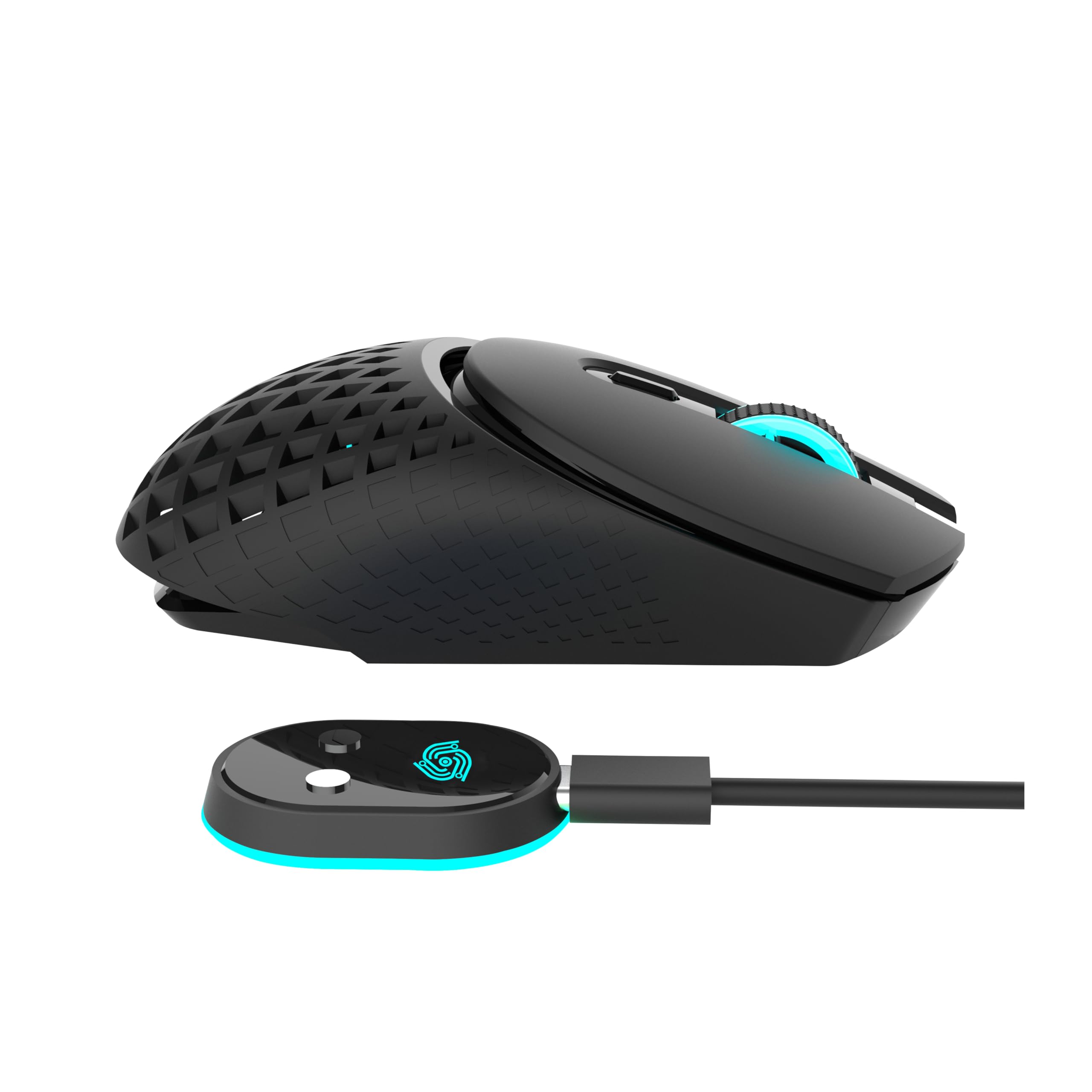
Image: The MKETech MKE 824 wireless mouse shown alongside its magnetic charging dock.
Key Features
- Tri-Mode Connectivity: Seamlessly switch between Bluetooth, 2.4G wireless, and wired USB-C connections.
- Magnetic Charging Dock: Convenient charging solution that also functions as the 2.4G wireless receiver.
- Lightweight Honeycomb Shell: Ergonomic design for extended comfort during use.
- Adjustable DPI: 5 levels (800-4000 DPI) for precise cursor control.
- RGB Lighting: Integrated customizable lighting effects.
- Energy-Saving Smart Sleep: Automatic sleep mode to conserve battery life.
Setup and Connection
1. Charging the Mouse
The mouse can be charged using the magnetic charging dock or directly via the USB-C cable.
Using the Magnetic Charging Dock:
- Connect the USB-C cable to the magnetic charging dock and then to a USB-A port on your computer or a power adapter.
- Place the mouse onto the magnetic charging dock. The mouse will snap into place and begin charging.
Direct USB-C Charging:
- Connect the USB-C cable directly to the mouse and then to a USB-A port on your computer or a power adapter.

Image: The MKETech MKE 824 mouse positioned on its magnetic charging dock, indicating charging status.
2. Connecting the Mouse
The MKE 824 mouse supports three connection modes: 2.4G Wireless, Bluetooth, and Wired.

Image: An illustration detailing the mouse's buttons (Left, Right, Scroll Wheel, DPI Button, Forward, Backward) and providing instructions for 2.4G and Bluetooth connection modes.
2.1. 2.4G Wireless Mode
- Locate the switch on the bottom of the mouse. Slide the switch to the "2.4G" position.
- The magnetic charging dock also functions as the 2.4G wireless receiver. Connect the USB-C cable to the charging dock and then to a USB-A port on your computer.
- The mouse should connect automatically. If not, ensure the dock is properly connected and the mouse is in 2.4G mode.
Video: Demonstration of switching the mouse to 2.4G mode and connecting the magnetic charging dock as the wireless receiver to a computer.
2.2. Bluetooth Mode
- Slide the switch on the bottom of the mouse to the "BT" position.
- Open your device's Bluetooth settings.
- Search for available Bluetooth devices. If the mouse does not appear, press and hold the DPI button for 5 seconds until the blue light flashes quickly, indicating pairing mode.
- Select "MKE 824 Mouse" (or similar) from the list of devices to pair.
2.3. Wired Mode
- Connect the USB-C cable directly from the mouse to a USB-A port on your computer.
- The mouse will function as a wired mouse and charge simultaneously.
Operation
DPI Adjustment
The mouse features 5 adjustable DPI levels (800, 1600, 2400, 3200, 4000) to suit your preference for cursor speed and precision.
To change the DPI, press the DPI button located behind the scroll wheel. Each press cycles through the available DPI settings.

Image: A visual representation of the mouse's adjustable DPI settings, ranging from 800 to 4000.
RGB Lighting
The mouse is equipped with soft RGB breathing lighting. The lighting effects cycle automatically. Specific customization options may be available through software (if applicable, check the manufacturer's website for details).

Image: The MKETech MKE 824 mouse displaying its RGB lighting feature.
Side Buttons
The side buttons are typically configured for "Forward" and "Backward" navigation in web browsers and file explorers, enhancing browsing and multitasking efficiency.
Energy-Saving Smart Sleep
To conserve power, the mouse will automatically enter a sleep mode after one minute of inactivity. To wake the mouse, simply press any button.
Maintenance
- Keep the mouse clean by wiping it with a soft, dry cloth.
- Avoid exposing the mouse to extreme temperatures, humidity, or direct sunlight.
- Do not disassemble the mouse, as this may void the warranty.
Troubleshooting
Mouse Not Responding
- Ensure the mouse is charged. Connect it to the charging dock or directly via USB-C cable.
- Check the connection mode switch on the bottom of the mouse (2.4G, BT, or OFF). Ensure it is set to the desired mode.
- For 2.4G mode, verify the magnetic charging dock (receiver) is securely plugged into a USB port on your computer.
- For Bluetooth mode, ensure Bluetooth is enabled on your device and the mouse is paired correctly. Try re-pairing if necessary (hold DPI button for 5 seconds).
- If using wired mode, ensure the USB-C cable is securely connected to both the mouse and the computer.
- Try connecting the mouse to a different USB port or a different device to rule out port or device issues.
Intermittent Connection (Bluetooth Mode)
- Ensure there are no significant obstructions between the mouse and your device.
- Reduce interference from other wireless devices operating on the same frequency.
- Update your device's Bluetooth drivers.
Mouse Cursor Movement is Erratic
- Clean the optical sensor on the bottom of the mouse.
- Ensure you are using the mouse on a suitable surface. Avoid highly reflective or transparent surfaces.
- Adjust the DPI setting to a lower value if the cursor is too sensitive.
Specifications
| Feature | Detail |
|---|---|
| Model Number | MKE 824 |
| Connectivity | Bluetooth, 2.4G Wireless, USB Wired |
| DPI Levels | 800, 1600, 2400, 3200, 4000 |
| Movement Detection | Optical |
| Product Dimensions | 4.7 x 2.6 x 0.1 inches |
| Item Weight | 2.72 ounces |
| Battery | 1 Nonstandard Battery (included) |
| Color | Black |
Warranty and Support
For warranty information and technical support, please refer to the official MKETech Electronics website or contact customer service through the provided channels.


