1. Introduction
The MKETech Electronics MKE 983 is a foldable, lightweight, and ultra-slim wireless Bluetooth keyboard designed for portability and multi-device compatibility. It features a rechargeable battery and automatic sleep mode for extended use. This manual provides instructions for setting up, operating, maintaining, and troubleshooting your keyboard.

Image 1.1: The MKETech MKE 983 keyboard highlighting its multi-connectivity feature, compatible with PCs, tablets, and smartphones via Bluetooth.
2. What's in the Box
Please check the package contents to ensure all items are present:
- 1 x MKETech Electronics Foldable Wireless Bluetooth Keyboard (MKE 983)
- 1 x USB-C Charging Cable
- 1 x User Manual
3. Setup
3.1. Charging the Keyboard
Before initial use, fully charge the keyboard. A full charge typically takes approximately 2 hours and provides all-day use.
- Locate the USB-C charging port on the side of the keyboard.
- Connect the provided USB-C cable to the keyboard's charging port.
- Connect the other end of the USB-C cable to a USB power source (e.g., computer USB port, USB wall adapter).
- The charging indicator light will illuminate during charging and turn off when fully charged.
3.2. Powering On/Off
The keyboard automatically powers on when unfolded and powers off when folded, thanks to its magnetic closure mechanism.
- To Power On: Unfold the keyboard completely. The indicator light will briefly flash.
- To Power Off: Fold the keyboard. The magnetic closure will secure it, and the keyboard will enter sleep mode.

Image 3.1: The magnetic closure keeps the keyboard securely shut when folded, also triggering the power off/on function.
3.3. Bluetooth Pairing
Follow these steps to pair your keyboard with a device:
- Unfold the keyboard to power it on.
- Press the Connect button located on the top left of the keyboard. The Bluetooth indicator light will start blinking, indicating it's in pairing mode.
- On your device (smartphone, tablet, laptop), go to the Bluetooth settings.
- Search for available Bluetooth devices. You should see "MKETech Keyboard" or a similar name.
- Select the keyboard from the list to initiate pairing.
- If prompted, enter the pairing code displayed on your device using the keyboard and press Enter.
- Once successfully paired, the Bluetooth indicator light on the keyboard will stop blinking and remain solid for a few seconds before turning off.
3.4. Switching Operating Systems
The keyboard supports multiple operating systems. Use the function keys to switch between modes for optimal compatibility:
- Press Fn + Q for iOS (iPhone/iPad)
- Press Fn + W for Android
- Press Fn + E for Windows
4. Operating Instructions
4.1. Basic Typing
Once paired, the keyboard functions like a standard QWERTY keyboard. Begin typing directly into any text input field on your connected device.
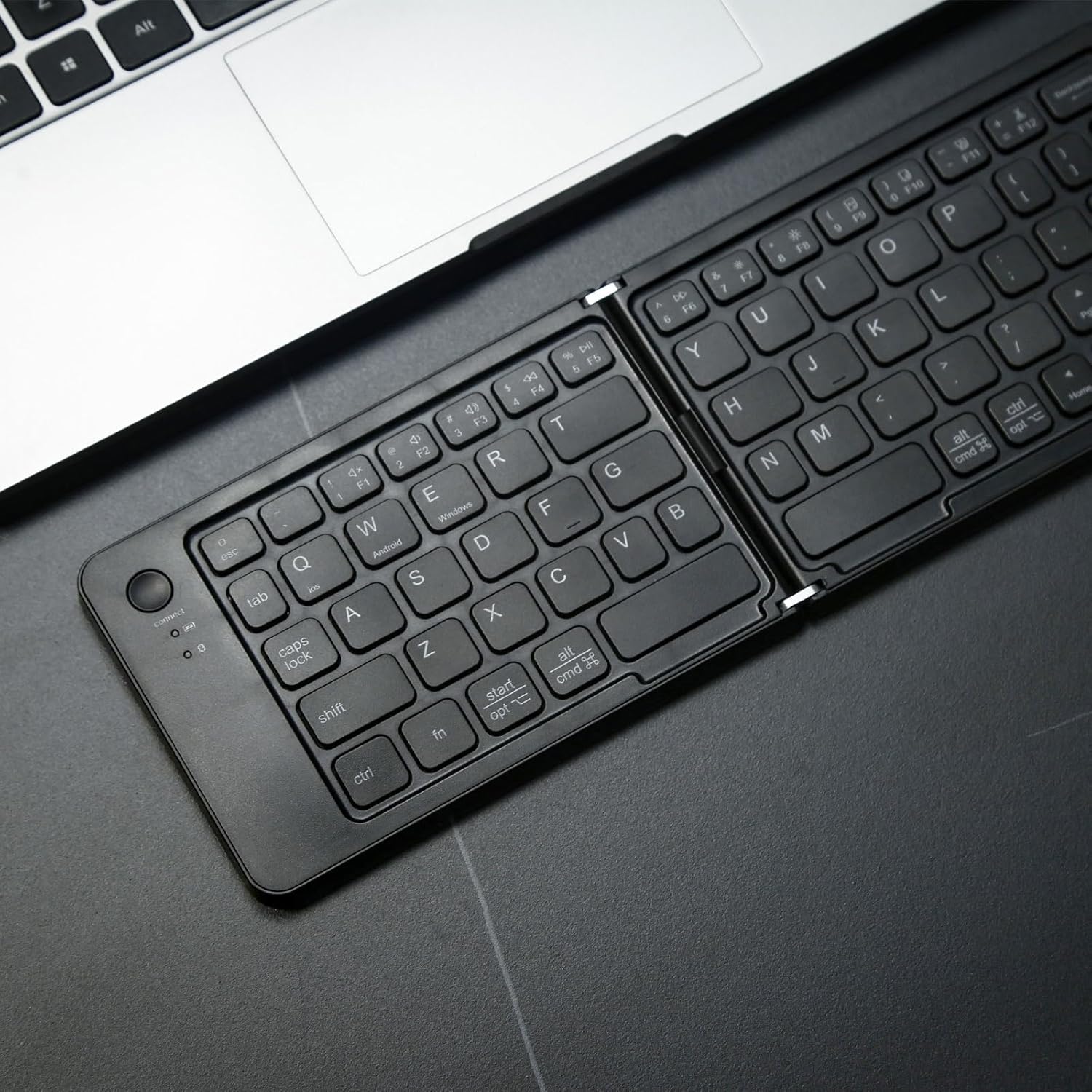
Image 4.1: The keyboard in its unfolded state, ready for typing.

Image 4.2: User demonstrating typing on the portable keyboard.
4.2. Function Keys
The keyboard includes dedicated function keys (F1-F12) and multimedia controls. To use these functions, press the Fn key simultaneously with the desired function key.
- Fn + F1-F12: Access various system functions (e.g., brightness, volume, media playback). Specific functions may vary depending on the connected device's operating system.
- Fn + Q/W/E: Switch operating system modes (iOS, Android, Windows) as described in Section 3.4.
4.3. Automatic Sleep Mode
To conserve battery life, the keyboard automatically enters sleep mode after 10 minutes of inactivity. To wake it up, simply press any key.
5. Maintenance
5.1. Cleaning
To clean your keyboard:
- Ensure the keyboard is powered off.
- Use a soft, lint-free cloth slightly dampened with water or a mild cleaning solution.
- Avoid excessive moisture and do not spray cleaners directly onto the keyboard.
- Do not use harsh chemicals, abrasives, or solvents.
5.2. Battery Care
To prolong the life of the built-in rechargeable lithium battery:
- Avoid fully discharging the battery frequently.
- Charge the keyboard regularly, even if not in constant use.
- Store the keyboard in a cool, dry place when not in use for extended periods.
6. Troubleshooting
If you encounter issues with your keyboard, refer to the following common solutions:
- Keyboard not connecting via Bluetooth:
- Ensure the keyboard is charged and powered on (unfolded).
- Press the Connect button to enter pairing mode.
- Make sure Bluetooth is enabled on your device.
- Forget the keyboard from your device's Bluetooth settings and attempt to re-pair.
- Try pairing with another device to rule out device-specific issues.
- Keys not responding or typing incorrectly:
- Check the battery level and charge if necessary.
- Ensure the correct operating system mode is selected (Fn + Q/W/E).
- Reconnect the Bluetooth connection.
- Clean any debris from around the keys.
- Keyboard frequently disconnects:
- Ensure the keyboard is within the effective Bluetooth range of your device (typically up to 10 meters).
- Minimize interference from other wireless devices.
- Charge the keyboard fully.
- Keyboard does not power on:
- Ensure the keyboard is fully unfolded.
- Charge the keyboard for at least 30 minutes.
7. Specifications
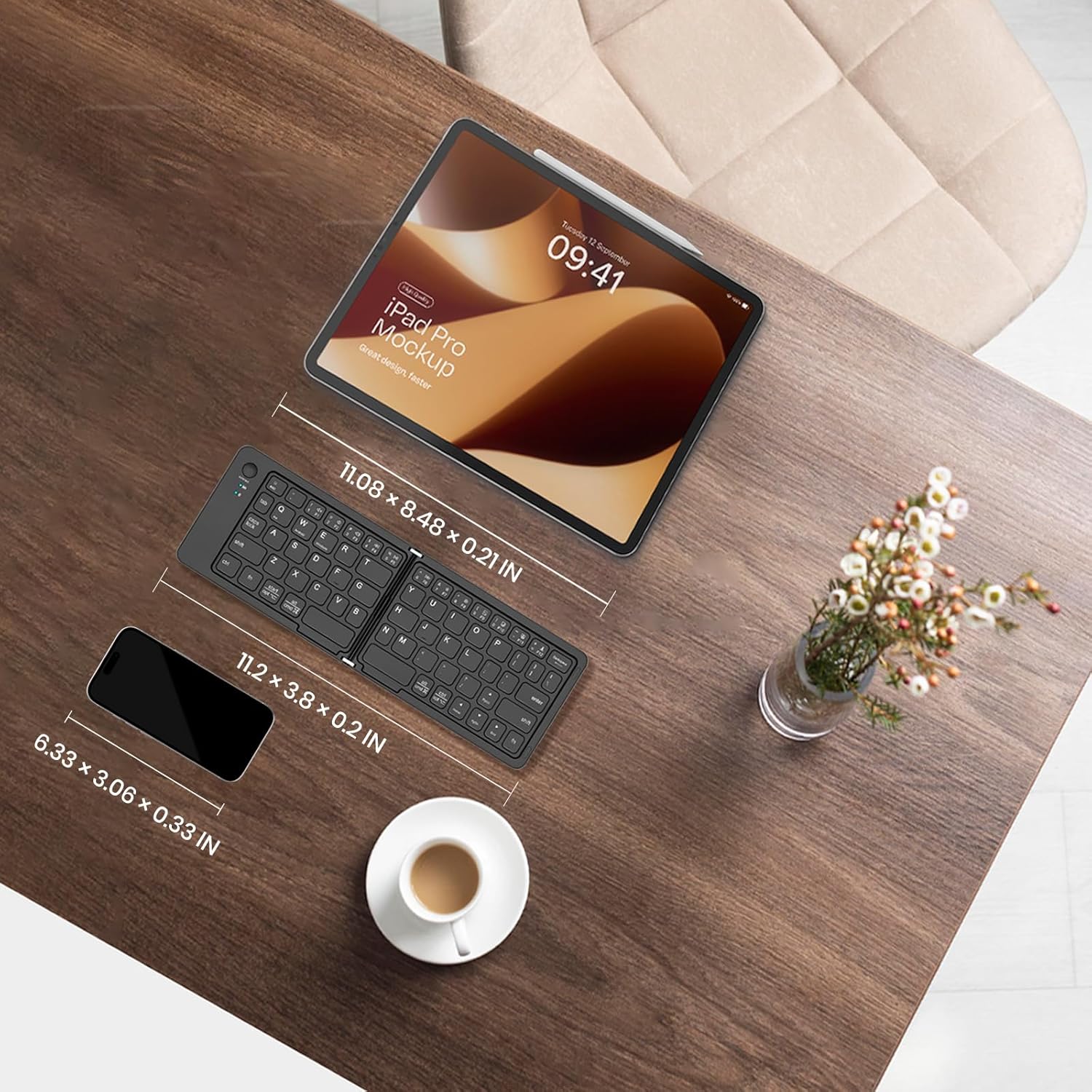
Image 7.1: Dimensions of the MKETech MKE 983 keyboard in both folded and unfolded states, alongside a smartphone and tablet for scale.
| Feature | Detail |
|---|---|
| Model Number | MKE 983 |
| Connectivity Technology | Bluetooth |
| Compatible Devices | iPhone, iPad, Samsung, Pixel, Laptops, Steam Deck |
| Keyboard Description | Ergonomic, Foldable |
| Special Features | Lightweight, Ultra slim, Rechargeable Battery, Automatic Sleep Mode, Magnetic Closure |
| Product Dimensions (Unfolded) | 11.2"L x 3.8"W x 0.2"H (approx.) |
| Product Dimensions (Folded) | 5.5"L x 0.55"W x 3.74"H (approx.) |
| Item Weight | 5.1 ounces (0.37 lb) |
| Material | Plastic |
| Battery Type | 1 Nonstandard Battery (included) |
| Charging Time | Approx. 2 hours for full charge |
| Sleep Mode | Automatic after 10 minutes of inactivity |
8. Warranty and Support
For warranty information or technical support, please refer to the contact details provided with your purchase or visit the official MKETech Electronics website. Keep your purchase receipt for warranty claims.


