1. Introduction
The KKnoon HHXE25381-2 is a versatile 4-in-1 environmental air quality detector designed for household and various indoor environments. This device integrates the detection of decibel levels, carbon dioxide (CO2) concentration, temperature, and humidity into a single, wall-mountable unit. It features a large LED display with adjustable brightness and a user-friendly interface, including color-coded indicators for air quality.
Key functionalities include automatic data measurement, CO2 auto-calibration for accuracy, and an over-limit alarm system with customizable thresholds and alarm sound control. For enhanced convenience, an optional Tuya APP function allows for remote monitoring of environmental data via a mobile device.
2. Package Contents
- 1 x KKnoon HHXE25381-2 Air Quality Monitor
- 1 x USB Charging Cable
- 1 x User Manual (this document)
3. Product Overview
The device features a clear LED display that simultaneously shows decibel levels, CO2 concentration, temperature, and humidity. Indicators such as signal strength, battery status, and Wi-Fi connectivity are also present. The back of the device includes mounting holes for wall installation and ventilation grilles for sensor operation.
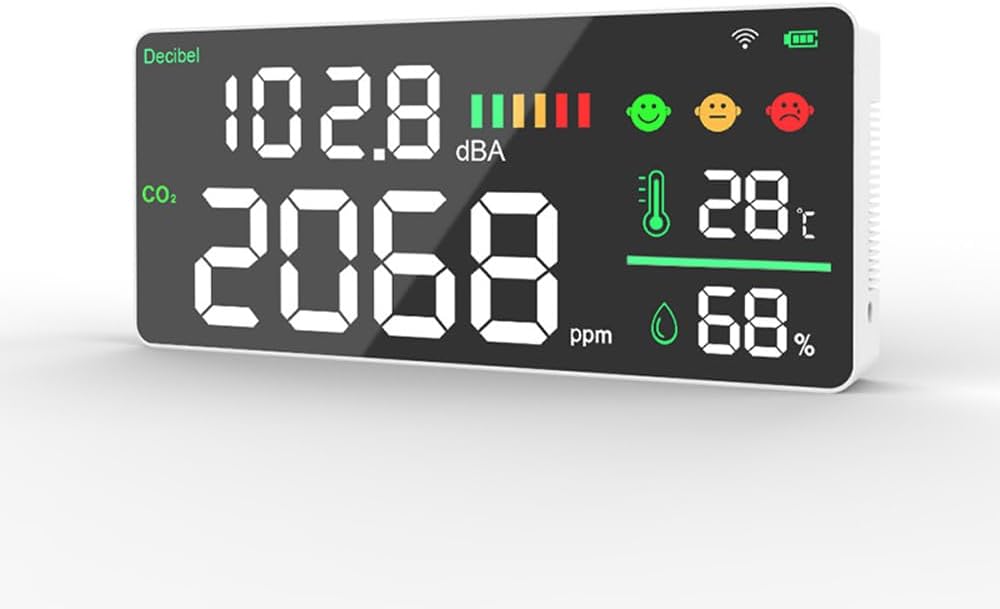
Figure 3.1: Front view of the monitor displaying environmental data.

Figure 3.2: Rear view of the monitor, highlighting wall mounting points.
4. Specifications
| Feature | Detail |
|---|---|
| Model Number | HHXE25381-2 |
| Material | ABS |
| Display | LED display |
| Battery | 1 x 2000mAh rechargeable Li-battery (included) |
| CO2 Technology | Infrared (NDIR) |
| CO2 Concentration Unit | PPM |
| CO2 Detection Ranges | 400-5000 ppm |
| CO2 Alarm Value (Default) | 1000ppm |
| CO2 Alarm Threshold Setting | 800ppm-2000ppm |
| Noise Detection Method | Electret condenser microphone |
| Noise Concentration Unit | dB |
| Temperature Unit | ℃ |
| Item Size | 270 * 118 * 35mm / 10.63 * 4.65 * 1.38in |
| Item Weight | 320g / 11.29ounce / 0.71lb |
| Power Source | AC |
5. Setup
5.1 Charging the Device
Before first use, fully charge the device using the provided USB charging cable. Connect the cable to the device's charging port and a standard USB power adapter (not included). The battery indicator on the display will show charging status.
5.2 Powering On/Off
Press and hold the power button (location typically on the side or back) for a few seconds to turn the device on or off. The LED display will illuminate upon power-on.
5.3 Wall Mounting
The device is designed for wall-mounted installation. Use appropriate screws and wall anchors (not included) to secure the device to a wall using the mounting holes on the back. Ensure the device is placed in a location free from obstructions to allow for accurate air circulation and sensor readings.

Figure 5.1: Example of the monitor mounted on a wall.
6. Operating Instructions
6.1 Understanding the Display
The LED display provides real-time readings for:
- Decibel (dB): Sound level in decibels.
- CO2 (ppm): Carbon Dioxide concentration in parts per million.
- Temperature (℃): Ambient temperature in Celsius.
- Humidity (%): Relative humidity percentage.
The display also features color-coded smiley patterns to visually indicate the general air quality status, changing from green (good) to yellow (moderate) to red (poor) based on detected levels.
6.2 Adjusting LED Brightness
The LED screen brightness can be manually adjusted to suit different lighting conditions. Refer to the device's physical buttons (usually labeled 'Brightness' or indicated by an icon) to cycle through brightness levels.
6.3 CO2 Auto-Calibration
The device is equipped with an automatic CO2 calibration function to maintain measurement accuracy. For optimal performance, ensure the device is exposed to fresh outdoor air periodically, or follow specific instructions in the device's menu for manual calibration if available.
6.4 Setting CO2 Alarm Thresholds
The device provides an automatic alarm when CO2 levels exceed a preset threshold. You can manually adjust this threshold between 800ppm and 2000ppm. Consult the device's menu or control buttons for instructions on how to access and modify this setting.
6.5 Alarm Sound Control
The audible alarm can be manually turned on or off. This allows customization based on user preference and environment. Locate the dedicated button or menu option for alarm sound control.
7. Tuya APP Control (Optional)
For models equipped with Tuya WiFi functionality, the device can be connected to the Tuya Smart mobile application. This allows you to view real-time measurement data, receive alerts, and potentially control certain device settings remotely.
7.1 Connecting to Tuya APP
- Download the 'Tuya Smart' app from your mobile device's app store (iOS or Android).
- Register or log in to your Tuya account.
- Ensure your device is powered on and in pairing mode (refer to device display for Wi-Fi icon or pairing indicator).
- In the Tuya Smart app, tap '+' to add a new device. Follow the on-screen instructions to connect the air quality monitor to your home Wi-Fi network.
- Once connected, you can view environmental data and manage settings within the app.

Figure 7.1: Monitor showing Wi-Fi and Tuya connectivity indicators.
8. Maintenance
8.1 Cleaning
Wipe the device's exterior with a soft, dry cloth. Do not use abrasive cleaners, solvents, or immerse the device in water. Ensure the ventilation grilles on the back are free from dust and debris to maintain accurate sensor readings.
8.2 Battery Care
To prolong battery life, avoid fully discharging the device frequently. Charge the device when the battery indicator is low. If storing the device for an extended period, charge it to approximately 50% and recharge every few months.
9. Troubleshooting
9.1 Device Does Not Power On
- Ensure the device is fully charged. Connect it to a power source using the USB cable.
- Press and hold the power button for several seconds.
9.2 Inaccurate Readings
- CO2: Ensure the device has been exposed to fresh air for auto-calibration. Avoid placing it near strong air currents, vents, or direct sources of CO2 (e.g., breathing directly on it).
- Temperature/Humidity: Ensure the device is not in direct sunlight, near heat sources, or in areas with extreme temperature fluctuations.
- Decibel: Ensure the microphone is not obstructed.
9.3 Alarm Not Functioning
- Check if the alarm sound is enabled in the device settings.
- Verify that the CO2 alarm threshold is set correctly and that current CO2 levels exceed this threshold.
9.4 Tuya APP Connectivity Issues
- Ensure your Wi-Fi network is 2.4GHz (5GHz networks are typically not supported by smart home devices).
- Check that your Wi-Fi signal is strong where the device is located.
- Restart the device and attempt the pairing process again.
- Ensure your mobile device is connected to the same Wi-Fi network during the pairing process.
10. Warranty and Support
For warranty information and technical support, please refer to the documentation provided at the time of purchase or visit the official KKnoon website. Keep your purchase receipt as proof of purchase for any warranty claims.


