
1. Introduction
Thank you for choosing the FMIIFMS Bluetooth 5.4 Audio Transmitter Receiver. This 4-in-1 wireless adapter is designed to provide versatile audio connectivity for a wide range of devices, including car audio systems, home stereos, wired headphones, and more. It supports both Bluetooth transmission (TX) and reception (RX), features a TF card slot for direct audio playback, and includes a built-in microphone for hands-free calling. This manual provides detailed instructions for setup, operation, and maintenance to ensure optimal performance.
2. Safety Information
Improper battery handling may lead to fire or explosion. Please dispose of used batteries according to local regulations.
- Do not expose the device to extreme temperatures, direct sunlight, or humid environments.
- Avoid dropping or subjecting the device to strong impacts.
- Do not attempt to disassemble or repair the device yourself. Contact customer support for assistance.
- Keep out of reach of children.
3. Product Overview
The FMIIFMS Bluetooth 5.4 Audio Transmitter Receiver is a compact and versatile device. It features a high-definition display screen, multiple control buttons, and various ports for connectivity.
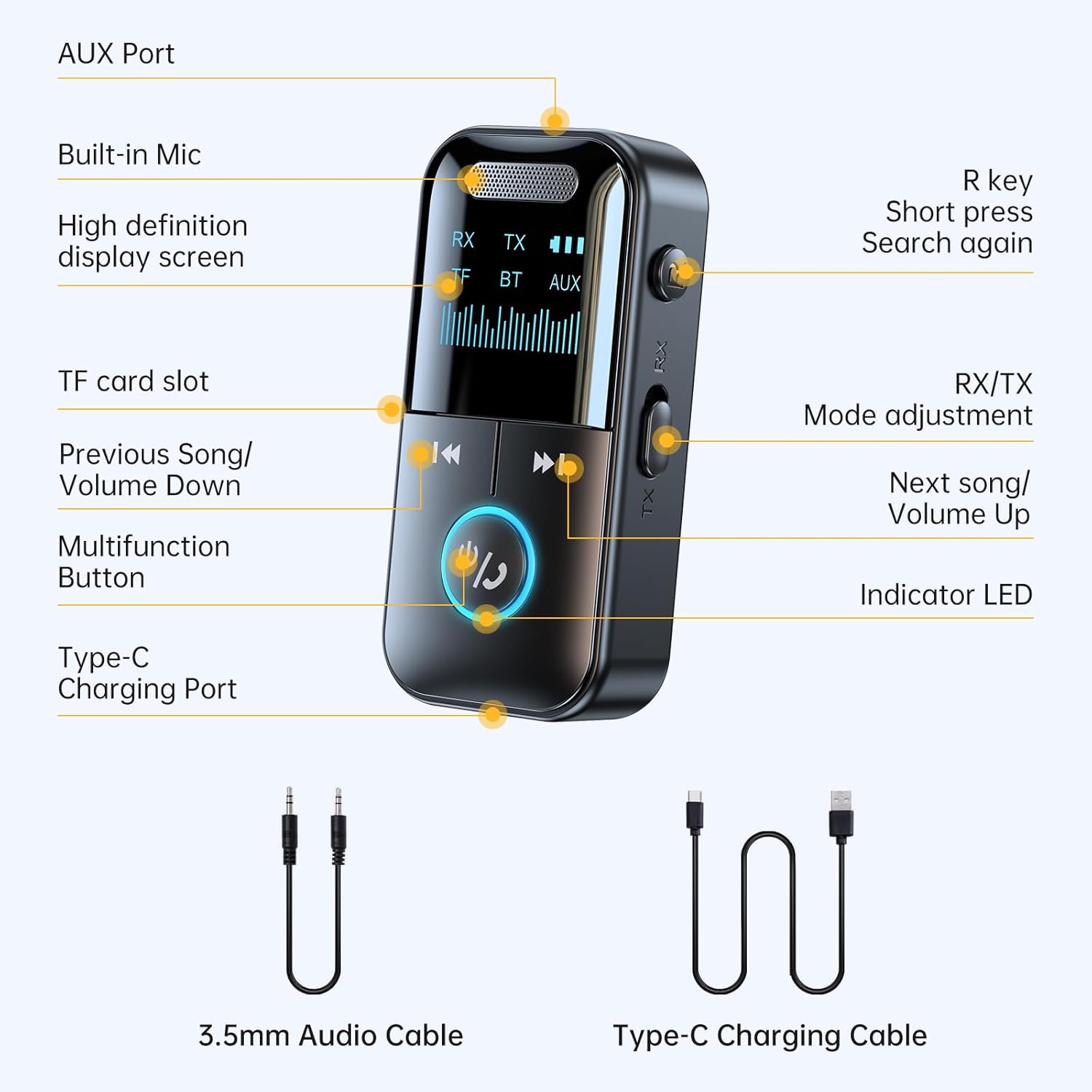
Figure 3.1: Device Components and Controls
3.1. Device Components
- High Definition Display Screen: Shows current mode, battery level, and connection status.
- Multifunction Button: Power on/off, play/pause, answer/end calls.
- Previous Song/Volume Down Button: Short press for previous track, long press for volume down.
- Next Song/Volume Up Button: Short press for next track, long press for volume up.
- R Key (Search Again): Short press to search for devices again in TX mode.
- RX/TX Mode Adjustment Switch: Toggle between Receiver (RX) and Transmitter (TX) modes.
- AUX Port (3.5mm): For audio input/output.
- TF Card Slot: For direct audio playback from a MicroSD card.
- Type-C Charging Port: For charging the device.
- Built-in Mic: For hands-free calling.
- Indicator LED: Provides visual feedback on device status.
4. Setup
4.1. Charging the Device
Before initial use, fully charge the device. Use the included Type-C charging cable to connect the device to a USB power source (e.g., wall adapter, computer USB port).
- A full charge takes approximately 2 hours.
- The device offers up to 10 hours of battery life for calls or music playback.
4.2. Power On/Off
- To Power On: Long press the Multifunction Button for 3 seconds. The display screen will light up.
- To Power Off: Long press the Multifunction Button for 3 seconds. The display screen will turn off.
4.3. Initial Connection Steps
Follow these steps to connect the device to your audio system and pair with a Bluetooth device:

Figure 4.1: Connection Steps
- Step 1: Power On. Long press the Multifunction Button for 3 seconds to turn on the device.
- Step 2: Connect to Audio Source/Output. Plug the 3.5mm audio cable into the AUX port of the adapter and the other end into your desired audio source (in TX mode) or audio output (in RX mode).
- Step 3: Pair. Activate Bluetooth on your phone or other device and select "GT69" from the list of available devices to pair.
5. Operating Modes
The FMIIFMS adapter supports two primary modes: Transmitter (TX) and Receiver (RX). Use the RX/TX mode adjustment switch on the side of the device to select the desired mode.

Figure 5.1: Transmitter and Receiver Mode Overview
5.1. Receiver (RX) Mode
In RX mode, the adapter receives Bluetooth audio from your phone, tablet, or other Bluetooth-enabled device and outputs it to a non-Bluetooth audio system (e.g., car stereo, wired headphones, home stereo).
- Switch the device to RX mode.
- Connect the 3.5mm audio cable from the adapter's AUX port to the AUX input of your non-Bluetooth audio system.
- Pair your Bluetooth device (e.g., smartphone) with the adapter (named "GT69").
- Audio from your Bluetooth device will now play through your connected audio system.
- The device will automatically reconnect to the last paired Bluetooth device when powered on.

Figure 5.2: RX Mode Compatibility
5.2. Transmitter (TX) Mode
In TX mode, the adapter transmits audio from a non-Bluetooth device (e.g., TV, PC, MP3 player) to Bluetooth headphones or speakers.
- Switch the device to TX mode.
- Connect the 3.5mm audio cable from the adapter's AUX port to the audio output of your non-Bluetooth device.
- Ensure your Bluetooth headphones or speakers are in pairing mode.
- The adapter will automatically search for nearby Bluetooth receiving devices. The display screen will show pairing status.
- Once connected, audio from your non-Bluetooth device will be transmitted to your Bluetooth headphones/speakers.
- If pairing fails, short press the 'R' key to search again.
5.3. TF Card Playback
The device supports direct audio playback from a TF (MicroSD) card.
- Insert a TF card with audio files into the TF card slot.
- The device will automatically switch to TF card playback mode.
- Use the Previous/Next Song buttons to navigate tracks and adjust volume.
6. Hands-free Calling
When in RX mode and connected to a smartphone, the built-in microphone and multifunction button enable hands-free calling.

Figure 6.1: Hands-free Calling Feature
- Answer Call: Short press the Multifunction Button when an incoming call rings.
- End Call: Short press the Multifunction Button during a call.
- Reject Call: Long press the Multifunction Button for 2 seconds when an incoming call rings.
- Redial Last Number: Double-press the Multifunction Button when not on a call.
The CVC8.0 technology and enhanced microphone help filter out environmental noise for clearer call quality.
7. Maintenance
- Clean the device with a soft, dry cloth. Do not use liquid cleaners or aerosols.
- Store the device in a cool, dry place when not in use.
- Avoid exposing the device to water or moisture.
- Do not block the microphone or speaker grilles.
8. Troubleshooting
| Problem | Possible Cause | Solution |
|---|---|---|
| Device does not power on. | Low battery. | Charge the device fully using the Type-C cable. |
| Cannot pair with Bluetooth device. | Device not in pairing mode; too far from source; interference. | Ensure the adapter is in the correct TX/RX mode. Place devices closer. Restart both devices. In TX mode, short press 'R' key to search again. |
| No audio output/input. | Incorrect cable connection; wrong mode; volume too low. | Check 3.5mm audio cable connections. Verify TX/RX mode. Adjust volume on both the adapter and connected device. |
| Poor sound quality. | Interference; low battery; source audio quality. | Move away from sources of interference. Charge the device. Ensure the audio source has good quality. |
| TF card playback skipping. | Corrupted files; slow TF card; card not fully inserted. | Ensure TF card is properly inserted. Try a different TF card or audio files. |
9. Specifications
- Model Number: GT69
- Bluetooth Version: 5.4
- Connectivity Technology: AUX, Bluetooth
- Power Source: Battery Powered (1 Lithium Polymer battery, included)
- Battery Life: Up to 10 hours (music/calls)
- Charging Time: Approximately 2 hours (via Type-C)
- Item Weight: 1.76 ounces (0.05 Kilograms)
- Package Dimensions: 3.94 x 3.86 x 1.02 inches
- Features: Low Latency, HD Screen, TF Card Support, Built-in Mic, CVC8.0 Noise Reduction

Figure 9.1: Device Dimensions
10. Warranty and Support
FMIIFMS products are designed and manufactured to the highest quality standards. This product is covered by a limited warranty from the date of purchase. For warranty details, technical support, or any questions regarding your device, please contact FMIIFMS customer service through the retailer where you purchased the product or visit the official FMIIFMS website.
Please retain your proof of purchase for warranty claims.