
Introduction
Thank you for choosing the BOYI 66Pro Rapid Trigger Magnetic Switch 65% Mechanical Keyboard. This manual provides detailed instructions for setting up, operating, maintaining, and troubleshooting your new keyboard. Designed for hyper-fast response and customizable performance, the BOYI 66Pro is an excellent tool for both gaming and productivity.
What's in the Box
- BOYI 66Pro Mechanical Keyboard
- 2 Extra Keycaps
- USB Cable
- Keycap Puller
- Keyboard Dust Cover
- Quick User Manual

The BOYI 66Pro Mechanical Keyboard and its accompanying accessories.
Setup
Connecting Your Keyboard
The BOYI 66Pro is a wired keyboard. Connect the provided USB-C cable to the port located on the back of the keyboard and plug the other end into an available USB port on your computer.

The USB-C port for connecting the keyboard to your computer.
Operating System Compatibility
The keyboard features a switch on the back to toggle between Windows and Mac OS compatibility. Ensure the switch is set to your operating system for optimal performance.

The switch to select between Windows and Mac OS modes.
This video demonstrates the initial setup and key features of the BOYI 66Pro keyboard, including its wired connectivity and compact design.
Operating Instructions
Magnetic Switches & Adjustable Actuation
The BOYI 66Pro features Hall Effect magnetic switches, allowing for precise and adjustable actuation from 0.1mm to 4.0mm. This enables features like Rapid Trigger and Dynamic Keystrokes (DKS).
- Rapid Trigger: Activates or deactivates keys based on how far they move, removing delay caused by physical switch movement. Ideal for fast-paced games.
- Dynamic Keystrokes (DKS): Assign up to 4 distinct operations to a single key based on analog keypress pressure. This simplifies complex skill combos and allows for instant action sequences.

Detailed diagram of the magnetic mechanical switch operation.

The 'Two Actions, One Keypress' feature allows for advanced input customization.
RGB Backlighting
The keyboard features 16.8 million RGB colors with 14 dynamic lighting modes. South-facing LEDs provide superior shine-through capabilities. You can switch lighting modes using Fn + PAGEDOWN.
Customize your keyboard's RGB lighting and other functions using the BOYI 66Pro Software.
Multifunction Knob
The integrated multifunction knob allows for easy control of multimedia. Rotate the knob to adjust volume, and click it to play or pause media.
Hot-Swappable Switches
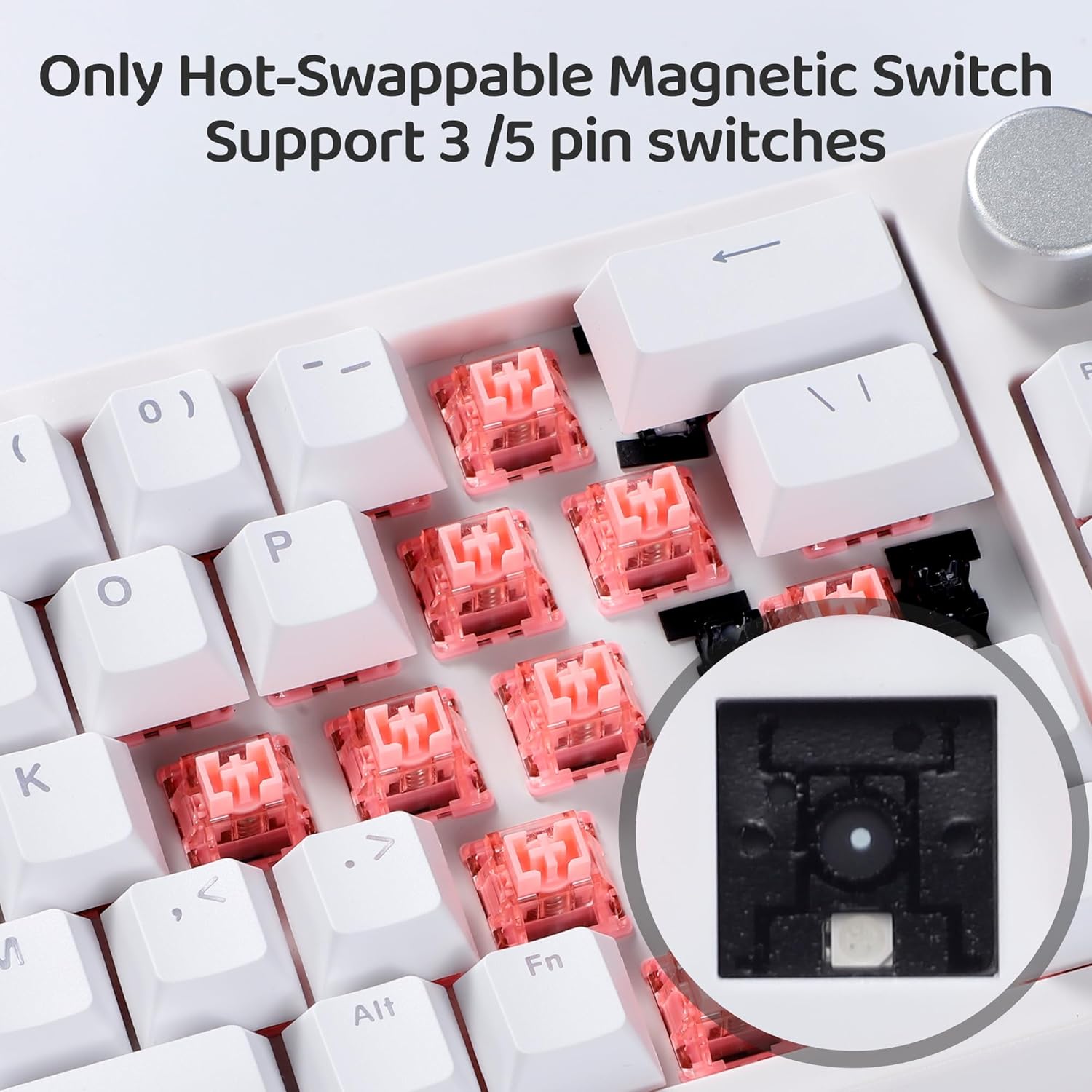
The BOYI 66Pro features a hot-swappable base that supports 3-pin or 5-pin magnetic switches. This allows you to replace switches directly without soldering, offering greater customization.

The hot-swappable design allows for easy switch replacement.
Software Customization
For full customization of keys, actuation points, RGB lighting, and more, download the professional software from the official BOYI website: https://www.boyikeyboard.com/Download.html

The BOYI Advanced Customization Software provides extensive control over keyboard features.
Maintenance
Cleaning
To clean your keyboard, unplug it from your computer. Use a soft, dry cloth to wipe down the keycaps and chassis. For deeper cleaning, you may use the provided keycap puller to remove keycaps and clean underneath with compressed air or a small brush.
Keycap and Switch Replacement
Utilize the included keycap puller to carefully remove keycaps. For switch replacement, use the switch puller to gently remove the magnetic switches. Ensure proper alignment when inserting new 3-pin or 5-pin magnetic switches.
Troubleshooting
Keyboard Typing on Its Own
If your keyboard appears to be typing on its own, especially with magnetic switches, it might be due to a very low actuation point setting (e.g., 0.1mm). This makes the switches extremely sensitive. To resolve this, use the BOYI software to increase the actuation point to a higher value (e.g., 0.5mm or 1.0mm) or reset to default factory settings. This will reduce sensitivity and prevent unintended key presses.
This video explains why a magnetic keyboard might type on its own and how to adjust the actuation point using the software.
Connectivity Issues
Ensure the USB-C cable is securely connected to both the keyboard and your computer. Verify the Windows/Mac compatibility switch is set correctly. Try a different USB port on your computer or a different USB-C cable if issues persist.
Software Not Detecting Keyboard
Make sure the keyboard is properly connected. Restart the software and/or your computer. Ensure you have downloaded the correct software version for your BOYI 66Pro model from the official website.
Specifications
| Feature | Detail |
|---|---|
| Product Dimensions | 12.8 x 4.3 x 0.8 inches |
| Item Weight | 1.76 pounds |
| Connectivity Technology | USB-C (Wired) |
| Keyboard Description | Adjustable Actuation Distance Rapid Trigger Magnetic Switch Gaming Keyboard |
| Special Features | Dedicated Magnetic Mechanical Switches, 8K Hyper-Polling, Programmable Keys, Adjustable Actuation Distance & Rapid Trigger, Hot-Swappable |
| Number of Keys | 66 |
| Keyboard Backlighting | RGB (16.8 Million Colors) |
| Compatible Devices | Laptop, PC, Tablet, All Win/Mac Computers (Note: Not Compatible with PS5) |
| Style | Classic Competitive Gaming Keyboard |
Warranty & Support
Your BOYI 66Pro keyboard comes with a standard manufacturer's warranty. For detailed warranty information or technical support, please refer to the documentation included in your product packaging or contact BOYI customer service directly.
You can also visit the official BOYI store on Amazon for more information and support: BOYI Store
For direct inquiries, you may email customer support at: boyiservice2020@163.com