
1. Introduction
This manual provides detailed instructions for the ROVE R3 Dash Cam and its accompanying Circular Polarizer Lens (CPL) Filter. The ROVE R3 is a 3-channel touch screen dash camera designed for comprehensive vehicle recording, capturing front, cabin, and rear views. The CPL filter enhances video quality by reducing glare and reflections.

Image 1.1: ROVE R3 Dash Cam with CPL Filter and smartphone app interface.
2. Package Contents
Verify that all items listed below are included in your package:
- ROVE R3 Primary Dash Cam (Front & Cabin)
- ROVE R3 Rear Dash Cam
- 360° Windshield Suction Mount
- Windshield 3M Sticky Mount
- 4.8 AMP Dual USB FAST Car Charger
- 6M Type-C USB Rear Camera Cable
- 12 FT Type-C USB Power Cable for Front Dash Cam
- 1M Type-C USB Data Cable
- Spare 3M Sticky Tapes & 5x Cable Clips
- 4x Electrostatic Films
- 2x Wet Cleaning Pads & Car Wiring Tools
- User Manual (English) & Quick Start Guide
- CPL Filter for ROVE R3
- Microfiber Cleaning Cloth
Note: A MicroSD Memory Card is NOT included and must be purchased separately for camera operation.
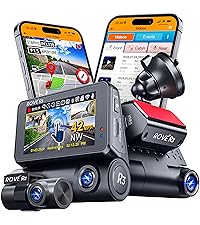
Image 2.1: Contents of the ROVE R3 Dash Cam package.
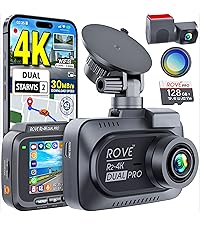
Image 2.2: Contents of the ROVE CPL Filter package.
3. Product Overview
The ROVE R3 Dash Cam features a compact design with a 3-inch IPS touch screen. It integrates three cameras for comprehensive coverage: a front camera, a cabin camera, and a rear camera. The device also includes a supercapacitor for enhanced durability and safety, and supports USB Type-C connectivity.
3.1 Key Components
- Front Camera: Records the road ahead.
- Cabin Camera: Records the vehicle interior.
- Rear Camera: Records the view behind the vehicle.
- 3-inch IPS Touch Screen: For navigation and settings adjustment.
- USB Type-C Port: For power and data transfer.
- MicroSD Card Slot: For storage of recordings.
- Supercapacitor: Provides power stability and extends product lifespan.
- CPL Filter: Reduces glare and reflections from the windshield.

Image 3.1: Overview of the ROVE R3's 3-channel recording capabilities.

Image 3.2: Illustration of the supercapacitor used in the ROVE R3 for durability.

Image 3.3: USB Type-C port on the ROVE R3 for power and data.
4. Setup
4.1 Installing the MicroSD Card
- Ensure the dash cam is powered off.
- Locate the MicroSD card slot on the side of the dash cam.
- Insert the MicroSD card with the gold contacts facing the front of the camera until it clicks into place.
- To remove, gently push the card until it springs out.
Recommendation: Use a ROVE Ultimate MicroSD Card (supports up to 512GB) for optimal performance.
4.2 Mounting the Dash Cam
- Clean the chosen area on your windshield thoroughly.
- Attach an electrostatic film to the windshield first, then apply the mount to the film.
- Choose between the suction mount or the 3M sticky mount.
- Secure the dash cam to the chosen mount. Position the camera to ensure a clear view of the road and cabin.
- Install the rear camera in a suitable location on your rear windshield, ensuring a clear view.
4.3 Connecting Power
- Connect the 12 FT Type-C USB Power Cable to the dash cam's USB Type-C port.
- Route the cable neatly along the windshield and dashboard using the provided cable clips.
- Plug the car charger into your vehicle's 12V power outlet.
- Connect the 6M Type-C USB Rear Camera Cable from the main dash cam unit to the rear camera.
4.4 Installing the CPL Filter
The CPL filter is designed to reduce glare and reflections from the windshield, improving video clarity and color saturation.
- Align the CPL filter with the front lens of the ROVE R3 Dash Cam.
- Gently push and twist the filter onto the lens until it is securely attached.
- Once installed, you can rotate the outer ring of the CPL filter to adjust the polarization effect and minimize glare.

Image 4.1: Demonstrates how to attach the CPL filter to the dash cam lens.
4.5 Initial Settings
- Power on the dash cam.
- Follow the on-screen prompts to set the correct date and time.
- It is crucial to format the MicroSD card within the dash cam before first use and periodically thereafter to ensure stable recording. Navigate to the settings menu and select 'Format SD Card'.
5. Operation
5.1 Basic Recording (Loop Recording)
The ROVE R3 automatically begins recording when powered on. It utilizes loop recording, continuously recording in segments (1, 3, 5, or 10 minutes) and overwriting the oldest unlocked files when the MicroSD card is full.

Image 5.1: Explanation of the seamless loop recording function.
5.2 Touch Screen Interface
The 3-inch IPS touch screen allows for intuitive navigation through menus and settings. Tap icons to access different functions, view live footage, or playback recorded videos.

Image 5.2: The responsive 3-inch IPS touch screen for camera control.
5.3 ROVE App & Wi-Fi Connectivity
Connect your ROVE R3 to your smartphone via the ROVE App (available for iOS and Android) using the built-in dual-band 5.0 GHz and 2.4 GHz Wi-Fi. This enables live preview, video download, settings management, and sharing of footage.

Image 5.3: Features of the ROVE R3's dual-band Wi-Fi connectivity.

Image 5.4: The ROVE Dash Cam App interface for smartphone control.
5.4 GPS Functionality
The built-in GPS module records your driving speed, compass direction, and location data. This information can be viewed during video playback on the dash cam or through the free ROVE Dash Cam GPS Player software on your PC/Mac.

Image 5.5: The ROVE Dash Cam GPS Player software for reviewing GPS data.
5.5 Parking Monitor
When activated, the 24-hour Auto Trigger Parking Monitor detects impacts or motion while your vehicle is parked. If an event occurs, the camera will automatically turn on and record, locking the video evidence. This feature requires the ROVE Ultimate Type-C 3-Lead Hardwire Kit (sold separately).

Image 5.6: Explanation of the 24-hour Auto Trigger Parking Monitor.
5.6 Voice Guidance
The ROVE R3 provides proprietary fail-safe voice guidance, alerting you to important statuses such as parking mode activation or if the camera is not recording. This ensures you are always aware of the camera's operational status.

Image 5.7: The ROVE R3's voice guidance system providing alerts.
5.7 Night Vision
Equipped with advanced sensors and 4 hidden IR LEDs for the cabin camera, the ROVE R3 provides clear image capture in low-light conditions, including complete darkness inside the car cabin.

Image 5.8: Demonstration of the Super Night Vision capability.
5.8 Wide Dynamic Range (WDR)
WDR technology ensures optimal exposure balance, capturing clear details in both very bright and very dark areas of the footage, even in challenging lighting conditions.

Image 5.9: Comparison showing the effectiveness of Wide Dynamic Range (WDR).
5.9 Time-Lapse Recording
The integrated time-lapse feature, especially useful with parking mode, allows for long-duration recording at a reduced frame rate, saving storage space while capturing important events over extended periods.
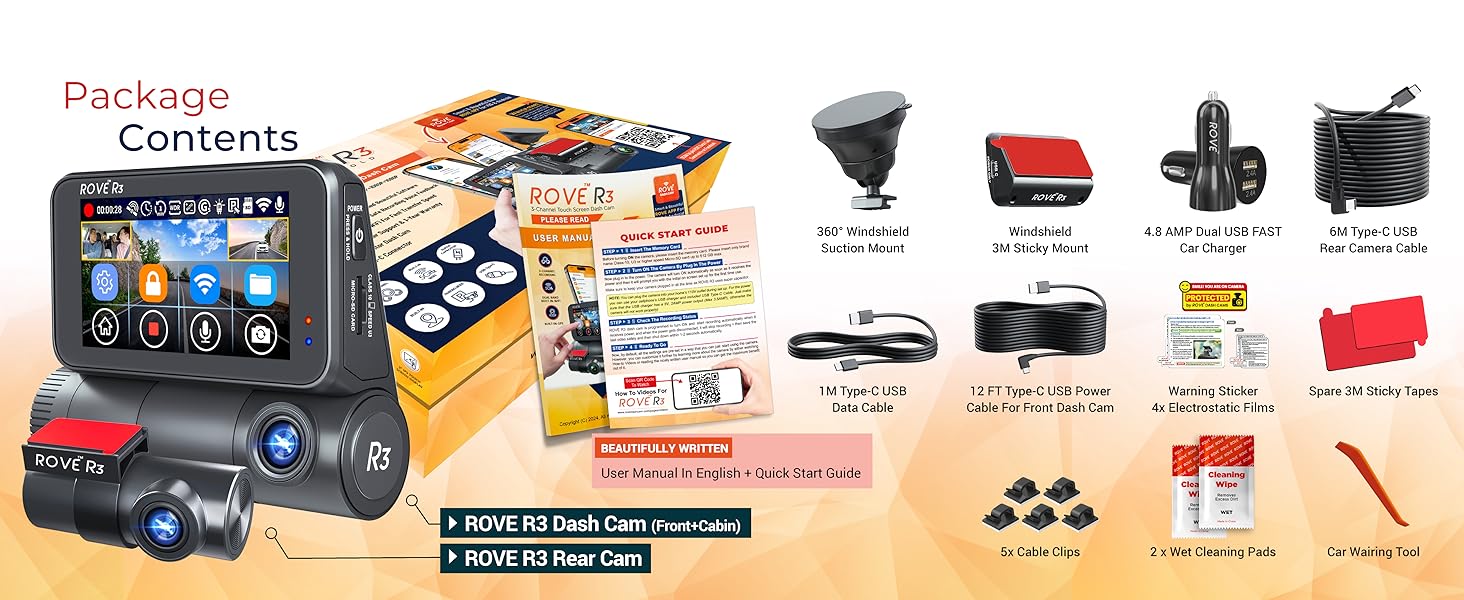
Image 5.10: Illustration of the Time-Lapse Video recording feature.
6. Maintenance
6.1 MicroSD Card Care
- Regularly format the MicroSD card (at least once a month) to prevent data corruption and ensure optimal performance.
- Use high-quality, reputable MicroSD cards designed for dash cam use.
- Replace the MicroSD card every 6-12 months, depending on usage, as they have a limited lifespan due to continuous writing cycles.
6.2 Cleaning the Device
- Use the provided microfiber cleaning cloth to gently wipe the camera lenses and touch screen.
- Avoid using harsh chemicals or abrasive materials that could scratch the lenses or screen.
- Ensure the device is powered off and disconnected from power before cleaning.
6.3 Firmware Updates
ROVE regularly releases firmware updates to improve performance and add new features. You can update your dash cam's firmware wirelessly via the ROVE App.
- Connect your dash cam to the ROVE App via Wi-Fi.
- The app will notify you if a new firmware update is available.
- Follow the on-screen instructions in the app to download and install the update. Ensure the dash cam remains powered during the entire update process.

Image 6.1: Steps for performing an Over-The-Air firmware update via the ROVE App.
7. Troubleshooting
7.1 Camera Not Recording
- Check if the MicroSD card is properly inserted and formatted.
- Ensure the camera is receiving power.
- If the card is full, ensure loop recording is enabled or format the card.
- The voice guidance system will alert you if the camera is not recording.
7.2 Poor Video Quality
- Clean the camera lenses and windshield.
- Ensure the CPL filter is correctly installed and adjusted to minimize glare.
- Check video resolution settings in the menu.
7.3 Wi-Fi Connection Issues
- Ensure the ROVE App is updated to the latest version.
- Restart both the dash cam and your smartphone.
- Verify that Wi-Fi is enabled on the dash cam and your phone.
7.4 Dash Cam Freezes or Restarts
- Format the MicroSD card. A corrupted card can cause instability.
- Ensure the power connection is stable.
- Perform a factory reset via the settings menu if issues persist.
8. Specifications
| Feature | Specification |
|---|---|
| Model Name | R3 |
| Video Capture Resolution | Front: 4K (3840x2160p) @30fps (Single Channel Mode); Front + Cabin + Rear: 1440p + 1080p + 1080p @30fps |
| Field of View | 130 Degrees (Front) |
| Connectivity Technology | USB, Dual-band Wi-Fi (5.0 GHz & 2.4 GHz) |
| Control Method | Touch Screen, Remote (via App) |
| Mounting Type | Suction Mount, 3M Sticky Mount |
| Storage | Supports MicroSDXC Card up to 512GB (Class 10, U3 recommended) |
| Power Source | Supercapacitor |
| Color | Black |
| Included Components | Dash Cam, Rear Cam, Suction Mount, CPL Filter, Cables, Car Charger, Cleaning Tools |
9. Warranty and Support
ROVE products are designed for reliability and performance. For specific warranty details, please refer to the warranty card included in your product packaging or visit the official ROVE website.
9.1 Customer Support
If you encounter any issues or have questions regarding your ROVE R3 Dash Cam or CPL Filter, please contact ROVE customer support. Support contact information can typically be found in the Quick Start Guide, on the ROVE official website, or through the ROVE App.
For the latest information and support resources, please visit: www.rovedashcam.com


