
PERICAT Q9
PERICAT Q9 1080P Projector User Manual
Model: Q9
Introduction
This manual provides essential instructions for setting up, operating, and maintaining your PERICAT Q9 1080P Projector. Please read this manual thoroughly before using the projector to ensure proper operation and to prevent damage.
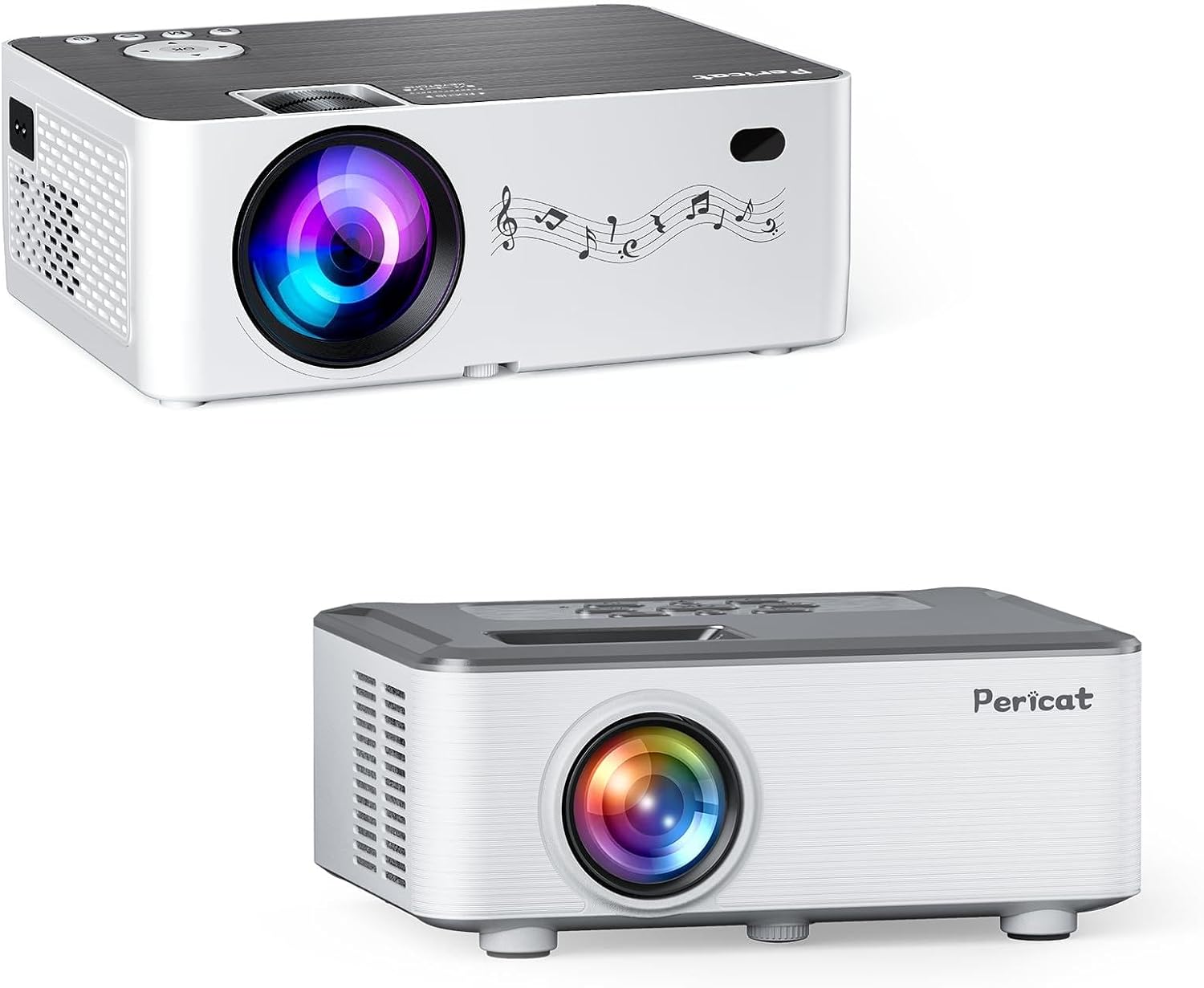
Figure 1: PERICAT Q9 1080P Projector. This image shows the front and top view of the PERICAT Q9 projector, highlighting its lens and control panel.
Package Contents
Verify that all items are present in the package:
- PERICAT Q9 1080P Projector
- Power Cable
- Remote Control
- HDMI Cable
- AV Cable
- User Manual
- 100-inch Projector Screen
- Carry Bag
- Tripod
Setup
1. Placement and Power Connection
Place the projector on a stable, flat surface or mount it using a compatible tripod or ceiling mount. Ensure adequate ventilation around the projector.
- Connect the power cable to the projector and then to a power outlet.
- Press the power button on the projector or remote control to turn it on.

Figure 2: Projector placement options. This image illustrates various ways to position the projector, including table placement, tripod installation, and ceiling mount, along with recommended projection distances for different screen sizes.
2. Screen Setup
Unfold the included 100-inch fabric screen and hang it in your desired viewing area. Ensure the screen is flat and free of wrinkles for optimal image quality.
3. Focus and Keystone Correction
Adjust the focus ring on the projector lens until the image is clear. Use the keystone correction function (±15°) to correct trapezoidal distortion if the projector is not perfectly perpendicular to the screen. The projector also features a 75%-100% zoom function to adjust the image size without moving the projector.

Figure 3: Keystone correction and zoom function. This image demonstrates how keystone correction adjusts the image shape and how the zoom function scales the image from 75% to 100%.
4. Connectivity
The PERICAT Q9 projector supports various connectivity options:
- Wired Connections: Use HDMI, USB, or AV ports to connect devices such as laptops, gaming consoles, DVD players, or mobile phones.
- Wireless Connections:
- Wi-Fi: Connect to a 2.4G or 5G Wi-Fi network for screen mirroring from iOS and Android devices. 5G Wi-Fi provides a smoother experience for streaming and gaming.
- Bluetooth: Pair with external Bluetooth speakers or headphones for enhanced audio. The projector features 5.1 Bluetooth for stable connections and built-in 4x3W HiFi Stereo Speakers.

Figure 4: Multi-media connection ports. This image displays the various input ports on the projector, including HDMI, VGA, Earphone, TF, USB, and AV, along with examples of compatible devices like laptops, game consoles, and streaming sticks.

Figure 5: 5G WiFi screen mirroring. This image illustrates the speed advantage of 5G WiFi for screen mirroring compared to 2.4G, showing faster loading and smoother content display from iOS, Windows, and Android devices.

Figure 6: Bluetooth audio connection. This image depicts the projector wirelessly connected via Bluetooth to external speakers, enhancing the audio experience for users.
Operating Instructions
1. Power On/Off
Press the power button on the projector or remote control to turn the unit on or off.
2. Source Selection
Use the "Source" button on the remote or projector to select the desired input source (e.g., HDMI1, USB, AV, Screen Mirroring).
3. Image Adjustment
- Focus: Rotate the focus ring on the lens for a sharp image.
- Keystone: Adjust the keystone correction dial or menu setting to square the image.
- Zoom: Use the digital zoom function (75%-100%) via the remote control to adjust image size.
4. Audio Adjustment
Adjust the volume using the remote control. If external speakers are connected via Bluetooth or the 3.5mm Aux port, ensure their volume is also adjusted appropriately.
5. Screen Mirroring (Wireless Projection)
To mirror your device's screen:
- Select "Screen Mirroring" or "Wireless Projection" from the projector's input source menu.
- Ensure your mobile device (iOS or Android) is connected to the same Wi-Fi network as the projector.
- On your device, activate the screen mirroring feature (e.g., "Screen Mirroring," "Smart View," "Cast").
- Select the PERICAT Q9 projector from the list of available devices.
Maintenance
1. Cleaning the Lens
Gently wipe the projector lens with a soft, lint-free cloth specifically designed for optical lenses. Do not use abrasive cleaners or excessive force.
2. Cleaning the Projector Body
Wipe the exterior of the projector with a soft, dry cloth. Avoid using liquid cleaners directly on the device.
3. Ventilation
Ensure that the projector's ventilation openings are not blocked. Proper airflow prevents overheating and prolongs the projector's lifespan.
Troubleshooting
- No image on screen:
- Check if the projector is powered on.
- Verify the input source selection matches your connected device.
- Ensure all cables are securely connected.
- Adjust the focus ring.
- Image is blurry:
- Adjust the focus ring on the lens.
- Ensure the projection distance is within the recommended range (4ft-32ft).
- Image is trapezoidal:
- Use the keystone correction function (±15°) to adjust the image.
- Position the projector perpendicular to the screen if possible.
- No sound or low volume:
- Adjust the projector's volume.
- Check the volume on your connected source device.
- If using external speakers, ensure they are powered on and properly connected (Bluetooth or 3.5mm Aux).
- Verify Bluetooth pairing if applicable.
- Screen mirroring issues:
- Ensure both the projector and your mobile device are connected to the same Wi-Fi network.
- Check your device's screen mirroring settings.
- Restart both the projector and your mobile device.
Specifications
| Brand | PERICAT |
| Model | Q9 |
| Native Resolution | 1920 x 1080 (Full HD) |
| Supported Resolution | Up to 4K |
| Brightness | 16000 Lux |
| Contrast Ratio | 13000:1 |
| Color Range | 17 Million Colors (100% RGB) |
| Projection Size | 33" - 350" |
| Projection Distance | 4ft - 32ft |
| Aspect Ratio | 4:3 / 16:9 |
| Keystone Correction | ±15° Manual |
| Zoom Function | 75% - 100% Digital |
| Wi-Fi Connectivity | 2.4G + 5G |
| Bluetooth | 5.1 |
| Built-in Speakers | 4x3W HiFi Stereo |
| Input Ports | HDMI, USB, AV, TF Card, VGA |
| Output Ports | 3.5mm Audio Out (Aux) |
| Special Features | Built-In Wi-Fi, Portable, Wireless |

Figure 7: Visual comparison of Pericat Q9's native 1080P resolution and 4K support against a standard 720P projector, highlighting superior brightness (16000LM vs 7500LM) and contrast ratio (13000:1 vs 6500:1).
Warranty and Support
For warranty information and technical support, please refer to the contact details provided with your purchase documentation or visit the official PERICAT website. Keep your purchase receipt for warranty claims.
Online Support: Visit the PERICAT Store on Amazon
Related documentsQ9

Ask a question about this manual
Ask about setup, troubleshooting, compatibility, parts, safety, or missing instructions. Manuals+ will review the question and use this page’s manual context to help answer it.