
1. Introduction
This manual provides essential information for the safe and efficient use of your DOOGEE T10W Android 14 Tablet. Please read this manual thoroughly before operating the device and retain it for future reference.

The DOOGEE T10W tablet features a sleek design with a light blue finish, showcasing its 10.1-inch display and rear camera module.
2. Package Contents
Verify that all items are present in your product box:
- DOOGEE T10W Tablet
- Power Adapter
- USB Type-C Cable
- SIM Ejector Tool
- User Manual
- Warranty Card
- Screen Protector Accessories (film)
This video demonstrates the unboxing process and the items included with the DOOGEE T10W Tablet, such as the tablet itself, charger, cable, and documentation.
3. Device Overview
Physical Features
- Display: 10.1-inch IPS HD (1280x800 pixels)
- Cameras: 5MP Front, 2MP Rear
- Ports: USB Type-C (charging/data), 3.5mm Audio Jack
- Buttons: Power Button, Volume Up/Down
- Speakers: Dual Speakers
- SIM/SD Card Slot: Supports 2 Nano SIMs or 1 Nano SIM + 1 TF Card (up to 1TB)
The tablet's physical features include a Type-C port, 3.5mm headphone jack, and dual speakers.
4. Setup
4.1. Powering On/Off
- To Power On: Press and hold the Power Button until the DOOGEE logo appears.
- To Power Off: Press and hold the Power Button, then select 'Power Off' from the options.
- To Restart: Press and hold the Power Button, then select 'Restart' from the options.
4.2. SIM Card and TF Card Installation
The tablet supports dual Nano SIM cards or one Nano SIM card and one TF (Micro SD) card for storage expansion.
- Locate the SIM/TF card tray on the side of the tablet.
- Insert the SIM Ejector Tool into the small hole next to the tray to open it.
- Place your Nano SIM card(s) and/or TF card into the designated slots on the tray. Ensure correct orientation.
- Gently push the tray back into the tablet until it clicks into place.

The SIM tray supports either two Nano SIM cards or one Nano SIM card and one TF card for flexible connectivity and storage options.
4.3. Initial Configuration
Upon first power-on, follow the on-screen prompts to:
- Select your language.
- Connect to a Wi-Fi network.
- Sign in with your Google account or create a new one.
- Set up screen lock (PIN, pattern, password, or Face Unlock).
5. Operating Instructions
5.1. Android 14 Operating System
The DOOGEE T10W runs on the Android 14 operating system, offering features such as enhanced privacy controls, optimized multitasking, and a customizable user interface.

Running the latest Android 14 operating system, the tablet offers enhanced privacy controls, efficient multitasking with parallel view and taskbar, and an optimized landscape experience.
5.2. Connectivity
- 4G LTE: Insert a Nano SIM card to access 4G LTE mobile data and VoLTE calling.
- Wi-Fi: Connect to 2.4GHz or 5GHz Wi-Fi networks for internet access.
- Bluetooth 5.0: Pair with Bluetooth devices such as headphones or speakers.
- GPS: Utilize GPS, Beidou, Galileo, and Glonass for navigation.

Stay connected with 4G LTE, dual-band Wi-Fi, and Bluetooth 5.0 for reliable communication and data transfer.
5.3. Multimedia and Display
- The 10.1-inch IPS HD display provides clear visuals for videos and browsing.
- Widevine L1 support allows for high-definition streaming from compatible services.
- Dual speakers deliver clear audio output. A 3.5mm audio jack is available for headphones.

The 10.1-inch IPS HD display offers a 1280x800 resolution and a wide viewing angle for clear visuals.

Widevine L1 certification enables secure playback of high-definition content from streaming services.
6. Camera Features
The tablet is equipped with a 5MP front camera and a 2MP rear camera for photography and video calls.
- Open the Camera app from the home screen or app drawer.
- Switch between front and rear cameras as needed.
- Tap the shutter button to take photos or start/stop video recording.

The tablet features a 5MP main camera for capturing photos and a 2MP front camera for selfies and video calls.
7. Battery Management
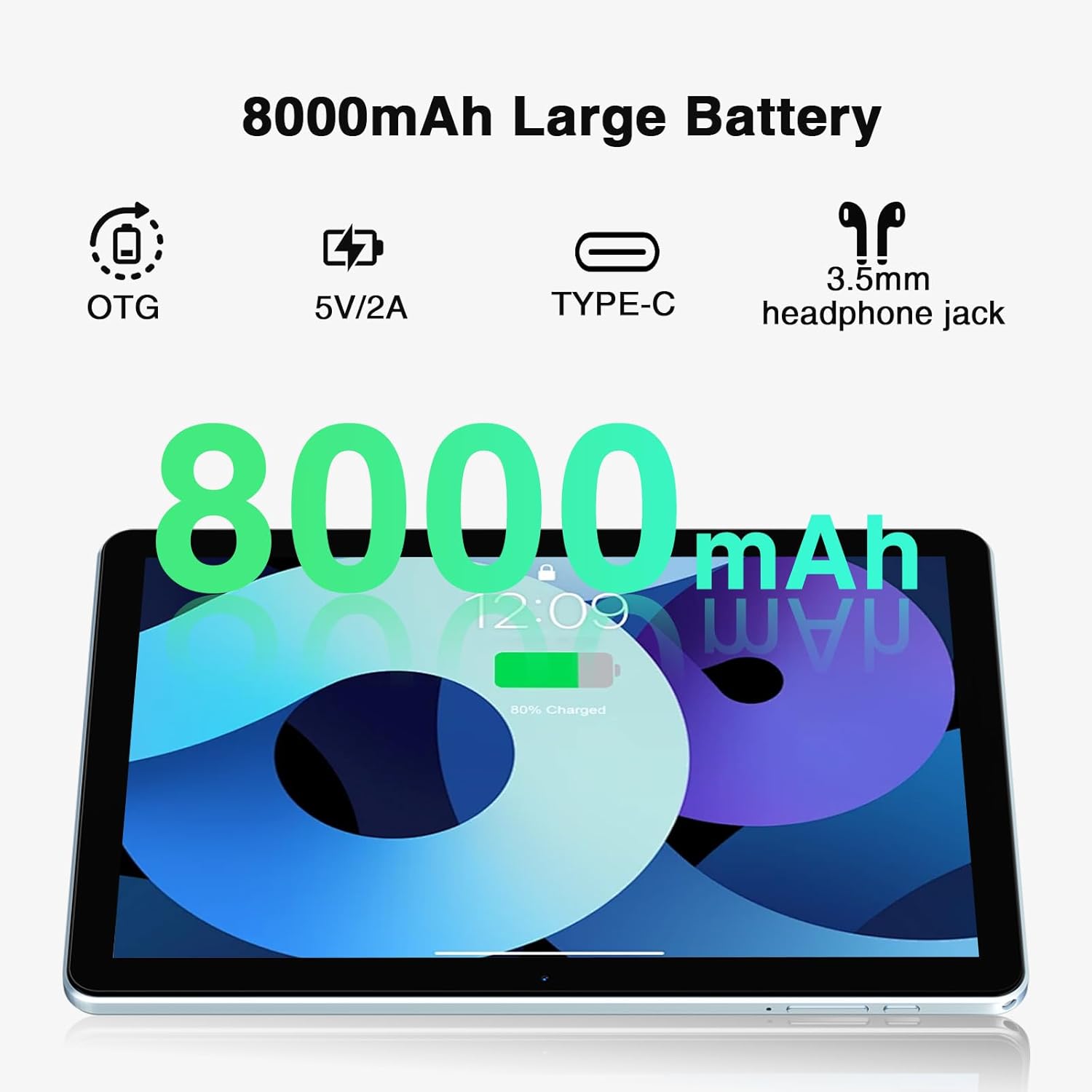
The DOOGEE T10W is powered by an 8000mAh battery.
- Charging: Use the provided power adapter and USB Type-C cable to charge the tablet.
- Battery Life: The 8000mAh battery provides up to 700 hours of standby time, 16 hours of talk time, and 58 hours of music playback.
- Reverse Charging: The tablet supports reverse charging, allowing it to charge other devices.

The 8000mAh large capacity battery provides extended usage times, including up to 10 hours of gaming, 11 hours of video, and 720 hours of standby.
This video highlights the large battery capacity of the DOOGEE T10W Tablet and its ability to provide extended usage.
8. Specifications
| Feature | Specification |
|---|---|
| Model | T10W |
| Operating System | Android 14 |
| Display Size | 10.1 Inches |
| Screen Resolution | 1280 x 800 Pixels (IPS HD) |
| Processor | Octa-Core (Spreadtrum T310) |
| RAM | 9GB (4GB physical + 5GB expansion) |
| Internal Storage | 128GB ROM |
| Expandable Storage | Up to 1TB (Micro SD/TF Card) |
| Battery Capacity | 8000mAh Lithium Ion |
| Rear Camera | 2MP |
| Front Camera | 5MP |
| Connectivity | 4G LTE, 2.4GHz/5GHz Wi-Fi (802.11ac), Bluetooth 5.0 |
| Navigation | GPS, GLONASS, BDS, Galileo |
| Dimensions | 9.6 x 6.4 x 0.38 inches (9mm slim body) |
| Weight | 1.96 pounds (555 grams) |
| Additional Features | Face Unlock, OTG, Widevine L1 Support |
9. Maintenance
- Keep the tablet away from extreme temperatures and direct sunlight.
- Avoid dropping the device or subjecting it to strong impacts.
- Clean the screen with a soft, lint-free cloth. Do not use harsh chemicals.
- Regularly back up important data to prevent loss.
- Keep the software updated to the latest version for optimal performance and security.
10. Troubleshooting
10.1. Device Not Turning On
- Ensure the battery is charged. Connect the tablet to the charger for at least 30 minutes.
- Press and hold the Power Button for 10-15 seconds to force a restart.
10.2. Poor Wi-Fi Connection
- Check if the Wi-Fi is enabled in Settings.
- Move closer to the Wi-Fi router.
- Restart your Wi-Fi router and the tablet.
10.3. Apps Crashing or Freezing
- Close and reopen the app.
- Clear the app's cache and data in Settings > Apps.
- Ensure the app is updated to its latest version.
- Restart the tablet.
11. Warranty and Support
- 30-Day Money Back Guarantee: Eligible for free returns within 30 days of purchase.
- 2-Year Limited Warranty: The product is covered by a 2-year limited warranty.
- 24/7 Online Support: For technical assistance or further inquiries, please contact DOOGEE customer support.


