1. Introduction
The KONNWEI KW450 is a comprehensive OBD2 diagnostic scanner designed for both VAG group vehicles (Volkswagen, Audi, Seat, Skoda) and universal OBDII/EOBD compliant cars. This advanced, user-friendly tool enables technicians and car owners to accurately diagnose and perform maintenance functions on various vehicle systems. It supports a wide range of special functions for VAG vehicles and standard OBDII diagnostic capabilities for all compatible cars.
The device is certified with CE, FCC, and RoHS, ensuring compliance with safety and environmental standards.
2. Setup and Initial Use
2.1 Package Contents
- KONNWEI KW450 Diagnostic Scanner
- OBD2 Cable
- USB Cable for updates
- User Manual
2.2 Connecting to Your Vehicle
- Locate the vehicle's 16-pin Data Link Connector (DLC). This is usually located under the dashboard on the driver's side.
- Ensure the vehicle's ignition is in the OFF position.
- Firmly plug the OBD2 cable into the vehicle's DLC port.
- Turn the vehicle's ignition to the ON position (engine off). The scanner will power on automatically.
2.3 Language Settings
Upon first use, or if you need to change the language, navigate to the 'Settings' menu on the device. Select 'Language' and choose your preferred language (English is the default).
3. Operating Instructions
3.1 VAG Special Functions
The KW450 provides 9 special maintenance functions specifically for Volkswagen, Audi, Seat, and Skoda vehicles. Access these functions from the main menu by selecting the appropriate VAG vehicle brand.
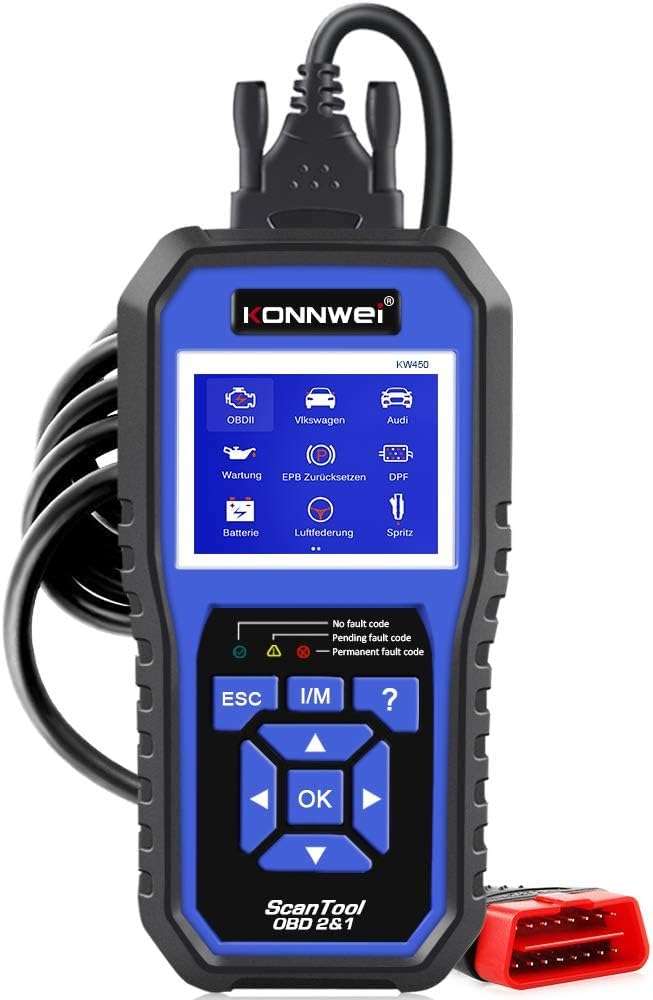
Figure 1: KONNWEI KW450 displaying its 9 special functions for VAG vehicles. These include Oil Service Reset, TPS Replacement Reset, Electronic Parking Brake (EPB) Reset, Battery Matching, Diesel Particulate Filter (DPF) Regeneration, Steering Angle Sensor (SAS) Calibration, Injector Coding, Suspension Adjustment, and Lamp Setting.
- Oil Service Reset: Resets the oil service light after an oil change.
- TPS Replacement Reset: Calibrates the throttle position sensor.
- EPB Reset: Resets the electronic parking brake system for pad replacement.
- Battery Matching: Registers a new battery with the vehicle's system.
- DPF Regeneration: Initiates the regeneration process for the Diesel Particulate Filter.
- SAS Calibration: Calibrates the steering angle sensor.
- Injector Coding: Codes new injector values into the ECU.
- Suspension Adjustment: Adjusts vehicle suspension settings.
- Lamp Setting: Configures vehicle lighting parameters.
3.2 Universal OBDII/EOBD Functions
For all other OBDII/EOBD compliant vehicles, the KW450 offers standard diagnostic capabilities. Select 'OBDII' from the main menu to access these functions.
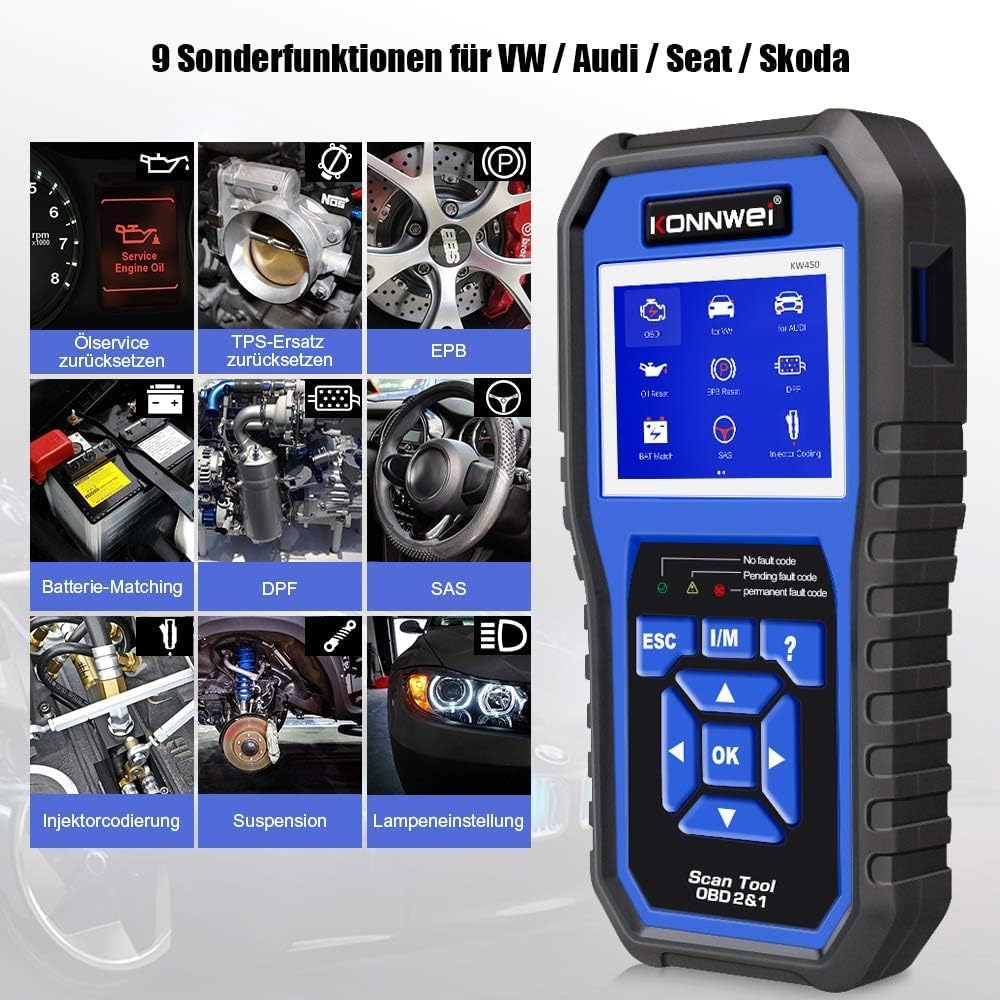
Figure 2: KONNWEI KW450 displaying universal OBD2 functions. These include Read Codes, Erase Codes, Live Data, Freeze Frame, O2 Sensor Test, I/M Readiness, On-Board Monitor Test, EVAP System Test, DTC Code Lookup, and VIN Information.
- Read Codes: Retrieves Diagnostic Trouble Codes (DTCs) from the vehicle's computer.
- Erase Codes: Clears DTCs from the vehicle's computer and turns off the Malfunction Indicator Lamp (MIL).
- Live Data: Displays real-time data stream from the vehicle's sensors.
- Freeze Frame: Shows a snapshot of operating conditions at the time a fault occurred.
- O2 Sensor Test: Retrieves O2 sensor monitor test results.
- I/M Readiness: Checks the readiness of emission-related monitors.
- On-Board Monitor Test: Retrieves results for on-board diagnostic monitoring tests.
- EVAP System Test: Initiates a test of the Evaporative Emission Control System.
- DTC Code Lookup: Provides detailed descriptions of DTCs.
- VIN Information: Displays Vehicle Identification Number and other vehicle information.
4. Maintenance
4.1 Software Updates
The KONNWEI KW450 supports lifetime free software updates to ensure compatibility with new vehicle models and diagnostic protocols. To update the device:
- Download the 'Uplink' software from the official KONNWEI website onto a computer running Windows XP, 7, 8, or 10.
- Install the 'Uplink' software.
- Connect the KW450 scanner to your computer using the provided USB cable.
- On the scanner, press and hold the 'OK' button while plugging in the USB cable. The scanner screen should indicate 'Update Mode'.
- Open the 'Uplink' software on your computer and click 'Check Update'. Follow the on-screen instructions to complete the update process.

Figure 3: The KONNWEI KW450 connected to a computer for software updates. The 'Uplink' software facilitates the update process, ensuring the device has the latest diagnostic capabilities.
4.2 Cleaning and Storage
- Clean the device with a soft, damp cloth. Do not use abrasive cleaners or solvents.
- Store the scanner in a dry, cool place, away from direct sunlight and extreme temperatures.
- Keep the cables free from kinks and damage.
5. Troubleshooting
| Problem | Possible Cause | Solution |
|---|---|---|
| Device does not power on. | Loose connection to DLC; vehicle ignition not ON; faulty OBD2 cable. | Ensure cable is securely connected. Turn ignition to ON. Try a different OBD2 port if available or check cable for damage. |
| Communication error with vehicle. | Incorrect protocol selected; vehicle not OBDII compliant; faulty vehicle DLC. | Verify vehicle is OBDII compliant. Check vehicle manual for DLC issues. Try on another compatible vehicle. |
| Cannot clear fault codes. | Underlying issue not resolved; ignition not ON; specific codes cannot be cleared by generic OBD2. | Address the root cause of the fault. Ensure ignition is ON. Some manufacturer-specific codes require specialized tools. |
| Software update fails. | Incorrect 'Uplink' software version; unstable USB connection; firewall/antivirus blocking. | Download the latest 'Uplink' software. Ensure a stable USB connection. Temporarily disable firewall/antivirus. |
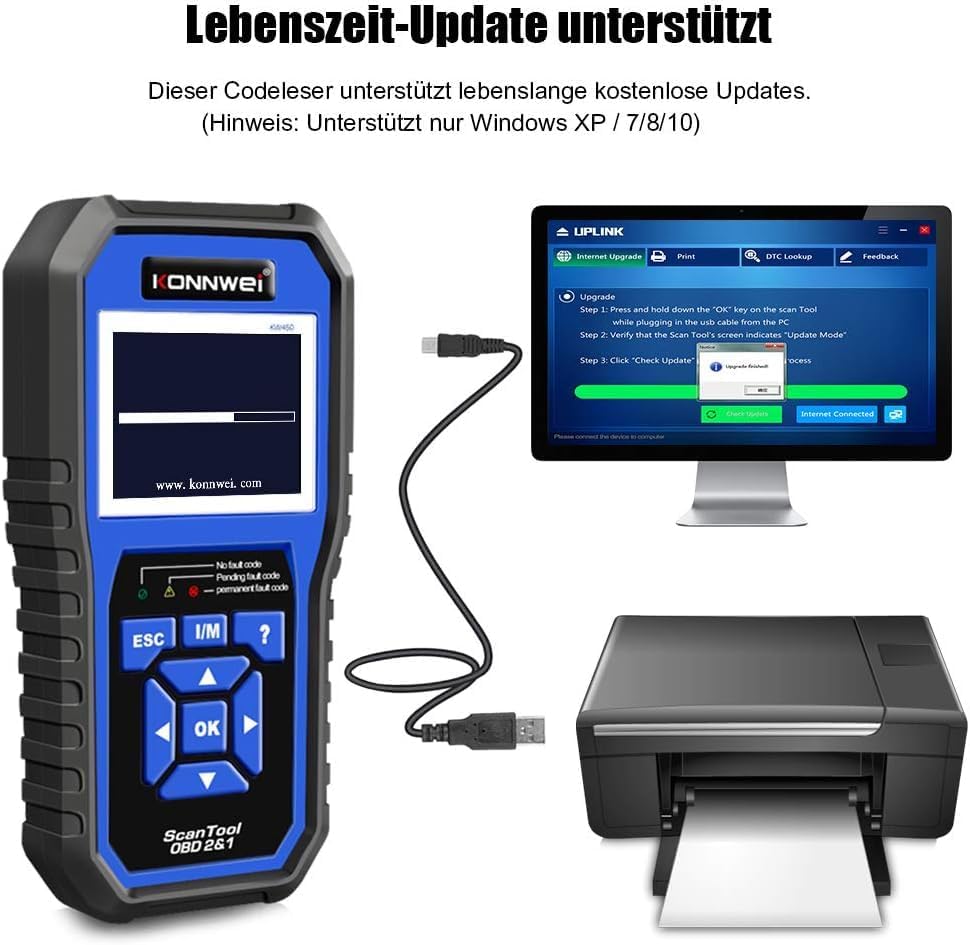
Figure 4: The KONNWEI KW450 main screen, showing indicators for 'No fault code', 'Pending fault code', and 'Permanent fault code' which are crucial for troubleshooting.
6. Specifications
| Feature | Detail |
|---|---|
| Brand | KONNWEI |
| Model | KW450 |
| Screen Size | 5 inches |
| Operating System (for updates) | Windows XP, 7, 8, 10 |
| Power Source | Wired (via OBD2 port) |
| Product Dimensions (L x W x H) | 15.01 x 10 x 5 cm |
| Item Weight | 20 grams |
| Certifications | CE, FCC, RoHS Compliant |
7. Warranty Information
Please refer to the warranty card included with your product or contact the retailer/manufacturer for specific warranty terms and conditions. Extended warranty options may be available from third-party providers.
8. Customer Support
For technical assistance, troubleshooting, or general inquiries, please contact KONNWEI customer support through their official website or the contact information provided in your product packaging. Ensure you have your product model (KW450) and purchase details ready when contacting support.


