
Amazon Signage Stick
Amazon Signage Stick User Manual
Digital Signage Media Player
Introduction
The Amazon Signage Stick is a professional-grade digital signage media player designed for a wide range of businesses and applications. It offers premier signage performance, supporting 4K video streaming and playback with high-bandwidth WiFi 6E connectivity. This device is engineered for unattended operation, automatically launching content management software in kiosk mode to maximize uptime.
It integrates seamlessly with over 25 leading Content Management Software (CMS) providers, requiring a separate CMS subscription. The Amazon Signage Stick is built to scale, allowing easy expansion across multiple displays and locations by using one stick per screen. Security is a core feature, with a secure boot loader, data encryption, and regular updates ensuring smooth and safe operation.

Image: The Amazon Signage Stick, a compact black device, is shown alongside its accompanying remote control. The stick features an HDMI connector and a micro-USB port, while the remote has standard navigation and playback buttons.
Setup Guide
Setting up your Amazon Signage Stick is designed to be straightforward, requiring minimal technical expertise.
1. Hardware Connection
- Connect the Signage Stick: Plug the Amazon Signage Stick directly into an available HDMI input on your display or TV.
- Power On: Connect the included power adapter to the micro-USB port on the Signage Stick and then plug it into a power outlet.
- Select Input: Switch your display's input source to the HDMI port where the Signage Stick is connected.

Image: A close-up view of the Amazon Signage Stick plugged into the HDMI port on the side of a display, illustrating its compact form factor when installed.
2. Initial Device Setup
Upon first power-on, the device will guide you through the initial setup process.
- Remote Pairing: If prompted, pair the remote control by holding the Home button for at least 12 seconds until the LED flashes. If issues persist, unplug the Signage Stick and plug it back in.
- Network Connection: Follow the on-screen instructions to connect your Signage Stick to your Wi-Fi network. For Wi-Fi 6E support, a compatible Wi-Fi 6E router is required.
3. Using the Amazon Signage App (Recommended)
The new Amazon Signage app simplifies the setup and monitoring of multiple Signage Sticks, eliminating the need for remotes for initial setup.
- Download the App: Download the "Amazon Signage" app on your mobile phone.
- Connect via App: Use the app to connect your Signage Stick to your Wi-Fi network and complete the initial registration. This method is often more reliable than manual remote input, especially for complex Wi-Fi passwords or hidden networks.
- Monitor Devices: The app provides a centralized dashboard to monitor all your Signage Sticks.
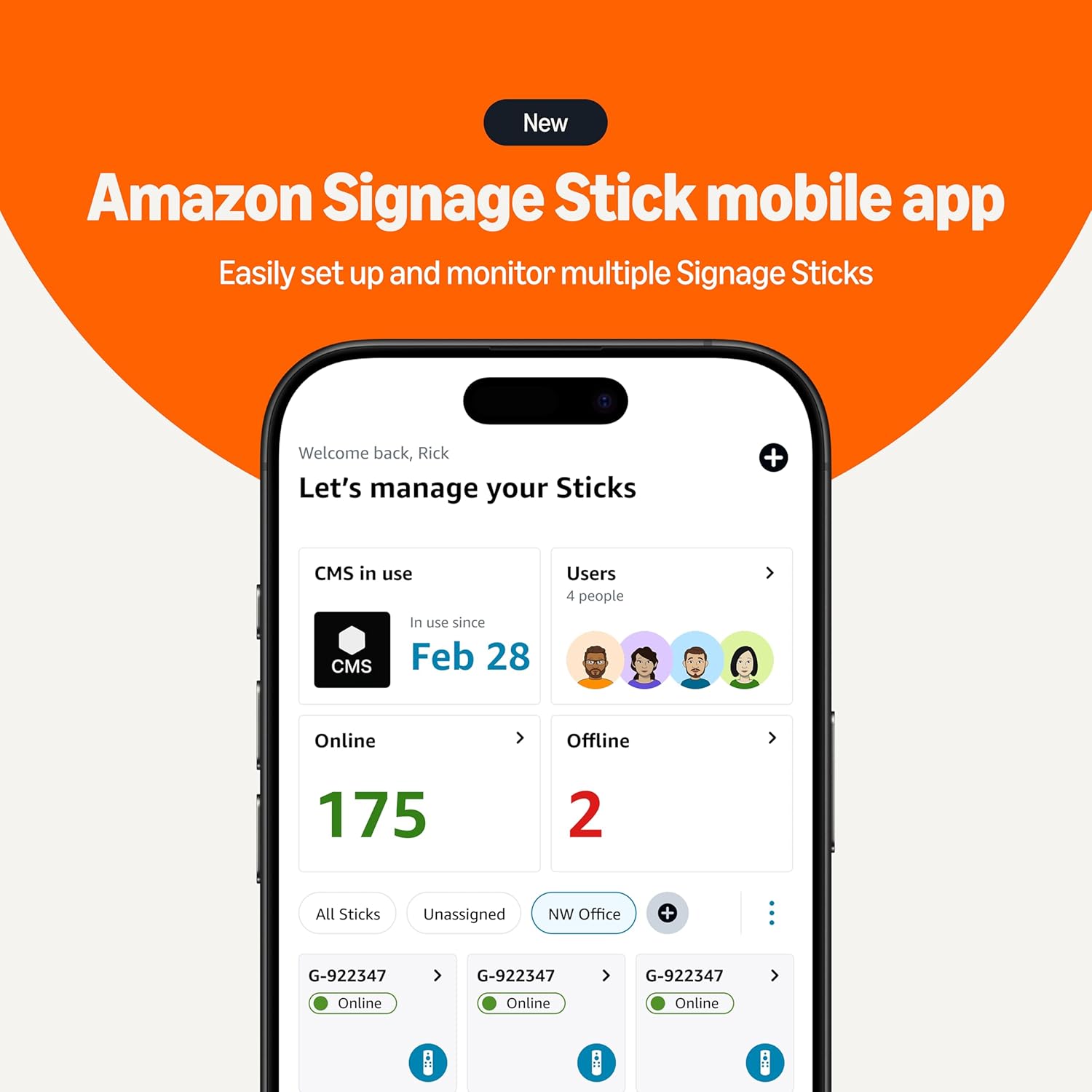
Image: A smartphone screen displaying the new Amazon Signage Stick mobile app interface, showing a dashboard to manage and monitor multiple Signage Sticks, indicating online and offline status.
4. CMS Integration
Once connected to the internet, the Signage Stick will prompt you to integrate with your chosen Content Management Software (CMS).
- Select CMS: Choose your preferred CMS from the list of supported providers.
- Registration: Follow the on-screen instructions or your CMS provider's guide to register the Signage Stick with your CMS account. This typically involves entering a code displayed on the screen into your CMS dashboard.

Image: A comprehensive view of the Amazon Signage ecosystem, featuring a large display showing digital signage content, a desktop computer displaying the CMS selection interface, the Amazon Signage Stick remote, and a smartphone running the Amazon Signage app.
Operating Instructions
The Amazon Signage Stick is designed for continuous, unattended operation once configured with your CMS.
- Content Playback: The device will automatically download and play content scheduled through your integrated CMS.
- Kiosk Mode: The Signage Stick operates in kiosk mode, ensuring that only your digital signage content is displayed, preventing unauthorized access or changes.
- 4K Video Streaming: For 4K content playback, ensure you have a compatible 4K-resolution display, a CMS that supports 4K, and 4K content.
- Remote Management: Manage and update your content remotely through your CMS dashboard. The Amazon Signage app also allows for monitoring device status.
Maintenance
The Amazon Signage Stick requires minimal physical maintenance. Regular software updates are crucial for optimal performance and security.
- Software Updates: The device receives regular software security updates automatically. Ensure your device is connected to the internet to receive these updates, which keep the signage safe and running smoothly.
- Cleaning: Periodically, gently wipe the exterior of the device with a soft, dry cloth to remove dust. Do not use liquid cleaners or abrasive materials.
- Ventilation: Ensure the device is placed in an area with adequate ventilation to prevent overheating, although it is designed for long hours of operation.
Troubleshooting
This section addresses common issues you might encounter with your Amazon Signage Stick.
- Device Not Powering On:
- Ensure the power adapter is securely connected to the Signage Stick and the power outlet.
- Verify the power outlet is functional.
- No Display/Black Screen:
- Check that the Signage Stick is fully inserted into the HDMI port of your display.
- Ensure your display is set to the correct HDMI input source.
- Verify your display supports HDCP requirements for protected content playback.
- Remote Control Not Responding:
- Replace the AAA batteries in the remote control.
- To re-pair the remote, hold the Home button for at least 12 seconds. If unsuccessful, unplug the Signage Stick from power, wait a few seconds, and plug it back in, then try pairing again.
- Wi-Fi Connection Issues:
- Ensure your Wi-Fi network is active and within range.
- Double-check the Wi-Fi password.
- If using a hidden network or encountering issues with password input via remote, consider using the Amazon Signage app for network setup.
- Restart your Wi-Fi router and the Signage Stick.
- CMS Registration Failure / Setup Loop:
- If the QR code scan for registration fails, try manual registration by entering the code displayed on the screen into your CMS console.
- If the device enters a setup loop or states "failed to complete setup," a factory reset may be necessary. This will require re-registering with your CMS and re-configuring Wi-Fi.
- Content Not Displaying / Lagging:
- Verify your CMS is correctly configured and content is scheduled.
- Check your internet connection speed.
- Ensure your content format is supported by the Signage Stick.
- For 4K content, confirm your display and CMS support 4K.
Specifications
| Feature | Detail |
|---|---|
| Device Dimensions (Housing) | 99 mm x 30 mm x 14 mm |
| Device Dimensions (Including Connector) | 108 mm x 30 mm x 14 mm |
| Device Weight | 43.5g |
| Processor | Quad-core 2.0GHz |
| GPU | 850MHz |
| Storage | 16GB |
| Memory | 2GB LPDDR4 |
| WiFi | Wi-Fi 6E tri-band: 802.11 a/b/g/n/ac/ax (2.4GHz, 5GHz, and 6GHz) |
| Bluetooth | Bluetooth 5.2 + BLE |
| Audio Support | HDMI audio pass through up to 5.1 |
| 4K Support | Requires compatible 4K display, 4K-supporting CMS, and 4K content. |
| Content Formats Supported (Video) | HDR 10, HDR10+, HLG, H.265, H.264, VP9, AV1 |
| Content Formats Supported (Audio) | xHE-AAC, AAC-LC, AAC+, eAAC+, AAC-ELD, MP3, AMR-NB, FLAC, PCM/WAV, Vorbis, MPEG-H pass-through, DTS passthrough, DTS-HD passthrough (basic profile) |
| Ports | HDMI 2.1 output with ARC input support, micro-USB |
| System Requirements | High-definition display with HDMI input, high-speed internet via Wi-Fi. Wi-Fi 6E router for 6E support. |
| Display Compatibility | 4K UHD (2160p at 24/25/30/50/60 Hz, HDCP 2.2) or HD (1080p or 720p at 50/60 Hz) |
| Remote Dimensions | 38 mm x 157 mm x 17 mm |
| Remote Weight (without batteries) | 51g |
| Remote Batteries | 2 AAA (included) |
| Remote Technology | Bluetooth and infrared |
Warranty and Support
Your Amazon Signage Stick comes with a 1-year limited warranty and service. For detailed terms and conditions, please refer to the official Amazon product page or contact Amazon customer support.
Software Security Updates: This device is guaranteed to receive software security updates for at least three years from its last availability for purchase as a new unit on Amazon websites. These updates are crucial for maintaining the security and functionality of your device.
For further assistance, troubleshooting, or warranty claims, please visit the Amazon support website or contact Amazon customer service directly.
Related documentsSignage Stick


Ask a question about this manual
Ask about setup, troubleshooting, compatibility, parts, safety, or missing instructions. Manuals+ will review the question and use this page’s manual context to help answer it.