
1. Introduction
Thank you for choosing the SABLUTE Wireless Keyboard and Mouse Combo. This ergonomic, rechargeable set features 9 backlit effects, an integrated wrist rest, and a convenient phone holder, designed to enhance your computing experience with comfort and efficiency. This manual provides detailed instructions for setup, operation, maintenance, and troubleshooting to ensure optimal performance of your new device.
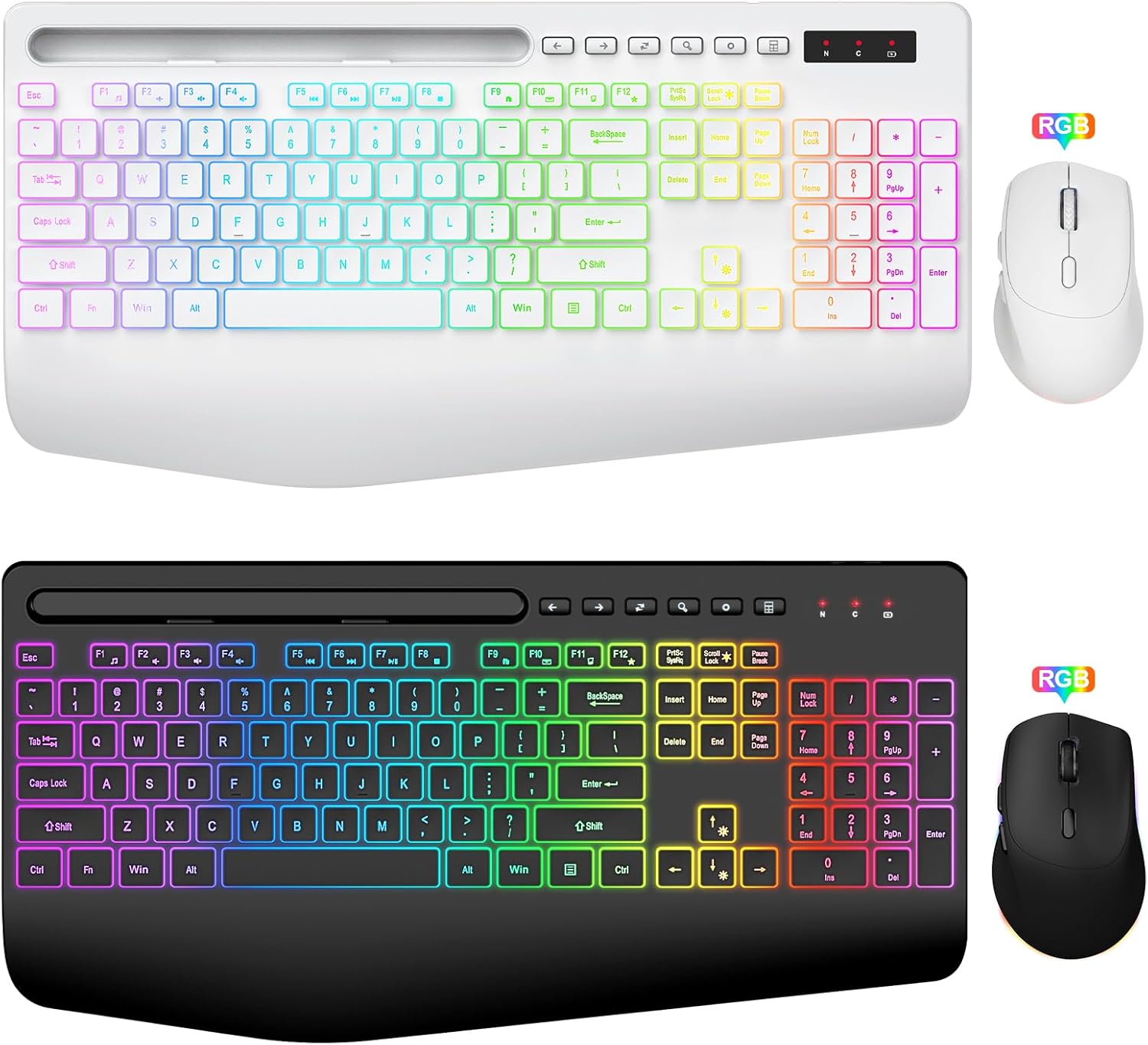
Image: The SABLUTE Wireless Keyboard and Mouse Combo, showcasing both white and black versions of the ergonomic keyboard with integrated wrist rests and matching mice, highlighting their backlit features.
2. Package Contents
Please verify that all items are present in your package:
- Ergonomic Backlit Wireless Keyboard (White & Black) x 2
- Six-button Backlit Wireless Mouse (White & Black) x 2
- Type-C Charging Cable x 2
- User Manual x 2
- USB-A Dongle x 2
- Packaging Box x 2
3. Setup
3.1. Connecting the Combo
The SABLUTE Wireless Keyboard and Mouse Combo utilizes 2.4G wireless technology for a stable and lag-free connection. Both devices connect via a single USB-A dongle.
- Locate the USB-A dongle, typically stored in the mouse or keyboard battery compartment.
- Insert the USB-A dongle into an available USB port on your computer or laptop.
- Ensure both the keyboard and mouse are powered on. They should automatically connect to your device within a few seconds.

Image: A visual representation of the plug-and-play setup, highlighting the 2.4G wireless connectivity and 33-foot range of the keyboard and mouse combo.
3.2. Charging the Devices
Both the keyboard and mouse are rechargeable. Use the provided Type-C charging cable to charge them.
- Connect the Type-C end of the charging cable to the charging port on the keyboard or mouse.
- Connect the USB-A end of the charging cable to a USB power source (e.g., computer USB port, USB wall adapter).
- An indicator light on the device will show charging status. Once fully charged, the light may change or turn off.

Image: The keyboard and mouse connected via Type-C charging cables, illustrating the power-saving features and smart sleep mode for extended standby time.
4. Operating Instructions
4.1. Keyboard Backlight Control
The keyboard features 7+1 backlight colors and 3 backlight modes to customize your workspace ambiance.
- To switch backlight colors or modes, press the dedicated backlight control key (refer to keyboard layout for exact location, often near function keys).
- To turn off the backlight, press and hold the backlight control key or cycle through the modes until it deactivates.

Image: Three different backlit moods of the keyboard are displayed: Solid Color Static Backlight, RGB Rainbow Wave Effect, and Cycle Ripple Backlight, demonstrating the customizable lighting options.
4.2. Mouse Backlight Control
The mouse also features color backlighting with 15 light effects.
- Press the dedicated backlight switch button on the mouse to cycle through the light effects or turn them off.

Image: A detailed view of the 6-button wireless mouse, labeling the Left Click, Right Click, Scroll Wheel, DPI Switch Button, Backward Button, and Forward Button, along with an illustration of its 15 switchable light effects.
4.3. Ergonomic Design and Phone Holder
The keyboard is designed with an extra-large wrist rest (2.8'' widest edge) to provide ergonomic support and reduce wrist fatigue. It also includes a built-in phone/tablet holder for multitasking convenience.
- Position your wrists comfortably on the integrated wrist rest during use.
- Place your smartphone or tablet (up to 8.78" in width) into the designated slot at the top of the keyboard.

Image: A comparison illustrating the ergonomic palm rest of the SABLUTE keyboard, designed to reduce wrist fatigue and pain, contrasting it with a standard keyboard.

Image: The keyboard featuring an 8.78-inch large phone and tablet holder, demonstrating how it can hold a device to assist with multitasking.
4.4. Mouse DPI Adjustment
The mouse features a DPI switch button to adjust cursor sensitivity (800/1200/1600 DPI).
- Press the DPI switch button (located near the scroll wheel) to cycle through the available DPI settings.
5. Maintenance
5.1. Cleaning
To maintain the appearance and functionality of your keyboard and mouse:
- Use a soft, dry, lint-free cloth to wipe down the surfaces.
- For stubborn dirt, slightly dampen the cloth with water or a mild, non-abrasive cleaner. Avoid excessive moisture.
- Do not use harsh chemicals, solvents, or abrasive cleaners.
5.2. Battery Care
The built-in rechargeable batteries are designed for long-term use. To prolong battery life:
- Charge the devices fully before first use.
- Avoid completely draining the battery frequently.
- If the devices will not be used for an extended period, charge them to about 50% before storage.
- The devices feature a smart sleep mode to conserve power when idle. Press any key to reactivate.
6. Troubleshooting
If you encounter issues with your SABLUTE Wireless Keyboard and Mouse Combo, please refer to the following common solutions:
| Problem | Possible Solution |
|---|---|
| Keyboard/Mouse not responding |
|
| Backlight not working |
|
| Lag or intermittent connection |
|
7. Specifications
| Feature | Detail |
|---|---|
| Brand | SABLUTE |
| Model Number (ASIN) | B0D4DV245F |
| Connectivity Technology | 2.4G Wireless |
| Special Features | Ergonomic, Rechargeable, Backlit (Keyboard & Mouse), Wrist Rest, Phone Holder |
| Compatible Devices | Laptop, Personal Computer |
| Keyboard Description | Indoor |
| Date First Available | May 17, 2024 |
8. Warranty and Support
SABLUTE products are manufactured to high quality standards. For any product-related inquiries, technical support, or warranty claims, please contact the seller directly through the platform where you purchased the product. Please retain your proof of purchase for warranty purposes.