
1. Introduction
This manual provides detailed instructions for the installation, operation, and maintenance of your MZZYG Tuya 7-Inch Wired Video Doorbell System. Please read this manual thoroughly before using the product to ensure proper function and safety. Keep this manual for future reference.
2. Product Overview and Package Contents
The MZZYG Tuya Video Doorbell System is designed to enhance your home security with a 1080P camera, a 7-inch touchscreen monitor, and Wi-Fi connectivity. It supports remote unlocking, two-way communication, and motion detection.
2.1 Package Contents
Verify that all items are present in your package:
- Outdoor Doorbell Unit (1080P Camera)
- Indoor Monitor Unit (7-inch TFT-LCD Touchscreen)
- Power Adapter for Indoor Monitor
- Mounting Bracket and Screws
- Wiring Cables
- RFID Key Fobs (Quantity may vary)
- User Manual (This document)

Figure 2.1: Main components of the MZZYG Tuya Video Doorbell System, including the outdoor doorbell unit, the indoor 7-inch monitor, and several RFID key fobs for access control.
3. Specifications
3.1 Indoor Monitor
- Screen: 7-inch TFT-LCD Touchscreen
- Resolution: 1024 x 680
- Ringtones: 7-chord melodic rings
- Connection Mode: 4-wire, Tuya Wi-Fi solution
- Panel Material: Acrylic/ABS
3.2 Outdoor Doorbell Unit
- Camera: 1080P
- Lens: 3.2mm wide-angle, 160-degree view
- Night Vision: Supported
- Waterproof Rating: IP65
- Casing Material: Aluminum alloy
- Features: Remote unlock, monitoring, two-way communication, video recording, motion detection
4. Installation and Setup
Proper installation is crucial for optimal performance. It is recommended to consult a qualified electrician for wiring if you are unfamiliar with electrical installations.
4.1 Mounting the Outdoor Unit
- Choose a suitable location near your entrance, ensuring the camera has a clear, unobstructed view of visitors. The recommended height is approximately 1.5 meters (5 feet) from the ground.
- Use the mounting bracket as a template to mark drilling points on the wall.
- Drill holes and insert wall plugs.
- Secure the mounting bracket to the wall using the provided screws.
- Connect the wiring from your home to the outdoor unit. Ensure correct polarity for power and signal wires.
- Attach the outdoor unit to the mounting bracket.
4.2 Mounting the Indoor Monitor
- Select a convenient indoor location, such as a hallway or living room, where the monitor is easily accessible.
- Mount the indoor monitor's bracket to the wall using screws.
- Connect the 4-wire cable from the outdoor unit to the indoor monitor.
- Connect the power adapter to the indoor monitor and plug it into a power outlet.
- Attach the indoor monitor to its wall bracket.

Figure 4.1: Illustrative examples of the outdoor doorbell unit mounted next to a door and the indoor monitor installed on a wall inside a home.
4.3 Initial Power-On and Wi-Fi Configuration
- Once both units are mounted and wired, power on the indoor monitor.
- Follow the on-screen prompts to configure the date, time, and language settings.
- Navigate to the Wi-Fi settings menu on the indoor monitor.
- Select your home Wi-Fi network and enter the password. The monitor will connect to the internet, enabling Tuya app integration.
5. Operation
5.1 Answering a Call
- When a visitor presses the doorbell button, the indoor monitor will ring and display the visitor's image.
- To answer, tap the "Answer" icon on the touchscreen. This initiates two-way audio communication.
- To end the call, tap the "End Call" icon.
5.2 Remote Unlocking
If connected to an electronic lock (sold separately), you can unlock the door remotely:
- During a call or while monitoring, tap the "Unlock" icon on the indoor monitor or in the Tuya app.
- Confirm the unlock action if prompted.
5.3 Monitoring
You can view the outdoor camera feed at any time:
- On the indoor monitor, tap the "Monitor" icon to view the live feed from the outdoor unit.
- In the Tuya app, select your doorbell device to access the live view.
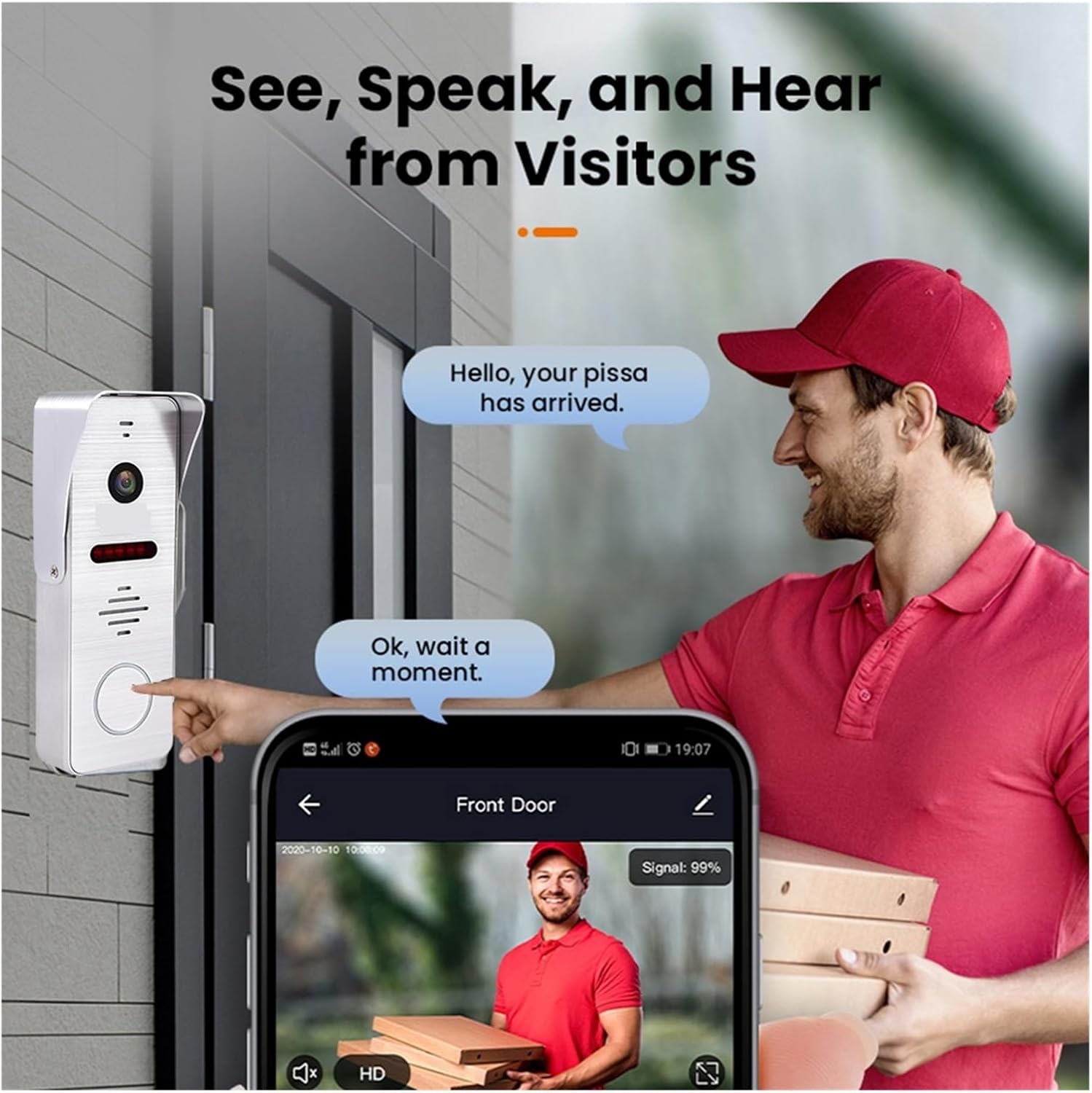
Figure 5.1: A visitor at the door pressing the doorbell, with a smartphone displaying the live video feed and communication options through the mobile application.
6. Tuya Smart App Integration
The system integrates with the Tuya Smart app for remote access and control.
6.1 Downloading and Registering the App
- Download the "Tuya Smart" app from your smartphone's app store (Google Play Store for Android, Apple App Store for iOS).
- Open the app and register for a new account or log in if you already have one.
6.2 Adding the Doorbell Device
- In the Tuya Smart app, tap the "+" icon to add a new device.
- Select "Video Surveillance" or "Doorbell" from the device categories.
- Follow the in-app instructions to pair your doorbell system. This typically involves scanning a QR code displayed on the indoor monitor or entering Wi-Fi credentials.
6.3 App Features
- Remote Monitoring: View live video from the outdoor unit.
- Two-Way Audio: Communicate with visitors from anywhere.
- Remote Unlock: Open the door remotely (requires compatible electronic lock).
- Video Recording & Snapshots: Capture video and images of visitors or events.
- Motion Detection Alerts: Receive notifications when motion is detected.

Figure 6.1: A smartphone screen showing a list of motion detection events recorded by the doorbell camera, with timestamps and preview images.
7. Motion Detection and Night Vision
The system is equipped with motion detection and night vision capabilities for enhanced security.
7.1 Motion Detection
- The outdoor unit can detect motion in its field of view.
- Upon detection, the system can automatically record video or take snapshots.
- You will receive push notifications on your smartphone via the Tuya Smart app when motion is detected.
- Sensitivity settings for motion detection can be adjusted in the indoor monitor's menu or the Tuya app.
7.2 Night Vision
- The outdoor unit features infrared night vision, allowing clear visibility even in low-light or complete darkness.
- Night vision activates automatically when ambient light levels are low.

Figure 7.1: An illustration of the doorbell's night vision capability, showing a person in low light conditions as seen on the indoor monitor and a mobile phone screen.
8. Maintenance
- Cleaning: Regularly wipe the camera lens and monitor screen with a soft, damp cloth. Avoid abrasive cleaners.
- Firmware Updates: Check for firmware updates periodically through the indoor monitor's settings or the Tuya Smart app to ensure optimal performance and security.
- Wiring Inspection: Periodically inspect all wiring connections for any signs of wear or damage.
9. Troubleshooting
| Problem | Possible Cause | Solution |
|---|---|---|
| No image on indoor monitor. | Power issue, loose wiring, faulty unit. | Check power connection to monitor. Verify all 4-wire connections between outdoor and indoor units. Restart the system. |
| No audio during call. | Microphone/speaker issue, volume too low. | Check volume settings on the monitor. Ensure wiring is secure. |
| Wi-Fi connection unstable or disconnected. | Weak Wi-Fi signal, incorrect password, router issue. | Ensure monitor is within Wi-Fi range. Re-enter Wi-Fi password. Restart your router. |
| Motion detection not working. | Motion detection disabled, sensitivity too low, incorrect settings. | Enable motion detection in settings. Adjust sensitivity. Check recording schedule. |
10. Safety Information
- Do not attempt to disassemble or repair the device yourself. Refer all servicing to qualified personnel.
- Keep the device away from water, moisture, and extreme temperatures.
- Ensure all wiring is correctly installed and insulated to prevent electrical hazards.
- Use only the provided power adapter.
11. Warranty and Support
Warranty information for this product is not explicitly detailed in the provided specifications. Please refer to your purchase documentation or contact your retailer for specific warranty terms and conditions.
For technical support or inquiries, please contact MZZYG customer service through the contact information provided with your purchase or on the official MZZYG website.