Introduction
This manual provides comprehensive instructions for the Tccmebius M.2 NVMe NGFF SSD Enclosure (TCC-S186). Designed for high-speed data transfer and broad compatibility, this external SSD case offers a reliable solution for expanding your storage. Please read this manual carefully to ensure proper installation and optimal performance of your device.
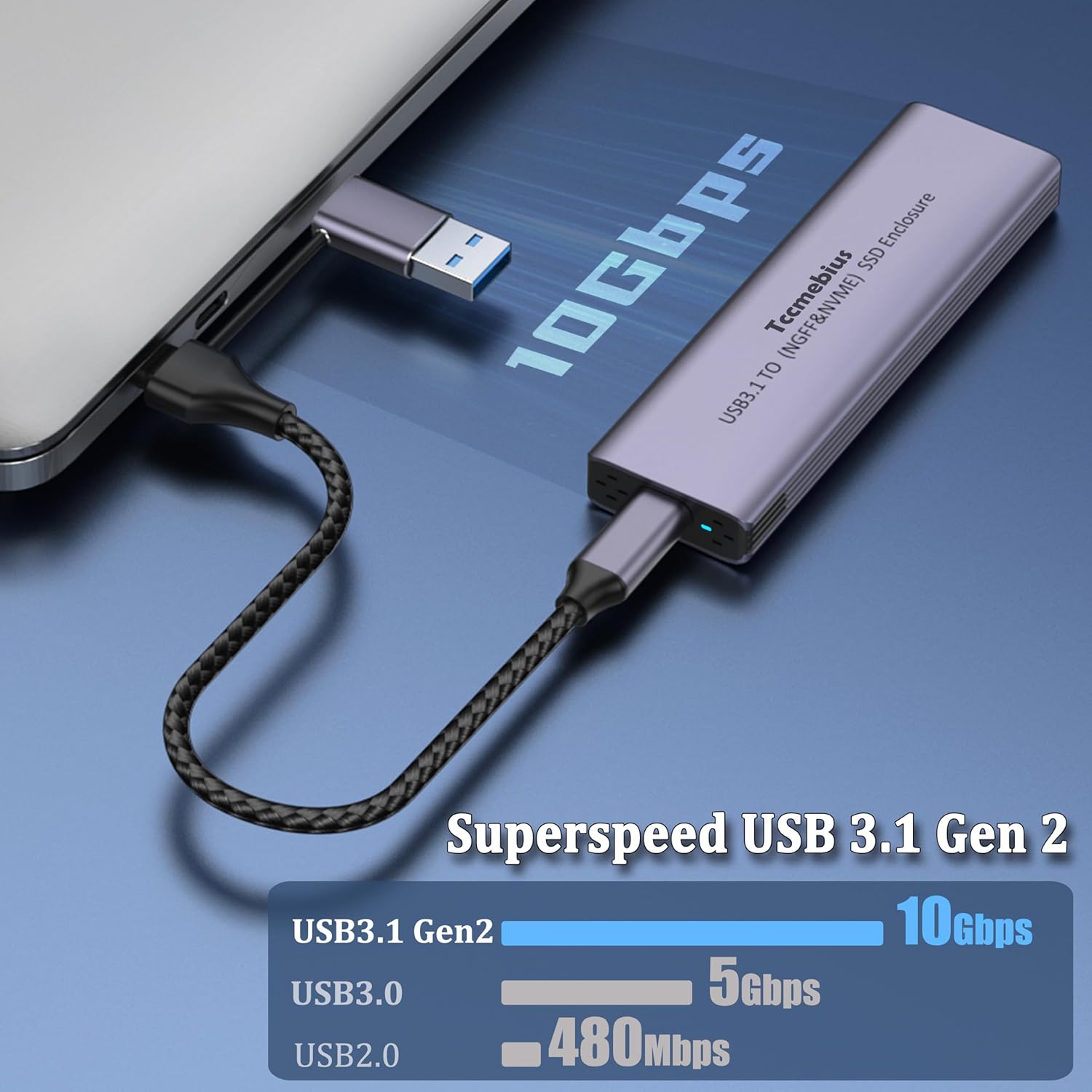
The Tccmebius M.2 NVMe SSD Enclosure connected to a laptop, illustrating 10Gbps data transfer speed.
Product Features
- High-Speed Data Transfer: Equipped with a USB C 3.1 Gen2 port, supporting up to 10Gbps data transfer speeds. Supports UASP and TRIM protocols for faster file transfer and backup.
- Broad Compatibility: Supports NVMe protocol and SATA AHCI protocol. Compatible with M-Key or B+M interface M.2 PCIe NVMe and SATA SSDs of sizes 2280/2260/2242/2230, and up to 8TB capacity. Compatible with Windows, Mac OS, Linux, and Android systems.
- User-Friendly Operation: Supports Plug and Play without the need for drivers. Features an automatic sleep function after 15 minutes of idle time to save energy and extend SSD lifespan. Includes a 2-in-1 USB A/C cable for versatile connectivity.
- Efficient Heat Dissipation: Designed with aluminum alloy and cooling holes on both sides to maintain optimal temperature and ensure transmission stability.
- Portable Design: Compact exterior design for easy carrying and quick use on the go.
What's in the Box

The package contents of the Tccmebius M.2 NVMe SSD Enclosure.
- 1 x M.2 NVMe SATA SSD Enclosure
- 1 x 2-IN-1 USB A/C Cable (50cm)
- 1 x User Manual
- 1 x Small Screwdriver
- Mounting Screws/Fasteners
- Thermal Pad
Setup and Installation
Follow these steps to correctly install your M.2 SSD into the enclosure:
- Disassemble the Enclosure: Gently slide out the internal tray from the aluminum casing.
- Insert the SSD: Carefully align your M.2 SSD with the slot on the internal tray and insert it firmly.
- Secure the SSD: Use the provided small screwdriver and mounting screw to secure the SSD in place on the tray.
- Apply Thermal Pad: Remove the protective film from the thermal pad and carefully place it onto the SSD chips to aid in heat dissipation.
- Reassemble the Enclosure: Slide the assembled tray, with the SSD and thermal pad, back into the aluminum casing until it is fully enclosed and secure.
- Connect to Device: Use the 2-in-1 USB A/C cable to connect the enclosure to your computer, laptop, tablet, or smartphone.

Visual guide for installing your M.2 SSD into the enclosure.
Operating Instructions
- Plug and Play: The TCC-S186 enclosure supports plug and play functionality. Simply connect it to your device using the provided USB cable, and it should be recognized automatically without needing additional drivers.
- Automatic Sleep Function: To conserve energy and prolong the lifespan of your SSD, the enclosure features an automatic sleep function. If left idle for 15 minutes, it will automatically enter sleep mode.
- LED Indicator: A blue LED indicator light on the enclosure will illuminate when the device is powered on and connected. It will flash during data transfer activities, indicating that the SSD is actively being accessed.
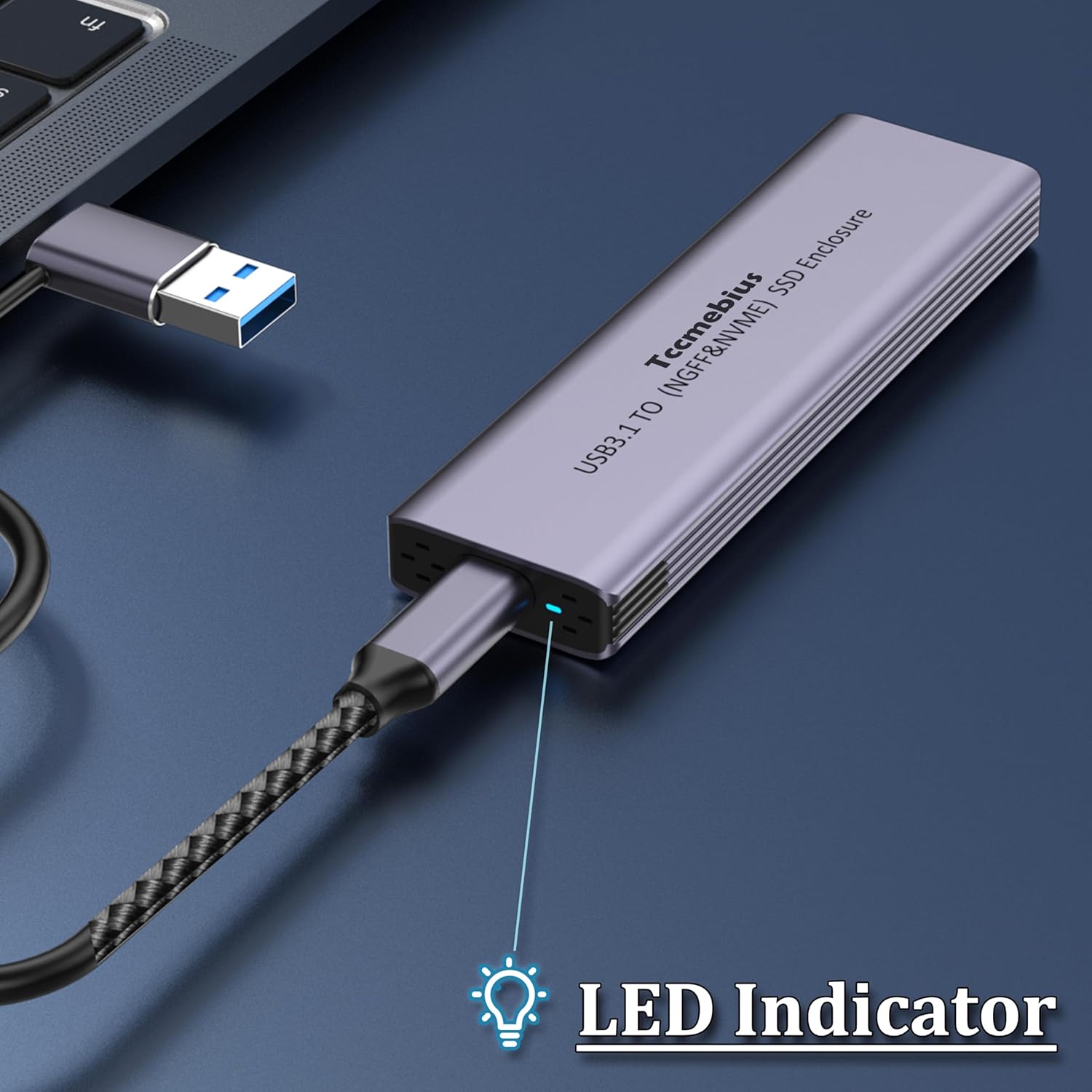
The blue LED indicator light provides visual feedback on the enclosure's status.
Compatibility
The TCC-S186 M.2 Enclosure is designed for extensive compatibility:
- SSD Protocol Support: Compatible with both NVMe (Non-Volatile Memory Express) protocol and SATA AHCI (Advanced Host Controller Interface) protocol.
- M.2 Interface Support: Suitable for M-Key or B+M interface M.2 PCIe NVMe and SATA SSDs. (Note: B-Key SATA M.2 SSDs are not supported).
- SSD Size Support: Accommodates solid-state drive sizes of 2280, 2260, 2242, and 2230.
- Capacity: Supports M.2 SSDs with capacities up to 8TB.
- Operating System Compatibility: Fully compatible with major operating systems including Windows, Mac OS, Linux, and Android.

The enclosure supports various M.2 SSD types and interfaces.
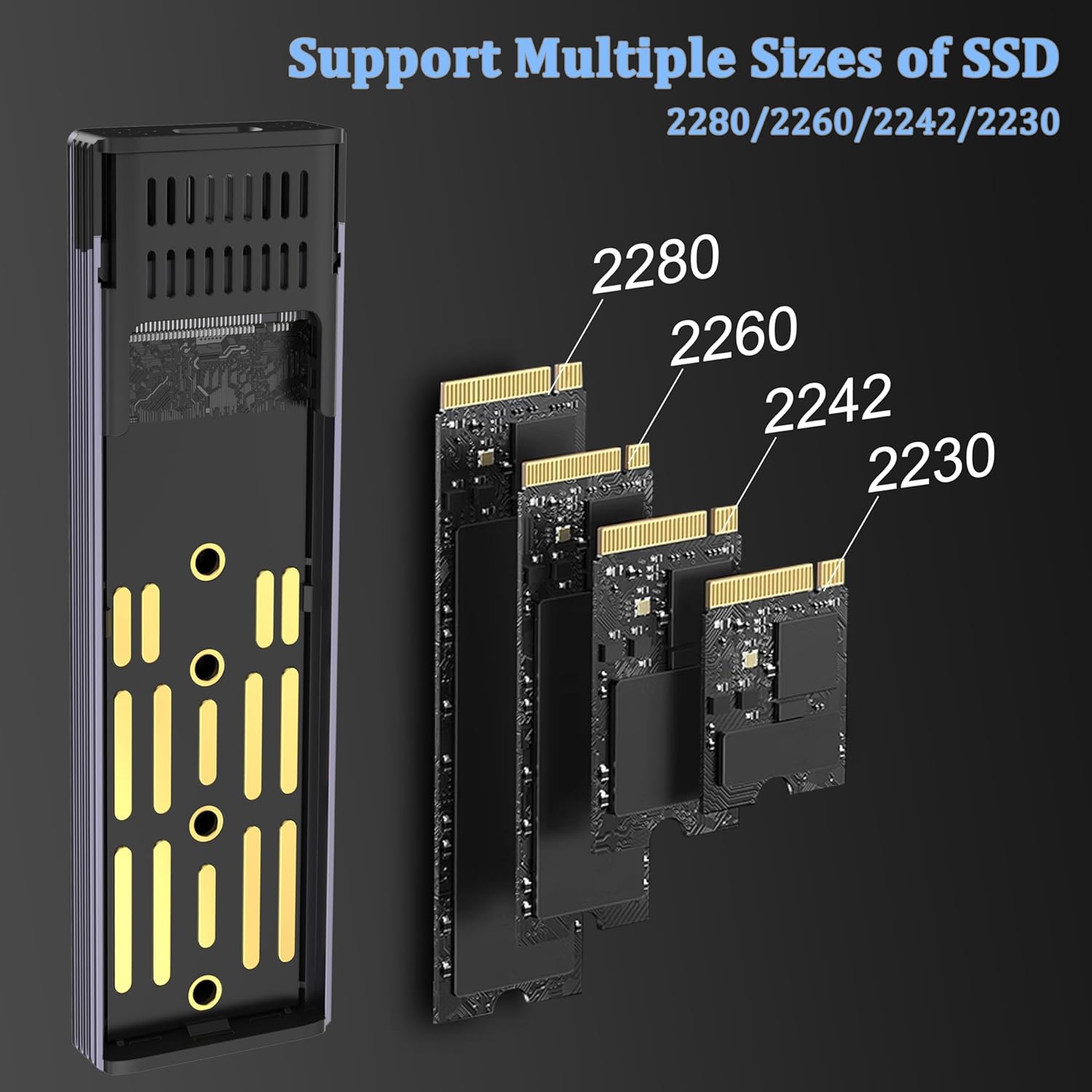
The enclosure is compatible with multiple M.2 SSD form factors.

The enclosure offers broad operating system compatibility for diverse user needs.
Heat Dissipation
The Tccmebius M.2 NVMe NGFF SSD Enclosure is engineered for optimal thermal management:
- Aluminum Alloy Construction: The enclosure is crafted from durable aluminum alloy, which acts as a natural heat sink.
- Cooling Holes: Strategically placed cooling holes on both sides of the enclosure facilitate efficient airflow, further enhancing heat dissipation.
- Thermal Pad: A thermal pad is included to create direct contact between the SSD and the aluminum casing, maximizing heat transfer away from the drive.
These features work together to maintain a stable operating temperature for your SSD, even during prolonged high-speed data transfers, ensuring consistent performance and extending the lifespan of your drive.

The aluminum alloy design with cooling holes ensures efficient heat dissipation.
Maintenance
To ensure the longevity and optimal performance of your Tccmebius M.2 NVMe NGFF SSD Enclosure, consider the following maintenance tips:
- Keep Clean: Regularly wipe the exterior of the enclosure with a soft, dry cloth to remove dust and debris. Avoid using harsh chemicals or abrasive materials.
- Avoid Extreme Temperatures: Do not expose the enclosure to extreme heat or cold, as this can affect the performance and lifespan of the SSD. Operate and store the device within recommended temperature ranges.
- Handle with Care: While the aluminum casing provides durability, avoid dropping or subjecting the enclosure to strong impacts, which could damage the internal SSD or the enclosure itself.
- Proper Disconnection: Always safely eject the device from your operating system before physically disconnecting the USB cable to prevent data corruption.
Troubleshooting
If you encounter issues with your Tccmebius M.2 NVMe NGFF SSD Enclosure, try the following solutions:
- Device Not Recognized:
- Ensure the USB cable is securely connected to both the enclosure and your device.
- Try connecting to a different USB port on your computer.
- Test with a different USB cable if available.
- Verify that the M.2 SSD is correctly installed and secured within the enclosure.
- Check your computer's Disk Management (Windows) or Disk Utility (Mac OS) to see if the drive is detected but uninitialized or unformatted.
- Slow Transfer Speeds:
- Ensure you are using a USB 3.1 Gen2 compatible port on your device for optimal 10Gbps speeds. Older USB 2.0 or 3.0 ports will result in slower transfers.
- Confirm that your M.2 SSD is a high-performance NVMe drive, as SATA SSDs will have lower maximum speeds.
- Close any unnecessary applications running in the background that might be consuming system resources.
- Overheating:
- Ensure the thermal pad is correctly applied to your SSD.
- Avoid placing the enclosure in enclosed spaces that restrict airflow.
- Reduce prolonged heavy data transfers if overheating persists.
Specifications
- Product Dimensions: 4.06 x 1.18 x 0.43 inches
- Item Weight: 1.2 ounces
- Item Model Number: TCC-S186
- Manufacturer: Tccmebius
- Date First Available: May 17, 2024

The compact dimensions of the Tccmebius M.2 NVMe SSD Enclosure.
Warranty and Support
Your Tccmebius M.2 NVMe NGFF SSD Enclosure comes with the following:
- 18 Month Warranty: Enjoy peace of mind with an 18-month warranty covering manufacturing defects.
- 24-Hour Friendly Customer Service: Our dedicated customer service team is available 24 hours a day to assist you with any questions or issues.


