
Introduction
This manual provides comprehensive instructions for the Symcode USB Laser Barcode Scanner (Model: 6543841919). This handheld wired barcode scanner is designed for efficient and accurate 1D barcode reading, suitable for various business, retail, and warehouse environments. Its plug-and-play functionality ensures ease of use across multiple operating systems.

Figure 1: Symcode USB Laser Barcode Scanner, a compact and ergonomic device for efficient barcode scanning.

Figure 2: The scanner features a small, exquisite, and streamlined design for comfortable handling, contrasting with larger, heavier alternatives.
Package Contents
Upon unpacking, please verify that all the following items are included in your package:
- 1 x Laser Barcode Scanner
- 1 x USB Cable (1.5m/5ft)
- 1 x User Manual
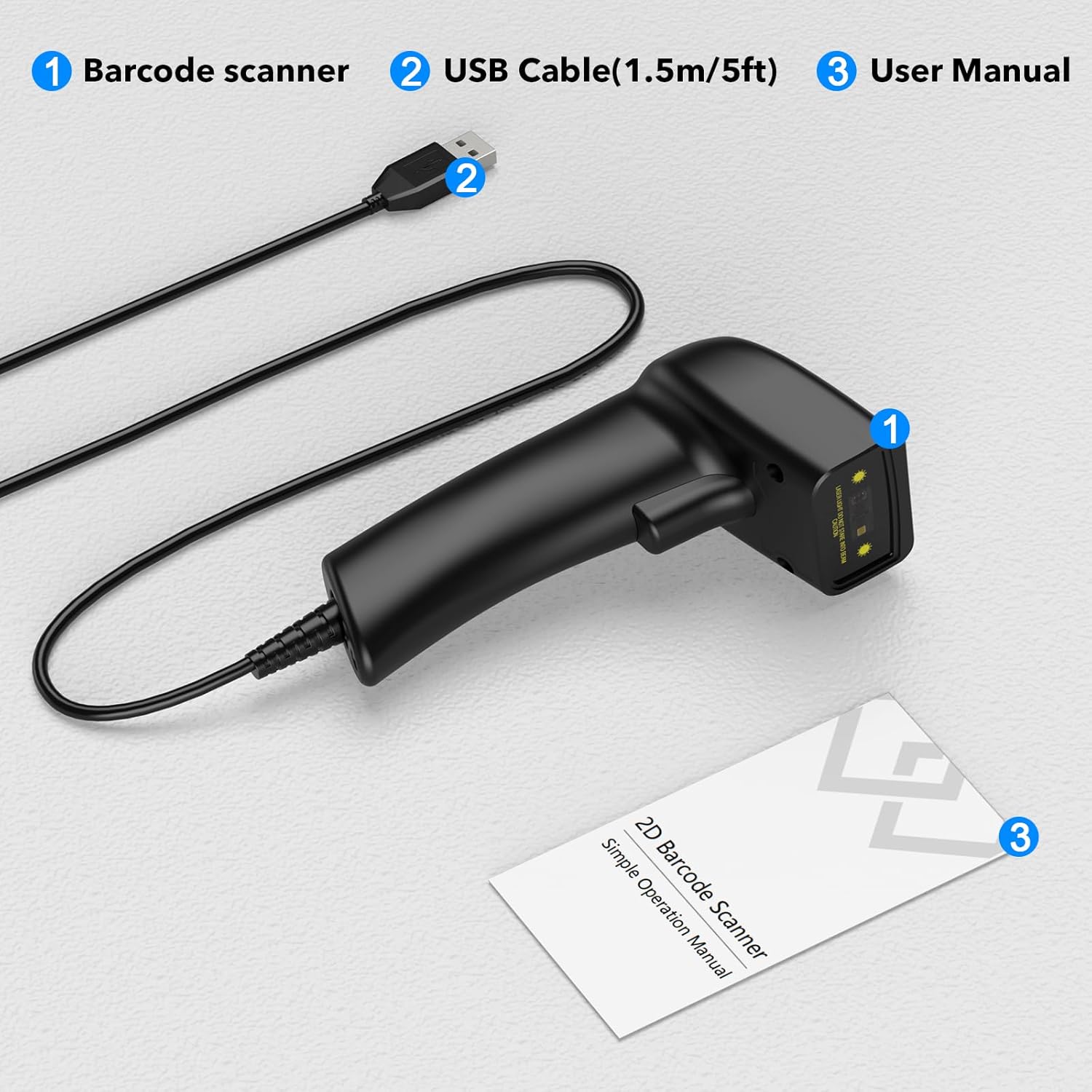
Figure 3: The standard package includes the barcode scanner unit, a USB cable for connection, and this user manual.
Specifications
Detailed technical specifications for the Symcode USB Laser Barcode Scanner:
| Feature | Description |
|---|---|
| Dimensions | 165 x 63 x 87 mm (6.5 x 2.48 x 3.43 inches) |
| Weight | 156g (4.2 ounces) |
| Light Source | 650nm~670nm Visible Laser |
| Scan Speed | 100 scans/second |
| Read Precision | 0.1mm (4mil) |
| Print Contrast | 30% minimum |
| Depth of Field | 0~600mm (0.33mm, PCS 90%) |
| Scan Scope | 10mm~250mm |
| Reading Distance | 2.5~600mm (100% UPC/EAN) |
| Supported Barcodes | EAN-8/13, UPC-A/E, Code 39/93/128, EAN-128, Codabar, Industrial 2 of 5, Interleave 2 of 5, Matrix 2 of 5, MSI, Code 11, RSS variants, Chinese 2 of 5 |
| Bit Error Rate | 1/5 million |
| Current | 85mA (working), 36mA (storage) |
| Interface | USB |
| Operating Temperature | 0℃~45℃ (32°F~113°F) |
| Storage Temperature | -20℃~60℃ (-4°F~140°F) |
| Humidity | 5%~95% non-condensing |
| Material | ABS+PC |
| Compatible OS | Windows, Mac, Linux, iOS, Android |
Setup
The Symcode Barcode Scanner is designed for simple plug-and-play operation. No driver installation or complex setup is required.
- Connect the USB Cable: Insert the USB cable into the port at the base of the barcode scanner.
- Connect to Host Device: Plug the other end of the USB cable into an available USB port on your computer (PC, Mac, or Linux) or compatible device.
- System Recognition: The operating system will automatically detect and install the necessary generic drivers. This process usually takes a few seconds.
- Prepare for Scanning: Open a text editor (e.g., Notepad, WordPad, Microsoft Word, Excel, QuickBooks, Novell) or any application where you wish the scanned barcode data to appear. Ensure the cursor is active in the input field.

Figure 4: The scanner connects directly to your computer via a standard USB cable, supporting various operating systems.
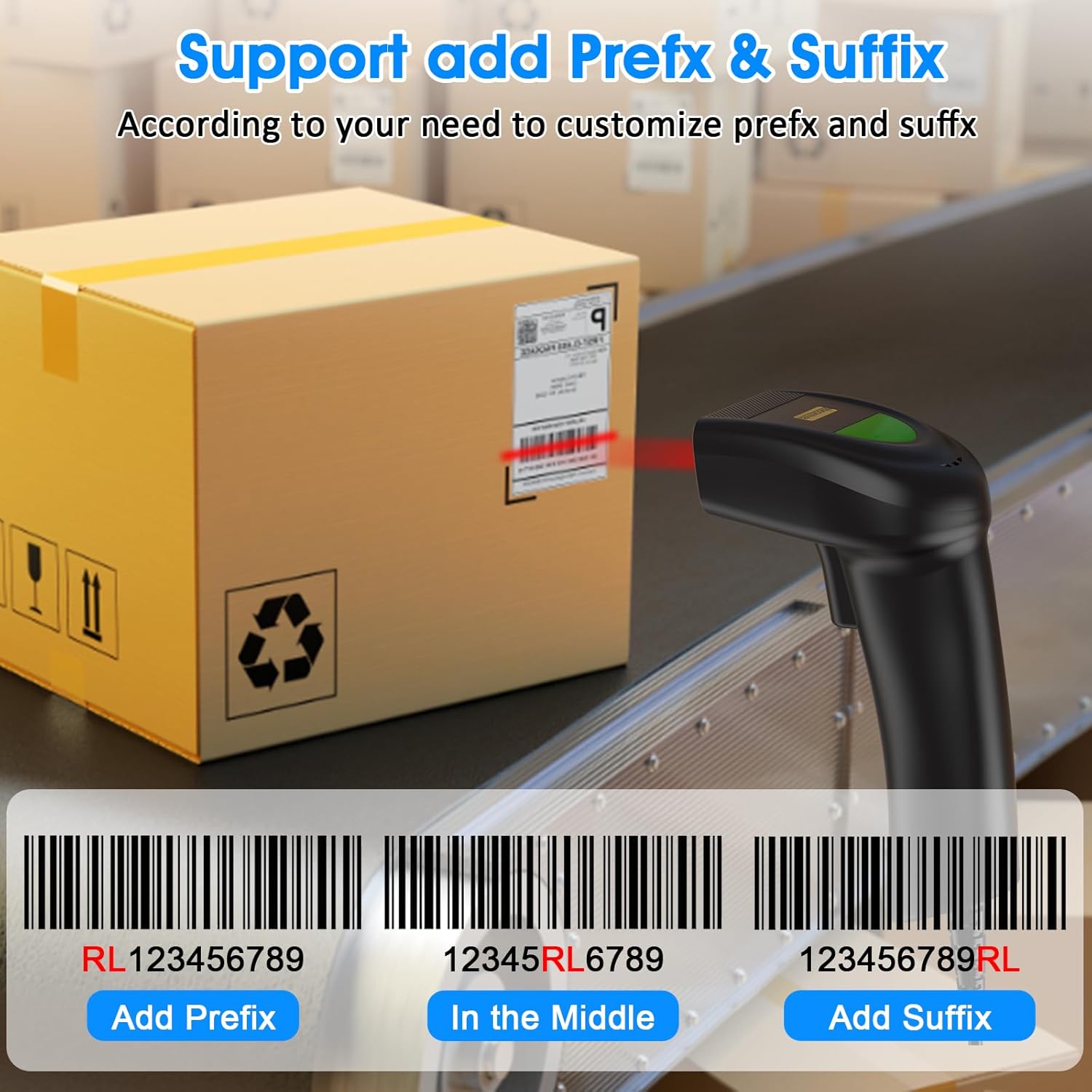
Figure 5: The USB cable serves both as a data transmission cable for scanning and as a power source for the device, enabling immediate plug-and-play functionality.
Operating Instructions
Basic Scanning
To scan a barcode, point the scanner's laser beam at the barcode you wish to read. Press the trigger button. A successful scan will typically result in a beep and the data appearing in your active application.
Customizing Settings
The scanner offers configurable options to tailor its behavior to your specific needs. These settings are typically changed by scanning special configuration barcodes found in the full user manual (not included in this summary).
Sound and Vibration Control
You can enable or disable the sound and vibration feedback of the scanner. This is useful in environments where audible beeps might be disruptive or where tactile feedback is preferred.
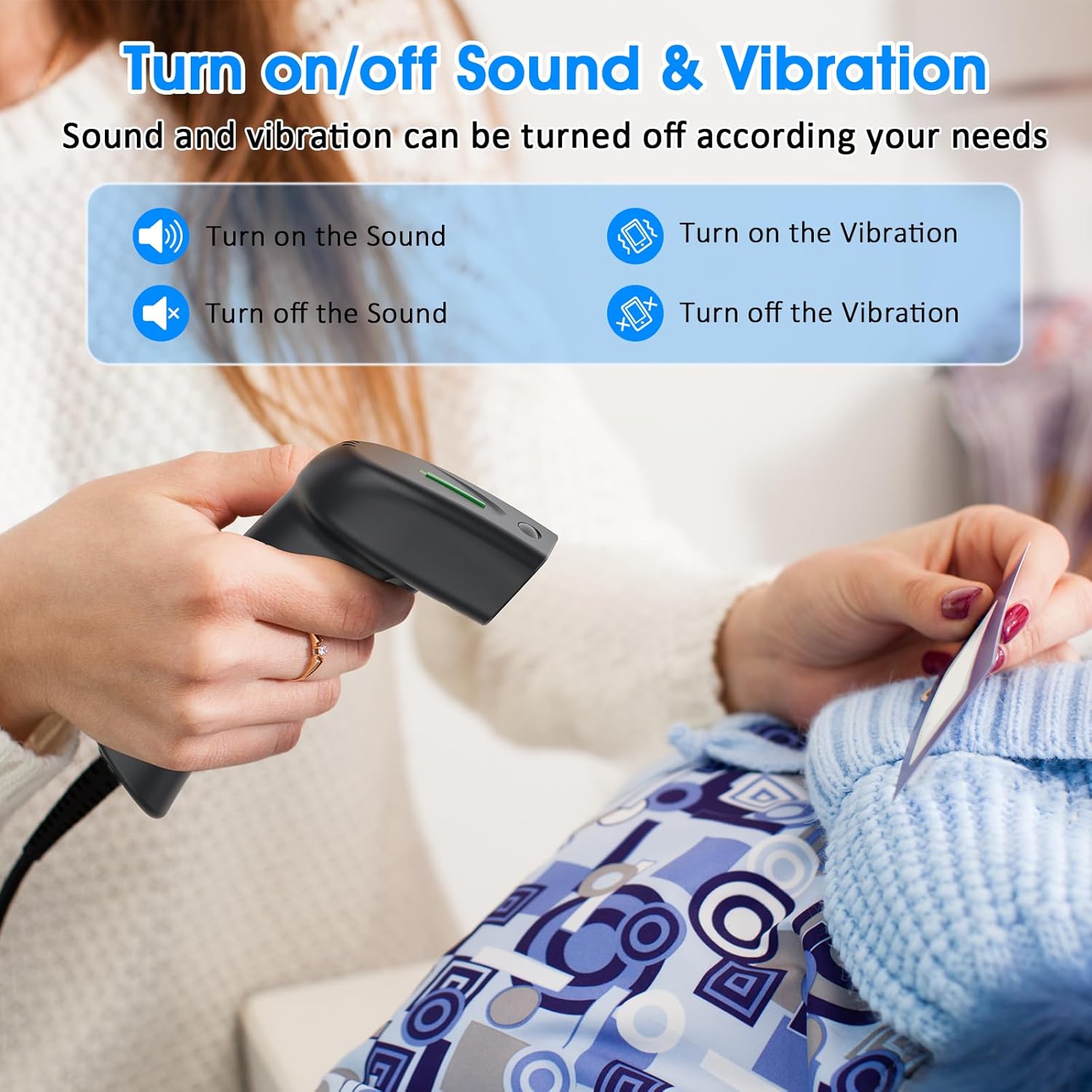
Figure 6: The scanner allows users to independently turn on or off sound and vibration feedback based on operational requirements.

Figure 7: Specific barcodes can be scanned to toggle the sound feature on or off. For example, scanning the barcode 30300C1 might turn off the sound.
Adding Prefix and Suffix
The scanner supports adding custom prefix and suffix strings to the scanned barcode data. This feature is highly configurable, allowing for up to 180 different options. This is useful for data formatting or integration with specific software systems.
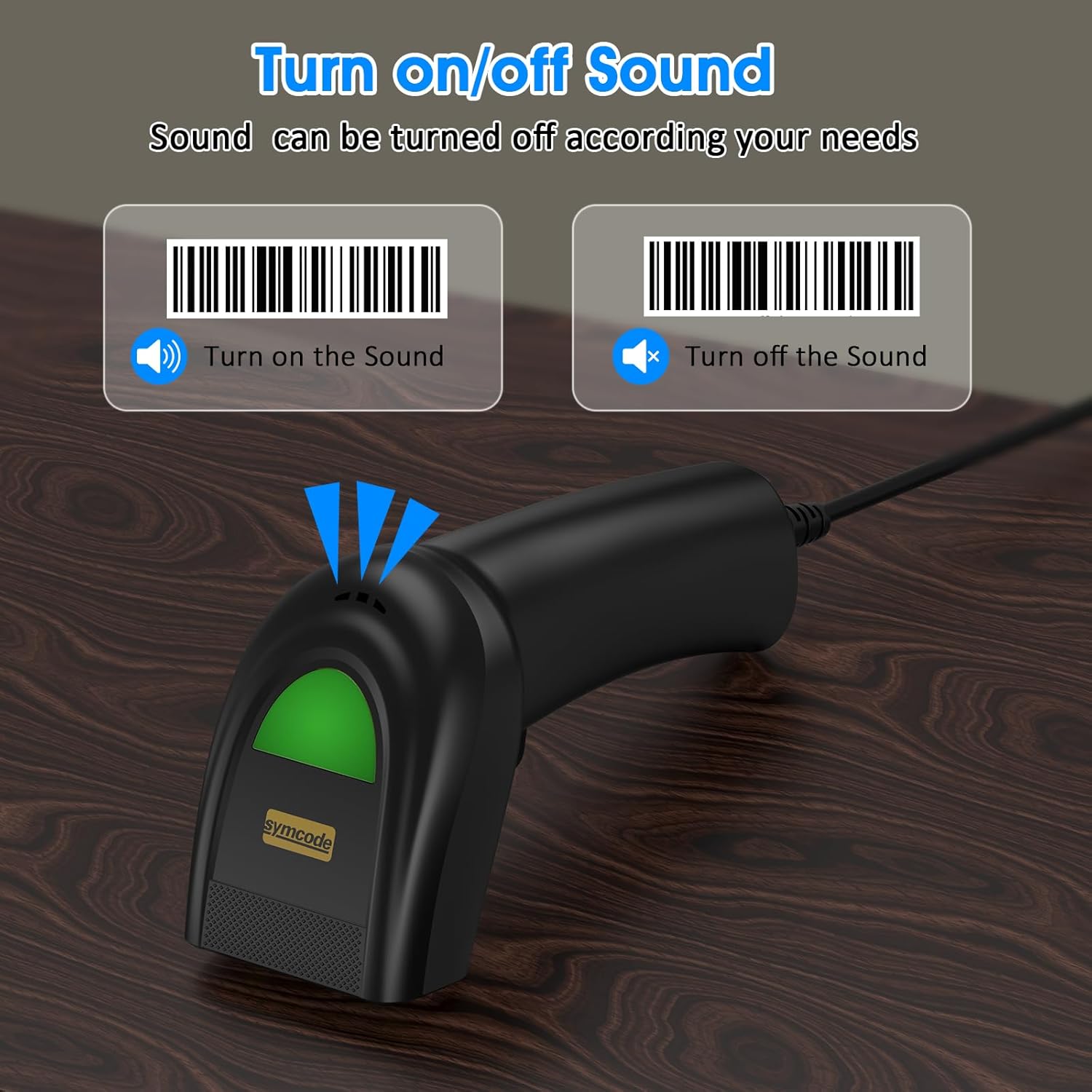
Figure 8: Customize scanned data by adding a prefix (e.g., RL123456789), inserting text in the middle, or appending a suffix to the barcode value.
Maintenance
Proper maintenance ensures the longevity and optimal performance of your barcode scanner.
- Cleaning: Use a soft, dry, lint-free cloth to clean the scanner's exterior. For the scanning window, use a lens cleaning cloth and a mild, non-abrasive cleaning solution if necessary. Avoid harsh chemicals or abrasive materials.
- Storage: When not in use, store the scanner in a cool, dry place away from direct sunlight and extreme temperatures.
- Cable Care: Avoid bending or twisting the USB cable excessively, as this can damage the internal wires.
Troubleshooting
If you encounter issues with your Symcode Barcode Scanner, refer to the following common problems and solutions:
- Problem: Scanner does not respond or scan.
- Solution 1: Ensure the USB cable is securely connected to both the scanner and the host device.
- Solution 2: Try plugging the scanner into a different USB port on your computer.
- Solution 3: Verify that the host device (computer) is powered on and functioning correctly.
- Solution 4: Open a text editor (e.g., Notepad, WordPad) or an application like Microsoft Word or Excel, and ensure the cursor is active in an input field before scanning. The scanner acts as a keyboard input device.
- Problem: Scanned data does not appear or appears incorrectly.
- Solution 1: Ensure the cursor is active in the desired input field of your application.
- Solution 2: Check if the barcode is damaged or poorly printed. Try scanning a different, known-good barcode.
- Solution 3: Verify that the barcode type you are scanning is supported by the scanner (refer to Specifications section).
- Solution 4: If you have configured prefixes or suffixes, ensure they are set correctly.
- Problem: Scanner makes noise but doesn't scan or won't stop making noise.
- Solution 1: Refer to the "Sound and Vibration Control" section in Operating Instructions to adjust or disable the sound feedback.
- Solution 2: If the scanner is continuously beeping or scanning without trigger input, it might be in continuous scan mode. Consult the full user manual for instructions on how to switch scanning modes.
- Problem: Scanner does not work with Square POS system.
- Note: This specific model of barcode scanner is not compatible with the Square POS system. Please consider this limitation when integrating with your existing setup.
- Problem: Scanner does not scan QR codes (2D barcodes).
- Note: This is a 1D laser barcode scanner and is designed to read linear (1D) barcodes only. It does not support 2D barcodes such as QR codes, Data Matrix, or PDF417.
Warranty and Support
Symcode products are manufactured to high quality standards. While specific warranty details are not provided in this document, for any product support, technical assistance, or warranty inquiries, please contact Symcode directly through their official channels or the retailer from whom you purchased the product.
You can often find support information on the Symcode brand store on Amazon or their official website. Please have your product model number (6543841919) and purchase details ready when contacting support.


