
1. Introduction
Welcome to the user manual for your ONERugged M10J Rugged Tablet. This device is engineered for durability and high performance in challenging environments, featuring IP65 water and dust resistance, MIL-STD-810H certification, and powered by Windows 11 Pro. This manual provides essential information for setting up, operating, maintaining, and troubleshooting your tablet to ensure optimal performance and longevity.
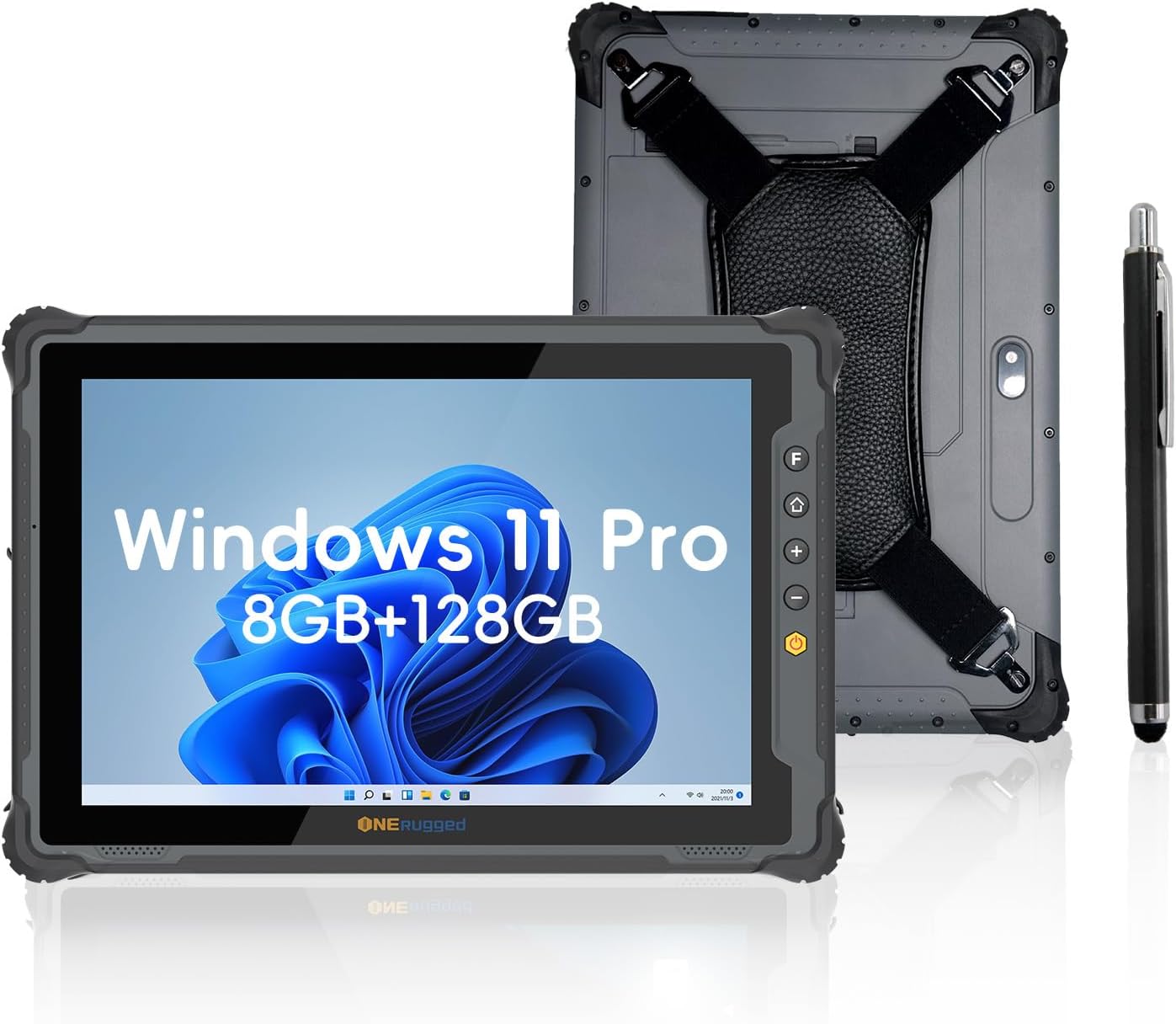
Image: The ONERugged M10J Rugged Tablet, showcasing its front display with Windows 11 Pro and its ruggedized back with a hand strap, alongside a digital stylus.
2. What's in the Box
Upon unboxing your ONERugged M10J Rugged Tablet, please verify that all the following items are included:
- 1 x ONERugged M10J Tablet
- 1 x Hand Strap
- 1 x 19V/3.42A Adapter
- 1 x Stylus Pen
- 1 x User manual

Image: A comprehensive diagram illustrating the tablet's physical dimensions, port locations (USB 3.0, HDMI, Type-C, Headphone Jack, Ethernet Port, DC Jack), and a visual representation of all items included in the product packaging.
3. Product Features
3.1. Durability and Protection
The ONERugged M10J is built to withstand harsh conditions, certified with IP65 and MIL-STD-810H standards.
- IP65 Rating: Provides protection against dust ingress and low-pressure water jets from any direction.
- MIL-STD-810H Certification: Tested to endure accidental drops from up to 4 feet, extreme temperatures (-20°C to 60°C), moisture, and dust.

Image: Visual representation of the tablet's robust design, demonstrating its resistance to drops, dust, and water, and its ability to operate in a wide range of temperatures.
3.2. Performance
Equipped with a powerful processor and ample memory for efficient multitasking and application handling.
- Processor: Intel Jasper Lake N5100 CPU (up to 2.8GHz).
- RAM: 8GB.
- Storage: 128GB ROM, expandable up to 512GB via TF card.
- Operating System: Pre-installed Windows 11 Pro.

Image: Detailed view of the Intel Jasper Lake N5100 processor, highlighting its specifications and capabilities.

Image: Representation of the tablet's memory and storage capacity, emphasizing its ability to handle multiple applications.

Image: Visual of the Windows 11 Pro operating system running on the tablet, highlighting its business-class tools and features.
3.3. Display and Cameras
Experience clear visuals and capture moments with the tablet's high-quality display and integrated cameras.
- Display: 10.1-inch FHD IPS display with 1200x1920P resolution and 1000 nits brightness for sunlight readability.
- Rear Camera: 8MP.
- Front Camera: 5MP.
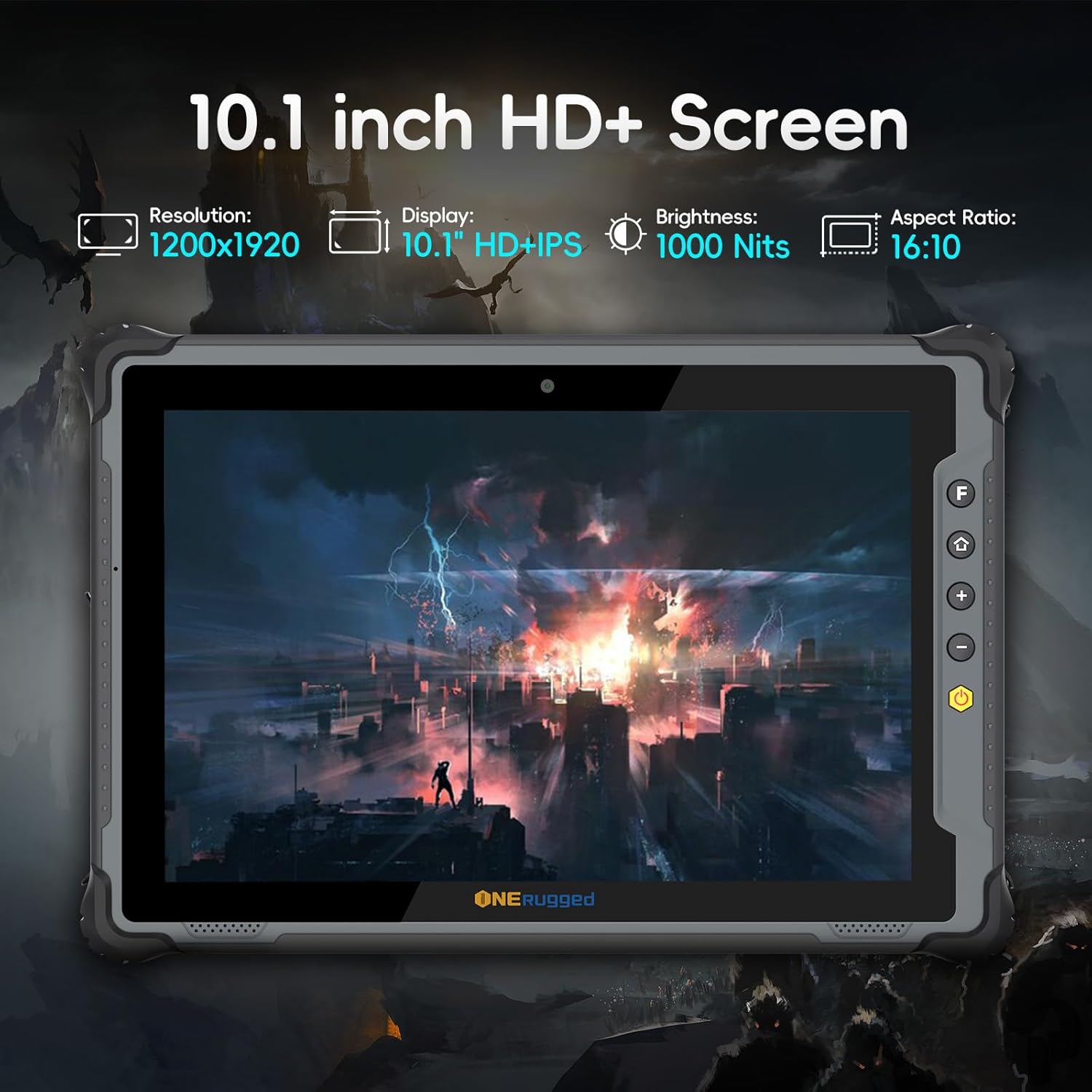
Image: The tablet's display specifications, emphasizing its clarity and brightness for outdoor use.

Image: Detail of the tablet's camera setup, showing the front and rear camera resolutions.
3.4. Battery
The tablet features a long-lasting, user-friendly detachable battery.
- Capacity: 5000mAh.
- Battery Life: Up to 8 hours of continuous performance.
- Design: Detachable for easy replacement without tools.
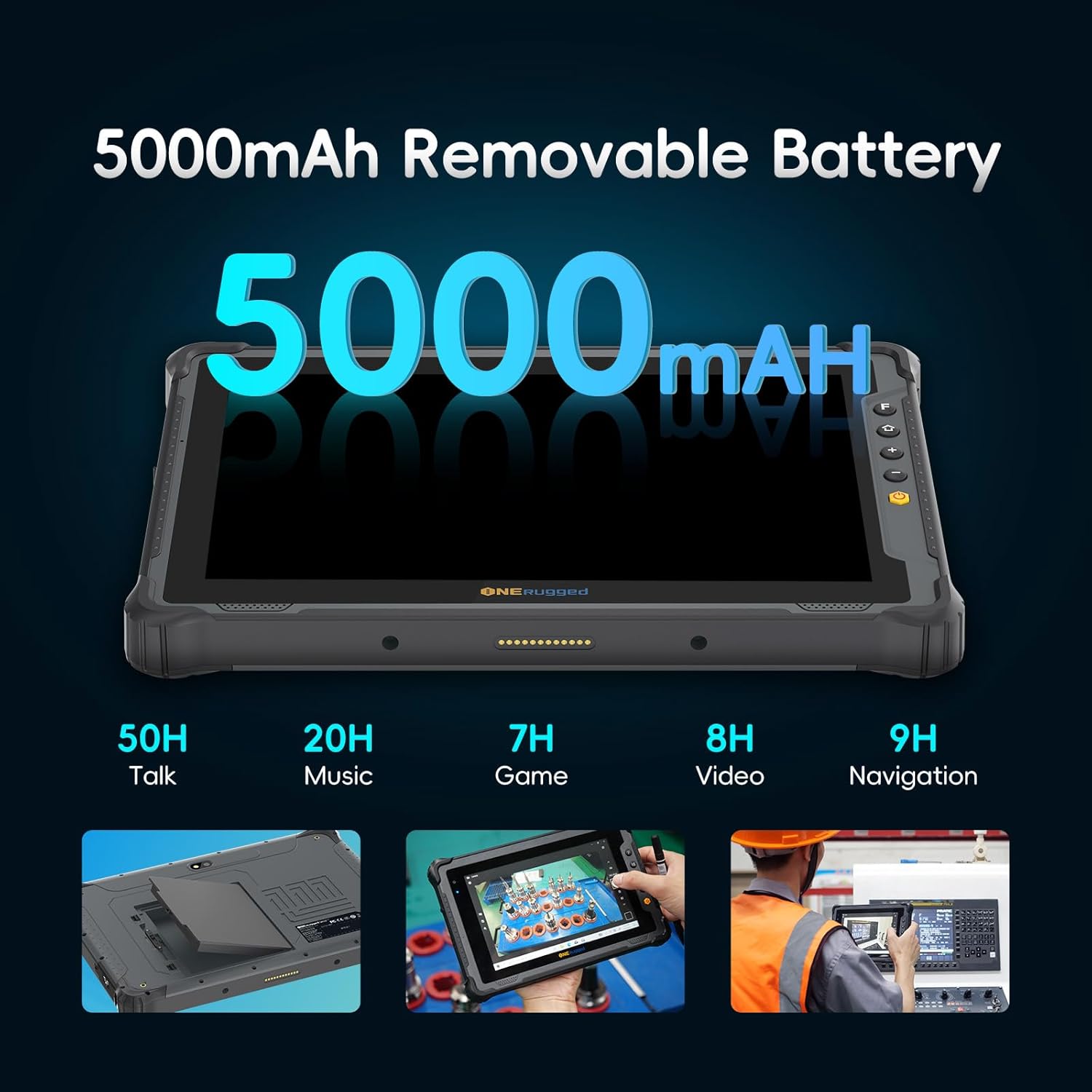
Image: Illustration of the tablet's removable battery and its extended usage times across various activities.
3.5. Connectivity
Stay connected with a variety of wireless and wired options.
- Wi-Fi: 2.4G+5.8G dual-band Wi-Fi (802.11a/b/g/n/ac).
- Cellular: 4G LTE (supports Nano SIM card, compatible with Verizon, AT&T, T-Mobile).
- Bluetooth: BT 5.0 for fast file transfer.
- Navigation: GPS.
- Other: NFC, Gravity Sensor.

Image: Depiction of the tablet's seamless connectivity features, including Bluetooth, SIM card support, dual-band Wi-Fi, and GPS.
4. Setup
4.1. Initial Power On and Battery Installation
- Charge the Tablet: Before first use, connect the provided 19V/3.42A adapter to the DC power jack on the tablet and plug it into a power outlet. Allow the tablet to charge fully.
- Install Battery (if not pre-installed): If the battery is separate, locate the battery compartment on the back of the tablet. Align the battery with the contacts and gently push it into place until it clicks securely.
- Power On: Press and hold the Power On/Off button located on the side of the tablet until the screen illuminates.
4.2. Windows 11 Pro Setup
Follow the on-screen prompts to complete the initial setup of Windows 11 Pro. This typically includes:
- Selecting your region and keyboard layout.
- Connecting to a Wi-Fi network.
- Accepting the license agreement.
- Creating or signing in with a Microsoft account.
- Setting up a PIN or password.
4.3. SIM Card Installation (Optional)
To use 4G LTE connectivity, install a Nano SIM card:
- Locate the SIM card slot on the side of the tablet.
- Open the protective cover.
- Insert the Nano SIM card into the slot with the gold contacts facing down and the notched corner aligned correctly.
- Gently push the SIM card until it clicks into place.
- Close the protective cover to maintain IP65 rating.
5. Operating the Tablet
5.1. Basic Navigation
- Touchscreen: Navigate Windows 11 Pro using touch gestures. Tap to select, swipe to scroll, pinch to zoom.
- Stylus Pen: Use the provided stylus for precise input, drawing, or handwriting recognition.
- Physical Buttons:
- Power Button: Press to turn on/off, or short press to sleep/wake.
- Volume Buttons: Adjust audio volume.
- Customized Button: Refer to Windows settings for programmable functions.
- Home Button: Returns to the Windows desktop or Start screen.
5.2. Connectivity Usage
- Wi-Fi: Access Wi-Fi settings in Windows to connect to available networks.
- 4G LTE: Once a SIM card is installed and activated, cellular data will be available. Manage cellular settings in Windows.
- Bluetooth: Pair Bluetooth devices (e.g., headphones, keyboards) via Windows Bluetooth settings.
- GPS: Utilize location-based services and navigation applications.
6. Maintenance
6.1. Cleaning
- Screen: Use a soft, lint-free cloth slightly dampened with water or a screen cleaner. Avoid harsh chemicals.
- Body: Wipe the rugged body with a damp cloth. For stubborn dirt, a mild soap solution can be used, ensuring all ports are sealed.
- Ports: Keep port covers securely closed when not in use to maintain water and dust resistance.
6.2. Battery Care
- Charging: Use only the provided original charger. Avoid overcharging or completely draining the battery frequently.
- Storage: If storing the tablet for an extended period, charge the battery to about 50% and store it in a cool, dry place.
- Replacement: The detachable battery design allows for easy replacement. Contact ONERugged support for genuine replacement batteries.
6.3. Software Updates
Regularly check for and install Windows updates to ensure optimal performance, security, and compatibility. Go to Settings > Windows Update.
7. Troubleshooting
| Problem | Possible Cause | Solution |
|---|---|---|
| Tablet won't turn on. | Low battery; power button issue. | Charge the tablet for at least 30 minutes. Press and hold the power button for 10-15 seconds. |
| Screen is unresponsive. | Software glitch; screen damage. | Restart the tablet. If issue persists, contact support. |
| Cannot connect to Wi-Fi. | Incorrect password; router issue; Wi-Fi adapter off. | Verify Wi-Fi password. Restart router. Check Wi-Fi settings in Windows. |
| 4G LTE not working. | SIM card not installed correctly; no signal; data plan issue. | Ensure SIM card is properly inserted. Check signal strength. Contact your service provider. |
| Tablet runs slowly. | Too many applications running; low storage. | Close unnecessary applications. Free up storage space. Run Windows Defender scan. |
For issues not covered here, please refer to the official ONERugged support resources or contact customer service.
8. Specifications
| Feature | Detail |
|---|---|
| Model Name | M10J |
| Operating System | Windows 11 Professional |
| Processor | Intel Jasper Lake N5100 (up to 2.8 GHz) |
| Graphics Coprocessor | Intel HD Graphics |
| RAM | 8 GB |
| Flash Memory Size | 128 GB (expandable up to 512GB with TF card) |
| Screen Size | 10.1 inches (25.65 Centimeters) |
| Screen Resolution | 1200 x 1920 Pixels (FHD IPS) |
| Brightness | 1000 nits |
| Rear Webcam Resolution | 8 MP |
| Front Webcam Resolution | 5 MP |
| Wireless Type | 802.11a/b/g/n/ac (2.4G+5.8G Dual-band Wi-Fi), Bluetooth 5.0, 4G LTE |
| Battery Capacity | 5000mAh Lithium Polymer (Detachable) |
| Average Battery Life | Up to 8 Hours |
| Durability | IP65 Waterproof & Dustproof, MIL-STD-810H Certified |
| Item Weight | 2.2 pounds (approx. 1.0 kg) |
| Product Dimensions | 10.83 x 7.44 x 0.87 inches (27.5 x 18.9 x 2.2 cm) |
| Color | Gray |
9. Warranty and Support
ONERugged is committed to providing high-quality products and excellent customer service.
- Warranty: The ONERugged M10J Tablet comes with a 12-month warranty from the date of purchase.
- Technical Support: Long-term technical support is available for all ONERugged products.
- Customer Service: For any issues or inquiries, please contact the ONERugged customer service team. They are available 24 hours online to assist you.
Please retain your proof of purchase for warranty claims.
