
1. Introduction to Meta Quest 3
The Meta Quest 3 is an advanced virtual and mixed reality headset designed to deliver immersive experiences. It features a high-resolution display, powerful Snapdragon XR2 Gen 2 chip, and integrated audio, enabling users to explore virtual worlds and interact with digital content blended into their physical environment. This manual provides essential information for safe and effective use of your device.
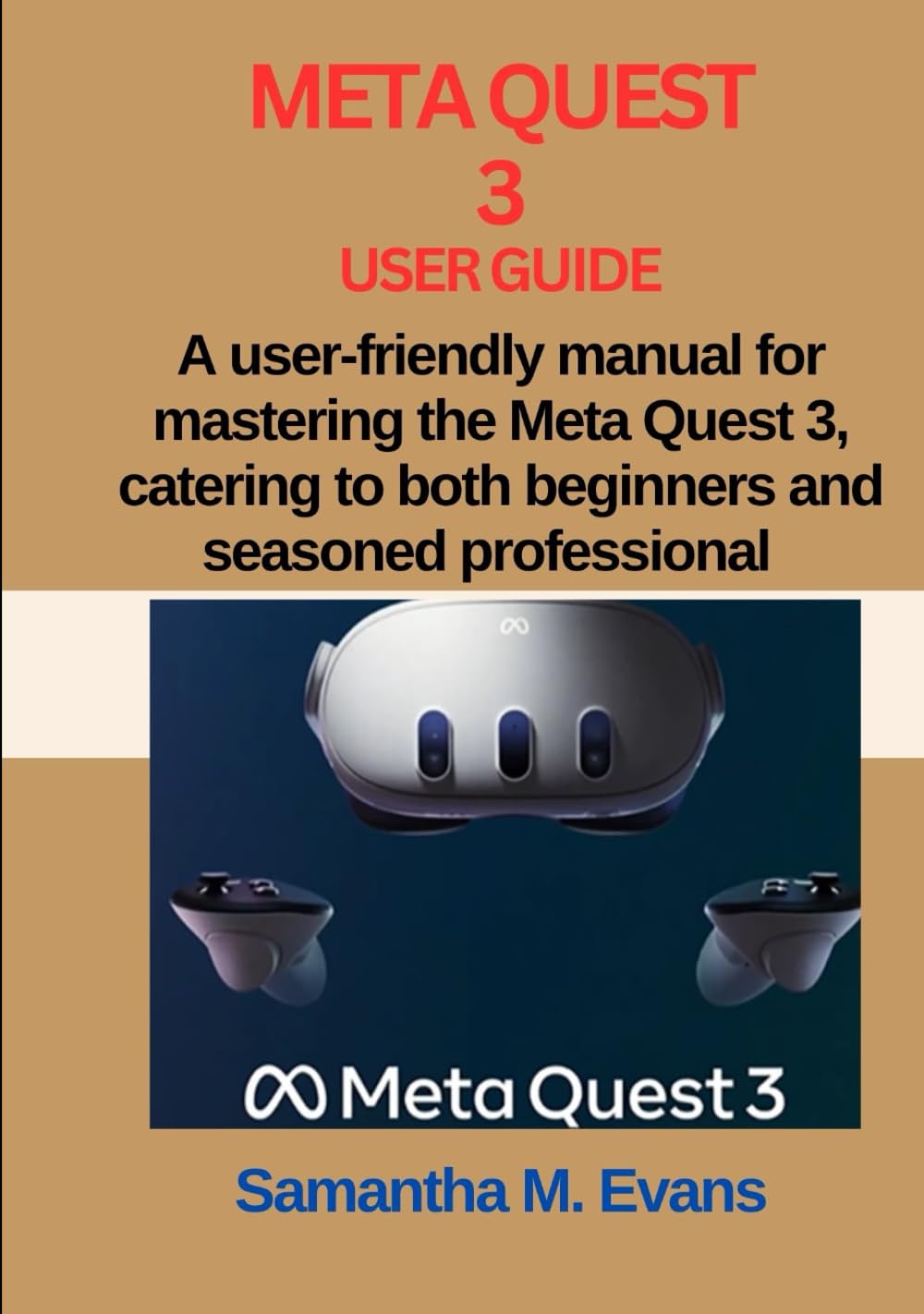
Image 1.1: Front cover of the "Meta Quest 3 User Guide" book. This image represents the manual itself, not the Meta Quest 3 headset.

Image 1.2: Back cover of the "Meta Quest 3 User Guide" book, showing the ISBN barcode. This image represents the manual itself, not the Meta Quest 3 headset.
2. Safety Information
Before using your Meta Quest 3, please read all safety warnings and instructions. Failure to do so may result in injury, discomfort, or damage to your device or property.
- Clear Your Play Area: Ensure you have ample space free from obstacles, furniture, and other hazards before starting any VR experience.
- Stay Aware of Surroundings: Even with Passthrough mode, remain aware of your physical environment.
- Take Breaks: Prolonged use may cause eye strain, dizziness, or motion sickness. Take regular breaks.
- Supervise Children: The Meta Quest 3 is not recommended for children under 13. Adult supervision is advised for older children.
- Health Precautions: Consult a doctor before use if you have pre-existing medical conditions, especially those affecting vision, balance, or epilepsy.
3. Setup Guide
Follow these steps to set up your Meta Quest 3 for the first time.
3.1 Unboxing and Initial Charge
- Carefully remove the headset, controllers, and charging cable from the packaging.
- Connect the USB-C charging cable to the headset and a power adapter. Charge the headset fully before first use.
3.2 Pairing Controllers
The Touch Plus controllers are pre-paired. If they are not, follow the on-screen instructions or press and hold the Meta button on the right controller and the Menu button on the left controller simultaneously until they vibrate.
3.3 Adjusting the Headset
- Strap Adjustment: Loosen the side and top straps. Place the headset on your head, ensuring the lenses are centered over your eyes. Tighten the straps for a snug, comfortable fit.
- IPD Adjustment: Use the IPD (interpupillary distance) wheel on the bottom left of the headset to adjust the lens spacing until the image is clear and comfortable.
- Depth Adjustment: Press the buttons on the sides of the headset to adjust the lens depth, bringing them closer or further from your face for optimal clarity and comfort.
3.4 Guardian System Setup
The Guardian system helps you define your play space and avoid obstacles. Follow the on-screen prompts to:
- Draw Your Boundary: Use a controller to trace the perimeter of your safe play area on the floor.
- Confirm Floor Height: Set the virtual floor to match your physical floor.
4. Operating Instructions
Learn how to navigate and interact with your Meta Quest 3.
4.1 Powering On/Off
- Power On: Press and hold the power button on the right side of the headset until the Meta logo appears.
- Power Off: Press and hold the power button, then select "Power Off" from the menu that appears.
- Sleep Mode: Briefly press the power button to put the headset into sleep mode.
4.2 Navigating the Home Environment
Once powered on, you will enter the Meta Quest Home environment. Use your controllers to:
- Point and Select: Use the controller's trigger button to select items.
- Move: Use the joystick on the left controller to move around your virtual space.
- Open Universal Menu: Press the Meta button on the right controller to access the universal menu, which includes apps, settings, and notifications.
4.3 Mixed Reality (Passthrough)
The Meta Quest 3 features full-color Passthrough, allowing you to see your physical surroundings while wearing the headset. Double-tap the side of the headset to toggle Passthrough mode on or off.
4.4 Installing and Launching Applications
- Open the Store from the universal menu.
- Browse or search for applications and games.
- Select an application and follow the prompts to purchase and install it.
- Once installed, launch the application from your Apps library in the universal menu.
5. Maintenance and Care
Proper care ensures the longevity and optimal performance of your Meta Quest 3.
- Lens Cleaning: Use a dry microfiber cloth specifically designed for optical lenses. Wipe gently in a circular motion. Do not use liquid cleaners, alcohol, or abrasive cloths.
- Headset Cleaning: Use a dry or slightly damp non-abrasive cloth to clean the exterior of the headset. Avoid getting moisture into ports or openings.
- Controller Cleaning: Wipe controllers with a dry or slightly damp cloth.
- Storage: Store the headset in a cool, dry place away from direct sunlight. Protect the lenses from scratches and direct light exposure, which can damage the display.
- Battery Care: Avoid fully discharging the battery frequently. Charge regularly and store with some charge if not used for extended periods.
6. Troubleshooting
Common issues and their solutions for your Meta Quest 3.
| Problem | Possible Solution |
|---|---|
| Headset not powering on | Ensure the headset is fully charged. Press and hold the power button for at least 10 seconds for a hard reset. |
| Controllers not pairing | Check controller batteries. Re-pair by holding the Meta button (right) and Menu button (left) simultaneously. |
| Blurry vision or discomfort | Adjust the IPD wheel and lens depth. Ensure the headset is positioned correctly on your head. Clean lenses if smudged. |
| Guardian boundary issues | Redraw your Guardian boundary in a well-lit area. Ensure sufficient clear space. |
| Application crashes or freezes | Restart the application. If the problem persists, restart the headset. Ensure your software is up to date. |
7. Specifications
Key technical specifications of the Meta Quest 3 headset.
- Processor: Qualcomm Snapdragon XR2 Gen 2
- Display: Dual LCD panels, 2064x2208 pixels per eye
- Refresh Rate: 72Hz, 80Hz, 90Hz, 120Hz (experimental)
- Field of View: 110 degrees horizontal, 96 degrees vertical
- Storage: 128GB or 512GB (model dependent)
- RAM: 8GB
- Audio: Integrated stereo speakers with 3D spatial audio, 3.5mm headphone jack
- Tracking: Inside-out tracking via integrated cameras
- Connectivity: Wi-Fi 6E, Bluetooth 5.2, USB-C
- Controllers: Meta Quest Touch Plus controllers
8. Warranty and Support
For detailed warranty information and customer support, please refer to the official Meta Quest website.
- Warranty: Your Meta Quest 3 headset comes with a limited warranty. Specific terms and conditions may vary by region. Please visit meta.com/legal/quest/warranty/ for full details.
- Customer Support: For technical assistance, troubleshooting beyond this manual, or to report issues, contact Meta Quest Support through their official channels. Visit meta.com/help/quest/ for support resources, FAQs, and contact options.
- Online Resources: Additional guides, tutorials, and community forums are available on the official Meta Quest website to enhance your VR experience.
9. Video Resources
No official product videos from the seller were provided in the product data for embedding in this manual. Please refer to the official Meta Quest website for video tutorials and guides.


