
1. Introduction
Welcome to the Pimax Crystal Light VR Headset user manual. This guide provides essential information for setting up, operating, and maintaining your new virtual reality headset. The Pimax Crystal Light offers an immersive PC VR experience with industry-leading resolution and advanced features designed for clarity and performance.
2. Safety Information
Please read and follow all safety instructions before using the Pimax Crystal Light VR Headset to prevent injury or damage to the device.
- Ensure your play area is clear of obstacles to avoid tripping or collisions.
- Take regular breaks to prevent eye strain, motion sickness, or discomfort.
- Do not expose the headset to direct sunlight, as this can damage the lenses and display.
- Keep the headset away from liquids and extreme temperatures.
- Consult a doctor before use if you have pre-existing medical conditions that could be affected by VR.
3. Package Contents
Verify that all items are present in your Pimax Crystal Light VR Headset package:
- Pimax Crystal Light VR Headset x1
- DisplayPort Cable x1
- Power Adapter x1
- USB Type-C Cable x2
- Quick Guide Card x1
- After-sales Service Card x1

Image: Pimax Crystal Light VR Headset and its components.
4. Setup Guide
4.1 System Requirements
To ensure optimal performance, your PC must meet the following recommended specifications:
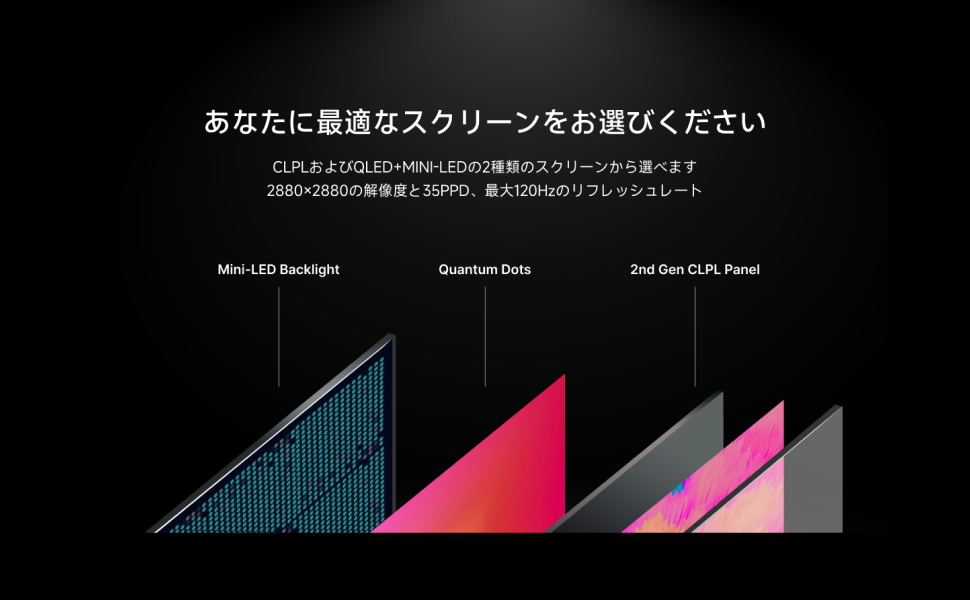
Image: Recommended PC specifications for the Pimax Crystal Light.
- Operating System: Windows 10 / Windows 11
- GPU: NVIDIA GeForce RTX 3080 and above
- CPU: Intel i7-12500 / AMD R7-3700X and above
- RAM: 16GB and above
- Video Out: DisplayPort 1.2
- USB Ports: USB 3.0 or newer
- Play Area: Standing/Seated (No minimum space requirements), Roomscale (Up to 10m x 10m)
Note: Recommended requirements ensure optimal performance for enjoying the full capabilities of Pimax Crystal Light.
4.2 Hardware Connection
- Connect DisplayPort Cable: Plug one end of the DisplayPort cable into the headset and the other end into your PC's graphics card DisplayPort output.
- Connect USB Type-C Cables: Connect both USB Type-C cables from the headset to available USB 3.0 or newer ports on your PC.
- Connect Power Adapter: Plug the power adapter into the headset and then into a wall outlet.
4.3 Software Installation
Download and install the latest version of Pimax Play software from the official Pimax website. Pimax Play is required for headset configuration and integration with SteamVR.
- Install Pimax Play and follow the on-screen instructions.
- Ensure SteamVR is installed and updated on your PC.
- Launch Pimax Play and follow the guided setup for initial calibration.
5. Operating Instructions
5.1 Wearing the Headset
Adjust the head strap and interpupillary distance (IPD) until the image is clear and comfortable. The headset is designed for lightweight comfort and balanced weight distribution.

Image: Proper wearing and usage of the Pimax Crystal Light VR Headset.
5.2 Key Features and Settings
The Pimax Crystal Light offers several advanced features for an enhanced VR experience:
- High Resolution: Enjoy a crisp visual experience with 2880 x 2880 pixels per eye.
- Refresh Rates: Select between 72Hz, 90Hz, or 120Hz refresh rates via Pimax Play software for smooth motion.
- 35 PPD (Pixels Per Degree): Delivers exceptional visual clarity and detail.
- Local Dimming: Enhances contrast and black levels for a more immersive display.
- Fixed Foveated Rendering (FFR): Optimizes performance by rendering the center of your vision at full resolution and the periphery at a lower resolution.
- Lighthouse Compatibility: Supports Lighthouse base stations for precise external tracking (base stations and controllers sold separately).
- 6DOF Inside-Out Tracking: Provides accurate positional tracking without external sensors.
- Glass Lenses: Aspherical glass lenses minimize distortion and maximize clarity.
- Integrated Audio & Dual Microphones: For immersive sound and clear communication.
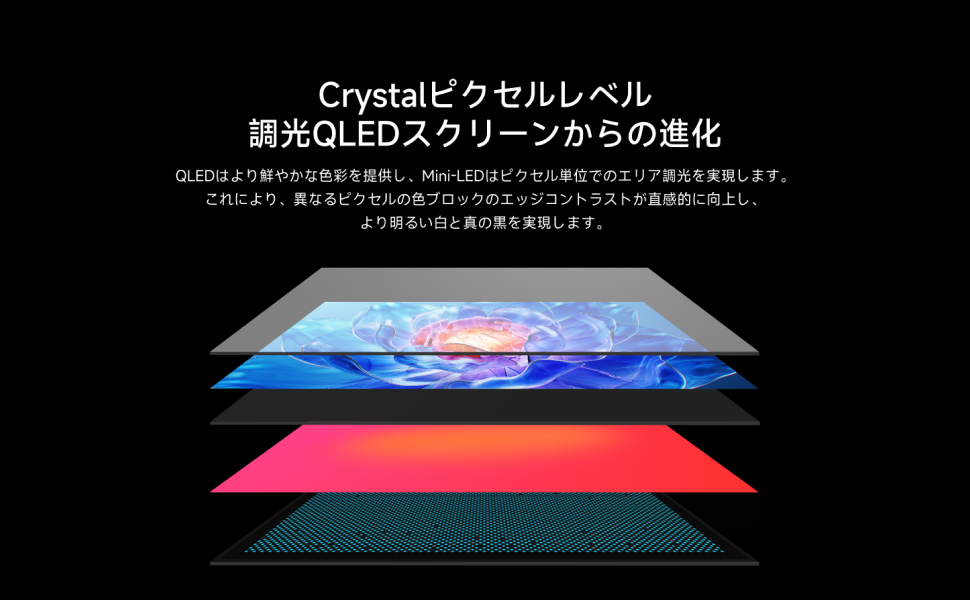
Image: Overview of Pimax Crystal Light's core features.
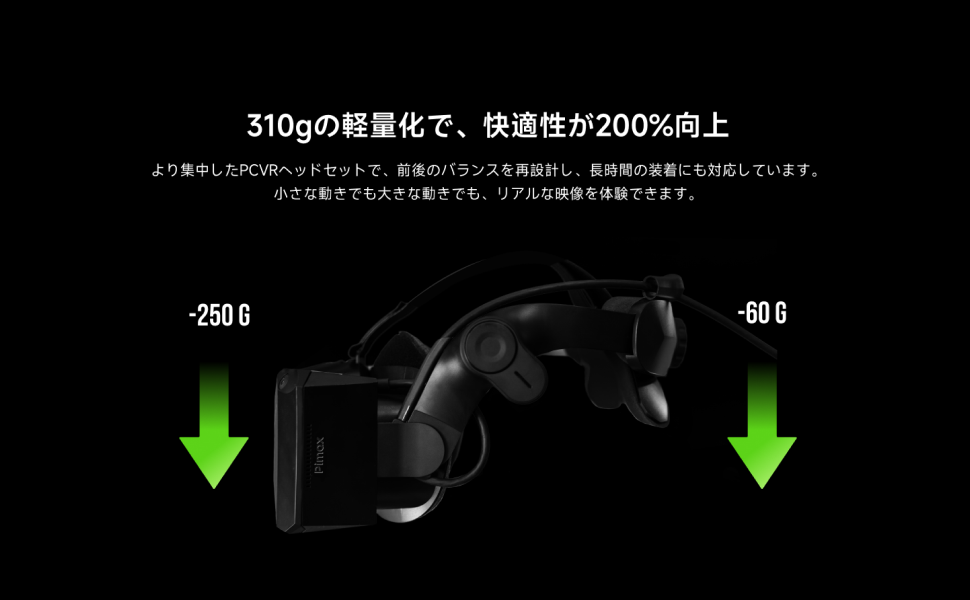
Image: Detailed features including 6DOF tracking, Lighthouse compatibility, 35 PPD, 2880x2880 resolution, 120Hz refresh rate, and lightweight design.
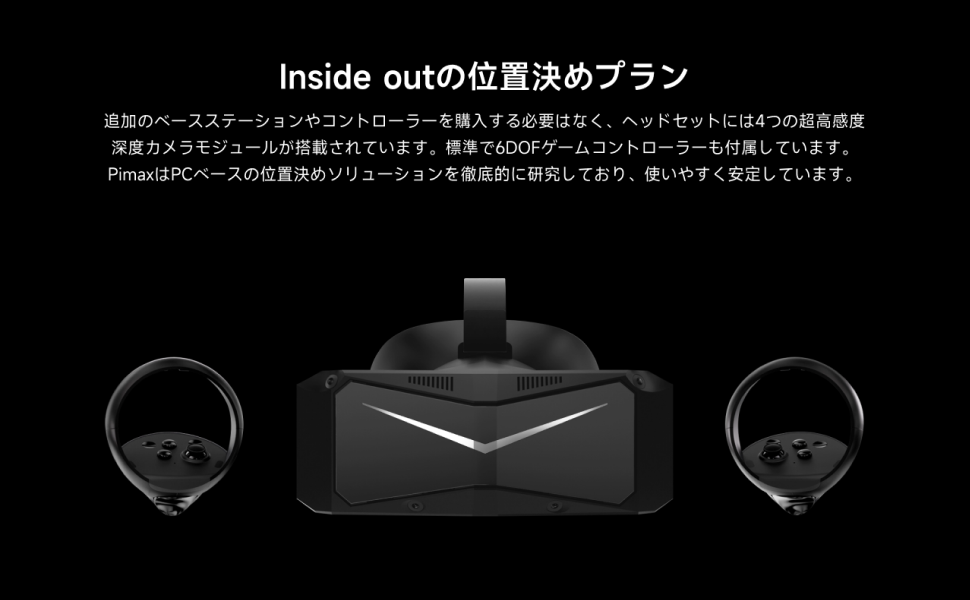
Image: Explanation of screen technology, including Mini-LED backlight and Quantum Dots for enhanced display quality.
6. Maintenance
- Cleaning Lenses: Use a microfiber cloth specifically designed for optical lenses. Do not use abrasive materials or chemical cleaners.
- Cleaning Headset Body: Wipe the exterior with a soft, damp cloth. Avoid getting moisture into ports or openings.
- Storage: Store the headset in a cool, dry place away from direct sunlight. Use the provided lens cover to protect the lenses from dust and scratches.
- Cable Management: Avoid sharp bends or kinks in the cables to prevent damage.
7. Troubleshooting
If you encounter issues with your Pimax Crystal Light VR Headset, refer to the following common troubleshooting steps:

Image: Troubleshooting guide for common issues.
Common Issues and Solutions:
- Tracking Problems:
- Environment: Ensure your play area has consistent lighting (not too bright or too dark). Verify that the Pimax Play indoor ambient frequency matches your local AC power frequency.
- Game Area: Ensure the game area has sufficient identifiable features for tracking.
- Performance Issues (Frame Drops):
- PC Specifications: Confirm your PC meets the minimum requirements:
- Minimum CPU: Intel Core i5 12th generation (or equivalent)
- Minimum GPU: NVIDIA RTX 2070 (or equivalent)
- Software/Firmware: Outdated drivers or firmware can cause frame drops. Update Pimax Play and headset firmware.
- Graphic Settings: Excessive rendering resolution in Pimax Play or the game itself can lead to performance issues. Adjust settings for better performance.
- PC Specifications: Confirm your PC meets the minimum requirements:
- Headset Not Detected / Display Off:
- USB Connection: Ensure the headset is connected to a USB 3.0+ port. Check all cable connections.
- Power Management: Disable USB power saving modes in your PC's power settings.
Important Note: If the above troubleshooting steps do not resolve the issue, please contact Pimax customer support. They can provide further assistance and guidance.
8. Specifications
| Feature | Detail |
|---|---|
| Brand | Pimax |
| Model Name | Crystal Light (Headset only) |
| Color | Black |
| Display Type | LCD |
| Max Display Resolution | 2880 x 2880 pixels per eye |
| Refresh Rate | 72Hz / 90Hz / 120Hz |
| Pixels Per Degree (PPD) | 35 PPD |
| Field of View (FOV) | 130 degrees |
| Lens Technology | Aspherical Glass Lenses |
| Tracking Technology | 6DOF Inside-Out Tracking, Lighthouse compatible (external base stations required for Lighthouse tracking) |
| Sensor Technology | Lighthouse Gyroscope Accelerometer |
| Connectivity | DisplayPort, USB Type-C (x2) |
| Compatible Devices | PC |
| Operating System | Windows |
| Platform | SteamVR |
| Special Features | Local Dimming, Fixed Foveated Rendering, Integrated Audio, Dual Microphones |
| Country of Origin | China |
9. Warranty and Support
The Pimax Crystal Light VR Headset comes with a 1-year manufacturer's warranty from the date of purchase. This warranty covers defects in materials and workmanship under normal use.
For technical support, warranty claims, or any product-related inquiries, please refer to the After-sales Service Card included in your package or visit the official Pimax support website. Ensure you have your product's serial number and proof of purchase ready when contacting support.

