
CLARION JM-KICK 6
CLARION JM-KICK 6 Bluetooth Party Speaker User Manual
Model: JM-KICK 6
Introduction
This manual provides essential information for the safe and efficient operation of your CLARION JM-KICK 6 Bluetooth Party Speaker. Please read these instructions thoroughly before using the product and retain this manual for future reference.
Package Contents:
- 1pc Speaker Unit
- 2pc Wireless Microphones
- 1pc USB Charging Cable
- 1pc User Manual (this document)
- 1pc Warranty Card
Important Safety Information
To ensure safe operation and prevent damage, please observe the following precautions:
- Do not expose the speaker to water or excessive moisture.
- Do not place near heat sources or open flames.
- Use only the provided charging cable.
- Do not attempt to disassemble or repair the unit yourself. Contact qualified service personnel.
- Keep out of reach of children.
- Ensure proper ventilation around the speaker during use.
Product Overview
The CLARION JM-KICK 6 is a portable 40W RMS Bluetooth party speaker featuring a 13.3 cm super woofer, karaoke functionality, and Bluetooth v5.0 connectivity. It includes two wireless microphones for an enhanced audio experience.
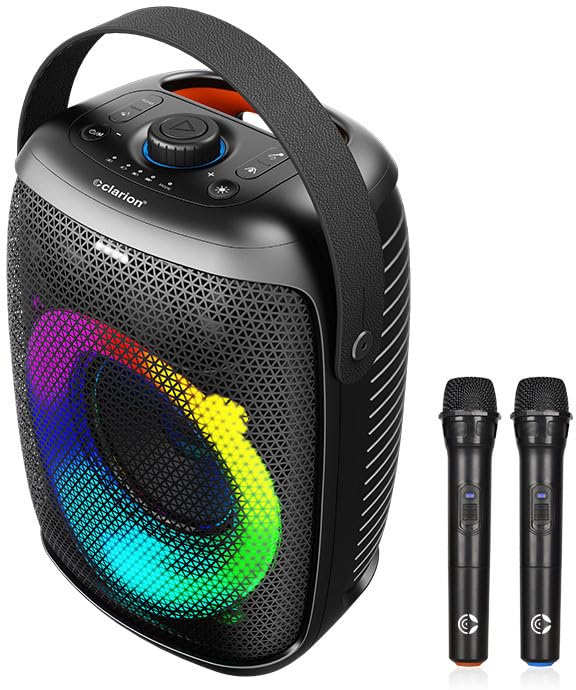
Figure 1: CLARION JM-KICK 6 Bluetooth Party Speaker and included wireless microphones.
This image displays the main speaker unit with its integrated handle and front grille, showcasing the multi-color LED lighting effect. Two wireless microphones are positioned to the right of the speaker.
Controls and Ports
Figure 2: Close-up of the top control panel.
The top panel features various buttons and a central rotary knob for controlling power, volume, playback, and lighting effects. The Clarion logo is visible below the controls.
Refer to the diagram above for the location of the following controls:
- Power Button: Turns the speaker on/off.
- Volume Knob: Adjusts the master volume.
- Play/Pause Button: Controls media playback.
- Mode Button: Switches between input modes (Bluetooth, USB, AUX).
- Light Button: Toggles or changes LED light effects.
- Microphone Input: For wired microphones (if applicable, though product comes with wireless).
- USB Port: For media playback from USB drives or charging.
- Charging Port: For connecting the USB charging cable.
Setup
Charging the Speaker
- Connect the provided USB charging cable to the speaker's charging port.
- Connect the other end of the USB cable to a compatible USB power adapter (not included) or a powered USB port.
- The charging indicator light will illuminate. The speaker is fully charged when the indicator light changes or turns off (refer to specific LED behavior in the product's quick start guide if available).
Powering On/Off
- To Power On: Press and hold the Power button until the speaker powers on.
- To Power Off: Press and hold the Power button until the speaker powers off.
Operating Instructions
Bluetooth Connection
- Ensure the speaker is powered on.
- The speaker will automatically enter Bluetooth pairing mode, indicated by a flashing LED light (refer to specific LED behavior).
- On your mobile device (smartphone, tablet, laptop), enable Bluetooth and search for available devices.
- Select "JM-KICK 6" from the list of devices.
- Once connected, the speaker will emit a confirmation sound, and the LED indicator will stop flashing.
- You can now play audio from your device through the speaker.
Using Wireless Microphones
Figure 3: Wireless microphones.
This image shows the two black wireless microphones, each with a power button and a Clarion logo at the base.
- Ensure the speaker is powered on.
- Insert batteries into the wireless microphones (if not pre-installed).
- Power on each microphone using its dedicated power button.
- The microphones should automatically connect to the speaker. If not, refer to the microphone's individual instructions for pairing.
- Adjust the microphone volume using the speaker's controls or dedicated microphone volume controls if available.
USB Playback
- Insert a USB flash drive containing MP3 audio files into the USB port on the speaker.
- The speaker should automatically switch to USB mode and begin playing audio. If not, press the "Mode" button to select USB input.
- Use the Play/Pause and Volume controls on the speaker to manage playback.
Adjusting LED Lights
Press the "Light" button on the speaker's control panel to cycle through different LED lighting modes or to turn the lights off.
Maintenance
- Cleaning: Use a soft, dry cloth to clean the speaker's exterior. Do not use liquid cleaners or abrasive materials.
- Storage: When not in use for extended periods, store the speaker in a cool, dry place, away from direct sunlight and extreme temperatures.
- Battery Care: For optimal battery life, fully charge the speaker before first use and recharge it regularly, even if not used frequently. Avoid completely draining the battery.
Troubleshooting
| Problem | Possible Cause | Solution |
|---|---|---|
| No power | Battery drained; Power button not pressed | Charge the speaker; Press and hold the Power button |
| No sound | Volume too low; Incorrect input mode; Device not connected | Increase volume; Press Mode button to select correct input; Re-pair Bluetooth device |
| Bluetooth pairing failure | Speaker not in pairing mode; Device too far; Interference | Ensure speaker is in pairing mode; Move device closer; Turn off other Bluetooth devices |
| Microphone not working | Microphone off; Batteries low/dead; Not paired | Turn on microphone; Replace batteries; Refer to microphone pairing instructions |
Specifications
| Feature | Detail |
|---|---|
| Model | JM-KICK 6 |
| Audio Output | 40 Watts RMS |
| Woofer Size | 13.3 cm Super Woofer |
| Bluetooth Version | v5.0 |
| Connectivity | Bluetooth, USB, Microphone (wired/wireless) |
| Channels | 2 (Stereo) |
| Speaker Type | Active |
| Dimensions | 38.3 x 29 x 23 cm (Package Dimensions) |
| Color | Black |
Warranty and Support
The CLARION JM-KICK 6 speaker comes with a 1-year warranty from the date of purchase. Please retain your purchase receipt and the warranty card for any warranty claims.
For technical support, service, or warranty inquiries, please contact Clarion Computers Private Limited customer care:
- Customer Care: 8100-028-028
- Manufacturer: Clarion Computers Private Limited
Note: The warranty does not cover damage caused by misuse, accidents, unauthorized modifications, or normal wear and tear.
Related documentsJM-KICK 6

Ask a question about this manual
Ask about setup, troubleshooting, compatibility, parts, safety, or missing instructions. Manuals+ will review the question and use this page’s manual context to help answer it.