
1. Introduction
Thank you for choosing the CLARION JM-FLEXON Trolley 50 W Bluetooth Party Speaker. This portable mono channel speaker is designed to deliver powerful audio with versatile connectivity options, including Bluetooth, AUX, and USB. It features a guitar input and comes with two UHF microphones for karaoke and public address applications. Please read this manual carefully to ensure proper use and maintenance of your speaker.
2. Package Contents
Please check the box for the following items:
- 1 Pc Speaker Unit
- 1 Pc Remote Control
- 2 Pcs UHF Microphone
3. Product Overview
The JM-FLEXON speaker is a robust audio system built for portability and performance. It features a durable construction with an extendable trolley handle and wheels for easy transport. The top panel provides intuitive controls for various functions, including audio input selection, volume adjustments, and microphone settings.

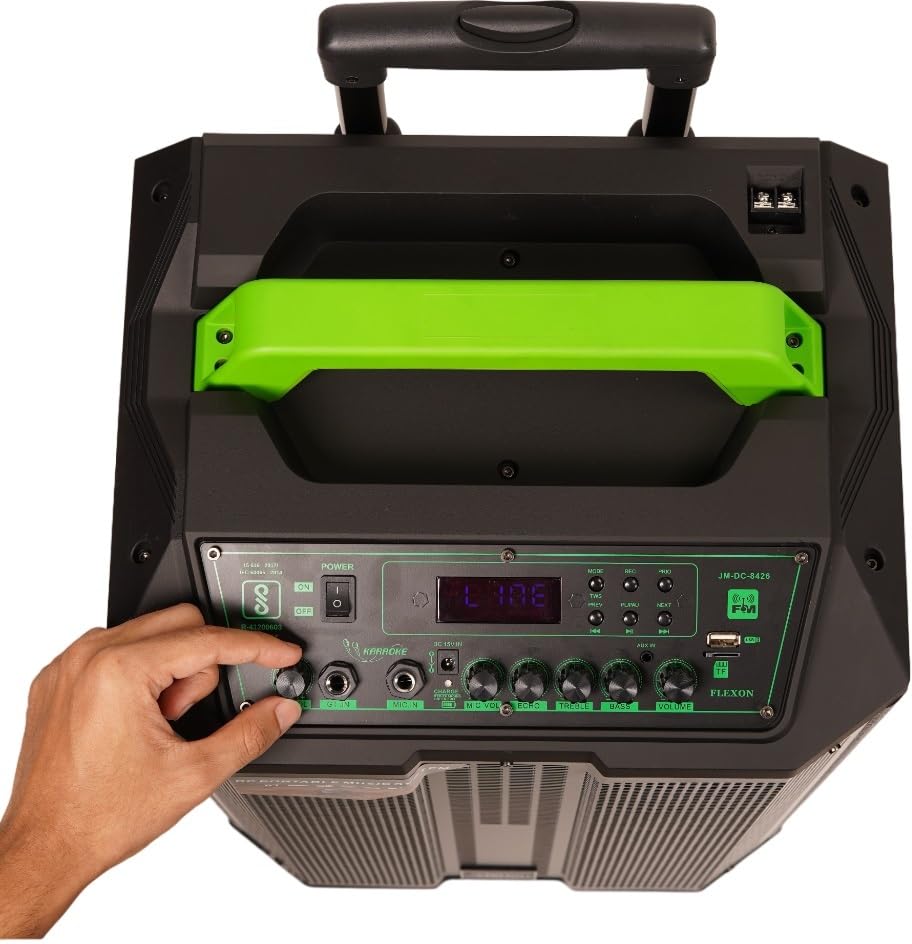


4. Setup
- Unpacking: Carefully remove the speaker and all accessories from the packaging.
- Initial Charging: Before first use, it is recommended to fully charge the speaker. Connect the power cable to the DC 15V IN port on the speaker and plug it into a power outlet. The charging indicator will illuminate.
- Positioning: Place the speaker on a stable, flat surface. Ensure adequate ventilation around the unit.
- Power On: Locate the Power ON/OFF switch on the control panel and switch it to the 'ON' position. The display will light up.
5. Operating Instructions
5.1 Power On/Off
To power on the speaker, toggle the 'Power' switch to the 'ON' position. To power off, toggle the switch to the 'OFF' position.
5.2 Volume Control
Use the 'Volume' knob on the control panel to adjust the master volume of the speaker. Turn clockwise to increase volume and counter-clockwise to decrease.
5.3 Mode Selection
Press the 'MODE' button on the control panel or remote control to cycle through available input modes: Bluetooth (BT), AUX, USB, and FM Radio.
5.4 Microphone Usage
The speaker comes with two UHF microphones. Insert fresh batteries into the microphones. Turn on the microphones. Adjust the 'MIC VOL' knob to control the microphone volume and the 'ECHO' knob to add echo effect to the microphone sound.
5.5 Guitar Input
Connect your guitar to the 'GT IN' port using a 1/4" TRS cable. Adjust the 'GT VOL' knob to control the guitar input volume.
5.6 Equalizer Controls
Use the 'TREBLE' and 'BASS' knobs to fine-tune the audio output according to your preference. Turn clockwise to increase the respective frequency and counter-clockwise to decrease.
6. Connectivity
6.1 Bluetooth Pairing
- Turn on the speaker and switch to Bluetooth mode using the 'MODE' button. The display will show 'BT'.
- Enable Bluetooth on your smartphone, tablet, or other Bluetooth-enabled device.
- Search for available devices and select 'JM-FLEXON' from the list.
- Once paired, the speaker will indicate a successful connection, and you can start playing audio wirelessly.
6.2 AUX Connection
Connect an external audio device (e.g., MP3 player, laptop) to the 'AUX IN' port using a 3.5mm TRS audio cable. Switch the speaker to AUX mode using the 'MODE' button.
6.3 USB Playback
Insert a USB flash drive containing MP3 audio files into the 'USB' port. The speaker will automatically switch to USB mode and begin playing the audio files. Use the playback controls (Play/Pause, Next, Previous) on the control panel or remote.
7. Maintenance
- Cleaning: Use a soft, dry cloth to clean the speaker's exterior. Do not use abrasive cleaners or solvents.
- Storage: When not in use for extended periods, store the speaker in a cool, dry place away from direct sunlight and extreme temperatures.
- Battery Care: To prolong battery life, avoid fully discharging the battery frequently. Charge the speaker regularly, even if not in use, to maintain battery health.
- Ventilation: Ensure that the speaker's ventilation openings are not blocked to prevent overheating.
8. Troubleshooting
| Problem | Possible Cause | Solution |
|---|---|---|
| No power | Speaker not charged; Power switch off; Power cable loose | Charge the speaker; Turn power switch ON; Check power cable connection |
| No sound | Volume too low; Incorrect input mode; Audio cable not connected properly | Increase volume; Select correct input mode (BT/AUX/USB); Reconnect audio cable |
| Bluetooth not pairing | Speaker not in BT mode; Device Bluetooth off; Speaker too far from device | Switch speaker to BT mode; Enable Bluetooth on device; Move device closer to speaker |
| Microphone not working | Microphone off; Low microphone battery; MIC VOL too low | Turn on microphone; Replace batteries; Increase MIC VOL |
9. Specifications
| Feature | Detail |
|---|---|
| Model Number | JM_FLEXON |
| Speaker Type | Subwoofer, Mono Channel |
| Mounting Type | Floor Standing |
| Connectivity Technology | AUX, Bluetooth, USB |
| Audio Input | Guitar (1/4" TRS), AUX (3.5mm TRS) |
| Included Components | Speaker Unit, Remote Control, 2 UHF Microphones |
| Material | Engineered Wood, Metal, Plastic |
| Product Dimensions (LxWxH) | 37 x 40.5 x 70.5 cm |
| Colour | Black |
| Compatible Devices | Smartphone, Tablet |
10. Warranty and Support
This CLARION JM-FLEXON Trolley Speaker comes with a 1 Year Warranty from the date of purchase. Please retain your purchase receipt as proof of warranty.
For any product-related queries, technical assistance, or warranty claims, please contact CLARION Customer Care:
Customer Care: 8100-028-028
Manufacturer: Clarion Computers Private Limited