
XIAOVV Q1
XIAOVV Q1 Home Security Camera User Manual
Model: Q1
1. Introduction
This manual provides comprehensive instructions for the installation, operation, and maintenance of your XIAOVV Q1 Home Security Camera. Please read this manual thoroughly before using the product to ensure proper functionality and safety.

Image: Front view of the XIAOVV Q1 Home Security Camera, a white dome-shaped camera designed for indoor surveillance.
2. What's in the Box
Verify that all components are present in the package:
- XIAOVV Q1 Home Security Camera
- Power Adapter
- Instruction Manual
- Stand
- Mounting Screws
3. Specifications
| Feature | Detail |
|---|---|
| Model Name | Indoor Security Camera |
| Brand | XIAOVV |
| Indoor/Outdoor Usage | Indoor |
| Connectivity Technology | Wireless (Wi-Fi) |
| Video Capture Resolution | 2K (3MP Max Webcam Image Resolution) |
| Viewing Angle | 360 Degrees (Pan/Tilt) |
| Night Vision Range | 33 Feet |
| Storage Options | Micro SD Card (up to 128GB, not included), Cloud Storage |
| Two-Way Audio | Yes (Built-in microphone and speaker) |
| Motion Detection | AI Humanoid Detection, Motion Tracking |
| Power Source | Corded Electric |
| Dimensions (L x W x H) | 4.72 x 4.72 x 5.9 inches |
| Item Weight | 13.4 ounces |
| Mounting Type | Wall Mount, Ceiling Mount, Upside-down |
4. Setup
4.1. Installation
The XIAOVV Q1 camera offers flexible installation options:
- Desktop Placement: Place the camera on a flat surface.
- Wall Mount: Use the provided mounting screws and stand to secure the camera to a wall.
- Ceiling Mount: Attach the camera to the ceiling using the mounting hardware. The camera supports upside-down installation, and the image can be flipped in the app settings.

Image: The XIAOVV Q1 camera mounted upside down, demonstrating its 355-degree rotation for comprehensive coverage.
4.2. Power Connection
- Connect the provided power adapter to the camera's power input port.
- Plug the power adapter into a standard electrical outlet.
- Wait for the camera's indicator light to show it is ready for pairing (refer to the app for specific light indications).
4.3. App Download and Pairing
To control and view your camera, download the official XIAOVV app on your smartphone (iOS or Android).
- Search for "XIAOVV" in your device's app store (Apple App Store or Google Play Store).
- Download and install the app.
- Open the app and create an account or log in.
- Follow the in-app instructions to add your new camera. This typically involves scanning a QR code on the camera or connecting to a temporary Wi-Fi hotspot created by the camera.
- Ensure your smartphone is connected to a 2.4GHz Wi-Fi network during the pairing process.
5. Operating Instructions
5.1. Live View and Pan/Tilt Control
Once connected, open the XIAOVV app to access the live video feed. You can remotely control the camera's pan (horizontal) and tilt (vertical) movements to view different areas of your space.

Image: The camera's 355-degree pan and 110-degree wide-angle capabilities are shown, covering a large area, with the live feed visible on a smartphone.
5.2. Two-Way Audio
The camera features a built-in microphone and speaker, enabling two-way communication. Tap the microphone icon in the app to speak through the camera, and listen to audio from the camera's environment.

Image: Demonstration of the two-way audio function, allowing real-time communication between a user and someone near the camera.
5.3. Night Vision
The XIAOVV Q1 camera is equipped with enhanced night vision, providing clear images even in low-light or complete darkness, up to 33 feet (10 meters).

Image: A scene captured in low light, illustrating the camera's effective night vision for clear monitoring in dark conditions.
5.4. Motion Detection and Alerts
The camera features advanced AI Humanoid Detection and motion tracking. When motion or a human shape is detected, the camera will record video, track the movement, and send an alarm message to your mobile app.
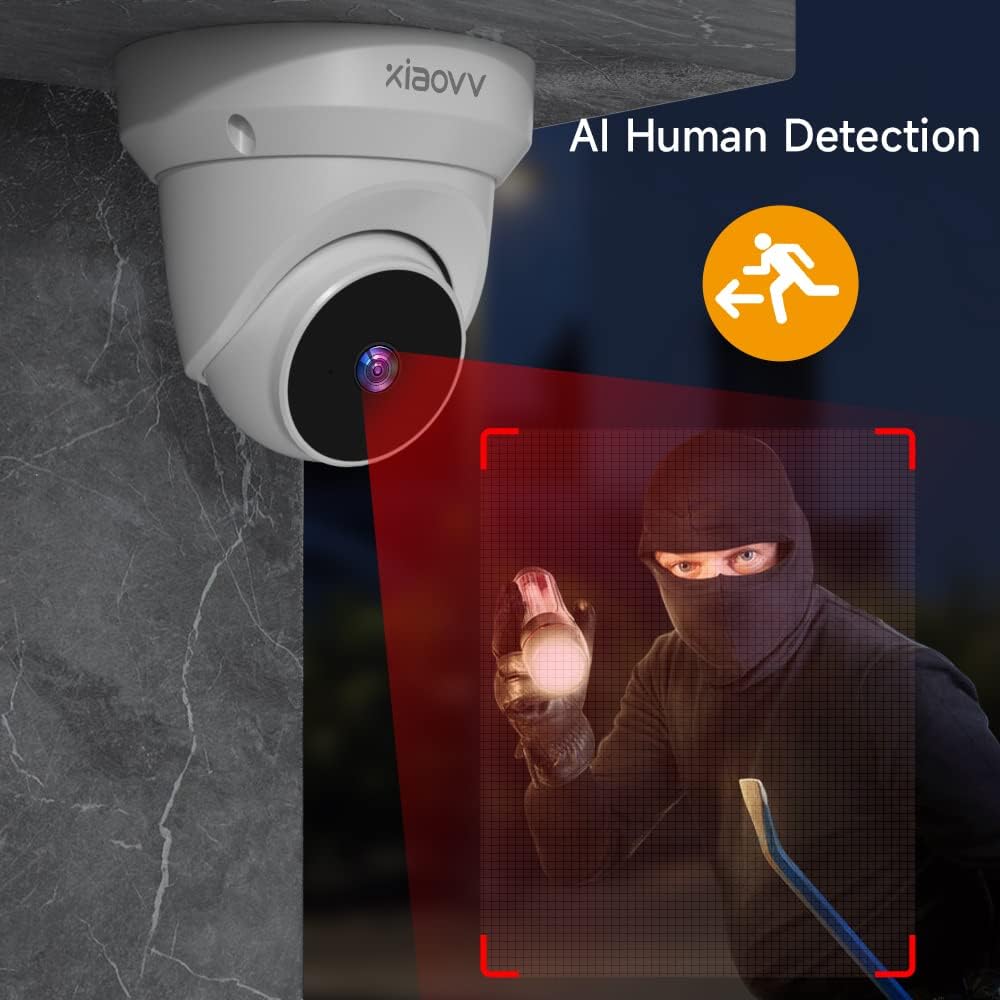
Image: The AI Human Detection feature in action, showing the camera identifying and highlighting a human figure for security alerts.

Image: Real-time alarm notification for motion detection, showing an alert on a smartphone when activity is detected at the door.
5.5. Storage Options (SD Card & Cloud)
The camera supports local storage via a Micro SD card (up to 128GB, not included) for 24-hour video recording and automatic cycle coverage. Cloud storage is also available for alarm videos, ensuring data security and accessibility. All recorded videos are encrypted.

Image: The camera's built-in Micro SD card slot, illustrating how to insert a memory card for local video storage.

Image: Visual representation of the camera's compatibility with both Micro SD card storage (up to 128GB) and optional cloud storage for video recordings.
5.6. Multi-User Sharing
You can share live streaming and alerts with family members through the app, allowing multiple users to monitor the camera and communicate in real-time.

Image: The multi-user sharing feature, showing how the camera's live feed and alerts can be shared with family members in different locations.
6. Maintenance
- Cleaning: Use a soft, dry cloth to clean the camera lens and body. Do not use liquid cleaners or aerosols.
- Firmware Updates: Regularly check the XIAOVV app for firmware updates to ensure optimal performance and security.
- Environmental Conditions: Ensure the camera is used within its specified operating temperature and humidity ranges. Avoid direct exposure to water or extreme temperatures.
7. Troubleshooting
| Problem | Possible Solution |
|---|---|
| Camera not connecting to Wi-Fi |
|
| No image or black screen in app |
|
| Motion detection alerts are too frequent/infrequent |
|
| SD card not recording |
|
8. Warranty and Support
For warranty information, technical support, or service inquiries, please contact XIAOVV customer support through the contact details provided on their official website or within the product packaging. Please have your model number (Q1) and purchase details ready when contacting support.
Related documentsQ1

Ask a question about this manual
Ask about setup, troubleshooting, compatibility, parts, safety, or missing instructions. Manuals+ will review the question and use this page’s manual context to help answer it.