1. Setup and Installation
1.1 Package Contents
Before proceeding, ensure all components are present:
- CONTINENTAL EDISON CELED50SQLDV24B6 50-inch QLED TV
- Remote Control
- Power Cable
- TV Stand (2 pieces)
- Screws for TV Stand
- User Manual (this document)
1.2 Attaching the TV Stand
To attach the stand to your television:
- Carefully place the TV screen-down on a soft, flat surface to prevent damage.
- Align each stand piece with the corresponding slots on the bottom of the TV.
- Secure each stand piece using the provided screws. Ensure they are tightened firmly.
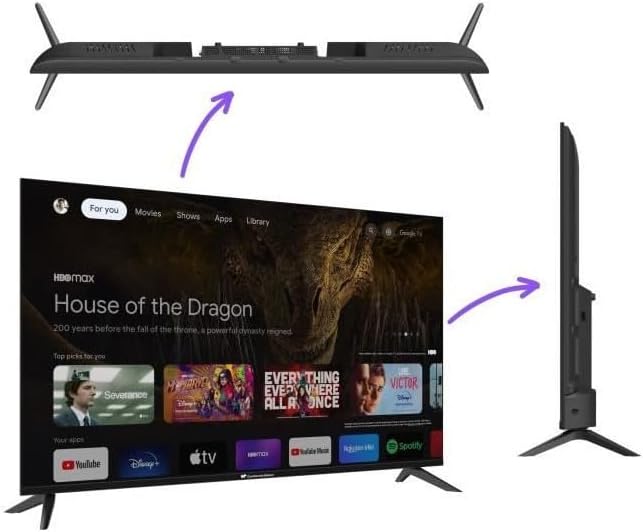
Image: Exploded view illustrating the attachment of the TV stand feet to the television base.
1.3 Wall Mounting (Optional)
This TV is compatible with VESA standard wall mounts. For wall mounting, please refer to the instructions provided with your specific wall mount kit. Ensure the wall mount is suitable for the TV's weight and size. The rear of the TV features mounting points for this purpose.
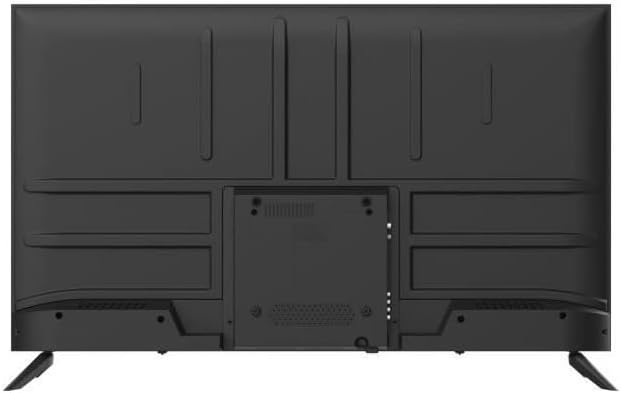
Image: Rear panel of the TV, highlighting the various input ports and VESA mounting screw locations.
1.4 Connecting Peripherals
Connect your external devices to the TV using the appropriate ports:
- HDMI: For high-definition video and audio devices (e.g., Blu-ray players, game consoles, set-top boxes). This TV features 4 HDMI ports.
- USB: For connecting USB storage devices to play media files. This TV features 2 USB ports.
- Power: Connect the power cable to the TV's power input and then to a wall outlet.
1.5 First Power On and Google TV Setup
After connecting all cables, plug in the TV. Press the power button on the remote control or the TV itself. The TV will guide you through the initial setup process for Google TV, which includes:
- Language selection
- Network connection (Wi-Fi)
- Google account sign-in
- Installation of essential apps

Image: The TV screen showing the Google TV home interface with content recommendations and app icons.
2. Operating Your TV
2.1 Remote Control Overview
The remote control allows you to navigate the TV's features. Key functions typically include:
- Power Button: Turns the TV on or off.
- Navigation Pad (Up/Down/Left/Right/OK): For menu navigation and selection.
- Back/Home Buttons: To return to the previous screen or the Google TV home screen.
- Volume Up/Down: Adjusts the audio level.
- Input/Source: Selects the input source (HDMI 1, HDMI 2, etc.).
- Google Assistant Button: Activates voice commands.
2.2 Navigating Google TV
Google TV organizes your content from various streaming services and apps into a unified interface. Use the remote's navigation pad to browse recommendations, access your installed applications, and manage settings.
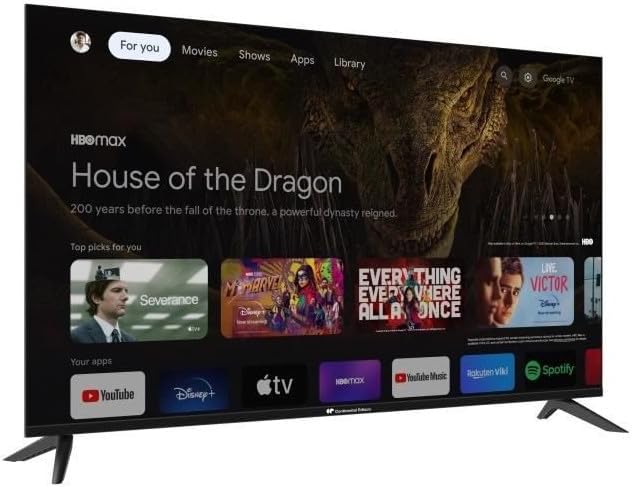
Image: The TV screen from an angle, showing the Google TV interface with various streaming content options.
2.3 Connecting to Wi-Fi and Bluetooth
Your TV supports both Wi-Fi for internet connectivity and Bluetooth for connecting wireless accessories like headphones or game controllers. These settings can be configured in the TV's main settings menu under 'Network & Internet' and 'Remotes & Accessories' respectively.
2.4 Using Smart Features
With Google TV, you can:
- Stream movies and TV shows from popular services.
- Download and use a wide range of applications from the Google Play Store.
- Cast content from your mobile devices using Chromecast built-in.
- Control smart home devices via Google Assistant.
3. Care and Maintenance
3.1 Cleaning the Screen
To clean the TV screen:
- Turn off the TV and unplug it from the power outlet.
- Gently wipe the screen with a soft, dry, lint-free cloth.
- For stubborn marks, lightly dampen the cloth with water or a screen-cleaning solution specifically designed for electronics. Do not spray liquid directly onto the screen.
3.2 General Care
- Avoid exposing the TV to direct sunlight or extreme temperatures.
- Do not block the ventilation openings on the back of the TV.
- Keep the TV away from sources of moisture.
4. Troubleshooting
If you encounter issues with your TV, refer to the following common solutions:
- No Power: Ensure the power cable is securely connected to both the TV and the wall outlet. Try a different outlet.
- No Picture/Sound: Verify the correct input source is selected. Check all cable connections (HDMI, etc.). Restart the TV.
- Remote Control Not Working: Check the batteries and replace them if necessary. Ensure there are no obstructions between the remote and the TV's IR sensor.
- Wi-Fi Connection Issues: Restart your router and modem. Reconnect the TV to the Wi-Fi network in the settings menu. Ensure the TV is within range of your Wi-Fi signal.
- Apps Not Loading: Check your internet connection. Try clearing the app's cache or reinstalling the app. Ensure the TV's software is up to date.
For persistent issues, consult the official CONTINENTAL EDISON support resources.
5. Technical Specifications
| Model | CELED50SQLDV24B6 |
| Screen Size | 50 Inches (127 cm) |
| Display Type | QLED, LED |
| Resolution | 4K UHD (3840 x 2160) |
| Operating System | Google TV |
| Connectivity | Wi-Fi, Bluetooth, 4x HDMI, 2x USB |
| Aspect Ratio | 16:9 |
| Audio Output Mode | Stereo |
| Mounting Compatibility | Wall Mount, Tabletop Stand |
| Product Weight | 11.1 kg |
| Dimensions (D x W x H) | 12.6 cm x 121 cm x 73.5 cm |
5.1 Energy Efficiency

Image: EU Energy Label for the CELED50SQLDV24B6 model, indicating energy efficiency class E for both SDR and HDR content, with consumption of 53 kWh/1000h for SDR and 54 kWh/1000h for HDR.
For detailed energy information, please visit the EPREL database.
6. Warranty and Support
6.1 Warranty Information
Your CONTINENTAL EDISON TV is covered by a manufacturer's warranty. Please refer to the warranty card included with your product or visit the official CONTINENTAL EDISON website for detailed terms and conditions regarding warranty coverage, duration, and claims procedures.
6.2 Customer Support
Should you require technical assistance, have questions about your product, or need to report a fault, please contact CONTINENTAL EDISON customer support. Contact details can typically be found on the manufacturer's official website or in the product packaging.


