1. Introduction
Thank you for choosing the FITNATE Fingerprint Door Lock. This smart door knob combines classic design with advanced biometric technology, offering convenient and secure access to your spaces. It features dual unlocking methods: fingerprint recognition and a traditional mechanical key. This manual provides detailed instructions for installation, operation, and maintenance to ensure optimal performance and security.
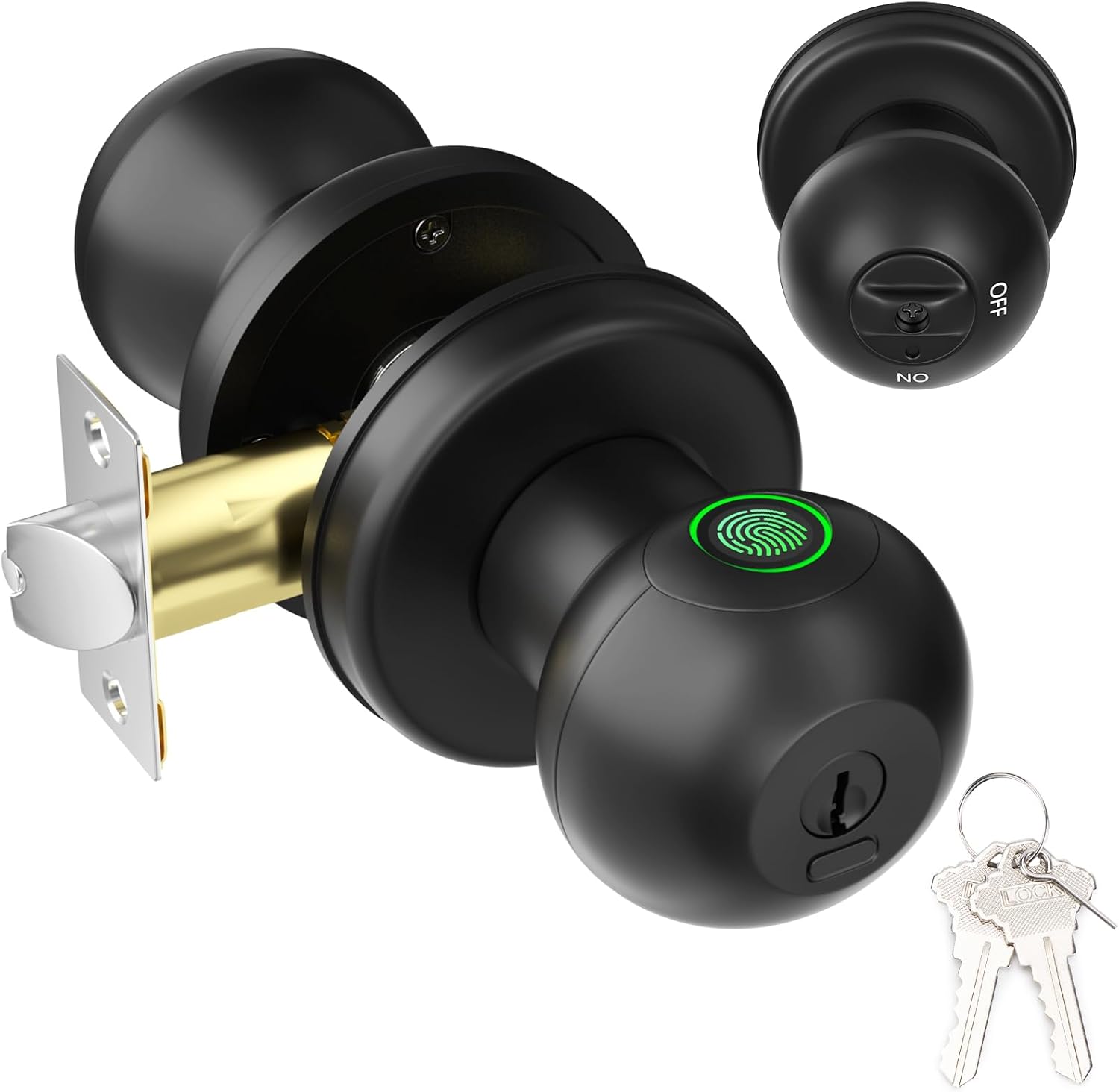
Figure 1: FITNATE Fingerprint Door Lock
2. Package Contents
Please verify that all components are present and in good condition before proceeding with installation.
- Fingerprint Door Knob (Exterior and Interior parts)
- Latch Mechanism
- Strike Plate
- Strike Box
- Mechanical Keys (x2)
- Mounting Screws
- Installation Template
- User Manual (this document)
- Small Pin (for settings button)
3. Product Overview
Familiarize yourself with the main components of your FITNATE Fingerprint Door Lock.

Figure 2: Exploded view of the door lock components.
- Exterior Knob: Features the fingerprint collector, keyhole, and USB-C emergency charging port.
- Interior Knob: Contains the battery compartment, settings button, and privacy/passage mode switch.
- Latch: The mechanism that extends into the door frame to secure the door.
4. Installation Guide
This section provides step-by-step instructions for installing your new fingerprint door lock. A screwdriver is the only tool required for most installations.
4.1 Pre-Installation Checks
Before beginning installation, ensure your door meets the following specifications:
- Door Thickness: 1-3/8" to 2-1/8" (35mm to 54mm)
- Door Hole Diameter: 2-1/8" (54mm)
- Backset: Adjustable for 2-3/8" (60mm) or 2-3/4" (70mm)
- Latch Hole Diameter: 1" (25mm)

Figure 3: Door Measurement Guide. Not suitable for glass doors or doors with special designs.
4.2 Step-by-Step Installation
Follow these steps carefully for a successful installation:
- Prepare the Lock: Before installing, remove the battery cover and the interior knob from the main assembly. Then, remove the latch mechanism.
- Install the Latch: Insert the latch into the door hole, ensuring it is oriented correctly. Secure it with the provided screws.
- Install Exterior Knob: With the fingerprint collector facing up, insert the exterior knob into the lock cylinder, aligning the internal components with the latch.
- Install Interior Knob: Pass the power cord through the rear door handle. Secure the interior knob to the exterior knob using the long screws.
- Install Battery Slot: Attach the battery slot cover.
- Insert Batteries: Install 4 x LR3/AAA/1.5V alkaline batteries, strictly observing the positive (+) and negative (-) poles. Batteries are not included.
- Attach Top Cover: Align the protruding notch on the door lock cover with the recessed notch on the handle and secure it.

Figure 4: Visual guide for easy installation.
4.3 Installation Video
For a visual step-by-step guide, please refer to the official installation video below:
Video 1: FITNATE Fingerprint Door Knob - Installation Video. This video demonstrates the complete installation process from unboxing to final assembly.
5. Operating Instructions
5.1 Setting Up Administrator Fingerprint
The first fingerprint registered will be the administrator. The administrator has full control over the lock's settings and can add or remove other users.
- Turn the interior knob to the OFF position (Privacy Mode).
- Press the settings button (small hole on the interior knob) once with the provided pin.
- Place your finger on the fingerprint collector. The indicator light will illuminate.
- Collect six fingerprints from different directions with the same finger. The light will change color or beep to indicate successful registration.
5.2 Adding User Fingerprints
After an administrator is set up, other users can be added. The lock can store up to 50 fingerprints (2 administrators, 48 users).
- Turn the interior knob to the OFF position (Privacy Mode).
- Press the settings button once with the provided pin.
- The administrator must first verify their fingerprint once.
- Then, the new user should place their finger on the fingerprint collector and collect six fingerprints from different directions with the same finger.
5.3 Unlocking Methods

Figure 5: Fingerprint Unlock - Fast identification in less than 0.1 seconds.
- Fingerprint Unlock: Place a registered finger on the fingerprint collector. The lock will unlock instantly.
- Mechanical Key Unlock: In case of battery depletion or malfunction, insert the mechanical key into the keyhole and turn it clockwise to open the lock. Each lock comes with 2 backup keys.

Figure 6: Mechanical Key Unlocking for emergency access.
5.4 Privacy Mode (Back Locking Function)
When Privacy Mode is activated, only administrators can unlock the door from the outside. Ordinary users cannot unlock it, increasing security performance.
- To activate: Rotate the thumb turn on the interior knob to the OFF position.
- To deactivate: An administrator's fingerprint can unlock it, or rotate the thumb turn to the ON position.

Figure 7: Privacy Mode (OFF) ensures only administrators can unlock from outside.
5.5 Passage Mode
In Passage Mode, the door remains unlocked, allowing free entry and exit without fingerprint verification. Use with caution.
- To activate: The administrator's fingerprint does not move on the collector. The indicator light of the fingerprint collector lights up pink and emits 10 beeps, indicating the passage mode is turned on.
- To deactivate: Administrators and users can close the passage mode by pressing the collector with their fingerprints and hearing 10 beeps. The door lock will then return to its normal state.

Figure 8: Passage Mode (ON) allows free access.
5.6 Silent Mode
To enable or disable sound feedback from the lock:
- Rotate the interior knob 5 times continuously to activate the silent mode.
- Rotate it 5 times again to turn the sound back on.
5.7 Auto-Lock Function
The lock features a 5-second auto-lock function to ensure your home's security after entry or exit.
5.8 Emergency Power
In case the batteries run out, the lock is equipped with a USB-C port for emergency charging. Connect a power bank to temporarily power the lock and gain access.

Figure 9: USB-C port for emergency power.
5.9 Restore Factory Settings
To reset the lock to its factory default settings (erasing all registered fingerprints):
- Turn the interior knob to the OFF position.
- Press and hold the settings button with a toothpick or the provided pin for 10 seconds. The lock will indicate a successful reset.
5.10 Features Overview Video
Watch this video for a quick overview of the lock's key features and modes:
Video 2: FITNATE Smart Door Knob. This video highlights the fingerprint unlock, mechanical key unlock, privacy mode, passage mode, silent mode, and USB emergency charging features.
6. Maintenance
To ensure the longevity and proper functioning of your FITNATE Fingerprint Door Lock, follow these maintenance tips:
- Battery Replacement: Replace all four AAA batteries when the low battery alert is indicated. Always use new, high-quality alkaline batteries.
- Cleaning: Wipe the lock surface and fingerprint collector with a soft, dry cloth. Avoid using abrasive cleaners or solvents that could damage the finish or electronic components.
- Environmental Conditions: This lock is designed for indoor use. While it can be used on interior doors leading to garages or other protected areas, it is not recommended for direct outdoor exposure to harsh weather conditions. Operating temperature range is 23°F to 131°F (-5°C to 55°C).
7. Troubleshooting
If you encounter issues with your FITNATE Fingerprint Door Lock, please refer to the following common troubleshooting steps:
- Lock not responding: Check battery levels. Replace batteries if low. Use the mechanical key for emergency access.
- Fingerprint not recognized: Ensure your finger is clean and dry. Try different angles or re-register your fingerprint if issues persist. Ensure you are using a registered fingerprint.
- Lock does not auto-lock: Verify that the auto-lock function is enabled (it is by default). Check for any obstructions in the door frame or latch mechanism.
- Cannot enter Passage Mode: Ensure you are following the correct procedure for activating Passage Mode (administrator fingerprint held until 10 beeps).
- Lock is making unexpected sounds: Check if Silent Mode is active. If not, and the sound is persistent or unusual, contact customer support.
For more detailed troubleshooting, please refer to the dedicated troubleshooting guide that came with your product.
8. Specifications
| Feature | Detail |
|---|---|
| Brand | FITNATE |
| Model Name | Fingerprint Door Knob (HS0436-MX) |
| Lock Type | Biometric |
| Unlocking Methods | Fingerprint, Mechanical Key |
| Fingerprint Capacity | Up to 50 (2 Admin, 48 Users) |
| Fingerprint Recognition Speed | < 0.1 seconds |
| Power Source | 4 x LR3/AAA/1.5V Alkaline Batteries (not included) |
| Emergency Power | USB-C Port |
| Material | Metal |
| Color | Black |
| Item Dimensions (L x W x H) | 6.2 x 2.5 x 2.5 inches |
| Item Weight | 1.98 pounds (900 Grams) |
| Operating Temperature | 23°F - 131°F (-5°C - 55°C) |
| Recommended Use | Residential and commercial use, suitable for securing interior and exterior doors in bedrooms, apartments, hotels, offices, and garages. |
9. Warranty and Support
Specific warranty information and detailed customer support contacts are typically provided with your product packaging or on the manufacturer's official website. Please refer to the "After-Sales Card" or "Troubleshooting Guide" included in your package for direct support channels.
For further assistance, you may visit the official FITNATE Store on Amazon: FITNATE Store.


