
1. Introduction
Thank you for choosing the ATOZEE 7 Inch Android Tablet. This compact and portable device is designed for a variety of uses, from entertainment to productivity. Featuring a responsive Quad-core processor, 32GB of internal storage (expandable up to 1TB), and 4GB of RAM, it offers a smooth multitasking experience. The 7-inch IPS HD touch screen provides clear visuals with a resolution of 1024x600 pixels. Equipped with dual cameras (2MP front, 5MP rear) and a 3000mAh battery, this tablet is suitable for everyday use, including browsing, media consumption, and video calls.
2. What's in the Box
- ATOZEE 7 Inch Android Tablet
- Charging Cable
3. Product Overview
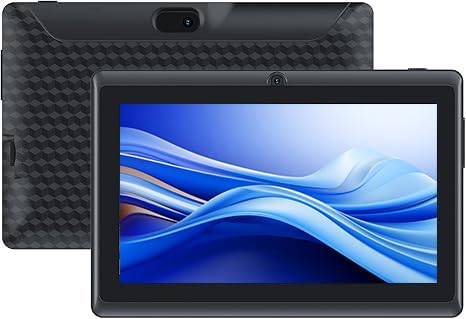
Figure 3.1: Front and Rear View of the ATOZEE 7 Inch Android Tablet. This image displays the tablet from both the front, showing its screen, and the back, highlighting its textured finish and rear camera placement.

Figure 3.2: Camera Capabilities. This image illustrates the tablet's 2MP front camera and 5MP rear camera, demonstrating their use for video calls and capturing moments.

Figure 3.3: Display Quality. This image highlights the 7-inch IPS FHD display with 1024x600 resolution, emphasizing its visual clarity for an excellent viewing experience.

Figure 3.4: Memory and Storage. This image showcases the tablet's 4GB RAM and 32GB ROM, along with its support for up to 1024GB TF card expansion for additional storage.
Physical Features:
- Screen: 7-inch IPS HD Touch Screen (1024x600 pixels)
- Front Camera: 2MP, located above the screen
- Rear Camera: 5MP, located on the back panel
- Ports: Includes a charging port and a microSD card slot for storage expansion.
- Buttons: Power button and volume controls.
4. Setup
4.1 Initial Charging
Before first use, fully charge your tablet using the provided charging cable and a compatible power adapter. The battery indicator on the screen will show charging status. A full charge typically takes a few hours.
4.2 Powering On/Off
- To Power On: Press and hold the Power button until the screen lights up and the ATOZEE logo appears.
- To Power Off: Press and hold the Power button until a power-off menu appears. Select 'Power off' and confirm.
- To Restart: From the power-off menu, select 'Restart'.
4.3 Initial Setup Wizard
Upon first power-on, the tablet will guide you through an initial setup wizard. Follow the on-screen prompts to:
- Select your language.
- Connect to a Wi-Fi network.
- Accept terms and conditions.
- Set up your Google account (recommended for full access to Google services like the Play Store).
- Set up screen lock (PIN, pattern, or password).
4.4 Inserting a MicroSD Card
The tablet supports microSD card expansion up to 1TB. To insert a card:
- Locate the microSD card slot on the side of the tablet.
- Gently insert the microSD card into the slot with the gold contacts facing down until it clicks into place.
- The tablet will detect the new storage. You may be prompted to format the card for internal or portable storage.
5. Operating Instructions
5.1 Basic Navigation
The tablet uses a capacitive touch screen. Use the following gestures:
- Tap: To select an item or open an app.
- Tap and Hold: To access contextual menus or move icons.
- Swipe: To scroll through pages or lists.
- Pinch-to-Zoom: To zoom in or out on images or web pages.
5.2 Connecting to Wi-Fi
- Go to Settings > Network & internet > Wi-Fi.
- Toggle Wi-Fi On.
- Select your desired Wi-Fi network from the list.
- Enter the password if prompted, then tap Connect.
5.3 Bluetooth Pairing
- Go to Settings > Connected devices > Connection preferences > Bluetooth.
- Toggle Bluetooth On.
- Ensure the device you wish to pair is in pairing mode.
- Select the device from the 'Available devices' list and follow any on-screen prompts to complete pairing.
5.4 Using the Cameras
The tablet features a 2MP front camera and a 5MP rear camera.
- Open the Camera app.
- Tap the camera switch icon to toggle between front and rear cameras.
- Tap the shutter button to take a photo or start/stop video recording.
5.5 Downloading Apps
As a GMS certified Android tablet, you can download a wide variety of applications from the Google Play Store.
- Open the Play Store app.
- Search for the desired app using the search bar.
- Tap Install on the app's page.
- The app will download and install automatically.
5.6 Battery Management
The 3000mAh battery provides up to 8 hours of usage. To optimize battery life:
- Reduce screen brightness.
- Turn off Wi-Fi and Bluetooth when not in use.
- Close unused applications running in the background.
- Enable battery saver mode in Settings > Battery.
6. Maintenance
6.1 Cleaning the Tablet
- Use a soft, lint-free cloth to clean the screen and body.
- For stubborn smudges, slightly dampen the cloth with water or a screen cleaner.
- Avoid using harsh chemicals or abrasive materials.
6.2 Software Updates
Periodically check for system updates to ensure optimal performance and security.
- Go to Settings > System > System update.
- Follow the on-screen instructions to download and install any available updates. Ensure your tablet is sufficiently charged before starting an update.
6.3 Storage Management
To maintain performance, regularly manage your tablet's storage.
- Go to Settings > Storage to view storage usage.
- Uninstall unused apps.
- Clear cache data for apps.
- Move large files (photos, videos) to the microSD card or cloud storage.
6.4 Battery Care
- Avoid extreme temperatures.
- Do not let the battery completely drain frequently.
- Use the original charging cable or a certified equivalent.
7. Troubleshooting
This section addresses common issues you might encounter with your ATOZEE tablet.
| Problem | Possible Cause | Solution |
|---|---|---|
| Tablet does not turn on | Low battery; System crash | Charge the tablet for at least 30 minutes. Press and hold the power button for 10-15 seconds to force restart. |
| Slow performance/Lagging | Too many apps running; Low storage; Outdated software | Close background apps. Clear app caches. Free up storage space. Check for system updates. Restart the tablet. |
| Wi-Fi connection issues | Incorrect password; Router issue; Tablet Wi-Fi module issue | Ensure correct Wi-Fi password. Restart your Wi-Fi router. Forget the network and reconnect. Restart the tablet. |
| Apps crashing or not downloading | Insufficient storage; App incompatibility; Software glitch | Free up storage. Clear Play Store cache. Ensure app is compatible with Android 12.0. Restart tablet. |
| Touch screen unresponsive in corners | Software glitch; Screen protector interference | Restart the tablet. Remove any screen protectors to test if they are causing interference. Ensure screen is clean. |
| Poor signal reception (Wi-Fi/Bluetooth) | Interference; Distance from source | Move closer to the Wi-Fi router or Bluetooth device. Avoid physical obstructions. Check for other interfering devices. |
8. Specifications
| Feature | Specification |
|---|---|
| Model Name | ATQ8Black |
| Operating System | Android 12.0 |
| Processor | Quad-core processor |
| RAM | 4GB (2GB fixed + 2GB extended) |
| Internal Storage (ROM) | 32GB |
| Expandable Storage | Supports up to 1TB microSD card |
| Screen Size | 7 Inches |
| Screen Resolution | 1024 x 600 pixels IPS HD |
| Front Camera | 2MP |
| Rear Camera | 5MP |
| Wireless Connectivity | WiFi 6 (802.11ac), Bluetooth |
| Battery Capacity | 3000mAh Lithium Ion |
| Average Battery Life | Up to 8 hours |
| Dimensions (LxWxH) | 8 x 0.3 x 5 inches |
| Item Weight | 8 ounces |
| Color | Black |
9. Warranty and Support
For warranty information and customer support, please refer to the documentation provided with your purchase or contact the seller directly. Keep your proof of purchase for any warranty claims.
Seller: YINGJIE-US
For further assistance, you may also visit the product page on Amazon or contact Amazon customer service.