
Introduction
Thank you for choosing the Geeni Smart HEPA Air Purifier. This manual provides essential information for the safe operation, installation, maintenance, and troubleshooting of your device. Please read it thoroughly before use and retain it for future reference.
Important Safety Information
To reduce the risk of fire, electric shock, or injury, please observe the following safety precautions:
- Always unplug the air purifier before moving, cleaning, or replacing the filter.
- Do not operate the unit with a damaged cord or plug. If the cord or plug is damaged, contact customer support.
- Keep the power cord away from heated surfaces.
- Do not use the air purifier in wet or damp environments, such as bathrooms.
- Do not insert fingers or foreign objects into any openings.
- Ensure the air inlet and outlet are not blocked.
- This appliance is not intended for use by persons (including children) with reduced physical, sensory, or mental capabilities, or lack of experience and knowledge, unless they have been given supervision or instruction concerning use of the appliance by a person responsible for their safety.
- Children should be supervised to ensure that they do not play with the appliance.
Product Overview
The Geeni Smart HEPA Air Purifier is designed to improve indoor air quality by removing airborne particles. It features a multi-layer filtration system, smart Wi-Fi control, and compatibility with voice assistants.

Image: Front view of the Geeni Smart HEPA Air Purifier.
Key Features

Image: Diagram illustrating key features such as 3-speed mode, voice control, app control, timer, scheduling, and purified air.
- Superior Filtration: HEPA certified filter removes 99.97% of airborne particles as small as 0.3 microns, including dust, pet dander, pollen, smoke, odors, and germs.
- Coverage: Effective for rooms up to 585 square feet with a Clean Air Delivery Rate (CADR) of 88 cubic feet per minute.
- Quiet Operation: Designed for low noise levels, especially in sleep mode.
- Customizable Settings: Three fan speeds (Low, Medium, High) for optimal performance.
- Smart Wi-Fi Control: Manage your air purifier from anywhere using the Geeni app on your smartphone.
- Voice Control: Compatible with Amazon Alexa and Google Home for hands-free operation.
- Convenient Features: Includes a child lock, sleep timer, and a filter replacement indicator.
- Air Quality Monitoring: Built-in sensor detects air quality and adjusts fan speed in Auto mode, with a PM2.5 display.
Package Contents

Image: The Geeni Smart Air Purifier unit and its HEPA certified air filter, along with dimensions.
- 1x Geeni Smart Air Purifier
- 1x HEPA Certified Air Filter (pre-installed or separate)
- 1x User Manual
- 1x Voice Control Guide
Setup Guide
1. Unpacking and Filter Installation
- Carefully remove the air purifier from its packaging.
- Turn the unit upside down and twist the base cover counter-clockwise to unlock it.
- Remove the base cover and take out the HEPA filter. The filter is typically sealed in a plastic bag for freshness.
- Remove the plastic bag from the filter. Important: Do not operate the air purifier with the filter still in its plastic bag.
- Place the filter back into the unit.
- Replace the base cover and twist clockwise to lock it securely.
- Place the air purifier on a flat, stable surface, ensuring at least 12 inches (30 cm) of clearance from walls or furniture for optimal airflow.
2. Power Connection
- Plug the power cord into a standard electrical outlet.
3. Geeni App Setup (Wi-Fi Control)
To unlock smart features and control your air purifier remotely, download and set up the Geeni app:
- Download the "Geeni" app from the Apple App Store or Google Play Store.
- Register or log in to your Geeni account.
- Tap "+" in the top right corner of the app to add a device.
- Select "Air Purifier" from the device list.
- Follow the on-screen instructions to connect your air purifier to your home Wi-Fi network. Note: The air purifier requires a 2.4 GHz Wi-Fi network for connection. 5 GHz networks are not supported.
- Once connected, you can control the air purifier, set schedules, monitor air quality, and check filter life through the app.
4. Voice Control Setup (Optional)
Your Geeni Air Purifier is compatible with Amazon Alexa and Google Home. Refer to the included Voice Control Guide for detailed instructions on linking your Geeni account with these services.
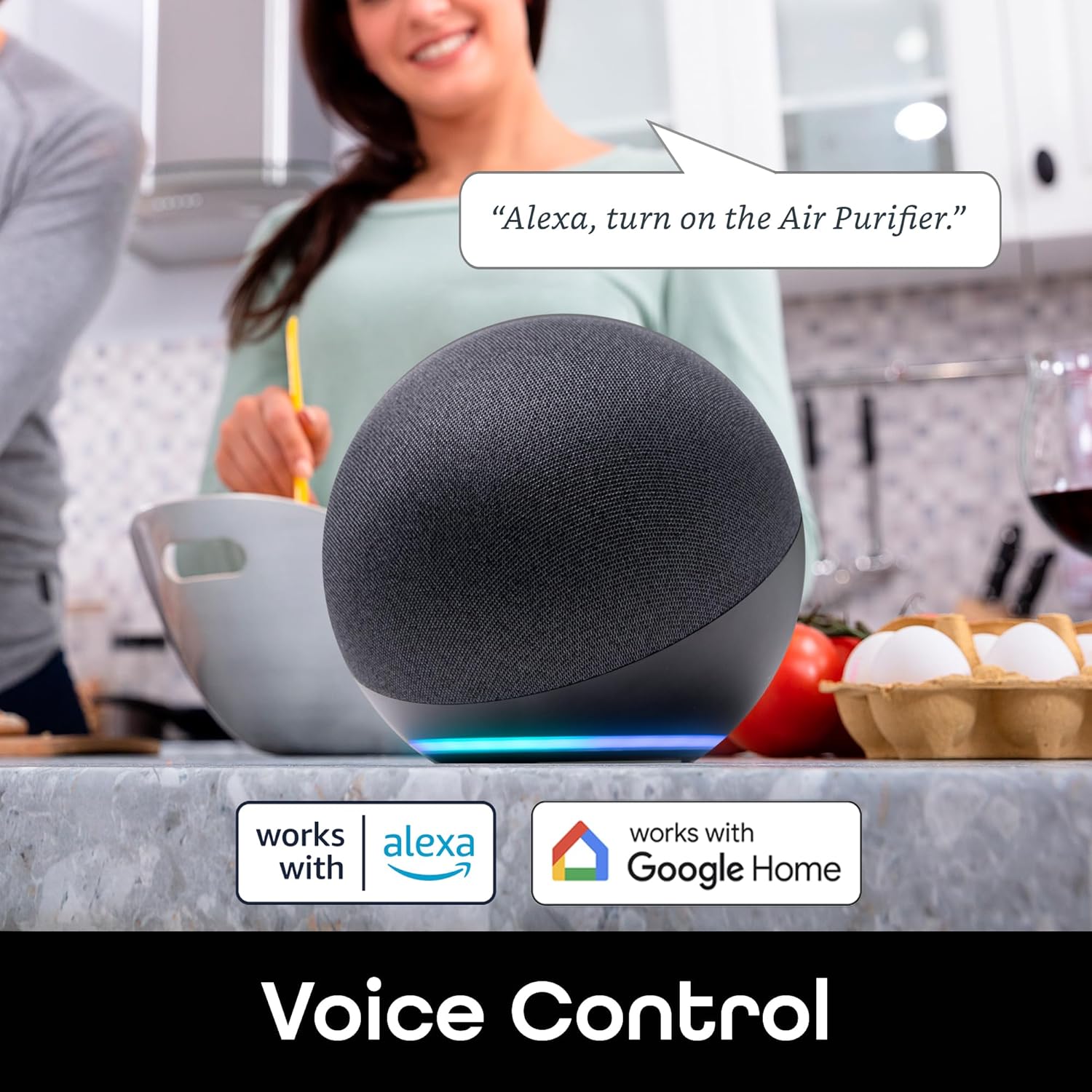
Image: The air purifier can be controlled using voice commands via Amazon Alexa or Google Home.
Operating Instructions
Control Panel Overview

Image: Detailed view of the top control panel with labeled buttons and indicators.
| Button/Indicator | Function |
|---|---|
| Power/Child Lock | Press to turn the unit ON/OFF. Press and hold for 3 seconds to activate/deactivate Child Lock. |
| Fan Speed | Cycles through Low, Medium, High fan speeds. |
| Timer/Filter Reset | Sets the operating timer. Press and hold for 3 seconds to reset the filter life indicator after replacement. |
| Light | Turns the display lights ON/OFF. |
| Wi-Fi Indicator | Indicates Wi-Fi connection status. Blinks during pairing, solid when connected. |
| Mode Indicator | Displays current operating mode (e.g., Auto, Sleep). |
| Info Display | Shows PM2.5 air quality readings and other information. |
| Circular Running Lights | Visual indicator of air quality (e.g., Green for good, Red for poor). |
Modes and Settings
- Power ON/OFF: Press the Power button once to turn the unit on or off.
- Fan Speed Adjustment: Press the Fan Speed button repeatedly to cycle through Low, Medium, and High settings.
- Auto Mode: The air purifier automatically adjusts fan speed based on detected air quality. The circular running lights will change color to indicate air quality (e.g., Green for good, Yellow for moderate, Red for poor).
- Sleep Mode: Activates the lowest fan speed for quiet operation and dims/turns off display lights. Ideal for nighttime use.
- Timer Function: Use the Timer button to set the desired operating duration (e.g., 2, 4, 8 hours). The unit will automatically turn off after the set time.
- Child Lock: Press and hold the Power/Child Lock button for 3 seconds to prevent accidental changes to settings. Repeat to unlock.
- Light Control: Press the Light button to turn the display lights on or off.
Maintenance
Filter Replacement
The air purifier is equipped with a filter replacement indicator. When the filter needs to be replaced, the indicator light will illuminate. For optimal performance, it is recommended to replace the filter every 3 to 6 months, depending on usage and air quality. In homes with pets or higher dust levels, more frequent replacement (e.g., every 3 months) may be necessary. The Geeni app also provides an estimated remaining filter lifetime in hours (approximately 3000 hours).

Image: The Geeni Air Purifier shown with a replacement HEPA filter.
- Unplug the air purifier from the power outlet.
- Turn the unit upside down and twist the base cover counter-clockwise to unlock.
- Remove the old filter and dispose of it properly.
- Insert a new Geeni replacement HEPA filter into the unit.
- Replace the base cover and twist clockwise to lock it securely.
- Plug the air purifier back in.
- Press and hold the "Timer/Filter Reset" button for 3 seconds to reset the filter life indicator.
Note: Ensure you purchase genuine Geeni replacement filters for compatibility and performance. Check the Geeni website or authorized retailers for availability.
Cleaning the Unit
- Wipe the exterior of the air purifier with a soft, dry cloth.
- Do not use abrasive cleaners or solvents.
- Clean the air quality sensor opening periodically with a dry cotton swab to ensure accurate readings.
Troubleshooting
| Problem | Possible Cause | Solution |
|---|---|---|
| Unit does not turn on. | Not plugged in; power outlet issue; unit damaged. | Ensure power cord is securely plugged into a working outlet. Try a different outlet. If still not working, contact customer support. |
| Airflow is weak or no air comes out. | Filter blocked or installed incorrectly; air inlets/outlets blocked. | |
| Air quality does not improve. | Filter needs replacement; room size too large; unit placement. | Replace the HEPA filter if the indicator is on or if it's been 3-6 months. Ensure the unit is placed in an appropriate-sized room and has adequate clearance. |
| Wi-Fi connection fails. | Incorrect Wi-Fi band; weak signal; incorrect password. | Ensure your router is broadcasting a 2.4 GHz Wi-Fi signal. Move the air purifier closer to the router. Double-check your Wi-Fi password. Reset Wi-Fi on the unit and try pairing again. |
| Unit is making unusual noise (e.g., grinding, clicking). | Internal obstruction; fan issue. | Unplug the unit and check for any foreign objects inside. If the noise persists, contact customer support. |
| Filter replacement indicator remains on after changing filter. | Indicator not reset. | Press and hold the "Timer/Filter Reset" button for 3 seconds to reset the indicator. |
Specifications
| Feature | Detail |
|---|---|
| Model Number | GN-WA017-199 |
| Product Dimensions (D x W x H) | 10.2 x 10.2 x 15.87 inches (25.9 x 25.9 x 40.3 cm) |
| Item Weight | 5 Pounds (2.27 kg) |
| Power Source | Corded Electric |
| Wattage | 28 watts |
| Filter Type | HEPA |
| Particle Retention Size | 0.3 Micrometer |
| Floor Area Coverage | Up to 585 Square Feet (54.35 sq meters) |
| Control Method | App, Manual Buttons |
| Controller Type | Amazon Alexa, Google Assistant |
| Special Features | Programmable, Smart Home Compatible |
| Certifications | ETL Certified, FCC Certified, RoHS Certified |
| Color | White |
Warranty Information
Geeni products typically come with a 1-year limited warranty from the date of purchase. This warranty covers defects in materials and workmanship under normal use. It does not cover damage caused by misuse, accident, unauthorized modification, or external causes.
For detailed warranty terms and conditions, please refer to the warranty card included with your product or visit the official Geeni website.
Customer Support
If you encounter any issues or have questions regarding your Geeni Smart HEPA Air Purifier, please contact Geeni customer support. You can find support resources, FAQs, and contact information on the Geeni app or the official Geeni website.
Website: www.geeni.com
App Support: Utilize the help section within the Geeni app for immediate assistance.