Introduction
This manual provides detailed instructions for the installation, operation, and maintenance of your Biorunn 9 Inch Android Stereo Radio. Please read this manual thoroughly before using the product to ensure proper function and safety. This unit is specifically designed for Hyundai Ioniq models from 2016 to 2019.
Product Overview
The Biorunn Android Stereo Radio is an advanced in-dash navigation and entertainment system featuring a 9-inch IPS touchscreen. It integrates seamlessly with your vehicle's dashboard, offering a range of functionalities including GPS navigation, wireless Car-Play and Android Auto, Bluetooth 5.0, FM RDS radio, and multimedia playback.

Image: Comparison of the car's center console before and after the installation of the Biorunn Android Stereo Radio, demonstrating the integrated fit.
What's in the Box
Upon unpacking, please ensure all components are present:
- Biorunn 9 Inch Android Stereo Radio Unit
- Power Harness
- GPS Antenna
- USB cables (2)
- RCA Cables (if applicable)
- User Manual (this document)
Specifications
| Operating System | Android |
| Core | 4-Core |
| Screen Size | 9 Inches |
| RAM | 1GB |
| ROM | 32GB |
| Resolution | 1280 x 720, IPS Touch Screen |
| Bluetooth | Bluetooth 5.0 |
| Wireless Connectivity | WIFI, Wireless Car-Play, Wireless Android Auto |
| Radio | FM RDS (18 preset stations) |
| GPS | Built-in Global Positioning System (Worldwide Map Type) |
| USB Ports | USB1, USB2 |
| Supported Audio Formats | MP3, WMA, AAC, RM, FALC etc. |
| Supported Video Formats | MPEG-1/2/4, H264, H263, VC1, RV, RMVB, DivX, Sorenson SparK, Spark, VP8, AVS Stream (1080P full format support) |
| Supported Photo Formats | JPG/BMP/JEPG/GIF/PNG |
| Mounting Type | Dashboard Mount |
| Voice Command | Touchscreen based |
| Languages | Multiple languages supported including English, German, French, Spanish, Italian, Portuguese, Russian, Dutch, Polish, Japanese, Simplified & Traditional Chinese, Arabic. |
Setup and Installation
Important: Professional installation is highly recommended for this product to ensure correct wiring and functionality. Incorrect installation can damage the unit or your vehicle's electrical system.
1. Pre-Installation Check
- Verify compatibility: This unit is designed for Hyundai Ioniq 2016-2019. If unsure, compare your car's center console with product images or consult a professional.
- Ensure the vehicle's ignition is off and the battery is disconnected before starting installation.
2. Wiring Diagram
Refer to the detailed wiring diagram below for proper connections. Ensure all cables are securely connected to their corresponding ports.

Image: Detailed wiring diagram illustrating the connections for power, speakers, USB, GPS, microphone, and other auxiliary inputs/outputs. Note the cooling fan and USB ports.
- Power Connections: Connect ACC, B+, and GND wires as indicated.
- Speaker Outputs: Connect front left, front right, rear left, and rear right speaker wires.
- USB Ports: Connect the provided USB cables to the USB1 and USB2 sockets.
- GPS Antenna: Connect the GPS antenna to the dedicated GPS port and mount it in a location with a clear view of the sky.
- Camera Input: If installing a reverse camera (not included), connect its video output to the 'Camera input' port.
- Steering Wheel Control: Connect SWC wires (KEY1, KEY2) to your vehicle's steering wheel control wires.
- CANBUS: If your car requires a CANBUS connection, use the provided cable and connect it to the designated port.
3. Mounting the Unit
Carefully integrate the head unit into your vehicle's dashboard opening. Ensure all cables are tucked away neatly and do not interfere with moving parts or create hazards.
4. Initial Power-On
Reconnect the vehicle's battery. Turn on the ignition. The unit should power on and display the Android operating system. Follow any on-screen prompts for initial setup.
Operating Instructions
1. Touchscreen Navigation
The unit features a capacitive multi-touch IPS screen. Navigate through menus and applications by tapping, swiping, and pinching gestures, similar to a smartphone or tablet.

Image: The main user interface of the Biorunn Android Stereo, displaying various applications like Waze, Spotify, Music, Settings, and YouTube, along with current time and radio information.
2. Wireless Car-Play / Android Auto
The unit supports both wireless and wired Car-Play and Android Auto. This allows you to integrate your smartphone's functions directly onto the stereo display for navigation, music, calls, and messages.
- To connect: Enable Bluetooth and Wi-Fi on your smartphone. On the stereo, open the Car-Play or Android Auto application. Follow the on-screen instructions to pair your device.
- For wired connection, use a compatible USB cable to connect your phone to one of the unit's USB ports.
3. Bluetooth Functionality (BT 5.0)
Connect your smartphone via Bluetooth for hands-free calling, phone book access, and audio streaming.
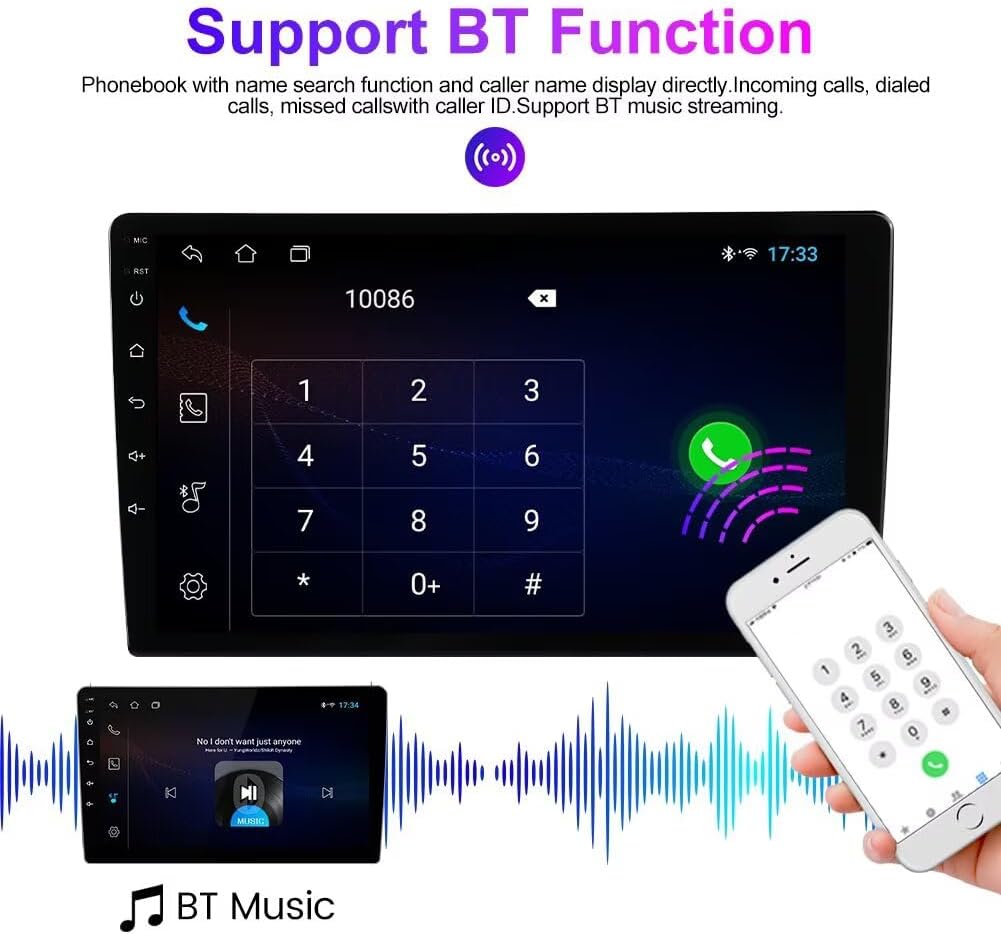
Image: The Bluetooth phone interface on the Biorunn Android Stereo, showing a dial pad, call history, and options for phonebook and music streaming.
- Pairing: Go to the Bluetooth settings on the stereo and enable Bluetooth. On your phone, search for available devices and select the stereo's name (e.g., "Biorunn Car Stereo"). Confirm the pairing code if prompted.
- Hands-Free Calling: Once paired, you can make and receive calls directly from the stereo's interface. Your phonebook can be downloaded for easy access.
- Bluetooth Music: Stream audio from your phone to the stereo.
4. FM RDS Radio
Access the built-in FM RDS radio for local broadcasts. The unit supports automatic station search and manual tuning.

Image: The FM RDS radio interface of the Biorunn Android Stereo, showing frequency display, station presets, and controls for tuning and searching.
- Automatic Search: Press the 'AS' button to automatically scan and save available stations.
- Manual Tuning: Use the arrow buttons to fine-tune the frequency.
- Presets: Save your favorite stations to the preset buttons (P1-P6).
5. Split Screen Function
The split-screen feature allows two applications to be displayed simultaneously, enhancing multitasking capabilities.

Image: The split-screen feature on the Biorunn Android Stereo, showing a video player on the left and a navigation map on the right, demonstrating simultaneous application usage.
- Activating Split Screen: While an app is open, long-press the recent apps button or drag an app to one side of the screen (method may vary slightly by Android version).
- Select a second app to occupy the other half of the screen.
6. Reversing Video Input
The unit supports a reversing camera input for enhanced safety when backing up. Note: The reversing camera is not included with this product.

Image: A simulated view of the reversing video display on the Biorunn Android Stereo, showing parking guidelines and a car in reverse, indicating the camera input functionality.
- When a compatible reversing camera is connected and the vehicle is shifted into reverse, the stereo will automatically display the camera feed.
7. Steering Wheel Control
The unit supports original steering wheel controls, allowing you to manage music playback, volume, and calls without taking your hands off the wheel.
- After installation, you may need to configure the steering wheel controls in the unit's settings menu. Refer to the 'Steering Wheel Learning' or 'SWC Settings' section in the system settings.
Maintenance
1. Screen Cleaning
To clean the touchscreen, power off the unit. Use a soft, lint-free cloth slightly dampened with water or a screen-cleaning solution. Avoid harsh chemicals or abrasive materials that could damage the screen.
2. Software Updates
Periodically check for software updates to ensure optimal performance and access to new features. Updates can typically be found on the manufacturer's website or through the unit's system settings if an internet connection is available.
Troubleshooting
If you encounter issues with your Biorunn Android Stereo Radio, please refer to the following common solutions:
- Unit does not power on: Check all power connections (ACC, B+, GND) and ensure the vehicle's battery is connected and charged. Verify fuses are intact.
- No sound: Check speaker wiring connections. Ensure volume is not muted or set to minimum. Verify audio output settings.
- Bluetooth not connecting: Ensure Bluetooth is enabled on both the stereo and your phone. Try unpairing and re-pairing the devices. Clear Bluetooth cache on your phone if necessary.
- GPS signal issues: Ensure the GPS antenna is properly connected and mounted in a location with a clear view of the sky (e.g., dashboard, under the windshield).
- Touchscreen unresponsive: Try restarting the unit. If the issue persists, a factory reset might be necessary (note: this will erase all user data).
- Steering wheel controls not working: Recheck SWC wiring. Go to the unit's settings and perform the steering wheel control learning process again.
- Compatibility concerns: If you are unsure if the unit is compatible with your specific Hyundai Ioniq model, please provide a picture of your car's center console to the seller for verification before installation.
For persistent issues, contact customer support.
Warranty
This Biorunn Android Stereo Radio comes with a 1-year warranty from the date of purchase. This warranty covers manufacturing defects and malfunctions under normal use. It does not cover damage caused by improper installation, misuse, accidents, or unauthorized modifications.
Please retain your proof of purchase for warranty claims.
Support
For technical assistance, warranty claims, or any questions regarding your Biorunn Android Stereo Radio, please contact the seller or Biorunn customer support through the platform where you purchased the product.
When contacting support, please provide your product model number (4-Core, FM RDS, 1GB+32GB) and a detailed description of the issue.


