Introduction
This manual provides comprehensive instructions for the setup, operation, and maintenance of your iMeshbean 16-Channel Professional Audio Mixer, Model GX22067. Designed for studio, podcast, and live broadcast applications, this mixer offers advanced features including 48V phantom power, 16DSP effects, and versatile USB connectivity. Please read this manual thoroughly to ensure optimal performance and longevity of your device.

Figure 1: Overview of the iMeshbean 16-Channel Professional Audio Mixer.
Setup
1. Unpacking and Initial Inspection
Carefully remove the mixer from its packaging. Inspect the unit for any signs of damage. Ensure all accessories are present.
2. Power Connection
Connect the provided power adapter to the mixer's power input and then to a suitable electrical outlet. Ensure the mixer's power switch is in the 'OFF' position before connecting to power.
3. Input Connections
The mixer features 16 mono input channels, each with XLR and 1/4-inch line inputs. Use XLR for microphones and 1/4-inch for line-level instruments or devices.
- Microphones: Connect microphones to the XLR inputs. For condenser microphones requiring power, activate the 48V Phantom Power switch (refer to Operating section).
- Line-Level Devices: Connect instruments or other audio sources to the 1/4-inch LINE inputs.

Figure 2: Detailed view of input and output connections on the mixer.
4. Output Connections
Connect your main speakers or recording interface to the MAIN OUT (XLR or 1/4-inch) jacks. Use the PHONES output for headphone monitoring.
5. USB Connectivity
The mixer supports USB connectivity for PC playback and recording. Connect a USB cable from the mixer's USB port to your computer. No special drivers are typically required for basic functionality.

Figure 3: The mixer features USB Plug & Play for easy computer connection.
Operating Instructions
1. Channel Controls
Each mono channel features the following controls:
- GAIN: Adjusts the input sensitivity for the connected microphone or line source.
- EQ (High, Mid, Low): Provides 3-band equalization to shape the tone of each channel. Adjust High for treble, Mid for midrange, and Low for bass frequencies.
- AUX: Controls the level sent to the auxiliary output for external effects or monitor mixes.
- FX: Controls the level sent to the internal DSP effects processor.
- PAN: Adjusts the stereo position of the channel in the main mix.
- FADER: Controls the overall volume level of the channel in the main mix.
- MUTE: Silences the channel.
- PFL (Pre-Fader Listen): Routes the channel signal to the headphone output for monitoring before the fader.

Figure 4: Each channel features 3-band equalization for precise tone shaping.
2. 48V Phantom Power
The mixer provides 48V phantom power for condenser microphones. Activate the 'PHANTOM' switch located near the main output section. Ensure all microphones are connected before engaging phantom power to prevent damage.
3. DSP Effects
The integrated 16DSP effects processor offers various reverb and delay effects. Use the 'EFFECTS' knob and display to select and adjust the desired effect. The 'FX' knob on each channel sends the signal to this processor.
Video 1: This video demonstrates the features of a similar professional mixing console, including input connections, 3-band equalization, fader operation, DSP reverb effects, and USB player functionality. It provides a visual guide to operating various controls on the mixer.
4. USB Player/Recorder
The built-in USB player allows playback of audio files from a USB flash drive. Use the control buttons (Play/Pause, Skip Tracks, Mode) and the display to navigate and control playback. The USB port also facilitates direct recording to a connected PC.
5. Monitoring
Connect headphones to the PHONES jack for real-time monitoring of your mix. The PFL function on individual channels allows isolated monitoring of specific inputs.
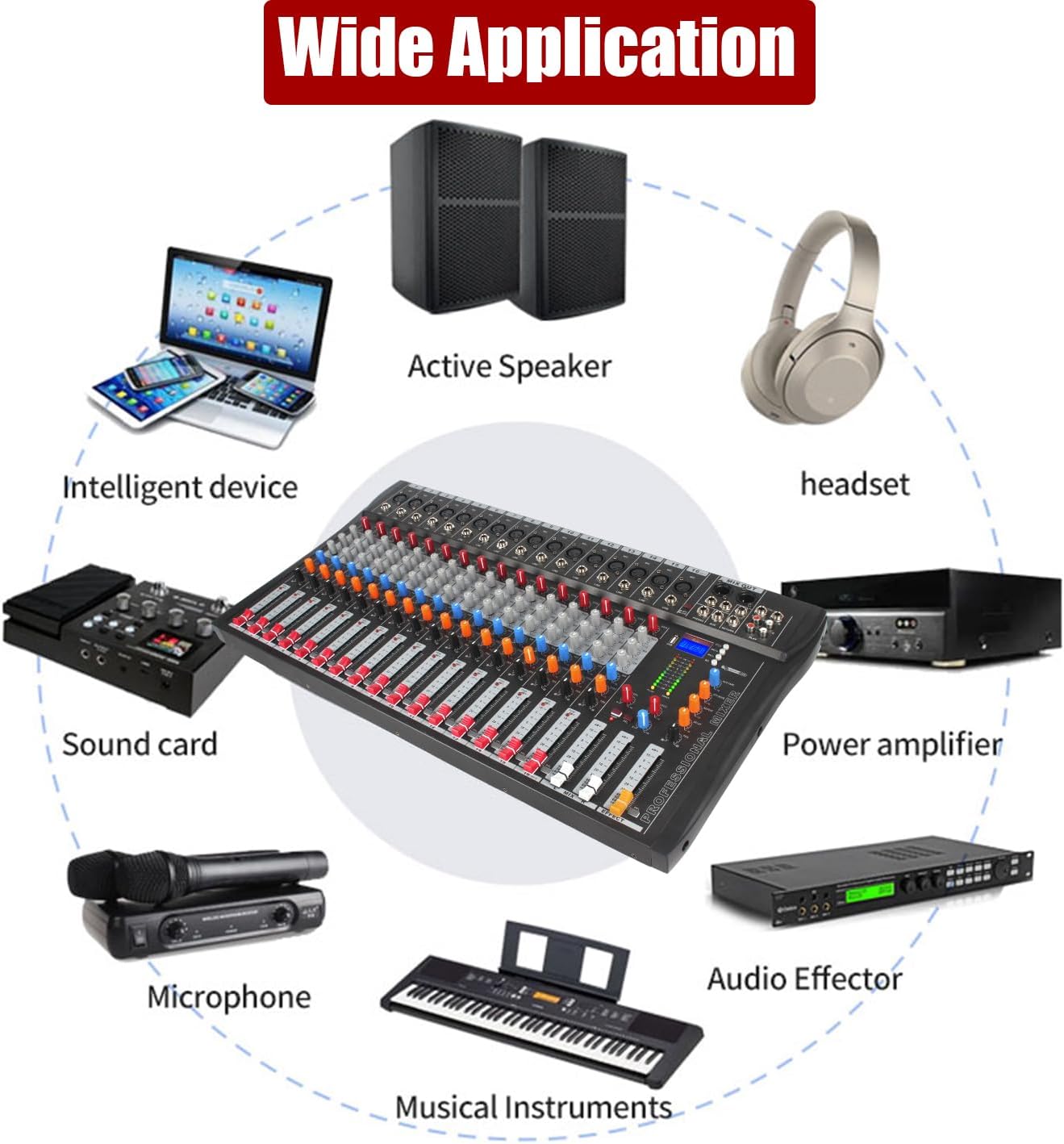
Figure 5: The mixer allows for precise real-time monitoring of audio signals.
Maintenance
To ensure the longevity and optimal performance of your iMeshbean audio mixer, follow these maintenance guidelines:
- Cleaning: Regularly wipe the surface of the mixer with a soft, dry cloth. Avoid using abrasive cleaners, solvents, or waxes, as these can damage the finish and controls.
- Dust Protection: Keep the mixer covered when not in use to prevent dust and debris from accumulating in faders, knobs, and ports.
- Storage: Store the mixer in a cool, dry place away from direct sunlight, extreme temperatures, and high humidity.
- Cable Management: Ensure all cables are properly coiled and stored to prevent damage to connectors and internal wiring.
Troubleshooting
If you encounter issues with your iMeshbean audio mixer, refer to the following common troubleshooting steps:
- No Power: Check the power adapter connection to both the mixer and the electrical outlet. Ensure the power switch is in the 'ON' position.
- No Sound Output: Verify that all faders (channel and main mix) are raised. Check all cable connections from inputs to outputs. Ensure speakers or headphones are properly connected and powered.
- No Microphone Signal: Confirm the microphone is properly connected to the XLR input. If using a condenser microphone, ensure 48V phantom power is activated. Check the channel's GAIN knob.
- Distorted Sound: Reduce the GAIN on the input channel and the main mix fader. Ensure input levels are not peaking (indicated by red 'PK' lights).
- USB Playback/Recording Issues: Ensure the USB flash drive is properly inserted and contains compatible audio files. For PC recording, verify the mixer is selected as the audio input device in your computer's sound settings.
Specifications
| Feature | Specification |
|---|---|
| Brand | iMeshbean |
| Model Number | GX22067 |
| Number of Channels | 16 |
| Connectivity Technology | USB |
| Audio Input | XLR |
| Power Source | Corded Electric |
| Phantom Power | 48V |
| DSP Effects | 16 (Reverb, Delay, etc.) |
Warranty and Support
For warranty information or technical support, please refer to the documentation included with your purchase or contact iMeshbean customer service directly. Keep your proof of purchase for any warranty claims.