
1. Introduction
This manual provides essential information for the safe and efficient use of your ViewSonic VA2732-MH-W 27-inch Full HD IPS Monitor. Please read these instructions thoroughly before operating the device and retain them for future reference.
The ViewSonic VA2732-MH-W is a 27-inch Full HD (1920x1080) IPS monitor designed for office and home use. It features a 100Hz refresh rate and 1ms (MPRT) response time for smooth visuals, EyeProtech+ technology for reduced eye strain, and multi-OS compatibility with Windows and macOS systems. The monitor includes built-in 2W x 2 stereo speakers and offers versatile connectivity options.

Image 1.1: ViewSonic VA Series Monitors for Office and Home Environments.
2. Setup and Installation
2.1 Package Contents
Verify that all items are present in the package:
- ViewSonic VA2732-MH-W Monitor x1
- 3-pin Power Plug x1
- HDMI Cable (v1.4) x1
- AC/DC Adapter x1
- Quick Start Guide x1
2.2 Monitor Assembly
Follow the instructions in the Quick Start Guide for attaching the stand to the monitor. Ensure all connections are secure.
2.3 VESA Mounting
The monitor is VESA compatible (100 x 100 mm) for wall or arm mounting. Use appropriate VESA-compliant mounting hardware (sold separately) and follow the mounting kit's instructions.
2.4 Connecting to a Computer
Connect the monitor to your computer using the provided HDMI cable or a VGA cable (not included). Ensure the cables are securely plugged into both the monitor and your computer's video output port.

Image 2.1: Rear view of the monitor displaying available connectivity ports (HDMI, VGA, and 3.5mm Audio Out).
2.5 Power Connection
Connect the AC/DC adapter to the monitor's power input, then plug the 3-pin power plug into a power outlet. Press the power button on the monitor to turn it on.
3. Operation
3.1 Monitor Controls
The monitor features physical control buttons and an On-Screen Display (OSD) menu for adjustments.
- Physical Controls: Key 1 (Favorite), Key 2, Key 3, Key 4, Key 5 (Power).
- On-Screen Display (OSD) Controls: Input Select, Audio Adjust, ViewMode, Color Adjust, Manual Image Adjust, Setup Menu.
3.2 Visual Performance and Features
The monitor features a SuperClear IPS Panel with 109% sRGB color gamut for vibrant and accurate visuals. It offers a 100Hz refresh rate and 1ms (MPRT) response time for fluid motion.

Image 3.1: SuperClear IPS Panel for accurate and vivid colors.

Image 3.2: High 100Hz Refresh Rate and 1ms Response Time for smoother action.
3.3 ViewMode Presets
The ViewMode feature provides optimized settings for various applications:
- Game: Optimized for gaming visuals.
- Movie: Enhanced for video playback.
- Web: Suitable for general web browsing.
- Text: Reduces eye strain for reading documents.
- Mono: Black and white display mode.

Image 3.3: ViewMode offers optimized presets for different tasks.
3.4 EyeProtech+ for Eye Comfort
EyeProtech+ combines Flicker-Free technology and a low blue light filter to minimize eye strain during extended viewing periods.

Image 3.4: EyeProtech+ reduces blue light emission and eliminates flicker.

Image 3.5: Visual representation of Flicker-Free and Blue Light Filter technologies.
3.5 Audio Features
The monitor includes two 2W built-in stereo speakers. An additional 3.5mm Audio Out port is available for connecting external headphones or speakers.

Image 3.6: Location of built-in speakers on the monitor.
3.6 Multi-OS Compatibility
The VA2732-MH-W is certified for Windows 10/11 and tested for macOS, ensuring broad compatibility with various operating systems.
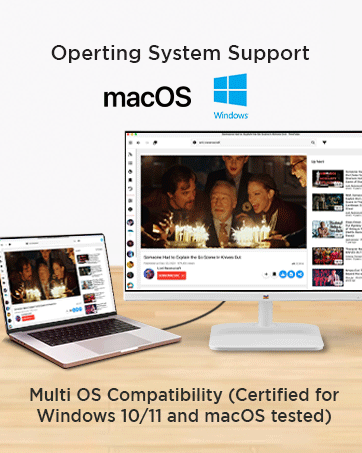
Image 3.7: Multi-OS compatibility with Windows and macOS.
4. Maintenance
4.1 Cleaning the Monitor
To clean the monitor screen, gently wipe it with a soft, lint-free cloth. For stubborn marks, dampen the cloth with a mild, non-abrasive screen cleaner. Avoid using harsh chemicals or abrasive materials that could damage the anti-glare surface or 3H hard coating.
For the monitor casing, use a soft, dry cloth. Do not spray cleaners directly onto the monitor.
4.2 Eco Mode for Energy Efficiency
The monitor features an Eco Mode with 'Conserve', 'Optimize', and 'Standard' settings to manage power consumption. Adjusting these settings can reduce energy usage.

Image 4.1: Eco Mode helps reduce energy consumption.
5. Troubleshooting
If you encounter issues with your monitor, refer to the Quick Start Guide for basic troubleshooting steps. Common issues and potential solutions include:
- No Display: Ensure all cables (power and video) are securely connected. Check if the monitor is powered on. Verify the correct input source is selected via the OSD menu.
- Poor Image Quality: Adjust resolution and refresh rate settings on your computer. Use the OSD menu to fine-tune brightness, contrast, and color settings.
- No Sound: Check the audio cable connection (if using external speakers/headphones). Adjust the volume via the OSD menu and your computer's sound settings. Ensure the correct audio output device is selected on your computer.
For more complex issues, contact ViewSonic customer support.
6. Specifications
Below are the technical specifications for the ViewSonic VA2732-MH-W monitor:
| Feature | Specification |
|---|---|
| Brand | ViewSonic |
| Model Number | VA2732-MH-W |
| Screen Size | 27 Inches (68.58 cm) |
| Panel Type | IPS (SuperClear) |
| Resolution | 1920 x 1080 (Full HD) |
| Aspect Ratio | 16:9 |
| Refresh Rate | 100Hz |
| Response Time | 1ms (MPRT) |
| Brightness | 250 cd/m² |
| Static Contrast Ratio | 1,000:1 (typical) |
| Dynamic Contrast Ratio | 50M:1 |
| Color Gamut | 109% sRGB |
| Connectivity | 1x HDMI 1.4, 1x VGA, 1x 3.5mm Audio Out |
| Speakers | 2x 2W Stereo Speakers |
| VESA Compatibility | 100 x 100 mm |
| Power Consumption (Typical) | 28W |
| Power Consumption (Max) | 30W |
| Power Consumption (Eco Mode Conserve) | 20W |
| Power Consumption (Stand-by) | 0.3W |
| Dimensions (Physical) | 615 x 459 x 225 mm |
| Net Weight | 4.1 kg |
| Color | White |
7. Warranty and Support
7.1 Manufacturer Warranty
The ViewSonic VA2732-MH-W monitor comes with a 3 Years Standard On-site Manufacturer Warranty. Please retain your proof of purchase for warranty claims.
7.2 Manufacturer and Importer Information
Manufacturer/Importer: ViewSonic Technologies INDIA Private Limited
GST Number: 33AABCV7912Q1ZV
Address: No.25/14 B-8 GEMS Court., Khadher Nawaz Khan Road., Nungambakkam Chennai -600006
7.3 Customer Support
For technical assistance, warranty service, or further inquiries, please contact ViewSonic customer support through their official channels. Refer to the Quick Start Guide or the ViewSonic website for contact details.


