
1. Introduction
Thank you for choosing the Inefala Android 13 Car Radio. This manual provides detailed instructions for the installation, operation, and maintenance of your new car stereo system. Please read this manual thoroughly before installation and use to ensure proper functionality and safety.
This advanced car radio features a 9-inch touchscreen, Android 13 operating system, 2GB RAM, 64GB ROM, and supports wireless CarPlay and Android Auto. It is specifically designed for VW Polo models from 2008 to 2020.
2. Package Contents
Please verify that all items listed below are included in your package:
- 1 x Inefala Android Radio for VW Polo
- 1 x Power Cable
- 1 x CANBUS Decoder
- 1 x Radio Antenna Cable
- 1 x RCA Cable
- 2 x USB Cables
- 1 x GPS Antenna
- 1 x AHD Backup Camera
- 1 x Rear Camera Input Cable
- 1 x External Microphone
- 1 x Installation Tool and Accessories Kit
3. Safety Information
Always prioritize safety during installation and operation. Improper installation can lead to vehicle damage or personal injury. Consult a professional if you are unsure about any steps.
- Do not operate the device in a way that distracts you from driving.
- Ensure all wiring is correctly connected to prevent short circuits or electrical fires.
- Keep the device away from water and excessive heat.
- Only use the provided accessories and cables.
4. Setup & Installation
This car radio is designed for direct fit in VW Polo models from 2008 to 2020. The included CANBUS decoder ensures compatibility with your vehicle's systems.
4.1 Pre-Installation Check
Before beginning installation, compare the power cable port on the details page with your original car's power cable port to ensure compatibility. Verify that the CANBUS decoder is correctly configured in the system settings after installation (Settings - Factory configuration (password 1234) - CAN settings).
4.2 Installation Steps
- Disconnect Battery: Before starting, disconnect the negative terminal of your car's battery to prevent electrical shorts.
- Remove Old Radio: Carefully remove the existing car radio and dashboard trim using the provided installation tools.
- Connect Wiring: Connect the new Inefala car radio's power cable, RCA cable, USB cables, GPS antenna, and radio antenna cable to the corresponding ports in your vehicle. Ensure the CANBUS decoder is properly connected.
- Connect Backup Camera (Optional): If installing the AHD backup camera, route the camera cable from the rear of the vehicle to the radio unit and connect it to the 'Rear Camera Input Cable'.
- Connect External Microphone: Plug in the external microphone for improved call quality.
- Test Connections: Before fully reassembling the dashboard, reconnect the car battery and briefly power on the unit to ensure basic functions (power, display, sound) are working.
- Secure Unit: Mount the Inefala car radio securely into the dashboard opening.
- Reassemble Dashboard: Carefully reattach all dashboard trim pieces.

Image: Comparison of the car dashboard before and after the installation of the Inefala Android car radio, showing the seamless integration into the VW Polo's interior.
5. Operating Instructions
5.1 System Overview
The Inefala car radio runs on Android 13 with a 4-core 8227L CPU, 2GB RAM, and 64GB ROM. The 9-inch touchscreen has a resolution of 1024x600 pixels and supports 1080P video playback.
5.2 Wireless CarPlay and Android Auto
Enjoy seamless integration with your smartphone. Connect wirelessly or via USB cable to access navigation, music, calls, messages, and voice control (Siri/Google Voice Assistant).
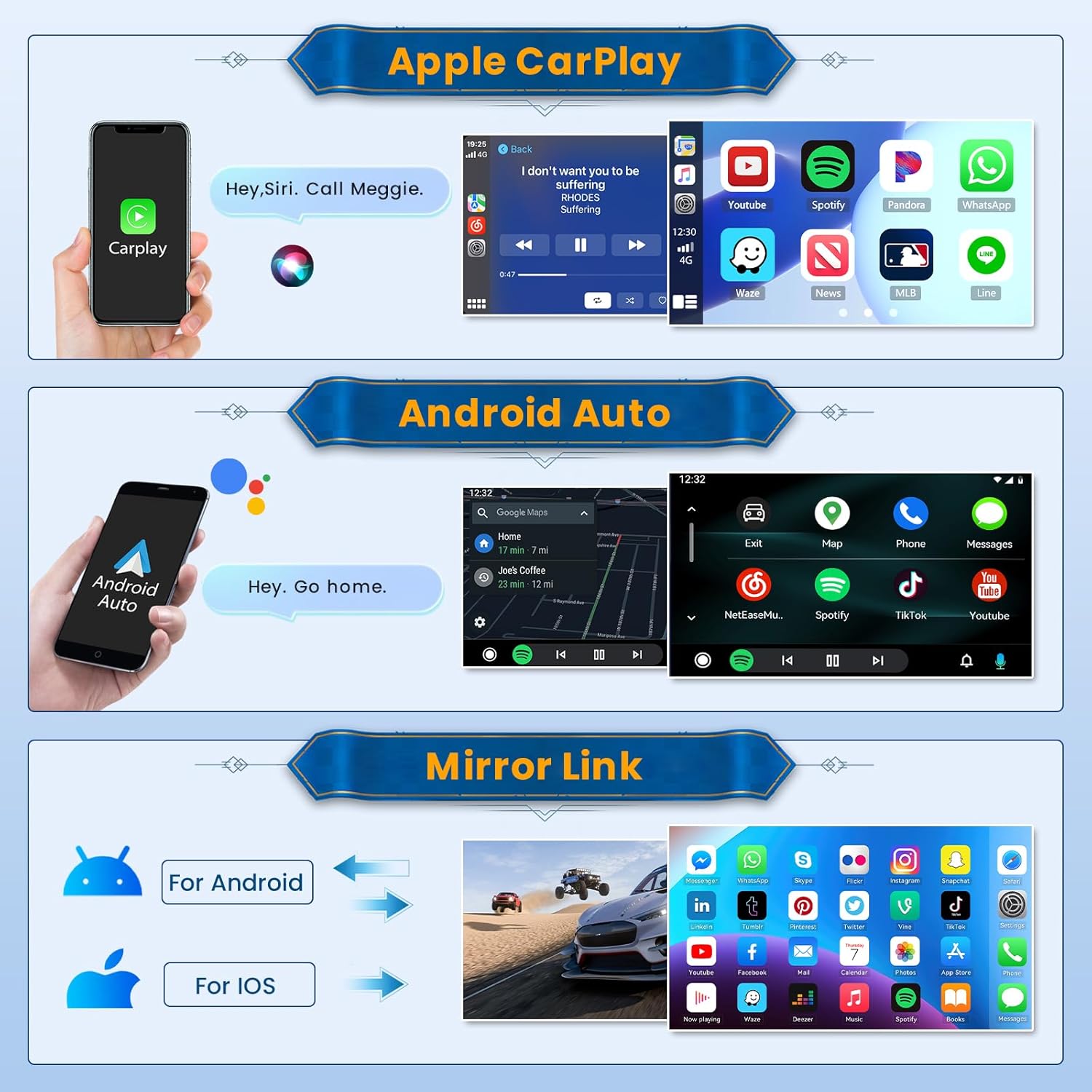
Image: Visual representation of Apple CarPlay, Android Auto, and Mirror Link functionalities on the car radio screen, demonstrating smartphone integration.
5.3 Mirror Link Function
Synchronize your mobile phone content (videos, navigation) to the larger screen. iOS phones support one-way control, while Android phones support bidirectional control.
5.4 GPS Navigation
The unit supports both free offline maps (e.g., Waze) and online maps. The GPS antenna ensures accurate positioning for navigation.

Image: Displays the GPS navigation interface with map details and icons representing various navigation apps, alongside the WiFi connection interface showing available applications.
5.5 Bluetooth Connectivity
Built-in Bluetooth 4.2 allows for music streaming, hands-free calling, and phone book download. Enhance your driving safety and convenience.
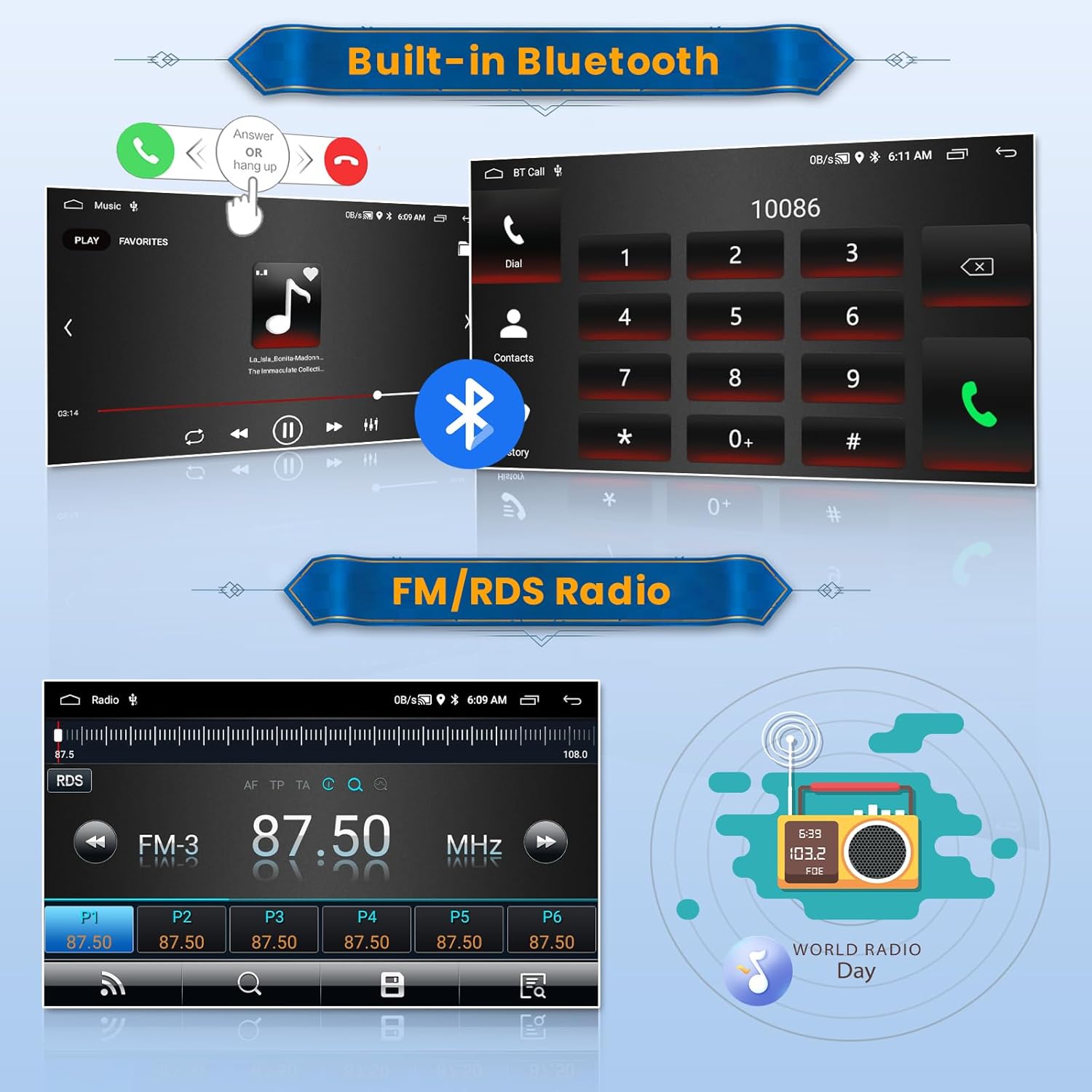
Image: Shows the Bluetooth call interface with dial pad and contact options, and the FM/RDS radio interface displaying frequency and station presets.
5.6 FM/RDS Radio
Listen to your favorite radio stations with FM and RDS support. Save up to 18 favorite stations and receive live weather forecasts and traffic updates.
5.7 Split Screen Function
Multitask efficiently by displaying two applications simultaneously, such as navigation and FM radio, on the HD split screen.

Image: Illustrates various desktop themes available, the graphic equalizer (EQ) settings for audio customization, and the split-screen functionality displaying two applications concurrently.
5.8 EQ Sound Effects
Adjust audio settings with the built-in equalizer, offering various sound effects like pop, rock, and jazz for a personalized listening experience.
5.9 Steering Wheel Control (SWC)
Control the car radio directly from your steering wheel buttons for quick and safe access to functions like volume, track changes, and mode selection.
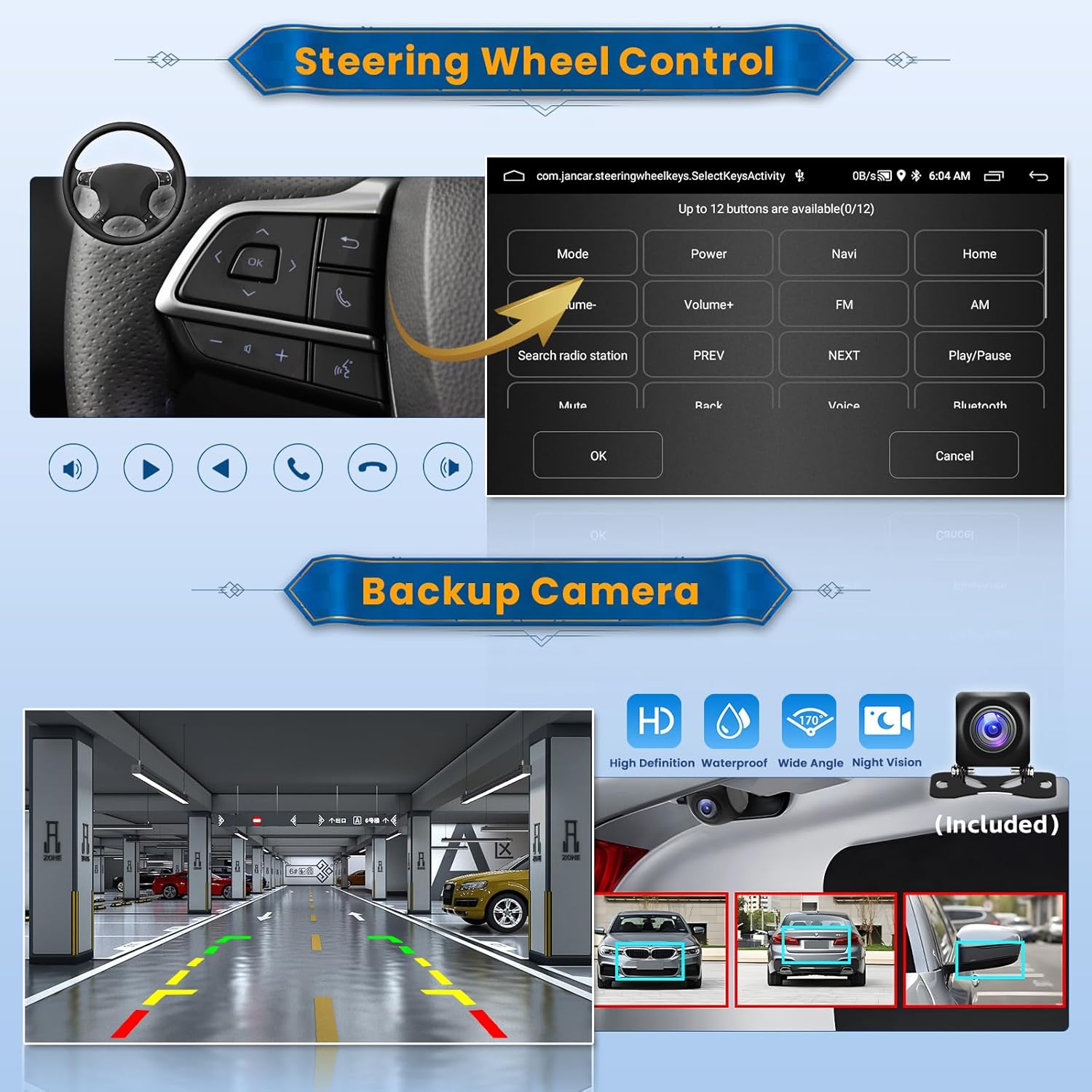
Image: Depicts the steering wheel control interface for customizing button functions, and the automatic display of the AHD backup camera view when reversing.
5.10 AHD Backup Camera
The included AHD camera automatically displays the rear view on the screen when reverse gear is engaged, providing a clear image day and night for safer parking and reversing.
5.11 Wi-Fi Connection & App Downloads
Connect to a Wi-Fi hotspot to download and use various applications like YouTube and TikTok, enhancing your in-car entertainment.
5.12 Desktop Themes
Personalize your user interface with 28 different desktop themes available.
6. Maintenance
To ensure the longevity and optimal performance of your Inefala car radio, follow these maintenance guidelines:
- Cleaning: Use a soft, dry cloth to clean the touchscreen and exterior. Avoid abrasive cleaners or solvents.
- Software Updates: Periodically check for and install software updates to ensure the system runs smoothly and has the latest features.
- Temperature: Avoid exposing the unit to extreme temperatures, both hot and cold, for extended periods.
7. Troubleshooting
If you encounter any issues with your Inefala car radio, refer to the following common problems and solutions:
| Problem | Possible Cause | Solution |
|---|---|---|
| No Power | Incorrect wiring, blown fuse, loose connection. | Check all power cable connections. Inspect vehicle fuses. Ensure battery is connected. |
| No Sound | Speaker wires disconnected, volume too low, incorrect audio settings. | Verify speaker wire connections. Increase volume. Check EQ settings and audio output. |
| CANBUS Not Working | Incorrect CAN settings. | Go to "Settings - Factory configuration (password 1234) - CAN settings" and ensure the correct model is selected. |
| GPS Signal Lost | GPS antenna obstructed or disconnected. | Ensure GPS antenna is properly connected and has a clear view of the sky. |
| Bluetooth Not Connecting | Bluetooth off, device not in pairing mode, interference. | Ensure Bluetooth is enabled on both devices. Put phone in pairing mode. Try restarting both devices. |
| Backup Camera Not Displaying | Camera cable loose, camera faulty, reverse trigger not connected. | Check the rear camera input cable connection. Ensure the reverse trigger wire is correctly connected to the vehicle's reverse light circuit. |
If the problem persists after attempting these solutions, please contact customer support.
8. Specifications
| Feature | Specification |
|---|---|
| System | Android 13 |
| CPU | 4-Core 8227L |
| Memory (RAM) | 2GB |
| Storage (ROM) | 64GB |
| Main Frequency | 1.3GHz |
| Screen Size | 9 Inches |
| Screen Resolution | 1024*600 |
| Radio Band | FM/RDS |
| Power Amplifier Chip | 7388 |
| Radio Chip | MTK |
| Audio Decoder | 2133 |
| Bluetooth Version | 4.2 |
| USB Interface | Dual USB |
| Rear Camera Standard | AHD720 & CVBS |
| Factory Set Keyword | 1234 |
| Supported Audio Formats | APE/FLAC/WAV/MP3/WMA etc. |
| Supported Video Formats | MKV/RMVB/AVI/MP4/MDV etc. |
| Supported Image Formats | PNG/JPEG/JPG/GIF/WBMP/BNP etc. |
| Product Dimensions | 17.5 x 26.8 x 2.7 cm |
| Product Weight | 1.6 kg |
9. Warranty & Support
Inefala products are manufactured to high-quality standards. For warranty information and support, please refer to the terms provided at the time of purchase or contact your seller directly. Keep your proof of purchase for any warranty claims.
For technical assistance or further inquiries, please reach out to the manufacturer or the authorized reseller from whom you purchased the product.


