1. Introduction
This manual provides comprehensive instructions for the setup, operation, maintenance, and troubleshooting of your HP 24-inch FHD IPS Monitor, Model 94C21AA#ABA. Please read this manual thoroughly before using your monitor to ensure proper functionality and to maximize your user experience. This monitor features a 24-inch Full HD (1920x1080) IPS display with a 100Hz refresh rate, 300 nits brightness, and includes a Docztorm Hub USB Port Expander.
2. Package Contents
Verify that all items are present in your package:
- HP 24-inch FHD IPS Monitor
- Monitor Stand (Base and Neck)
- Docztorm Hub USB Port Expander
- Power Adapter
- AC Power Cord
- HDMI Cable
- Document Kit (includes this user manual and warranty information)
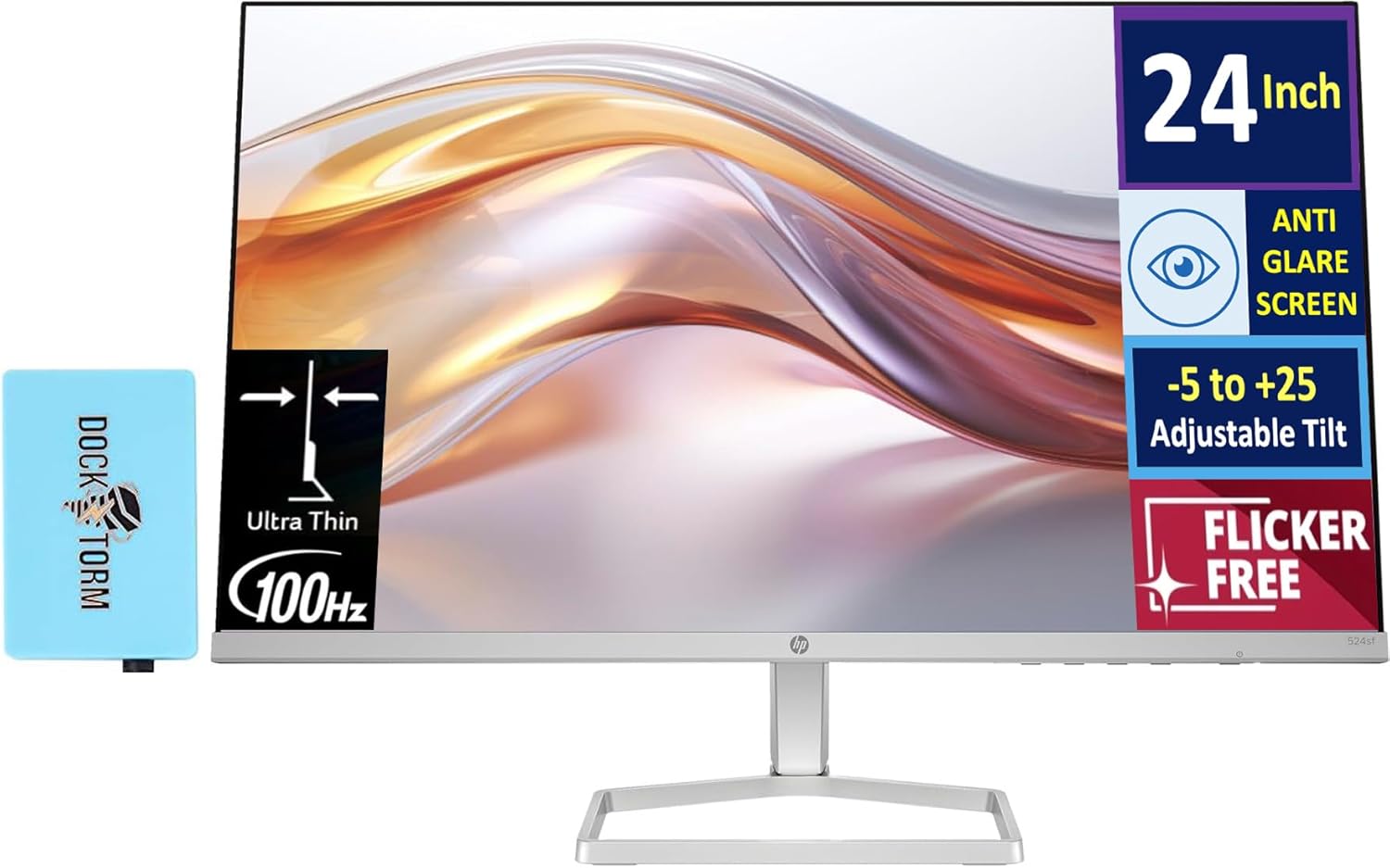
Image: The HP 24-inch FHD IPS Monitor shown with the included Docztorm Hub USB Port Expander.
3. Setup Instructions
3.1 Assembling the Monitor Stand
- Carefully place the monitor face down on a soft, clean surface to prevent scratches.
- Attach the stand neck to the back of the monitor. Ensure it clicks securely into place.
- Attach the stand base to the stand neck. Tighten any screws if provided, usually by hand or with a coin.
- Gently lift the assembled monitor and place it upright on a stable desk or surface.

Image: Side view of the HP 24-inch monitor, illustrating its slim profile and stand attachment.
3.2 Connecting Cables
- Power Connection: Connect the power adapter to the monitor's power input, then plug the AC power cord into the adapter and a wall outlet.
- Video Connection:
- For optimal display quality, connect the included HDMI cable from your computer's HDMI output to the monitor's HDMI input.
- Alternatively, if your computer has a VGA port, connect a VGA cable (not included) from your computer to the monitor's VGA input.
- Docztorm Hub Connection: Connect the Docztorm Hub USB Port Expander to an available USB port on your computer. This hub provides additional USB connectivity.

Image: Rear view of the HP 24-inch monitor, highlighting the HDMI, VGA, and power input ports.
4. Operating Instructions
4.1 Powering On/Off
Press the power button located on the bottom right side of the monitor to turn it on or off. The power indicator light will illuminate when the monitor is on.
4.2 Adjusting Tilt
The monitor supports an adjustable tilt range of -5 to +25 degrees. Gently hold the top and bottom edges of the monitor and tilt it to your desired viewing angle. Avoid applying excessive force.

Image: The HP 24-inch monitor tilted to demonstrate its adjustable viewing angle.
4.3 On-Screen Display (OSD) Menu
Use the buttons on the bottom right bezel of the monitor to navigate the OSD menu. The OSD menu allows you to adjust various display settings such as brightness, contrast, color temperature, input source, and more.
- Press any OSD button to activate the menu.
- Use the navigation buttons to move through menu options.
- Press the 'Select' or 'OK' button to confirm a selection.
- Press the 'Exit' or 'Back' button to return to the previous menu or exit the OSD.
5. Key Features
- 24-inch FHD IPS Display: Enjoy vibrant colors and wide viewing angles with the Full High Definition (1920x1080) In-Plane Switching panel.
- 100Hz Refresh Rate: Experience smoother visuals, especially during fast-paced content or general use.
- 300 nits Brightness: Provides a bright and clear display suitable for various lighting conditions.
- Flicker-Free Technology: Reduces screen flickering to minimize eye strain during extended use.
- HP Eye Ease (Low-Blue Light Filter): An always-on hardware solution that reduces blue light emissions without impacting color accuracy, enhancing eye comfort.
- Anti-glare Screen: Minimizes reflections for better visibility in brightly lit environments.
- Docztorm Hub USB Port Expander: A portable USB hub included to expand your device's connectivity with super speedy data sync rates up to 5Gbps.
- Connectivity: Features 1x HDMI 1.4 and 1x VGA port for versatile connection options.

Image: A visual comparison demonstrating the effect of HP Eye Ease, showing reduced yellow color shift for improved eye comfort.

Image: Two HP 24-inch monitors set up side-by-side, demonstrating the thin bezels ideal for a seamless dual-screen experience.
6. Maintenance
6.1 Cleaning the Monitor
- Always power off the monitor and unplug the power cord before cleaning.
- Use a soft, lint-free cloth lightly dampened with water or a non-abrasive screen cleaner.
- Wipe the screen gently. Avoid pressing hard or using harsh chemicals, which can damage the display.
- Clean the monitor casing with a soft, dry cloth.
6.2 Storage
If storing the monitor for an extended period, ensure it is powered off, unplugged, and stored in a cool, dry place away from direct sunlight and extreme temperatures. It is recommended to use the original packaging for protection.
7. Troubleshooting
- No Power:
- Ensure the power cord is securely connected to the monitor and the power outlet.
- Verify the power outlet is functioning by plugging in another device.
- Check the power adapter for any damage.
- No Signal / Blank Screen:
- Confirm the video cable (HDMI or VGA) is securely connected to both the monitor and your computer.
- Ensure your computer is powered on and not in sleep mode.
- Use the OSD menu to manually select the correct input source (HDMI or VGA).
- Try connecting the monitor to another computer or using a different video cable to rule out cable or computer issues.
- Poor Image Quality:
- Adjust brightness, contrast, and color settings via the OSD menu.
- Ensure your computer's display resolution is set to the monitor's native resolution (1920 x 1080).
- Check for any physical damage to the screen or cable.
8. Specifications
| Feature | Detail |
|---|---|
| Screen Size | 24 Inches |
| Panel Type | IPS |
| Resolution | FHD 1080p (1920 x 1080 Pixels) |
| Refresh Rate | 100Hz |
| Brightness | 300 nits (300 Lux) |
| Aspect Ratio | 16:9 |
| Screen Surface | Flat, Anti-glare |
| Connectivity | 1x HDMI 1.4, 1x VGA |
| Adjustments | Adjustable Tilt (-5 to +25 degrees) |
| Special Features | Flicker-Free, HP Eye Ease (Low-Blue Light Filter), Docztorm Hub USB Port Expander |
| Product Dimensions | 1.33 x 21.09 x 12.42 inches |
| Item Weight | 5.51 pounds |
| Model Number | 94C21AA#ABA |
| Manufacturer | HP |
9. Warranty and Support
Your HP 24-inch FHD IPS Monitor is covered by a manufacturer's warranty. Please refer to the warranty card included in your document kit for detailed terms and conditions, including warranty period and coverage. For technical support, product registration, or further assistance, please visit the official HP support website or contact HP customer service.
HP Support Website: www.hp.com/support