
DoHonest ZD72
DoHonest Dash Cam Front and Rear User Manual
Model: ZD72
Brand: DoHonest
1. Introduction
This manual provides detailed instructions for the installation, operation, and maintenance of your DoHonest Dash Cam Front and Rear (Model ZD72). Please read this manual thoroughly before using the product to ensure proper function and safety.
The DoHonest 4K Dual Dash Cam is designed to enhance driving safety and provide comprehensive recording capabilities. It features ultra HD 4K front recording and full HD 1080P rear recording, superior night vision, built-in GPS, 5G WiFi connectivity, and reliable accident recording features.

Image: DoHonest Dash Cam ZD72 main unit, rear camera, and smartphone app display.
2. Package Contents
Verify that all items listed below are included in your package. If any items are missing or damaged, please contact customer support.
- 1 x 4K Front Dash Cam
- 1 x 1080P In-car Rear Camera
- 1 x Suction Cup Mount
- 1 x 11.5ft Power Supply Cable with Car Charger
- 1 x 23ft Rear Camera Cable
- 1 x USB Type-C Power Cable
- 1 x USB Type-C Data Cable
- 1 x 32GB Memory Card (Included)
- 1 x Instruction Manual

Image: Visual representation of the DoHonest Dash Cam ZD72 package contents.
3. Setup and Installation
The DoHonest Dash Cam is designed for effortless plug-and-play installation. Follow these steps for proper setup.
3.1 Installing the Front Dash Cam
- Clean the windshield area where you intend to mount the dash cam.
- Attach the suction cup mount to the front dash cam.
- Securely attach the suction cup mount to the cleaned area on your windshield, ensuring it does not obstruct your view.
- Insert the included 32GB microSD card into the dash cam's memory card slot.
- Connect the 11.5ft Power Supply Cable with Car Charger to the dash cam and plug the other end into your vehicle's cigarette lighter socket.
3.2 Installing the Rear Camera
- Determine a suitable location for the rear camera, typically on the rear windshield, ensuring a clear view.
- Clean the chosen area thoroughly.
- Mount the rear camera using its adhesive or screws (if applicable and provided).
- Connect the 23ft Rear Camera Cable to the rear camera and route it neatly to the front dash cam. Plug the cable into the AV-IN port on the front dash cam.

Image: Installation diagram for the DoHonest Dash Cam, showing front and rear camera placement and cable routing.
4. Operating Instructions
4.1 Powering On/Off
- The dash cam will automatically power on and begin recording when connected to your vehicle's power supply and the engine starts.
- It will automatically power off when the vehicle's engine is turned off and power supply is disconnected.
4.2 Recording Modes
- Loop Recording: The dash cam continuously records video in segments (e.g., 1, 3, or 5 minutes). When the memory card is full, it automatically overwrites the oldest unlocked footage.
- G-Sensor (Emergency Recording): In the event of a sudden impact or collision, the built-in G-sensor will detect the event and automatically lock the current video segment, preventing it from being overwritten by loop recording.
- 24/7 Parking Mode: With an optional hardwire kit (not included), the dash cam can monitor your vehicle even when parked. It uses motion detection to automatically record incidents and features low-voltage protection to prevent draining your car's battery.
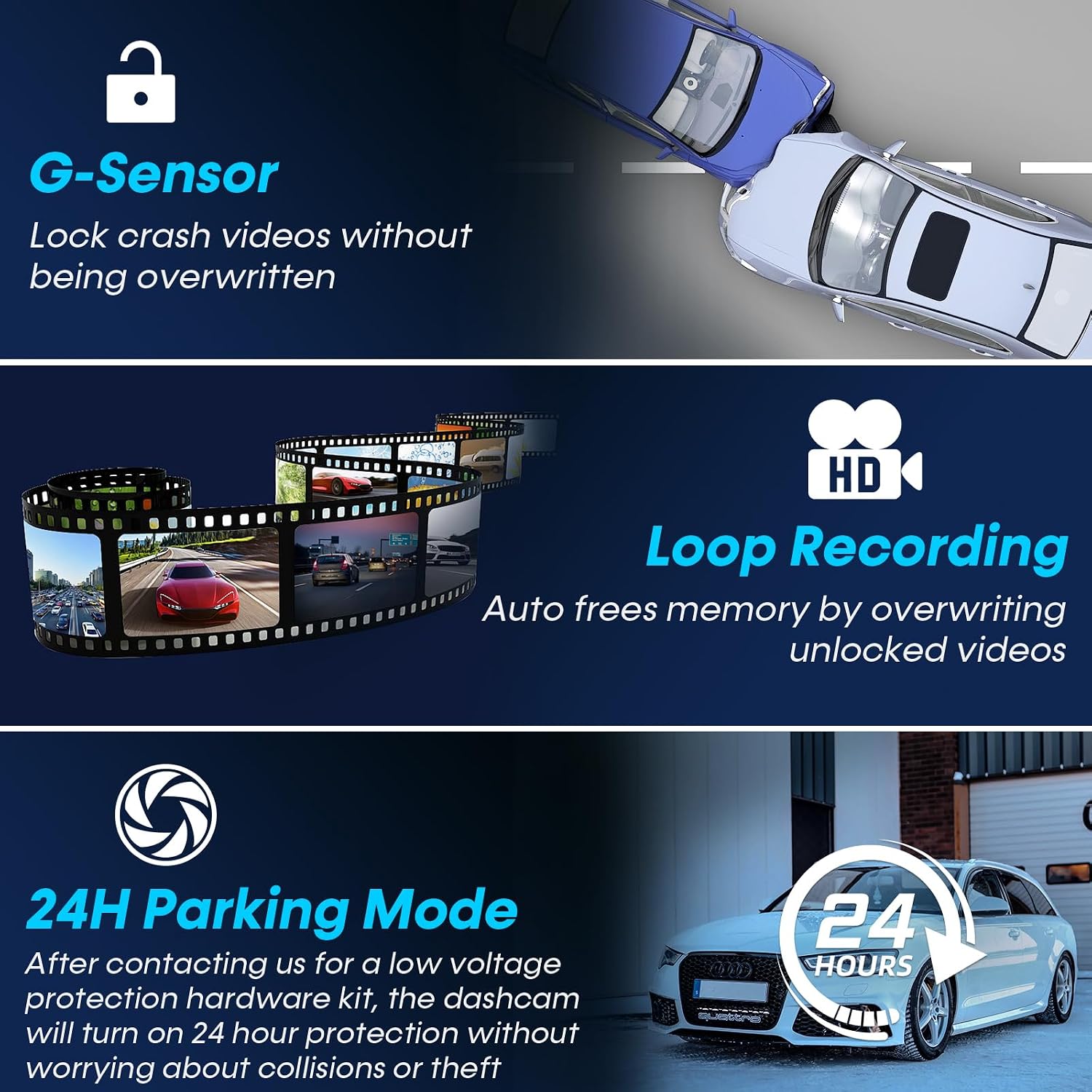
Image: Explanation of G-Sensor, Loop Recording, and 24H Parking Mode features.
4.3 GPS Functionality
The built-in GPS module tracks your vehicle's location, speed, and routes. This data can be viewed via the dedicated smartphone app or on a PC/Mac, providing valuable evidence in case of an accident and allowing you to review your journey history.

Image: GPS tracking and 5G WiFi connectivity for the DoHonest Dash Cam.
4.4 5G Wi-Fi and App Control
Connect your dash cam to your smartphone via 5G Wi-Fi for instant video downloads, live view, and easy sharing of footage. The dedicated app allows you to manage recordings and access GPS data directly from your device.
4.5 Night Vision
The dash cam features superior night vision with HDR/WDR technology and an F1.5 large aperture lens, enhancing light intake by 45%. This ensures clear footage in low-light conditions and at night, improving visibility and safety.

Image: Demonstration of Super Night Vision capabilities in various lighting conditions.
5. Maintenance and Care
- Cleaning: Use a soft, dry cloth to clean the camera lenses and screen. Avoid using abrasive cleaners or solvents.
- Memory Card: Regularly format the microSD card (at least once a month) to ensure optimal performance and prevent data corruption. The dash cam supports up to 512GB microSD cards.
- Firmware Updates: Check the DoHonest official website periodically for any available firmware updates to ensure your dash cam has the latest features and improvements.
- Temperature: The dash cam is built with heat-resistant aluminum alloy. However, avoid prolonged exposure to extreme temperatures (both hot and cold) to maintain optimal performance and longevity.
6. Troubleshooting
If you encounter issues with your DoHonest Dash Cam, please refer to the following common solutions.
- Dash Cam Not Powering On:
- Ensure the power cable is securely connected to both the dash cam and the vehicle's power outlet.
- Check if the vehicle's power outlet (cigarette lighter) is functioning correctly.
- Recording Issues (e.g., "Card Full" error):
- Format the microSD card regularly within the dash cam's settings.
- Ensure you are using a high-speed (Class 10 or U3 recommended) microSD card.
- Check if loop recording is enabled in the settings.
- Poor Video Quality:
- Clean the camera lenses with a soft cloth.
- Ensure the protective film has been removed from the lenses.
- Check video resolution settings in the dash cam menu.
- GPS Not Tracking:
- Ensure the dash cam has a clear view of the sky for satellite reception.
- Verify GPS functionality is enabled in the settings.
- Wi-Fi Connection Issues:
- Ensure the dash cam's Wi-Fi is enabled.
- Restart both the dash cam and your smartphone.
- Ensure you are within close proximity to the dash cam for a stable connection.
If the problem persists, please contact DoHonest customer support for further assistance.
7. Specifications
| Brand | DoHonest |
| Model | ZD72 |
| Video Capture Resolution | Front: 4K (2160P), Rear: 1080P |
| Front Viewing Angle | 170 Degrees |
| Rear Viewing Angle | 150 Degrees |
| Display Size | 3.16 Inches LCD |
| Connectivity Technology | Wi-Fi (5G), GPS |
| Flash Memory Type | microSD |
| Included Memory Card Size | 32 GB |
| Max Supported Storage | 512 GB |
| Special Features | 4K Front and rear dual cam, Time-lapse, WDR, Loop Recording, G-sensor, Parking Monitor, Built-In GPS/ Wi-Fi/Microphone/Speaker, Super Night Vision, Motion Sensor, Easy to Install, App Control, 360 Degree, Screen Saver, Live Speed, Voice Alert, Built-In Super Capacitor, Support 512GB SD Card Max, APP for iOS & Android, 2 Year Reliable Warranty |
| Mounting Type | Windshield Mount |
| Product Dimensions | 5.08 x 7.6 x 4.5 cm; 540 g |

Image: Key specifications and design features of the DoHonest Dash Cam ZD72.
8. Warranty and Support
The DoHonest Dash Cam ZD72 comes with a 2 Year Reliable Warranty. This warranty covers manufacturing defects and ensures the product meets its specified performance standards.
For technical support, warranty claims, or any questions regarding your product, please contact DoHonest customer service. Refer to the contact information provided in the product packaging or on the official DoHonest website.
Related documentsZD72

Ask a question about this manual
Ask about setup, troubleshooting, compatibility, parts, safety, or missing instructions. Manuals+ will review the question and use this page’s manual context to help answer it.