
Rii RK200
Contents
Rii RK200 Wireless Keyboard and Mouse Combo User Manual
Model: RK200
1. Product Overview
The Rii RK200 is a 2.4GHz full-sized wireless keyboard and mouse combo designed for seamless connectivity and comfortable use across various operating systems.
1.1 Package Contents
- Wireless Keyboard ×1
- Wireless Mouse ×1
- USB Receiver ×1 (located in the keyboard battery compartment)
- User Manual ×1
1.2 Key Features
- 2.4G Wireless Plug and Play: Simply connect the wireless keyboard and mouse with a single USB receiver. No drivers required.
- 108-Keys Full-size Keyboard: Features a numeric keypad and multi-media shortcut keys for convenient data entry and quick access to functions. (Note: Multimedia shortcuts are not compatible with Mac systems.)
- Wide Compatibility: Compatible with Windows 2000/ME/XP/Vista/7/8/10/11, Linux, Chrome OS, and other systems with a USB port.
- Energy Saving & Durability: Smart sleep mode for both keyboard and mouse to conserve battery life.

Image: The Rii RK200 wireless keyboard and mouse combo, showcasing the full-sized keyboard and ergonomic mouse.
2. Setup
2.1 Battery Installation
The keyboard and mouse require AAA batteries (not included).
- Keyboard: Requires 1 x AAA battery. Open the battery compartment on the underside of the keyboard and insert the battery, observing polarity. The USB receiver is stored in this compartment.
- Mouse: Requires 2 x AAA batteries. Open the battery compartment on the underside of the mouse and insert the batteries, observing polarity.

Image: Underside view of the keyboard and mouse, showing the battery compartments and the storage slot for the USB receiver within the keyboard.
2.2 Connecting the USB Receiver
The Rii RK200 combo uses a single USB receiver for both the keyboard and mouse.
- Locate the USB receiver in the battery compartment of the keyboard.
- Remove the USB receiver.
- Plug the USB receiver into an available USB port on your computer, laptop, or other compatible device.
- The system will automatically detect and install the necessary drivers. No manual driver installation is required.

Image: Diagram illustrating the 2.4G wireless connection, showing the USB receiver and wireless signal icon, indicating a 10-meter range.

Image: A close-up of the USB receiver plugged into the side of a laptop, with the keyboard and mouse nearby, indicating wireless connectivity.
3. Operation
3.1 Keyboard Functions
The Rii RK200 keyboard features a standard 108-key layout with additional multimedia shortcut keys.
- Standard Keys: All standard alphanumeric, symbol, and function keys (F1-F12) are present.
- Numeric Keypad: A dedicated numeric keypad on the right side for efficient data entry.
- Multimedia Shortcut Keys: Access frequently used functions such as volume control, media playback, and web browser shortcuts. Please note that these multimedia shortcuts may not be fully compatible with Mac operating systems.
- Indicator Lights: The keyboard includes indicator lights for Num Lock, Caps Lock, and Low Battery status.

Image: Close-up of the top right corner of the keyboard, highlighting the NumLock, Caps Lock, and Low Battery indicator lights.
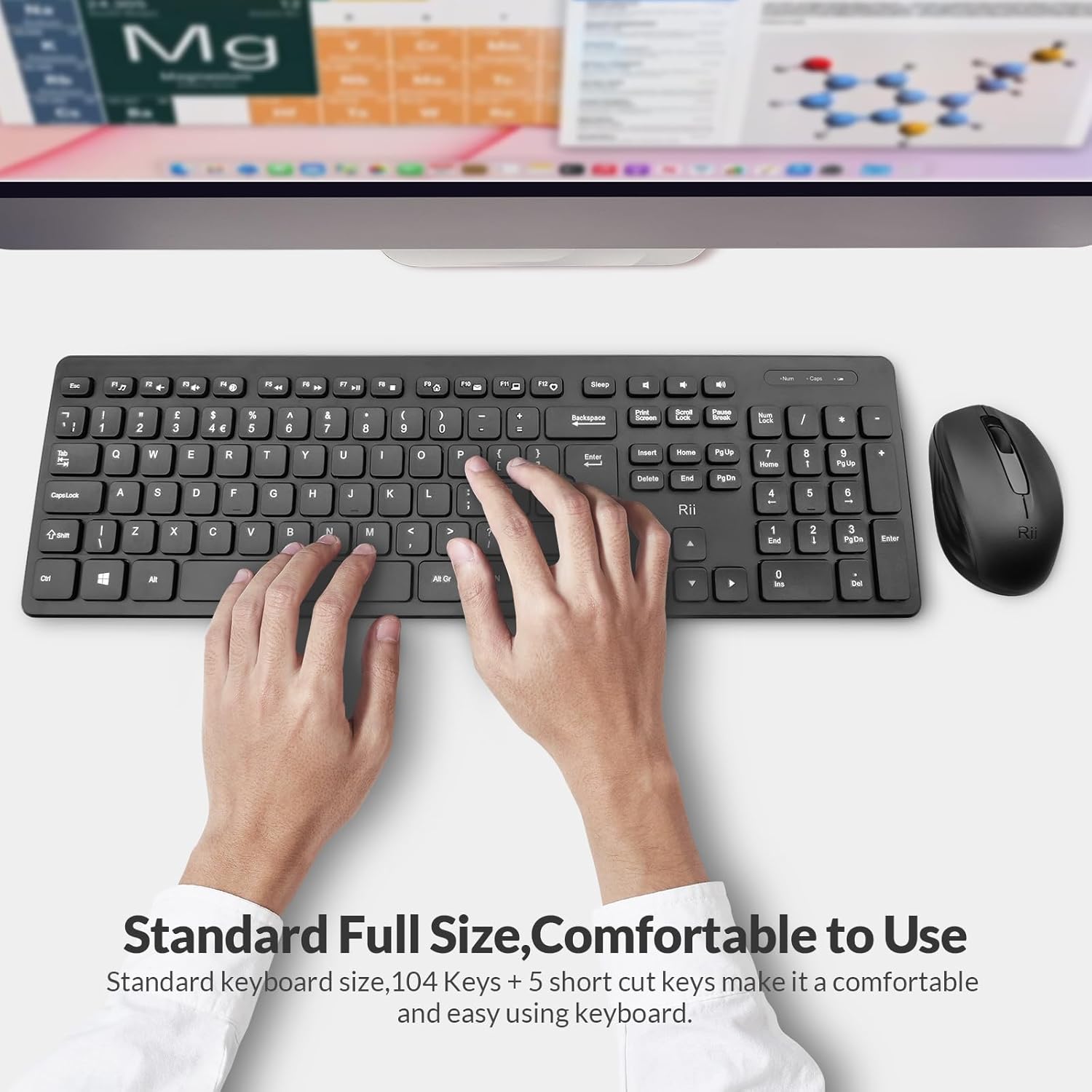
Image: A user's hands positioned over the Rii RK200 keyboard, demonstrating its standard full-size layout and comfortable typing experience.
3.2 Mouse Functions
The Rii RK200 mouse is designed for comfortable and precise navigation.
- Left and Right Buttons: Standard click functions.
- Scroll Wheel: Used for scrolling through documents and web pages. It also functions as a middle click button.
- Power Switch: Located on the underside of the mouse to turn it ON or OFF, conserving battery when not in use.
- DPI: The mouse operates at 1000 DPI for precise cursor control.
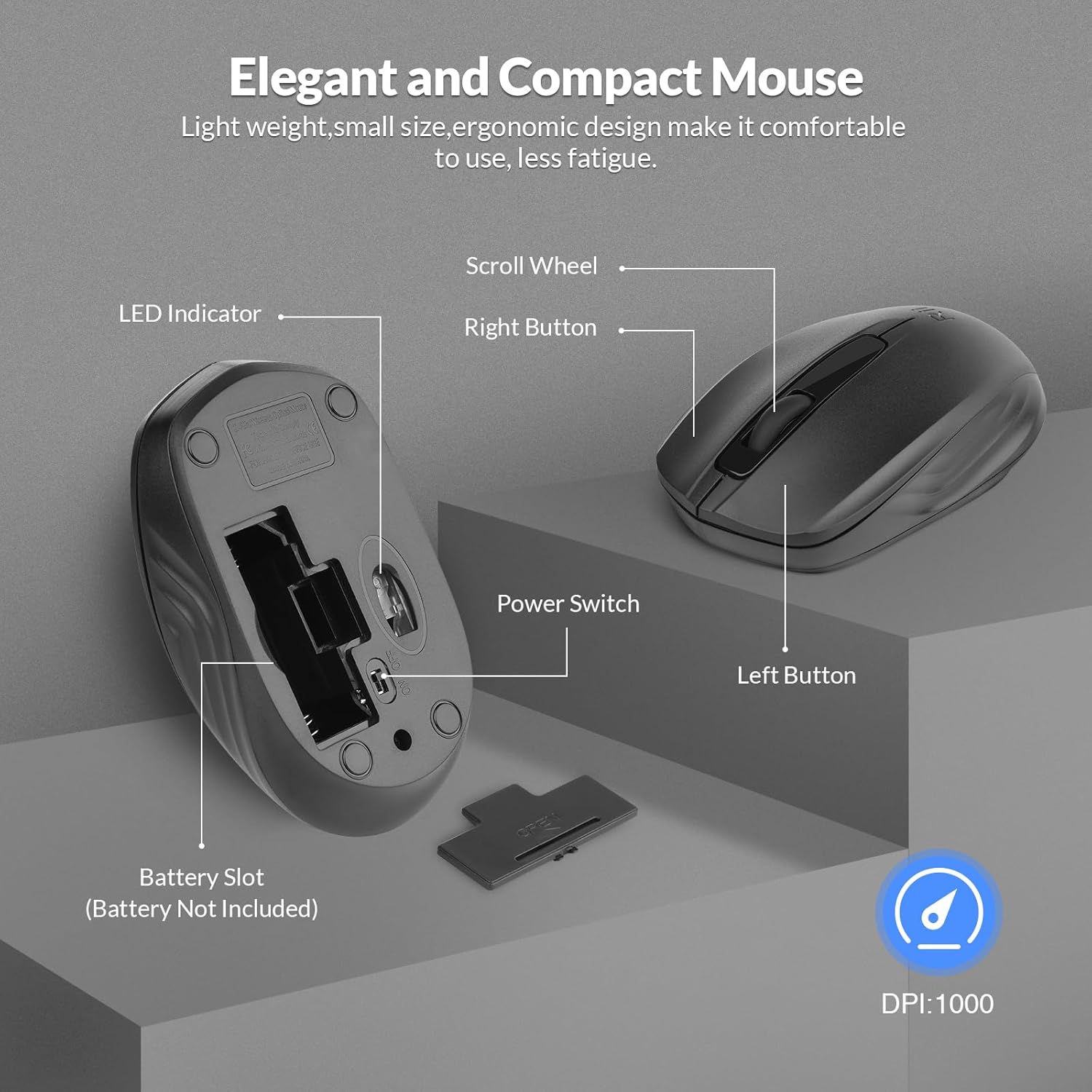
Image: Exploded view of the Rii RK200 mouse, labeling its key components including the scroll wheel, left/right buttons, power switch, and battery slot.
3.3 Power Saving Mode
To conserve battery life, both the keyboard and mouse feature an intelligent sleep mode:
- Keyboard: Will enter sleep mode after 15 minutes of inactivity.
- Mouse: Will enter sleep mode after 10 minutes of inactivity.
To wake up either device, simply press any button on the mouse or any key on the keyboard.
4. Maintenance
Proper maintenance ensures the longevity and optimal performance of your Rii RK200 combo.
- Cleaning: Use a soft, dry cloth to clean the surfaces of the keyboard and mouse. For stubborn dirt, a slightly damp cloth can be used, but ensure no moisture enters the device. Avoid harsh chemicals or abrasive cleaners.
- Storage: When not in use for extended periods, store the devices in a cool, dry place. Consider removing batteries if storing for several months to prevent leakage.
- Handling: Avoid dropping the devices or exposing them to extreme temperatures or direct sunlight.
5. Troubleshooting
If you experience connection issues or other problems with your Rii RK200 combo, try the following steps:
5.1 Connection Issues (Keyboard & Mouse)
- Ensure batteries are correctly installed and have sufficient charge. Replace if necessary.
- Remove the batteries from both the keyboard and mouse.
- Unplug the USB receiver from your computer.
- Reinstall the batteries in both devices.
- Plug the USB receiver back into a USB port on your computer. Try a different USB port if the issue persists.
- For Keyboard Pairing: Long press the ESC key and the K key simultaneously to re-pair the keyboard.
- For Mouse Pairing: Long press the Scroll button and the Right Button simultaneously to re-pair the mouse.
5.2 Other Common Issues
- Lag or Disconnection: Ensure the devices are within the 10-meter operating range of the USB receiver. Avoid placing the receiver near strong interference sources like other wireless devices or large metal objects.
- Keys Not Responding: Check if the keyboard is in sleep mode. Press any key to wake it up. Verify battery level.
- Mouse Not Moving: Check if the mouse is in sleep mode. Click any button to wake it up. Ensure the optical sensor on the bottom is clean and unobstructed. Verify battery level.
6. Specifications
| Feature | Detail |
|---|---|
| Brand | Rii |
| Model Number | RK200 |
| Connectivity Technology | 2.4GHz Wireless |
| Keyboard Layout | Full-sized, 108-keys with numeric keypad |
| Mouse DPI | 1000 DPI |
| Operating Range | Up to 10 meters (33 ft) |
| Keyboard Battery | 1 x AAA (not included) |
| Mouse Battery | 2 x AAA (not included) |
| Compatible Devices | Computer, Laptop, PC, Mac, Windows, Linux, Chrome OS |
| Package Dimensions | 17.6 x 8.19 x 1.81 inches |
| Item Weight | 1.39 pounds |

Image: Visual representation of the dimensions for both the Rii RK200 keyboard (17.3in/43.9cm x 4.9in/12.5cm) and mouse (2.38in/6cm x 3.92in/10cm).
7. Compatibility
The Rii RK200 Wireless Keyboard and Mouse Combo is widely compatible with various operating systems and devices:
- Windows XP / VISTA / 7 / 8 / 10 / 11
- Mac OS (Note: Multimedia shortcuts may not be compatible)
- Chrome OS
- Linux
- Any device with a standard USB port, such as Dell, HP, laptops, desktops, and Chromebooks.
8. Warranty and Support
Rii products are designed for reliability and performance. For any questions, technical support, or warranty inquiries, please refer to the contact information provided with your purchase or visit the official Rii website.
You can also visit the Rii Store on Amazon for more information and product updates.
Ask a question about this manual
Ask about setup, troubleshooting, compatibility, parts, safety, or missing instructions. Manuals+ will review the question and use this page’s manual context to help answer it.