
1. Introduction
The vretti BQ1 Bluetooth Label Printer is a compact, portable thermal label printer designed for various labeling needs in home, office, school, and small business environments. It connects wirelessly to your smartphone via Bluetooth, allowing for quick and easy label creation and printing through the dedicated "xeasy label" application.
This printer utilizes thermal printing technology, eliminating the need for ink or toner, which saves on replacement costs and maintenance. It supports label sizes from 25mm to 58mm, offering flexibility for printing address labels, price tags, food labels, clothing tags, barcodes, QR codes, and more.

Image 1.1: The vretti BQ1 Bluetooth Label Printer, highlighting its Bluetooth connectivity and compatibility with iOS and Android devices.
2. Setup
2.1 Package Contents
Before you begin, please verify that all items are included in your package:
- 1 x vretti BQ1 Label Printer
- 1 x User Manual (this document)
- 1 x 50x30mm Label Paper Roll (pre-installed inside the machine)
- 1 x Type-C USB Charging Cable
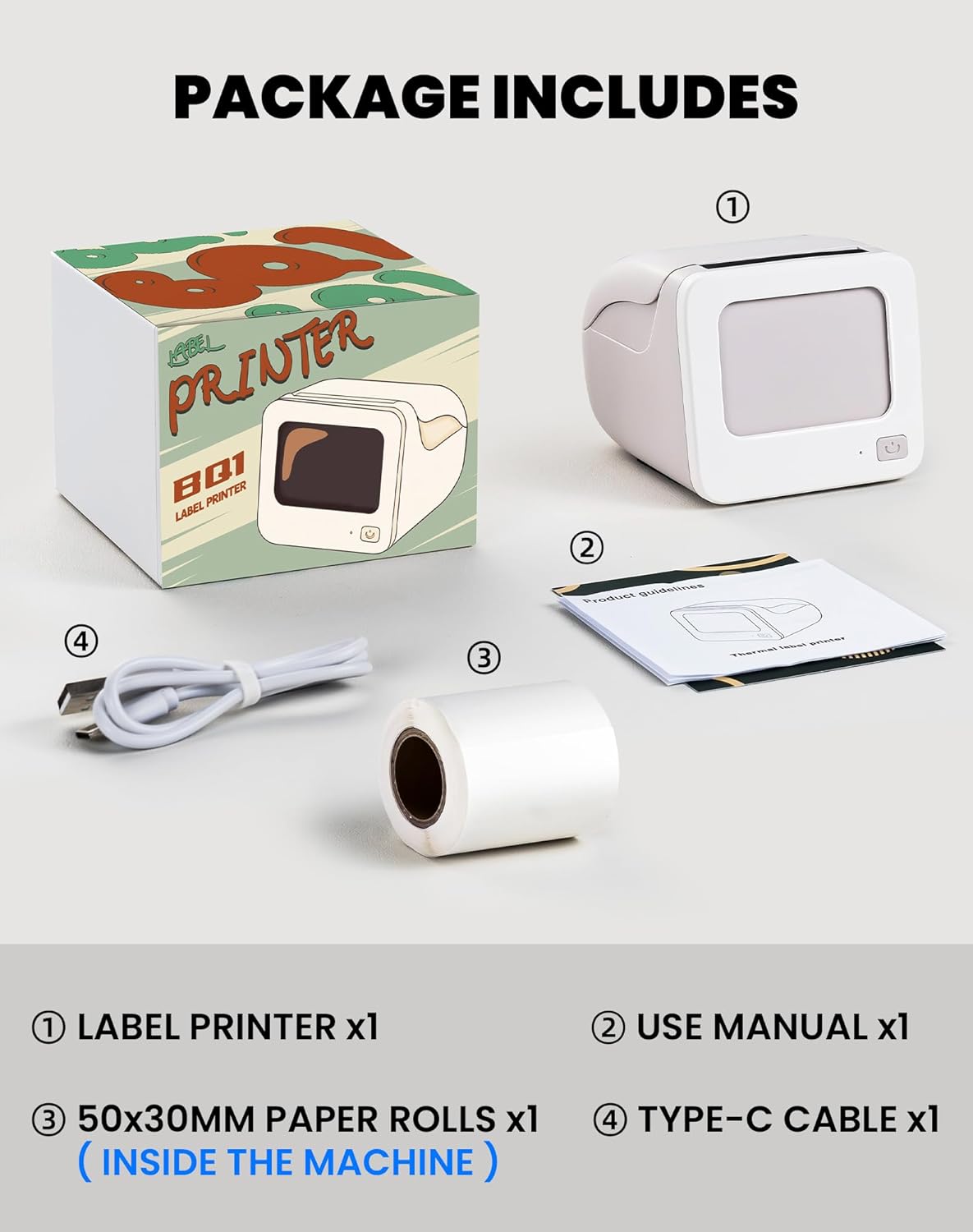
Image 2.1: Visual representation of the items included in the vretti BQ1 label printer package.
2.2 Loading Label Paper
The printer comes with a label roll pre-installed. If you need to replace or load a new roll:
- Gently open the printer cover.
- Insert the new label roll into the compartment, ensuring the labels feed out smoothly. The printable side of the label should face upwards.
- Close the printer cover securely.

Image 2.2: Proper insertion of a label roll into the vretti BQ1 printer, demonstrating the supported label width range.
2.3 App Installation and Bluetooth Connection
To use your vretti BQ1 printer, you need to download and connect it via the "xeasy label" application.
- Download the App: Search for "xeasy label" in your smartphone's app store (Google Play Store for Android or Apple App Store for iOS) and install it.
- Turn on Bluetooth: Ensure Bluetooth is enabled on your smartphone.
- Open the App and Connect: Open the "xeasy label" app. The app will guide you to connect to your printer. Select "BQ1" from the list of available devices.
- Power On: Press and hold the power button on the printer until the indicator light turns on.

Image 2.3: Step-by-step guide for downloading the "xeasy label" app, connecting to the printer via Bluetooth, and preparing to edit a label.
3. Operating Instructions
3.1 Creating and Printing Labels
Once connected, the "xeasy label" app provides a user-friendly interface for designing and printing labels.
- Select a Template or Create New: The app offers a variety of pre-designed templates, fonts, icons, and frames. You can choose an existing template or start a new design.
- Customize Your Label: Edit text, add images, barcodes, QR codes, and adjust the layout to fit your needs. The app supports various customization options.
- Preview and Print: Before printing, preview your label to ensure it looks as desired. Then, tap the print button in the app to send the design to your vretti BQ1 printer.
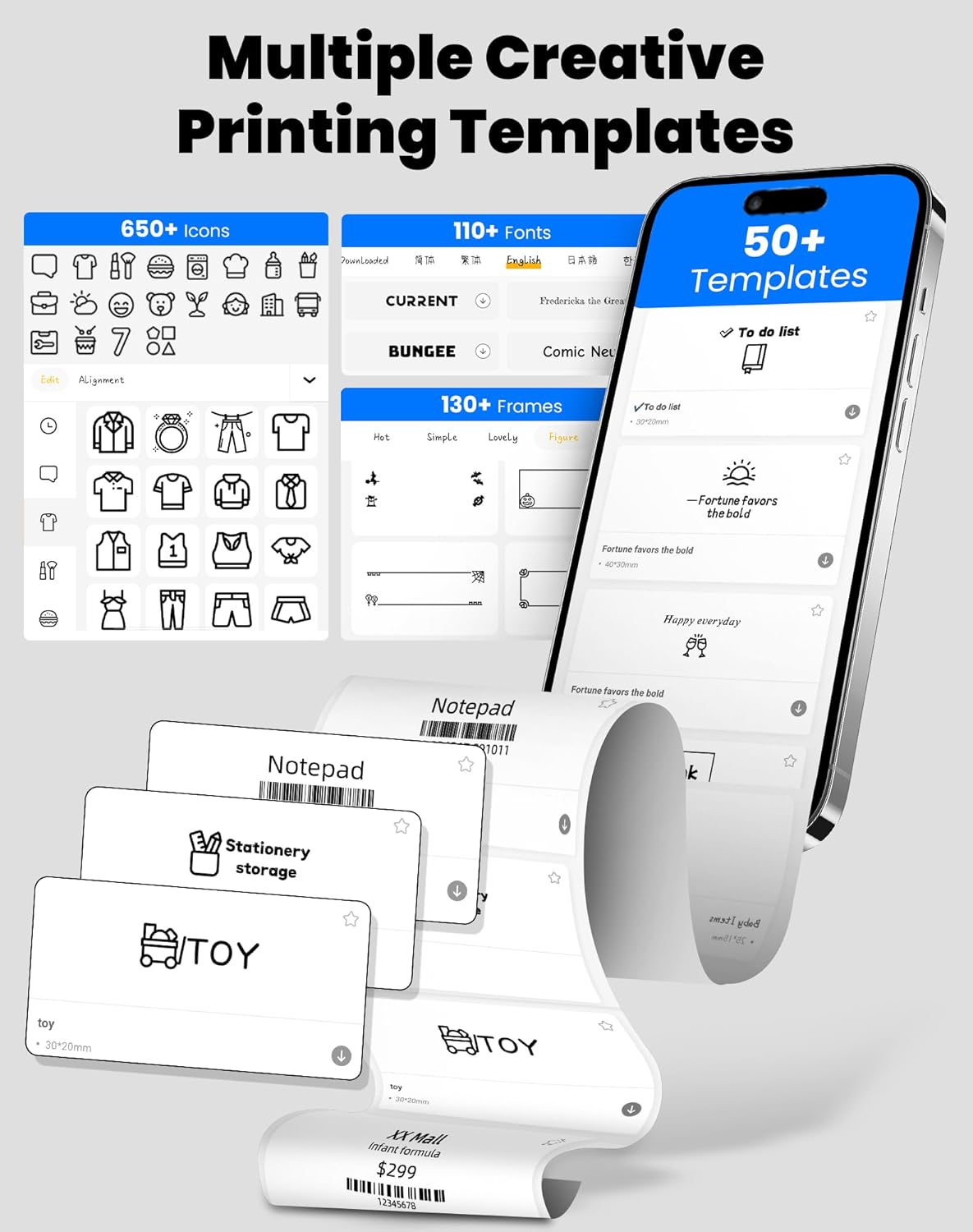
Image 3.1: The "xeasy label" app interface, showcasing a wide range of creative printing templates, icons, and fonts available for label design.

Image 3.2: Overview of the multi-functional applications within the "xeasy label" app, including support for barcodes, QR codes, images, various borders, font shapes, and hundreds of icons.
3.2 Common Label Applications
The vretti BQ1 printer is versatile and suitable for a wide range of applications:
- Home Organization: Label storage bins, pantry items, spice jars, and more.
- Office & School: Organize files, label stationery, create name tags, or mark assets.
- Retail & Small Business: Print price tags, product labels, address labels for shipping, and inventory management labels.
- Personal Use: Create decorative labels for gifts, DIY projects, or personal items.

Image 3.3: Examples of the vretti BQ1 printer's versatility, showing labels used for toy classification, light switches, to-do lists, clothing, and gifts.

Image 3.4: Demonstrations of common label types that can be printed, including address labels, price labels, food labels, and customizable DIY labels.
4. Maintenance
4.1 Cleaning the Printer
To ensure optimal performance and print quality, regular cleaning is recommended:
- Exterior: Wipe the exterior of the printer with a soft, dry cloth. Avoid using abrasive cleaners or solvents.
- Print Head: If print quality degrades, gently clean the thermal print head with an alcohol swab. Ensure the printer is turned off and cooled down before cleaning.
4.2 Label Roll Storage
Store label rolls in a cool, dry place away from direct sunlight and excessive heat to preserve their adhesive properties and print quality.
5. Troubleshooting
If you encounter issues with your vretti BQ1 printer, try the following steps:
- Printer Not Turning On: Ensure the printer is charged. Connect it to a power source using the provided Type-C cable.
- Cannot Connect via Bluetooth:
- Make sure Bluetooth is enabled on your smartphone.
- Ensure the printer is powered on and within range.
- Restart both the printer and your smartphone.
- Try reconnecting through the "xeasy label" app.
- Poor Print Quality:
- Check if the label roll is inserted correctly and is not damaged.
- Clean the thermal print head as described in the Maintenance section.
- Ensure the label type is compatible with thermal printing.
- Labels Not Feeding Correctly:
- Verify the label roll is properly seated and not jammed.
- Ensure the printer cover is fully closed.
Video 5.1: A general product overview video for the vretti BQ1 label printer, demonstrating its features and operation. If the video does not load, please ensure your browser supports HLS streaming.
6. Specifications
| Brand | vretti |
| Model Name | BQ1 |
| Connectivity Technology | Bluetooth |
| Printing Technology | Thermal |
| Max Media Size | 58 mm (supports 25-58mm width) |
| Print Resolution | 203 dpi (Monochrome) |
| Compatible Devices | Smartphone (Android, iOS) |
| Included Components | 1 Label Printer, 1 Label Roll (starter), 1 Type-C Cable |
| Product Dimensions | 10.3D x 10.4W x 8H centimeters |
| Special Feature | Elegant TV-like design |
7. Warranty & Support
7.1 Warranty Information
The vretti BQ1 Label Printer typically comes with a one-year warranty from the date of purchase. Please retain your proof of purchase for warranty claims. The warranty covers manufacturing defects but does not cover damage caused by misuse, accidents, or unauthorized modifications.
7.2 Customer Support
For further assistance, technical support, or warranty inquiries, please refer to the official vretti website or contact their customer service through the contact information provided on their official channels. Ensure you have your product model number (BQ1) and purchase details ready when contacting support.


