
Womier SK80 PRO
Womier SK80 PRO 75% Wireless Mechanical Keyboard User Manual
Model: SK80 PRO | Brand: Womier
1. Introduction
The Womier SK80 PRO is a versatile 75% wireless mechanical keyboard designed for gaming and productivity. It features a vibrant color multimedia screen, triple-mode connectivity (2.4G wireless, Bluetooth, and USB-C wired), hot-swappable switches, and extensive RGB customization options. This manual provides detailed instructions to help you set up, operate, maintain, and troubleshoot your keyboard.
2. What's in the Box
Please verify that all items are present upon unboxing:
- Womier SK80 PRO Mechanical Keyboard
- Wrist Rest
- Mouse Pad
- USB-C to USB-A Cable
- 2.4G Wireless Receiver (USB Dongle)
- Keycap Puller
- Switch Puller
- User Manual (this document)
3. Setup Guide
3.1 Initial Charging
Before first use, it is recommended to fully charge the keyboard. The SK80 PRO is equipped with a 4000mAh battery.
- Connect the provided USB-C cable to the keyboard's USB-C port.
- Connect the other end of the cable to a USB power source (e.g., computer USB port, wall adapter).
- The multimedia screen will indicate charging status. A full charge typically takes several hours.

Figure 3.1: The Womier SK80 PRO keyboard showcasing its large 4000mAh battery, ensuring extended wireless usage.
3.2 Connection Modes
The keyboard supports three connection modes: 2.4G Wireless, Bluetooth, and USB-C Wired. Use the physical switch located on the back of the keyboard to select your desired mode.
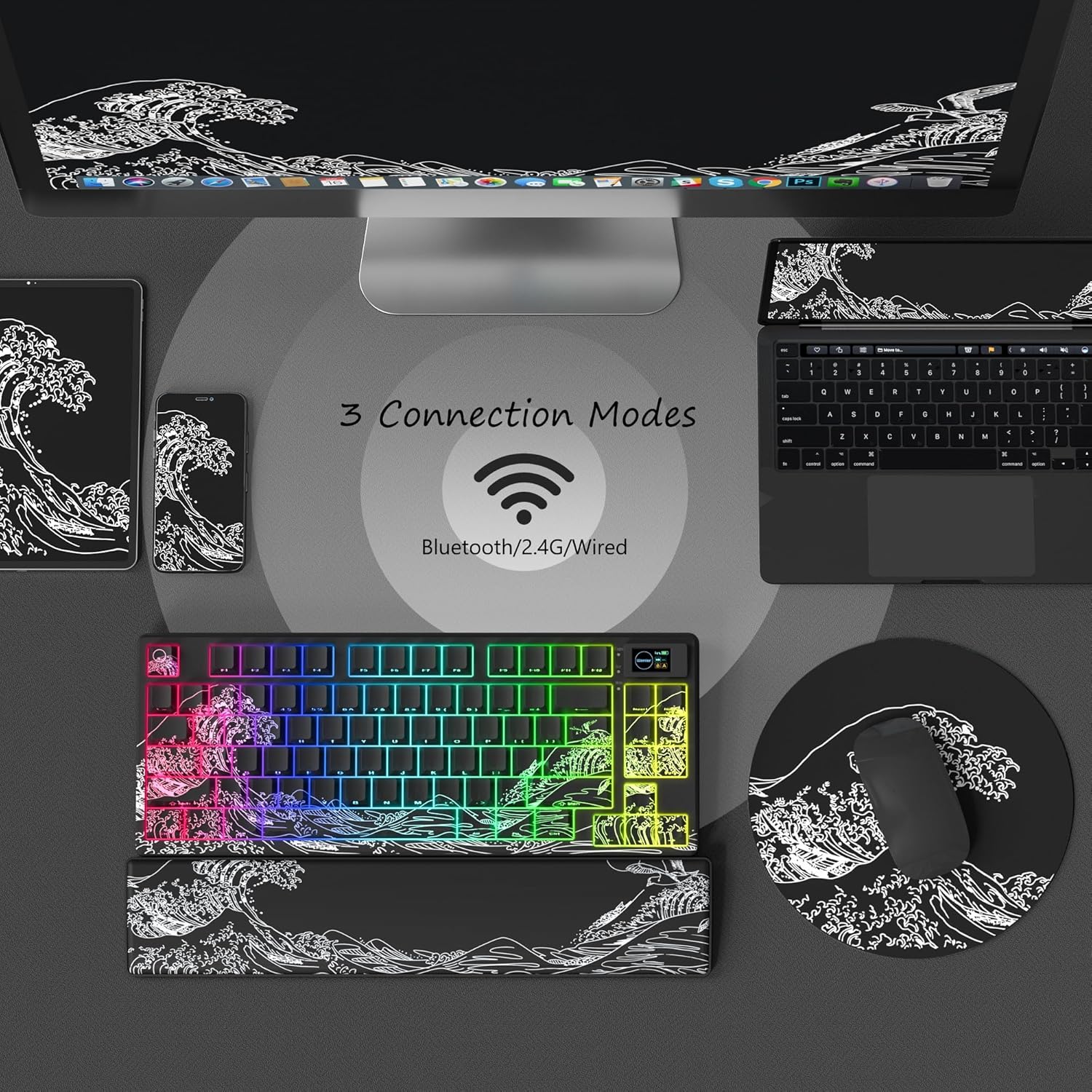
Figure 3.2: The Womier SK80 PRO demonstrating its versatile triple-mode connectivity options.
3.2.1 2.4G Wireless Mode
- Locate the 2.4G wireless receiver (USB dongle) stored in the keyboard's back compartment.
- Plug the USB dongle into an available USB port on your computer.
- Set the physical switch on the keyboard to '2.4G'. The keyboard will automatically connect.
Figure 3.3: Detail of the physical switch for selecting connection modes and the convenient storage for the 2.4G USB receiver.
3.2.2 Bluetooth Mode
The keyboard can connect to up to three Bluetooth devices.
- Set the physical switch on the keyboard to 'BT'.
- Press and hold Fn + Q, Fn + W, or Fn + E for 3-5 seconds until the corresponding key's backlight flashes rapidly, indicating pairing mode.
- On your device (computer, tablet, phone), enable Bluetooth and search for 'Womier SK80 PRO'.
- Select the keyboard to pair. The key's backlight will stop flashing once connected.
- To switch between paired Bluetooth devices, simply press Fn + Q, Fn + W, or Fn + E.
3.2.3 USB-C Wired Mode
- Connect the provided USB-C cable to the keyboard's USB-C port.
- Connect the other end of the cable to a USB port on your computer.
- Set the physical switch on the keyboard to 'USB'. The keyboard will function as a wired device.
3.3 Software Installation
For advanced customization, including key remapping, macro settings, RGB lighting effects, and custom GIF uploads to the multimedia screen, download the official Womier software.
- Visit the official Womier website: www.womierkeyboard.com
- Navigate to the 'Downloads' or 'Support' section and locate the software for the SK80 PRO model.
- Follow the on-screen instructions to install the software on your Windows system. (Note: Software customization is primarily supported on Windows.)

Figure 3.4: The Womier SK80 PRO's dedicated programming software, allowing for extensive customization of keyboard functions and lighting.
4. Operating Instructions
4.1 Multimedia Screen Functions
The 11° ergonomic color multimedia screen displays various information and allows for quick adjustments.
- Display Information: Time, connection status (2.4G/BT/USB), battery level.
- Custom GIFs: Upload personalized GIF images via the software for display.
- Settings: Adjust brightness, lighting effects, volume, and language directly from the screen interface using the rotary knob and function keys.

Figure 4.1: The keyboard's multimedia screen displaying various settings and custom GIF capabilities.
4.2 RGB Customization
The keyboard features 16.8 million RGB backlight colors with south-facing LEDs for enhanced illumination.
- On-board Control: Use Fn + various keys (refer to keyboard legends or software manual for specific combinations) to cycle through preset lighting modes, adjust brightness, and change speed.
- Software Control: For full customization, including per-key lighting, custom effects, and synchronization, use the Womier programming software.

Figure 4.2: The Womier SK80 PRO showcasing its dynamic RGB backlighting.
4.3 Key Remapping and Macros
The programming software allows you to redefine key functions and create complex macros to enhance your workflow or gaming experience.
- Open the Womier software.
- Select the key you wish to remap or assign a macro to.
- Follow the software's interface to configure the desired function.
4.4 Hot-Swapping Switches
The SK80 PRO features hot-swappable sockets, allowing you to change mechanical switches without soldering. It supports both 3-pin and 5-pin switches.
- Using the provided keycap puller, carefully remove the keycap from the switch you wish to replace.
- Using the provided switch puller, gently grip the top and bottom clips of the switch and pull upwards to remove it from the PCB.
- Align the pins of the new switch with the holes on the PCB. Ensure the pins are straight to avoid bending.
- Press the new switch firmly into place until it clicks.
- Re-attach the keycap.

Figure 4.3: Illustration of the hot-swappable switch mechanism and specifications for the pre-lubed cream switches.
5. Maintenance
5.1 Cleaning
Regular cleaning helps maintain the keyboard's performance and appearance.
- Disconnect the keyboard from all power sources and devices before cleaning.
- Use a soft, lint-free cloth slightly dampened with water or a mild cleaning solution to wipe the keycaps and chassis. Avoid harsh chemicals.
- For deeper cleaning, remove keycaps using the keycap puller and use compressed air to clear debris from underneath.
5.2 Battery Care
To prolong battery life:
- Avoid fully discharging the battery frequently.
- Store the keyboard in a cool, dry place away from extreme temperatures.
- If storing for an extended period, charge the battery to about 50% before storage.
6. Troubleshooting
If you encounter issues with your Womier SK80 PRO keyboard, please refer to the following common solutions:
| Problem | Possible Cause | Solution |
|---|---|---|
| Keyboard not responding (Wireless) | Low battery, incorrect mode, dongle not connected, Bluetooth not paired. | Charge the keyboard. Ensure the physical switch is in the correct mode (2.4G/BT). Re-insert the 2.4G dongle or re-pair Bluetooth. |
| Specific keys not working | Loose switch, faulty switch, software conflict. | Ensure the switch is fully seated. Try hot-swapping the switch with a spare. Check for software updates or conflicts. |
| RGB lighting not working/incorrect | Software settings, mode conflict. | Check RGB settings in the Womier software. Cycle through on-board lighting modes (Fn + keys). |
| Multimedia screen blank/frozen | Firmware issue, power issue. | Restart the keyboard. Ensure it is charged. Check for firmware updates via the Womier software. |
If the issue persists after trying these solutions, please contact Womier customer support.
7. Specifications
| Feature | Detail |
|---|---|
| Product Dimensions | 13.68 x 5.51 x 1.76 inches |
| Item Weight | 2.68 pounds |
| Manufacturer | Womier |
| Batteries | 1 Lithium Polymer battery required (included) |
| Connectivity Technology | 2.4G Wireless, Bluetooth, USB-C Wired |
| Compatible Devices | PC (Windows, macOS, Android, iOS) |
| Keyboard Description | Gaming Mechanical Keyboard |
| Special Features | Backlit, Hot-Swappable, Multimedia Screen, Theme Style, Wrist Rest |
| Color | Black (Kanagawa theme) |
| Number of Keys | 82 |
| Keyboard Backlighting | RGB (16.8 Million Colors) |
| Switch Type | Pre-lubed POM Linear Switches |
8. Warranty and Support
Womier products are manufactured with high standards of quality. For detailed warranty information, including coverage period and terms, please refer to the warranty card included with your product or visit the official Womier website.
For technical support, troubleshooting assistance, or any inquiries regarding your Womier SK80 PRO keyboard, please contact Womier customer service through their official channels:
- Official Website: www.womierkeyboard.com
- Refer to the website for contact forms, email addresses, or support hotlines.
No official product videos from the seller were available for embedding in this manual.
Ask a question about this manual
Ask about setup, troubleshooting, compatibility, parts, safety, or missing instructions. Manuals+ will review the question and use this page’s manual context to help answer it.