
1. Introduction
This manual provides detailed instructions for setting up, operating, and maintaining your Womier SK80 PRO 75% Wireless Mechanical Keyboard. Please read this guide thoroughly to ensure proper usage and to maximize your keyboard's features.

Image 1.1: Womier SK80 PRO keyboard, wrist rest, and mouse pad setup.
2. Package Contents
Verify that all items are present in your package:
- Womier SK80 PRO 75% Wireless Mechanical Keyboard
- Matching Wrist Rest
- Matching Mouse Pad
- USB-C Cable
- 2.4G USB Receiver (stored magnetically in the keyboard)
- Keycap Puller
- Switch Puller
- User Manual (this document)
3. Setup
3.1 Physical Setup
- Place the keyboard on a stable surface.
- Position the wrist rest in front of the keyboard for ergonomic support.
- Place the mouse pad next to your keyboard.
- Adjust the keyboard's feet for your preferred typing angle.

Image 3.1: Ergonomic design and dimensions of the keyboard and wrist rest.
3.2 Connectivity Modes
The Womier SK80 PRO supports three connection modes: 2.4G Wireless, Bluetooth, and USB-C Wired.
- 2.4G Wireless Mode:
- Locate the 2.4G USB receiver stored magnetically on the underside of the keyboard.
- Plug the receiver into an available USB port on your computer.
- Switch the mode selector on the keyboard's underside to '2.4G'.
- The keyboard should connect automatically.
- Bluetooth Mode:
- Switch the mode selector on the keyboard's underside to 'BT'.
- On your device (computer, tablet, phone), enable Bluetooth and search for new devices.
- Select 'Womier SK80 PRO' from the list of available devices to pair.
- The keyboard can connect to up to 3 Bluetooth devices. Use Fn + Q/W/E to switch between paired devices.
- USB-C Wired Mode:
- Connect the provided USB-C cable to the keyboard's USB-C port.
- Connect the other end of the cable to an available USB port on your computer.
- Switch the mode selector on the keyboard's underside to 'USB'.
- The keyboard will function as a wired device and charge simultaneously.

Image 3.2: The keyboard supports three versatile connection modes.
3.3 Driver/Software Installation
For advanced customization, including key remapping, macro settings, RGB lighting effects, and custom GIF images on the multimedia screen, download the official Womier SK80 PRO software from the Womier website. The software is compatible with Windows systems.
Video 3.3: Demonstration of the Womier SK80 PRO programming software.
4. Operating Instructions
4.1 Basic Keyboard Functions
The keyboard features a 75% layout with standard keys. Refer to the keycap legends for primary and secondary functions. Use the Fn key in combination with other keys to access secondary functions (e.g., media controls, F-keys).
4.2 Multimedia Screen Functions
The built-in color multimedia smart display screen can show various information and custom content:
- Display Information: Time, connection status, and battery level.
- Custom GIF Images: Upload custom GIF images via the software for a personalized display.

Image 4.1: Multimedia screen displaying various functions and custom GIFs.
Video 4.2: Demonstration of the multimedia display features.
4.3 RGB Lighting Customization
The keyboard features 16.8 million RGB backlight colors with south-facing LEDs for enhanced illumination. Customize lighting effects, brightness, and speed using the dedicated software or onboard controls (refer to the keyboard's quick guide for specific key combinations).

Image 4.3: RGB customization options via software.
4.4 Hot-Swappable Switches
The PCB supports 3-pin/5-pin hot-swappable switches, allowing you to easily replace the pre-lubed linear cream switches with other compatible mechanical switches without soldering.
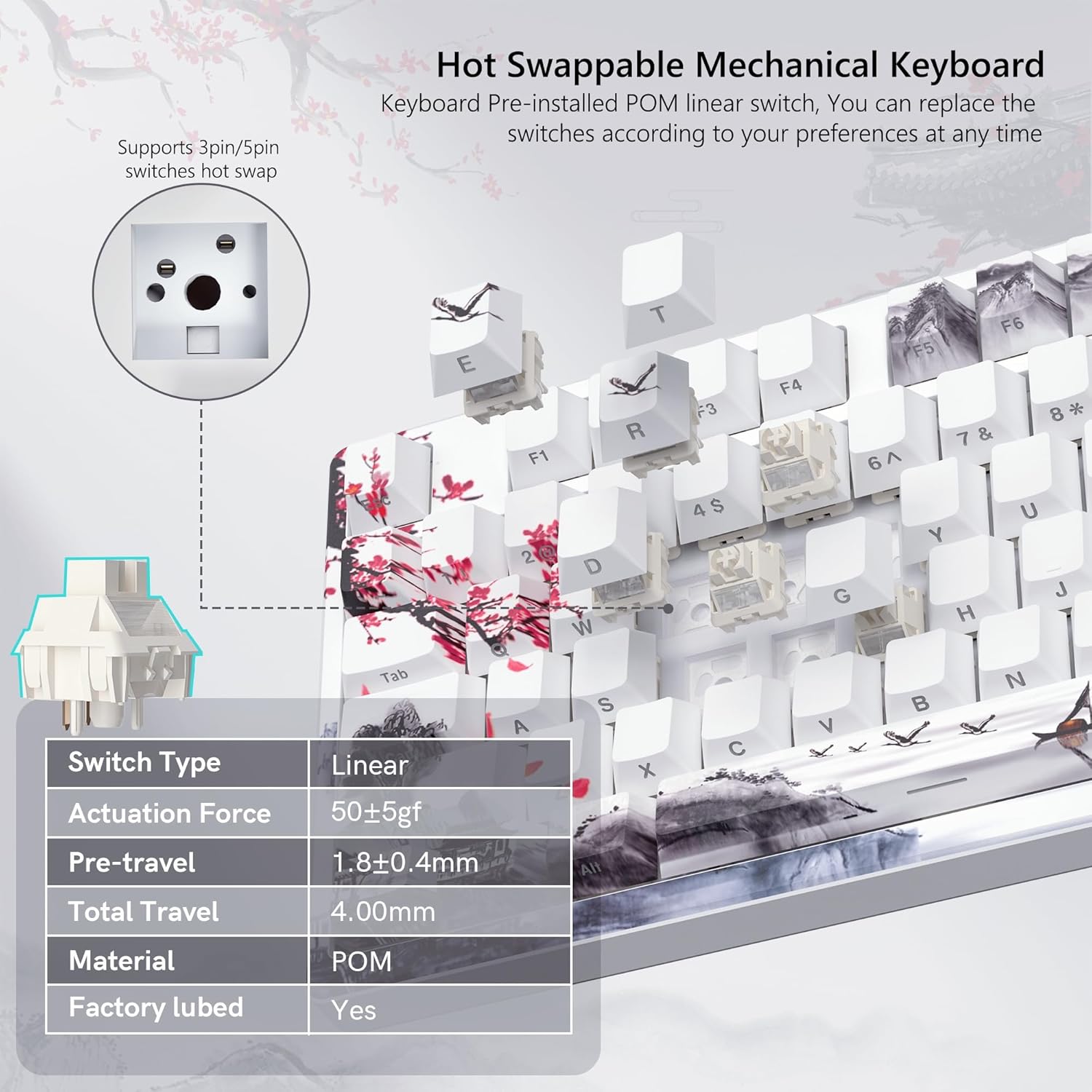
Image 4.4: Hot-swappable switch mechanism.
Video 4.5: Demonstration of hot-swappable switches and connectivity modes.
4.5 Key Remapping and Macro Settings
Utilize the Womier SK80 PRO software to redefine key functions and set up custom macros, enhancing your productivity and gaming experience.
5. Maintenance
5.1 Cleaning
- Disconnect the keyboard from your device before cleaning.
- Use a keycap puller to carefully remove keycaps for thorough cleaning.
- Wipe the keyboard surface with a soft, damp cloth. Avoid excessive moisture.
- Use compressed air to remove dust and debris from between keys.
5.2 Battery Care
The keyboard is equipped with a 4000mAh battery. To prolong battery life:
- Charge the keyboard fully before first use.
- Avoid completely draining the battery frequently.
- Store the keyboard in a cool, dry place when not in use for extended periods.
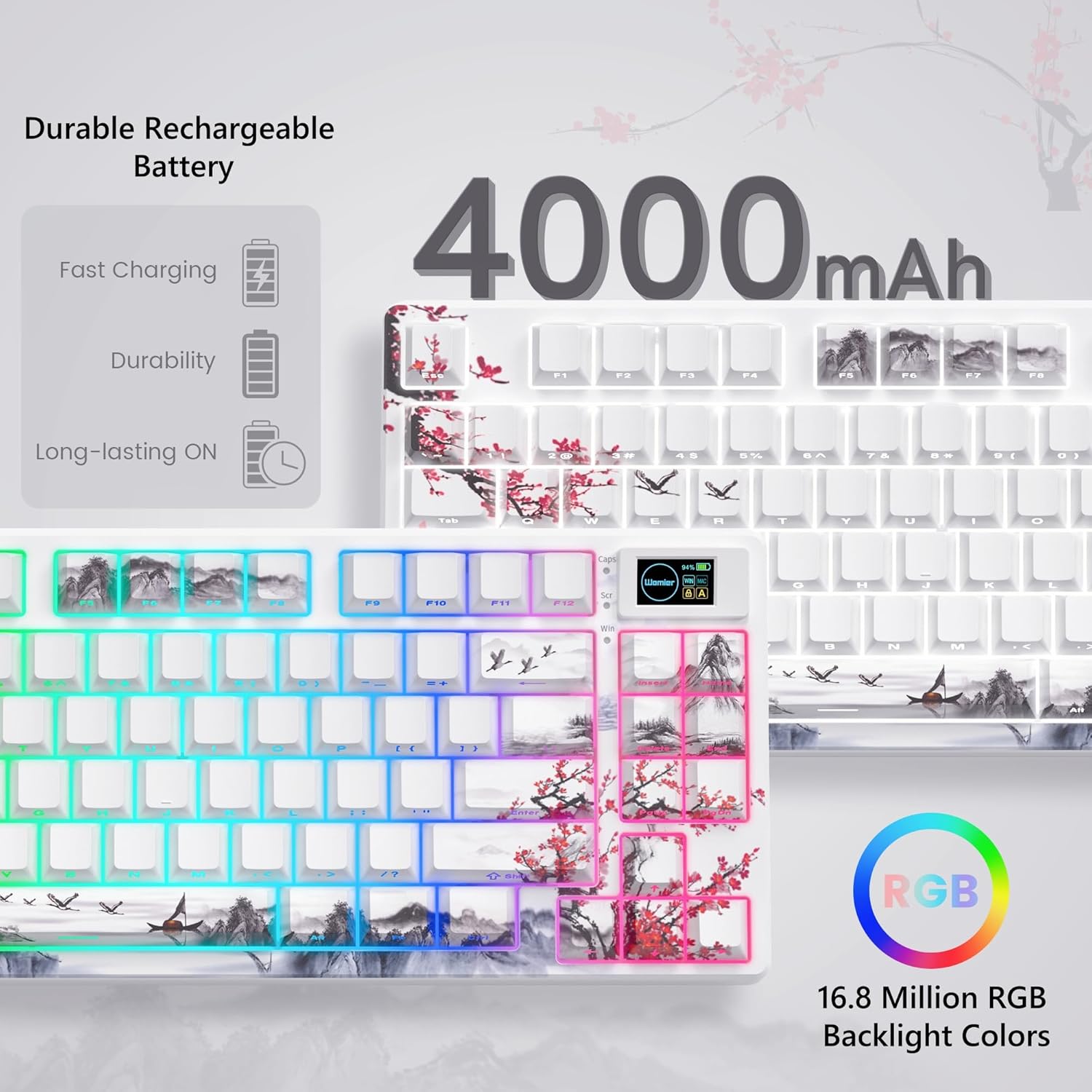
Image 5.1: Battery and RGB features.
5.3 Switch Replacement
To replace switches:
- Use the provided keycap puller to remove the desired keycap.
- Use the switch puller to gently grasp and pull the switch upwards until it detaches from the PCB.
- Align the pins of the new switch with the holes on the PCB.
- Press the new switch firmly until it clicks into place. Ensure pins are not bent.
- Reattach the keycap.
6. Troubleshooting
- Keyboard not responding:
- Check the connection mode switch (2.4G, BT, USB) on the underside of the keyboard.
- Ensure the USB-C cable or 2.4G receiver is securely connected.
- For Bluetooth, ensure the keyboard is paired and selected on your device.
- Check battery level; recharge if low.
- RGB lighting not working/customizing:
- Ensure the keyboard is powered on.
- Install and use the Womier SK80 PRO software for full customization.
- Refer to the quick guide for onboard RGB control shortcuts.
- Multimedia screen not displaying correctly:
- Ensure the keyboard is connected and powered.
- Use the Womier SK80 PRO software to upload or reset custom GIFs.
- Keys not registering or double-typing:
- This may indicate a faulty switch. Use the switch puller to replace the affected switch.
- Ensure the switch is fully seated in the PCB.
7. Specifications
| Feature | Detail |
|---|---|
| Model Number | JM-AZ-129 |
| Layout | 75% |
| Connectivity | 2.4G Wireless, Bluetooth, USB-C Wired |
| Compatible Devices | PC (Windows, Mac, Android, iOS) |
| Switches | Womier Customized Pre-lubed Linear Cream Switches (Hot-swappable 3-pin/5-pin) |
| Keycaps | Theme Art Keycaps (Shine-through) |
| Backlighting | 16.8 Million RGB (South-facing LED) |
| Battery Capacity | 4000mAh Lithium Polymer |
| Special Features | Color Multimedia Smart Display Screen, Gasket Mount Design, EVA Positioning Plate, Bottom Filling |
| Product Dimensions | 13.39 x 6.69 x 1.38 inches |
| Item Weight | 2.97 pounds |
8. Warranty and Support
Womier products are designed for reliability and performance. For warranty information, technical support, or service inquiries, please visit the official Womier website or contact customer support directly. Keep your purchase receipt for warranty claims.


