
Introduction
This manual provides detailed instructions for the setup, operation, and maintenance of your COLUSI X09 Wireless Gaming Headset. Please read this manual thoroughly before using the product to ensure proper functionality and to maximize your gaming and audio experience.
Product Features
- Clear Sound Quality: Equipped with 50mm drivers for precise audio, allowing clear distinction of in-game sounds like gunshots and footsteps.
- Extended Battery Life: Features a 1200mAh battery, providing 28-30 hours of playtime with RGB lighting on, and up to 48 hours with RGB lighting off, after a 2-3 hour charge.
- Comfortable Design: Adjustable headband and soft memory foam earmuffs ensure comfort during prolonged use, accommodating various head shapes and users wearing glasses.
- Noise-Canceling Microphone: Integrated sensitive microphone with effective noise reduction for clear voice capture and real-time, delay-free communication.
- Dual Connection Modes: Supports 2.4GHz USB dongle for PC, PS4, PS5, laptop, Mac, and Switch (microphone not supported). Also supports Bluetooth mode for smartphones, tablets, and Switch (microphone not supported).

Image: Detailed view of the 50mm audio drivers, engineered for precise sound localization and an immersive audio experience.

Image: Showcasing the soft, skin-friendly memory foam ear pads designed for comfort during extended wear.
Package Contents
Please check the package for the following items:
- COLUSI X09 Wireless Gaming Headset
- 2.4GHz USB Dongle
- USB Charging Cable (Type-C)
- User Manual
Setup and Connection
Video: This video demonstrates the connection methods (2.4GHz and Bluetooth), charging process, and adjustable features of the COLUSI X09 Wireless Gaming Headset.
Powering On/Off
To power on the headset, long press the power button for three seconds. To power off, long press the power button again until the indicator lights turn off.
2.4GHz Wireless Connection (for PC, PS4, PS5, Laptop, Mac)
- Insert the 2.4GHz USB dongle into an available USB port on your device (PC, PS4, PS5, laptop, Mac).
- Power on the COLUSI X09 headset. The headset will automatically attempt to connect to the dongle.
- Once connected, the indicator light on the headset will stabilize, indicating a successful connection.
- Note: The microphone function is not supported when connected to Nintendo Switch via 2.4GHz dongle.

Image: Demonstrates the 2.4GHz wireless adapter for ultra-low latency connection and Bluetooth 5.4 for stable transmission.
Bluetooth Connection (for Smartphones, Tablets, Switch)
- Ensure the headset is powered on and in Bluetooth pairing mode (usually indicated by a flashing light).
- On your mobile device (smartphone, tablet, Switch), navigate to Bluetooth settings and enable Bluetooth.
- Select "COLUSI X09" from the list of available devices to pair.
- Once paired, the indicator light on the headset will stabilize.
- Note: Bluetooth mode is not compatible with PS4 or PS5. The microphone function is not supported when connected to Nintendo Switch via Bluetooth.

Image: Illustrates the multi-device compatibility of the COLUSI X09 headset, supporting Bluetooth for mobile devices and 2.4GHz for PC and PlayStation consoles.
Operating Instructions
Volume Control
Use the volume roller or buttons located on the headset to adjust the audio output level. Roll up to increase volume, roll down to decrease.
Microphone Usage
The headset features a sensitive, hidden noise-canceling microphone. Ensure the microphone is enabled in your device's audio settings for clear communication during gaming or calls. The microphone effectively reduces background noise.
RGB Lighting
The headset features RGB lighting. You can extend battery life by turning off the RGB lighting. Refer to the headset controls for specific RGB lighting toggling options.
Charging the Headset
The COLUSI X09 headset is equipped with a 1200mAh battery. To charge the headset:
- Connect the provided USB charging cable to the charging port on the headset.
- Connect the other end of the USB cable to a power source (e.g., computer USB port, USB wall adapter).
- A red indicator light will illuminate while the headset is charging.
- Charging typically takes 2 to 3 hours for a full charge. The red light will turn off or change color when charging is complete.
A full charge provides approximately 28-30 hours of playtime with RGB lights on, and up to 48 hours with RGB lights off.
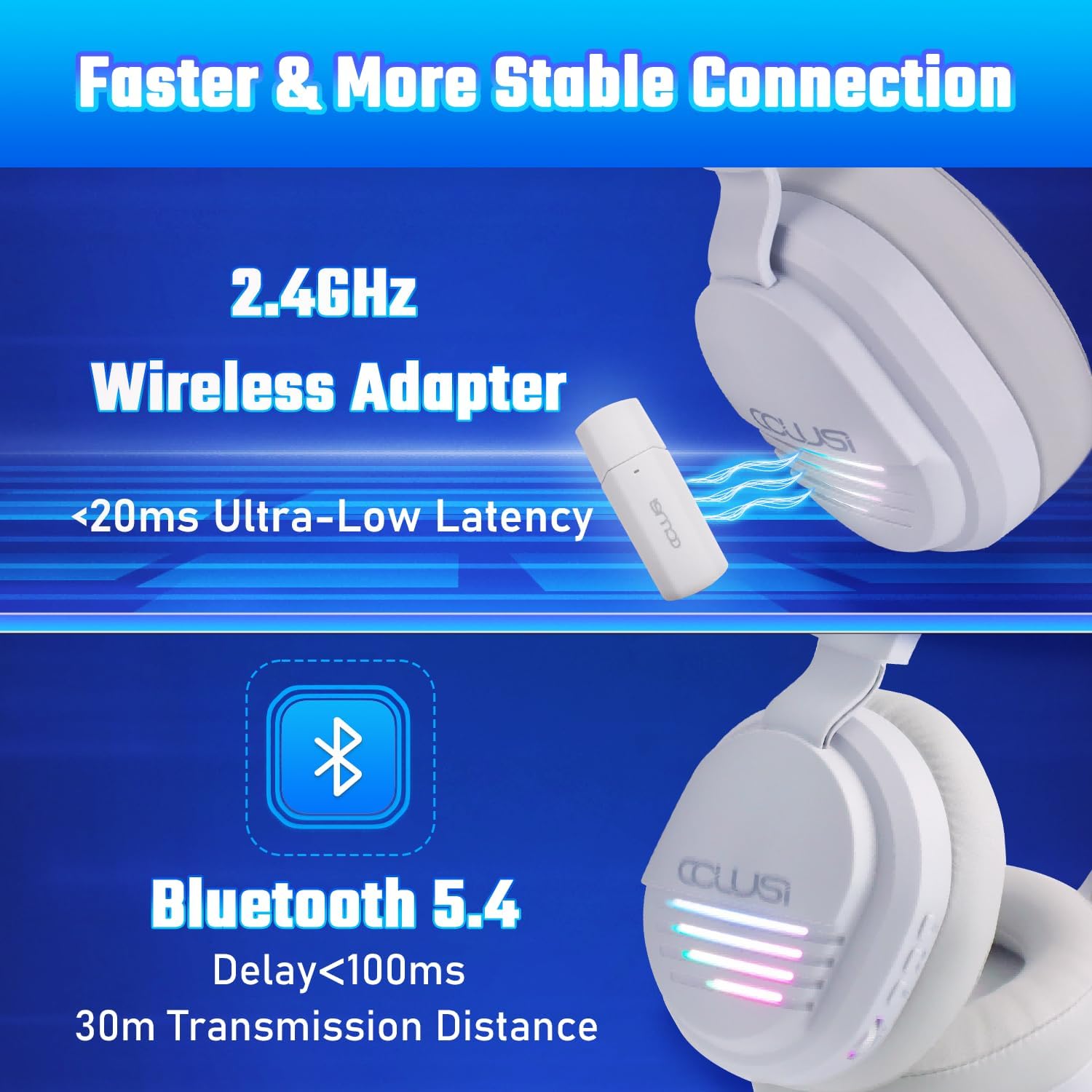
Image: Shows the COLUSI X09 headset emphasizing its 48-hour battery life and 1200mAh capacity for extended gaming sessions.
Compatibility
The COLUSI X09 Wireless Gaming Headset offers broad compatibility:
- 2.4GHz USB Dongle: Compatible with PC, PS4, PS5, Laptops, Mac, and Nintendo Switch.
- Bluetooth Mode: Compatible with most mobile devices such as smartphones, tablets, and Nintendo Switch.
Important Compatibility Notes:
- The headset is not compatible with Xbox in either 2.4GHz or Bluetooth mode.
- The microphone function is not available when connected to Nintendo Switch (via either 2.4GHz dongle or Bluetooth).
- Bluetooth mode is not compatible with PS4 or PS5.
Maintenance
To ensure the longevity and optimal performance of your COLUSI X09 headset, follow these maintenance guidelines:
- Cleaning: Use a soft, dry cloth to clean the headset. Avoid using harsh chemicals or abrasive materials.
- Storage: Store the headset in a cool, dry place away from direct sunlight and extreme temperatures.
- Earmuffs: The soft memory foam earmuffs are designed for comfort. Avoid excessive pulling or tearing.
- Charging: Always use the provided charging cable or a certified equivalent. Do not overcharge the battery.
- Water Exposure: This headset is not waterproof. Avoid exposure to water or high humidity.
Troubleshooting
No Sound / Disconnection Issues:
- Ensure the headset is fully charged and powered on.
- For 2.4GHz connection, verify the USB dongle is securely inserted and the headset is paired.
- For Bluetooth connection, ensure Bluetooth is enabled on your device and the headset is paired. Try unpairing and re-pairing.
- Check your device's audio output settings to ensure the headset is selected as the primary output device.
- Adjust the volume on both the headset and your connected device.
Microphone Not Working:
- Confirm that the microphone is not muted on the headset or in your device's settings.
- Check device compatibility notes: microphone is not supported on Nintendo Switch.
- Ensure the headset is selected as the input device in your device's audio settings.
Charging Issues:
- Verify the charging cable is properly connected to both the headset and the power source.
- Try a different USB port or power adapter.
- Ensure the charging port on the headset is clean and free of debris.
Specifications
| Brand | COLUSI |
| Model Number | X09 |
| Color | Grey |
| Connectivity | 2.4GHz Wireless, Bluetooth 5.4 |
| Driver Size | 50mm |
| Battery Capacity | 1200mAh |
| Charging Time | 2-3 Hours |
| Playtime (RGB On) | 28-30 Hours |
| Playtime (RGB Off) | Up to 48 Hours |
| Frequency Range | 20 Hz - 20,000 Hz |
| Earpiece Shape | Rounded |
| Control Method | Touch / Buttons |
| Compatible Devices | PC, PS4, PS5, Laptop, Mac, Switch, Smartphones, Tablets |
Warranty and Support
COLUSI products are designed and manufactured to the highest quality standards. For warranty information, technical support, or customer service inquiries, please refer to the warranty card included with your product or visit the official COLUSI website.
You can also contact our customer support team via the contact information provided on the product packaging or our website.