1. Introduction
This manual provides detailed instructions for the setup, operation, and maintenance of your Beelink EQR6 Mini PC. Designed for efficiency and performance, this mini PC is equipped with an AMD Ryzen 7 6800U processor, 32GB LPDDR5 RAM, and a 500GB PCIe 4.0 SSD, running Windows 11 Pro. It supports dual 4K displays, WiFi 6, and Bluetooth 5.2, making it suitable for various applications from office tasks to demanding creative software and home entertainment.
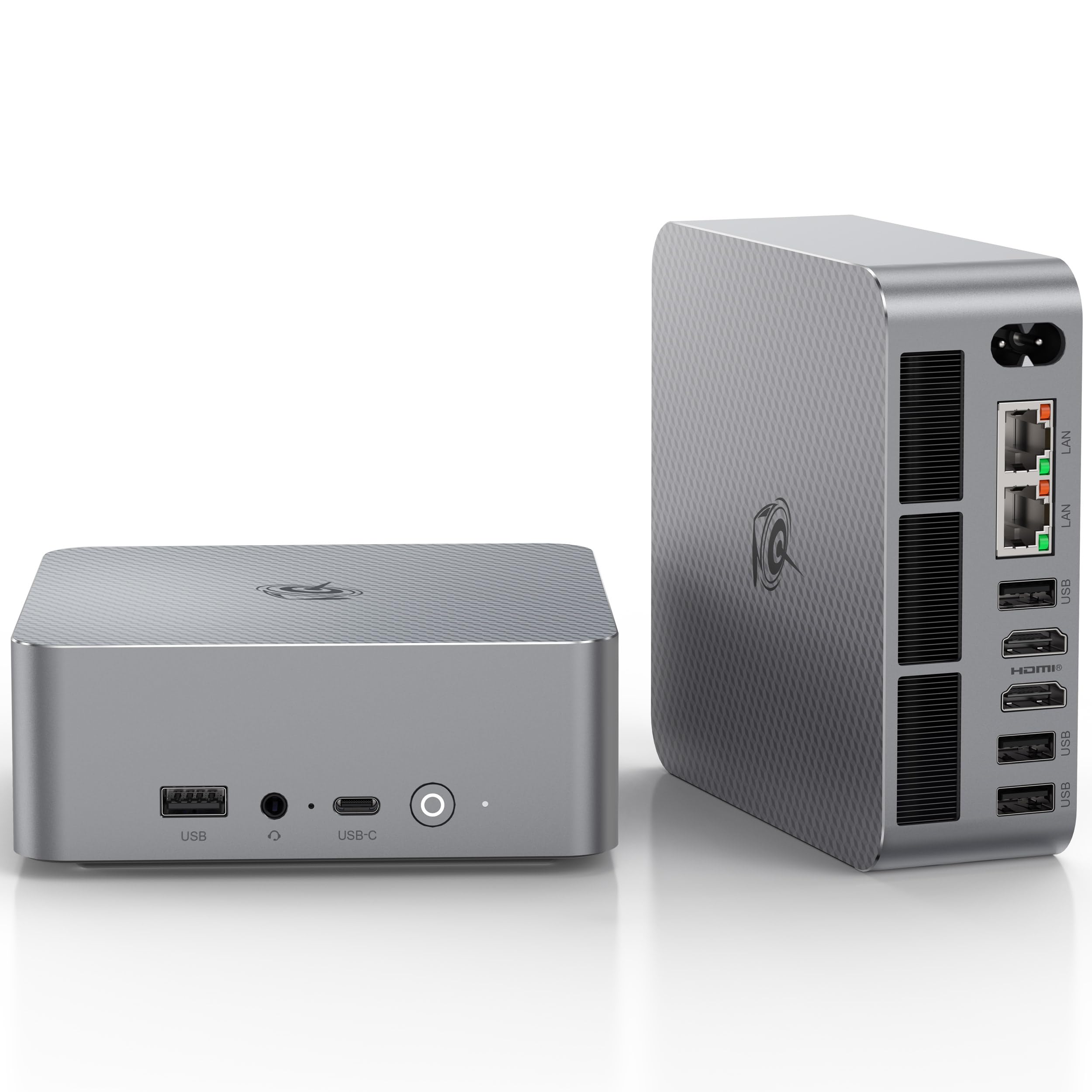
Figure 1: Beelink EQR6 Mini PC, front view. This image shows the compact design and accessible front ports including the power button, 3.5mm audio jack, USB-C, and USB-A port.
2. Package Contents
Verify that all items are present in the package:
- 1 x Beelink EQR6 6800U 32+500GB Mini PC
- 1 x HDMI Cable
- 1 x Power Adapter (US Standard)
- 1 x User Manual
3. Setup Guide
3.1 Connecting Peripherals
- Connect Display: Use an HDMI cable to connect your monitor or TV to one of the HDMI ports on the back of the Mini PC. The device supports dual 4K@60Hz displays.
- Connect Keyboard and Mouse: Plug your USB keyboard and mouse into the available USB ports.
- Connect Network (Optional): For a wired connection, connect an Ethernet cable from your router to one of the dual 1000M LAN ports. For wireless, the device supports Wi-Fi 6.
- Connect Audio (Optional): If using external speakers or headphones, connect them to the 3.5mm audio jack.

Figure 2: Port Layout. This diagram illustrates the various front and back ports, including USB 3.2, USB-C, HDMI, LAN, and audio jack, along with their specifications.
3.2 Powering On
- Connect Power: Plug the power adapter into the DC IN port on the back of the Mini PC, then plug the adapter into a power outlet.
- Power On: Press the power button located on the front of the Mini PC. The power indicator light will illuminate.

Figure 3: Power Connection. This image shows the Mini PC connected to a power outlet, highlighting the built-in power supply design.
4. Operating Instructions
4.1 Initial Boot and Windows Setup
Upon first power-on, the system will guide you through the Windows 11 Pro setup process. Follow the on-screen instructions to configure your language, region, network, and user account.
4.2 Network Connectivity
- Wired Connection: If an Ethernet cable is connected, the system should automatically detect and connect to the network.
- Wireless Connection: To connect to Wi-Fi, click the network icon in the taskbar, select your Wi-Fi network, enter the password, and click Connect. The device supports Wi-Fi 6 for faster speeds.
4.3 Display Configuration
The Beelink EQR6 supports dual 4K@60Hz displays via its HDMI ports. To configure multiple displays in Windows 11:
- Right-click on the desktop and select Display settings.
- Under Multiple displays, you can detect, identify, and arrange your monitors.
- Choose how your desktop is displayed (e.g., Extend these displays, Duplicate these displays).

Figure 4: Dual 4K Display Setup. This image demonstrates the Mini PC connected to two 4K monitors, showcasing its multi-display capability.
5. Maintenance
5.1 Cooling System
The EQR6 Mini PC features an MSC2.0 cooling system with dual fans and a VC vapor chamber for efficient heat dissipation. To ensure optimal performance and longevity:
- Ensure the air vents on the device are not obstructed.
- Regularly clean dust from the vents using compressed air.

Figure 5: MSC2.0 Cooling System. This diagram illustrates the internal airflow and components of the advanced cooling system, including heat pipes, silent fan, and SSD heatsink.
5.2 Storage Expansion
The mini PC supports storage expansion up to 8TB total via dual M.2 slots (4TB each). For detailed instructions on installing additional M.2 SSDs, refer to the official Beelink support resources or consult a qualified technician.

Figure 6: Memory and Storage. This image highlights the 32GB LPDDR5 RAM and the dual M.2 PCIe 4.0 SSD slots for storage expansion.
6. Troubleshooting
| Problem | Possible Cause | Solution |
|---|---|---|
| No power/Does not boot | Power cable not connected properly; Faulty power adapter; CMOS battery issue. | Check power connections. Ensure the power adapter is functional. Try clearing CMOS (refer to port diagram for CLR CMOS button). |
| No display output | Incorrect display input selected on monitor; Faulty HDMI cable; Graphics driver issue. | Ensure monitor input is set correctly. Try a different HDMI cable or port. If possible, boot into safe mode to update graphics drivers. |
| Wi-Fi/Bluetooth connectivity issues | Drivers not installed; Interference; Router issues. | Ensure Wi-Fi/Bluetooth drivers are up to date. Move closer to the router or reduce interference. Restart your router. |
| System instability/crashes | Overheating; Software conflicts; Corrupted Windows installation. | Ensure proper ventilation. Update all drivers and Windows. Consider a clean Windows installation if issues persist (as noted in some user reviews). |
7. Specifications
| Feature | Detail |
|---|---|
| Dimension | 126x126x44.2mm (Without Rubber Feet) |
| CPU | AMD Ryzen™ 7 6800U Processor (8C/16T, 2.7-4.7GHz, 16MB Cache) |
| Graphics | AMD Radeon™ 680M 12 Cores 2200MHz |
| System Disk | M.2 2280 PCIe4.0x4 4TB MAX |
| Internal Slot | 32GB (16GB*2) LPDDR5, M.2 2280 PCIe4.0x4 4TB MAX |
| Interface | USB-C 10Gbps*1, USB3.2 10Gbps*3, USB2.0 480Mbps*1, HDMI (Max 4K 60Hz)*2, LAN (1000M)*2, 3.5mm Audio Jack*1 |
| Wireless Network | WiFi 6 (Intel AX200), Bluetooth 5.2 |
| Operating System | Windows 11 Pro |
| Operating Environment | 0°C-40°C, Humidity 30%-90% |
| Storage Environment | -20°C-60°C, Humidity 10%-90% |
| Additional Functions | Auto Power On, WOL (Wake On LAN) |
8. Product Videos
8.1 SER8 Mini PC Cooling System Overview
Video 1: This video demonstrates the new cooling system of the Beelink SER8 Mini PC, showcasing its internal design and airflow for efficient heat dissipation.
8.2 SER8 FurMark GPU and AIDA64 FPU Stress Test
Video 2: This video shows the Beelink SER8 undergoing a 24-hour stress test using FurMark for GPU and AIDA64 for FPU, demonstrating its stability and thermal management under heavy load.
8.3 SER8 Mini Computers Product Overview
Video 3: A brief overview video showcasing the Beelink SER8 Mini Computer, highlighting its design and key features.
9. Warranty and Support
Beelink provides comprehensive support for its products:
- Warranty: 12-month warranty period.
- Customer Service: 7D + 24H customer service.
- Technical Support: Lifetime technical support.
- Replacements: New replacement provided during the warranty period.
For assistance, please log in to your Amazon account, navigate to 'Your Orders', and select 'Ask Product Question' for the Beelink EQR6 Mini PC.

Figure 7: Beelink Support Details. This image outlines the warranty and support services offered by Beelink.


