
1. Introduction
This manual provides detailed instructions for setting up and operating your YUYUNLOMN Wireless HDMI Transmitter and Two Receivers (Model YU-02). This system allows for wireless transmission of 1080P@60Hz audio and video signals up to 165 feet (50 meters) in open areas, supporting up to four display receivers. It features plug-and-play functionality, 2.4/5GHz dual-band transmission, and universal compatibility with various HDMI devices. Please read this manual thoroughly before use to ensure optimal performance and safety.
2. Package Contents
Verify that all items listed below are included in your package:
- 1x Wireless HDMI Transmitter (TX)
- 2x Wireless HDMI Receivers (RX)
- 1x Mini HDMI Adapter
- 1x Micro HDMI Adapter
- 2x USB-A port 5V/1A chargers
- 1x HDMI Extension Cable
- 3x Type-C Charging Cables
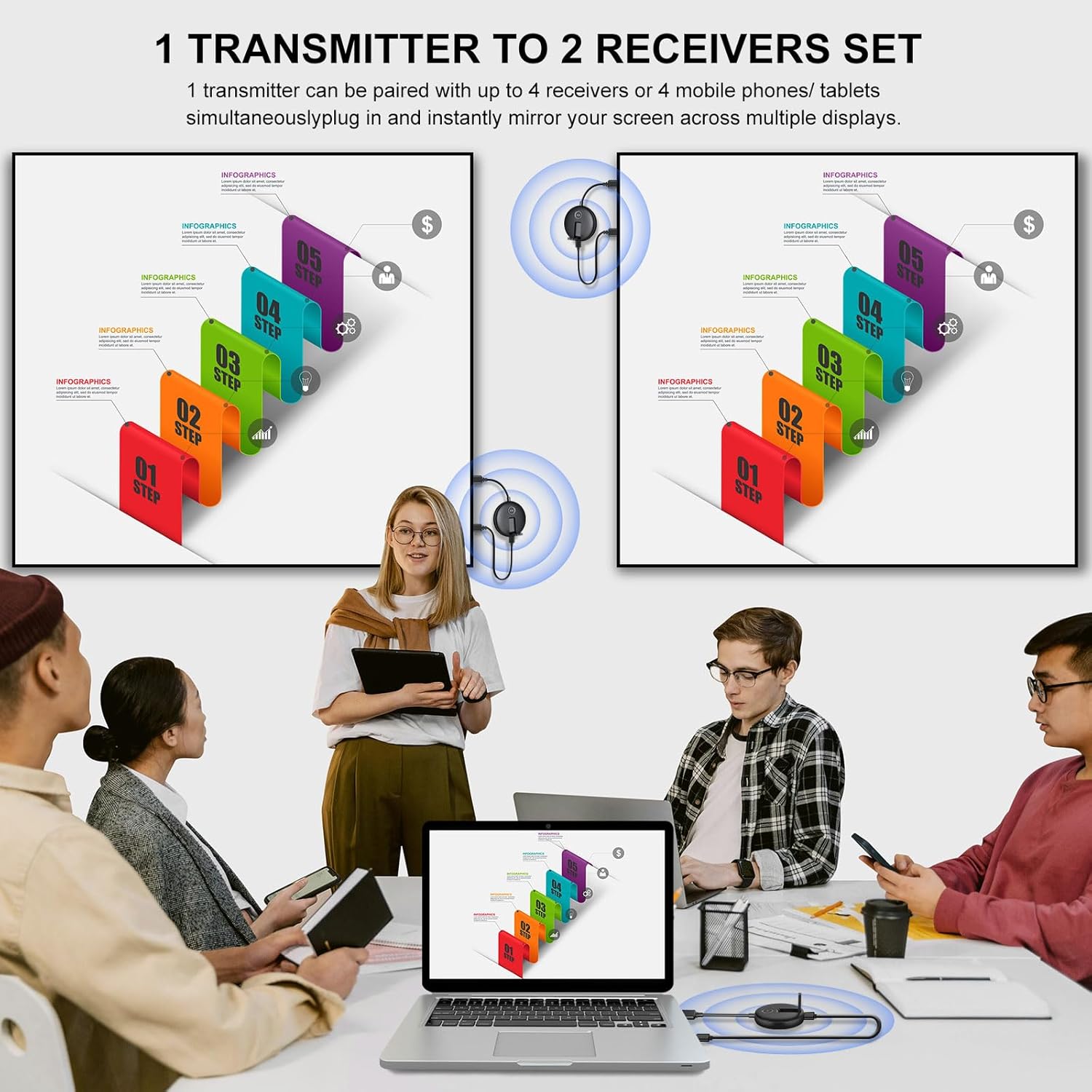
Image: The YUYUNLOMN Wireless HDMI Transmitter and Two Receivers, along with included accessories like adapters and cables.
3. Setup Instructions
Follow these steps to set up your wireless HDMI system:
- Connect the Transmitter (TX): Plug the Wireless HDMI Transmitter into the HDMI output port of your source device (e.g., laptop, camera, gaming console, TV box). If your device has a Mini HDMI or Micro HDMI port, use the appropriate adapter provided.
- Connect the Receiver(s) (RX): Plug each Wireless HDMI Receiver into an HDMI input port of your display device(s) (e.g., TV, projector, monitor).
- Power the Devices: Connect the Type-C charging cables to the TX and RX units, then connect them to the provided 5V/1A USB-A chargers. Ensure both the transmitter and all receivers are adequately powered. Note: Using USB ports from a laptop or TV for power may result in insufficient power supply, preventing normal operation. Always use the dedicated 5V/1A chargers.
- Automatic Connection: After powering on both the transmitter and receiver(s), the devices will automatically pair and establish a connection within approximately 5 seconds. No additional setup or app installation is required for basic mirroring.

Image: Visual guide showing the three-step plug-and-play setup: connect TX, connect RXs, wait for transmission.
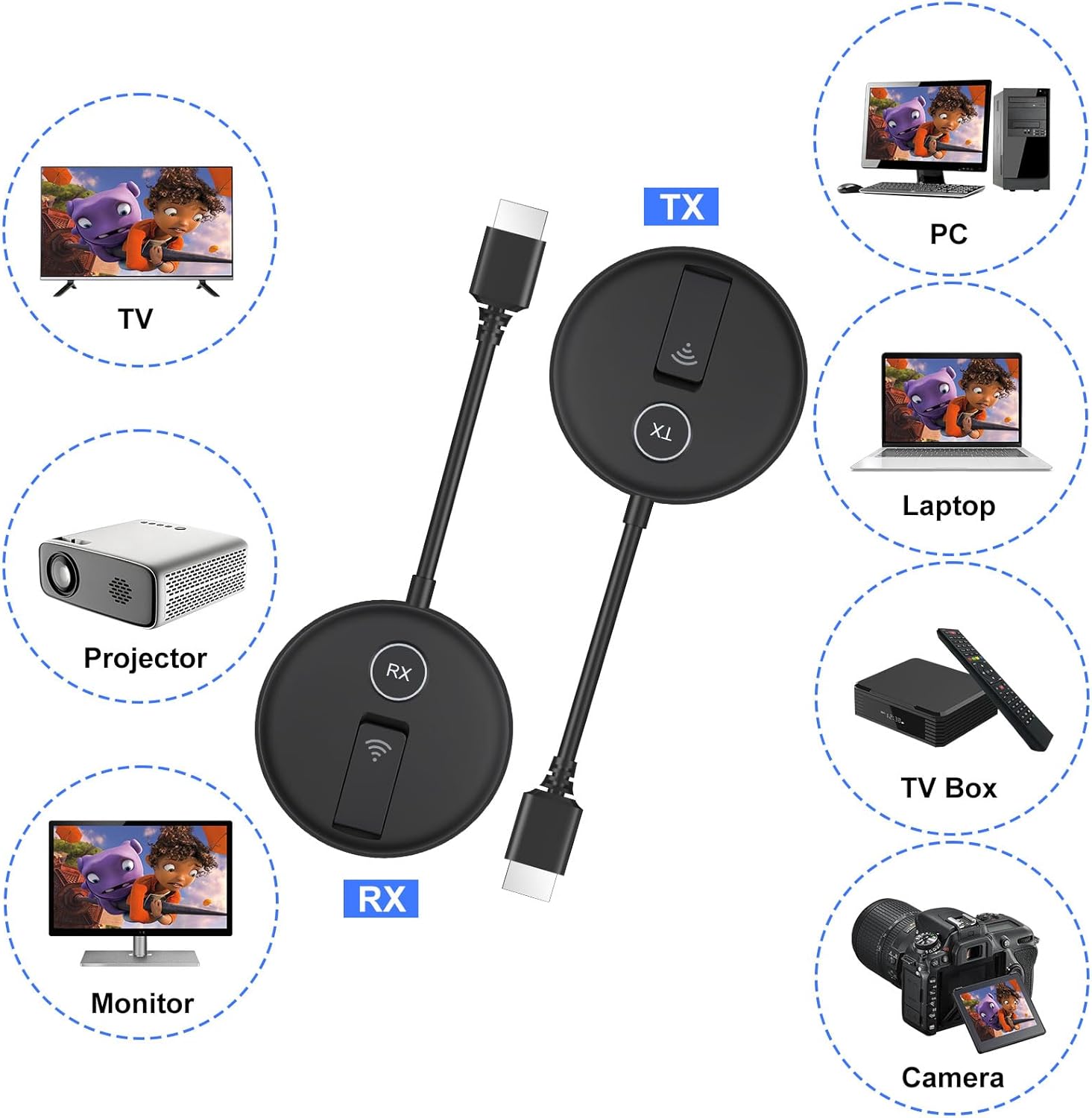
Image: Illustration of compatible devices including TV, projector, monitor, PC, laptop, TV box, and camera, connecting to the TX and RX units.
4. Operating Instructions
4.1 Basic Operation
Once connected and powered, the system will automatically mirror your source device's screen to the connected display(s) at 1080P@60Hz. The transmission range is up to 165 feet (50 meters) in open environments, utilizing 2.4GHz and 5GHz wireless frequencies for stable and low-latency performance.

Image: A laptop wirelessly streaming content to a television, demonstrating the plug-and-play functionality and transmission distance.
4.2 Multi-Screen Modes
The system supports two primary display modes:
- Mirror Screen Mode: The content from your source device is duplicated on all connected displays. This is the default mode and is suitable for presentations or sharing content with multiple viewers.
- Extended Screen Mode: (Available for computers/laptops) This mode allows you to extend your desktop across multiple screens, displaying different content on each. On Windows, this can typically be activated using the 'Windows + P' shortcut key and selecting 'Extend'. This mode is ideal for multitasking or displaying supplementary information.

Image: A visual comparison showing a laptop screen mirrored to an external display and a laptop screen extended to an external display.
4.3 TuTuPlay Application (Optional)
The TuTuPlay application allows you to use your iOS or Android smartphone or tablet as an additional display for the wireless HDMI system. This is particularly useful for camera shooting or as a portable second screen.
- Ensure the Transmitter (TX) is connected to your source device and powered.
- Install the 'TuTuPlay' app from your device's app store (or scan the QR code displayed on the TV screen when the receiver is connected).
- Connect your smartphone or tablet to the same Wi-Fi network as the receiver. The Wi-Fi network name will typically be 'TUTULINK-xxx' with an original password of '12345678'.
- Open the TuTuPlay app on your smartphone or tablet to begin syncing.
Note: When using the TuTuPlay app, your phone or tablet functions as a viewing screen only. It cannot control the interface of the source device or perform remote recording.

Image: A four-step visual guide demonstrating how to connect a laptop to a smartphone/tablet using the TuTuPlay app for a second screen.
4.4 Expanding to More Receivers
This system supports up to 4 receivers (TVs) simultaneously. If you wish to connect more than the two included receivers, additional RX units can be purchased separately (ASIN: B0DPKSDLDW). After purchasing, you will need to manually pair the new RX units with your existing TX unit. Refer to the product description of the additional RX unit for specific pairing steps.
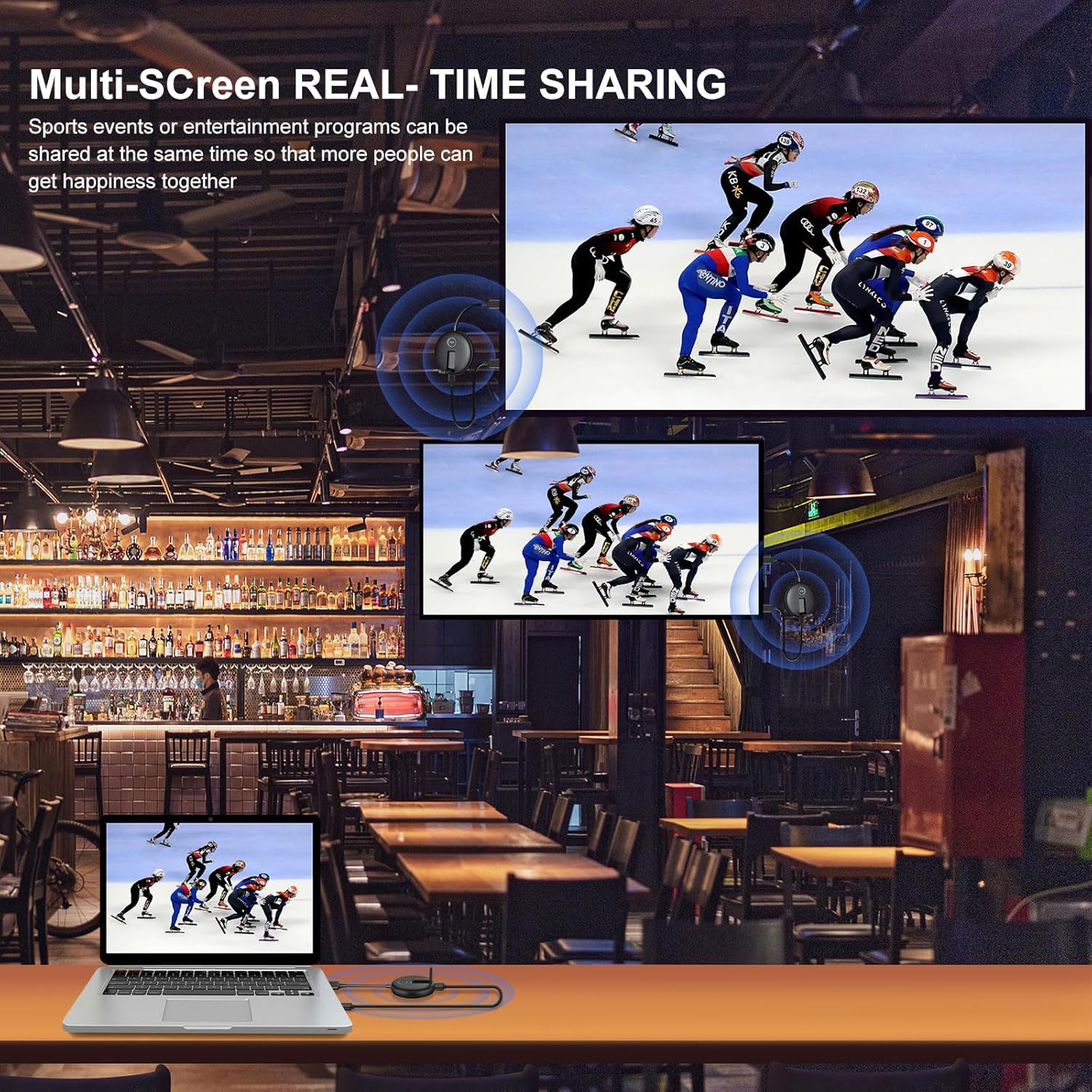
Image: An illustration of multiple displays showing synchronized content, highlighting the multi-screen capability of the system.
Video: A demonstration of the YUYUNLOMN Wireless HDMI Transmitter and Receiver in action, showcasing its features and ease of use.
5. Maintenance
To ensure the longevity and optimal performance of your YUYUNLOMN Wireless HDMI system, please observe the following maintenance guidelines:
- Cleaning: Use a soft, dry cloth to clean the devices. Avoid using liquid cleaners or solvents, as they may damage the product.
- Storage: Store the devices in a cool, dry place away from direct sunlight and extreme temperatures.
- Handling: Handle the units and cables with care. Avoid bending or twisting cables excessively, which can lead to internal damage.
- Power Supply: Always use the recommended 5V/1A power adapters to prevent damage from incorrect voltage or current.
6. Troubleshooting
If you encounter any issues with your wireless HDMI system, refer to the following troubleshooting tips:
| Problem | Possible Cause | Solution |
|---|---|---|
| No signal on display |
|
|
| Poor video quality or stuttering |
|
|
| Apple TV box display issues | Incorrect output resolution | Adjust the output resolution of the Apple TV box to 1080P@60Hz. |
| Devices not charging or powering on | Insufficient power supply | Use the provided 5V/1A dedicated chargers. Avoid using laptop or TV USB ports for power. |
7. Specifications
Key technical specifications for the YUYUNLOMN Wireless HDMI Transmitter and Two Receivers:
| Feature | Detail |
|---|---|
| Brand | YUYUNLOMN |
| Model Name | YU-02 |
| Resolution | 1080p@60Hz |
| Transmission Distance | Up to 165FT/50M (in open areas) |
| Wireless Frequency | 2.4GHz/5.8GHz |
| Connectivity Technology | HDMI, Wi-Fi |
| Connector Type | HDMI / Micro HDMI / Mini HDMI |
| Power Input | 5V/1A |
| Supported Internet Services | Netflix, Prime Video, YouTube, Hulu, TikTok, Spotify TV, etc. |
| Item Weight | 15.9 ounces |
| Product Dimensions | 7.48 x 2.83 x 0.59 inches |
8. Warranty and Support
For warranty information, technical support, or any questions regarding your YUYUNLOMN Wireless HDMI system, please contact YUYUNLOMN customer support through the retailer's platform or the official brand website. Please have your product model number (YU-02) and purchase details ready when contacting support.