
1. Product Overview
The SUNYIN SY-KM-NR222WB is a portable Bluetooth karaoke machine designed for various entertainment purposes. It features a high-performance stereo speaker, two wireless microphones, multiple LED light modes, and support for various audio inputs. This manual provides instructions for safe and effective use of your device.

Image 1.1: The SUNYIN SY-KM-NR222WB Portable Bluetooth Karaoke Machine, showcasing the main speaker unit with integrated LED lights and two wireless microphones.
2. Package Contents
Please check the package for the following items:
- Portable Karaoke Speaker (1 unit)
- Wireless Microphone (2 units)
- Carry Strap (1 unit)
- Type-C Charge Cable (1 unit)
- 3.5mm Audio Cord (1 unit)
- User Manual (this document)
If any items are missing or damaged, please contact customer support.
3. Setup Instructions
3.1 Initial Charging
Before first use, fully charge the karaoke machine and both wireless microphones. Use the provided Type-C charge cable.
- Connect the Type-C cable to the DC5V port on the speaker and a suitable USB power adapter (not included).
- Connect the Type-C cable to the charging port on each microphone and a suitable USB power adapter.
- Charging indicators will typically show status (e.g., red for charging, off or blue for fully charged).
Important: Do not use fast charging adapters, as this may damage the battery.
3.2 Powering On/Off
- Speaker: Long press the power button on the speaker to turn it on or off.
- Microphones: Long press the power button on each wireless microphone to turn it on or off. The microphones should automatically pair with the speaker when both are powered on.
4. Operating Instructions
4.1 Speaker Controls
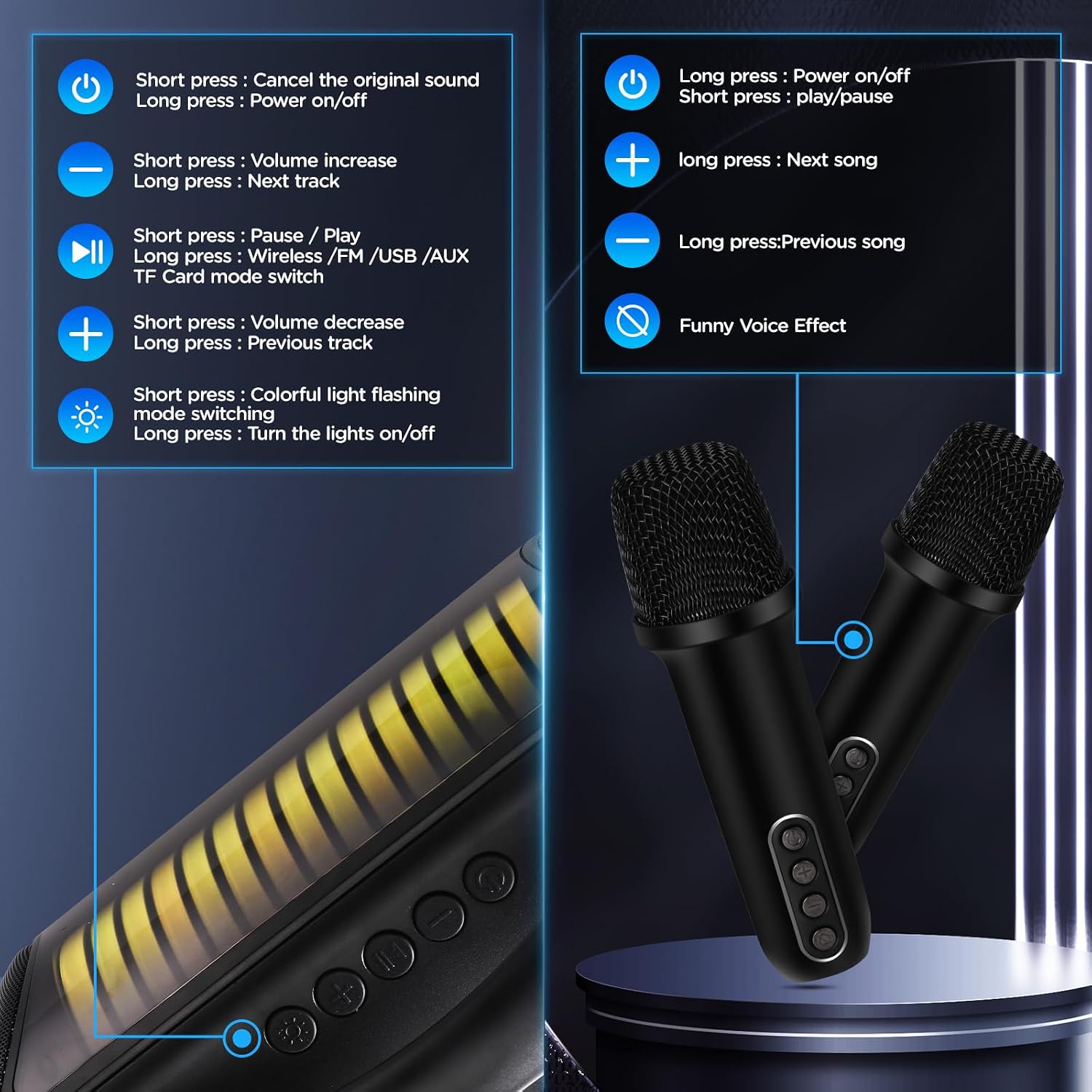
Image 4.1: Detailed view of the control buttons on the speaker and wireless microphones, illustrating their functions.
- Power Button (Speaker): Long press to power on/off. Short press to cancel original sound (Karaoke mode).
- Volume Up (+): Short press to increase volume. Long press for next track.
- Volume Down (-): Short press to decrease volume. Long press for previous track.
- Play/Pause Button: Short press to play/pause music. Long press to switch between Wireless (Bluetooth)/FM/USB/AUX/TF Card modes.
- LED Light Button: Short press to switch colorful light flashing modes. Long press to turn the lights on/off.
4.2 Microphone Controls
- Power Button (Mic): Long press to power on/off. Short press to play/pause.
- Next Song (+): Long press for next song.
- Previous Song (-): Long press for previous song.
- Voice Effect Button: Short press to cycle through voice effects (Magic Voice, Baby Voice, KTV Voice, Funny Voice).
4.3 Bluetooth Connection
To connect your device via Bluetooth:
- Turn on the karaoke machine. It will automatically enter Bluetooth pairing mode.
- On your smartphone, tablet, or other Bluetooth-enabled device, open the Bluetooth settings.
- Search for available devices and select "SUNYIN Karaoke" (or similar name).
- Once connected, the speaker will indicate a successful pairing, and you can play audio from your device.
4.4 Multiple Audio Input Modes
The speaker supports various audio input methods:

Image 4.2: The rear panel of the speaker showing the AUX, TF ID (Micro SD), USB, and DC5V (charging) ports.
- AUX Input: Connect an external audio device using the provided 3.5mm audio cord.
- USB Input: Insert a USB flash drive with MP3 audio files.
- Micro SD Card (TF ID) Input: Insert a Micro SD card with MP3 audio files.
- FM Radio: The device may support FM radio functionality. Long press the Play/Pause button on the speaker to cycle through modes until FM mode is activated. Scan for stations using the volume buttons. Note: Some units may not include this feature despite product descriptions.
4.5 LED Light Modes
The speaker features dynamic LED lights that can enhance your experience.

Image 4.3: Examples of the multiple LED lighting modes available on the karaoke machine, showing different color patterns and movements.
- Short press the LED Light Button on the speaker to cycle through different light patterns.
- Long press the LED Light Button to turn the lights completely off or on.
4.6 Voice Effects
The wireless microphones offer various voice effects.

Image 4.4: Two children enjoying the karaoke machine, with visual cues for the available voice effects: Funny Voice, Magic Voice, and Baby Voice.
- Short press the Voice Effect Button on the microphone to switch between Magic Voice, Baby Voice, KTV Voice, and Funny Voice.
4.7 TWS Function (True Wireless Stereo)
If you have two SUNYIN SY-KM-NR222WB units, you can pair them together for a True Wireless Stereo experience.
- Ensure both speakers are powered on and not connected to any other Bluetooth device.
- On one speaker (this will be the master), long press the TWS button (if available, or a combination of buttons as per specific model instructions) until you hear a pairing prompt.
- The two speakers will attempt to connect to each other. Once connected, they will play audio in stereo.
- Connect your Bluetooth device to the master speaker.
4.8 Recording Function (REC)
The device supports recording. To use this feature, ensure a USB drive or Micro SD card is inserted.
- Start playing music and singing through the microphone.
- Press the Record button (if available, or a specific button combination) to start recording.
- Press the Record button again to stop recording. The recording will be saved to the inserted storage device.
5. Maintenance
5.1 Cleaning
- Wipe the exterior of the speaker and microphones with a soft, dry cloth.
- Do not use abrasive cleaners, alcohol, or chemical solvents, as these may damage the surface.
- Avoid getting moisture into any openings.
5.2 Storage
- Store the device in a cool, dry place away from direct sunlight and extreme temperatures.
- If storing for an extended period, charge the battery to approximately 50% every few months to prolong battery life.
5.3 Battery Care
- Use only the provided charging cable or a certified Type-C cable.
- Avoid overcharging or completely draining the battery frequently.
- Do not expose the device to high temperatures, as this can damage the battery.
6. Troubleshooting
If you encounter issues, please refer to the following common solutions:
- No Power: Ensure the device is fully charged. Connect the charging cable and try again.
- No Sound from Speaker: Check the speaker's volume level and the connected device's volume. Ensure the correct input mode (Bluetooth, AUX, USB, etc.) is selected.
- Microphone Not Working: Ensure the microphone is powered on and fully charged. Keep the microphones within close range of the speaker. Avoid placing microphones too close to the speaker to prevent feedback. Ensure your mouth is close to the microphone's center for optimal voice pickup.
- Bluetooth Connection Issues: Ensure the speaker is in Bluetooth pairing mode. Turn off Bluetooth on your device and turn it back on. Remove the speaker from your device's paired list and attempt to reconnect. Ensure no other devices are connected to the speaker.
- Distorted Sound: Reduce the volume on both the speaker and the connected device. Ensure the audio source is of good quality.
- LED Lights Not Working: Short press the LED Light Button to cycle through modes. Long press to turn them on if they were off.
If the problem persists after trying these steps, please contact customer support.
7. Specifications

Image 7.1: Visual representation of the product dimensions (speaker: 12.3in x 6.5in x 6in; microphone: 5.7in) and total weight (4 pounds).
| Feature | Detail |
|---|---|
| Model Number | SY-KM-NR222WB |
| Brand | SUNYIN |
| Connectivity Technology | Bluetooth 5.0 |
| Power Source | Battery Powered |
| Battery Type | Lithium Metal (3 included) |
| Output Wattage | 30 Watts |
| Speaker Count | 2 |
| Audio Input | 3.5mm input, USB, Micro SD Card |
| Product Dimensions | 5 x 11 x 6 inches (12.7 x 27.9 x 15.2 cm) |
| Item Weight | 4.22 pounds (1.92 kg) |
| Material | Plastic |
| Color | Carbon black |
8. Warranty and Support
8.1 Warranty Information
Specific warranty details for the SUNYIN SY-KM-NR222WB Portable Bluetooth Karaoke Machine may vary by region and retailer. Please refer to your purchase documentation, product packaging, or the retailer's website for comprehensive warranty terms and conditions.
8.2 Customer Support
For technical assistance, troubleshooting, or inquiries regarding your product, please contact SUNYIN customer service through your original retailer or the official SUNYIN brand website. When contacting support, please have your model number (SY-KM-NR222WB) and proof of purchase readily available.