1. Introduction
The GuliKit KK3 Pro Wireless Controller is a versatile and high-performance gaming controller designed for a wide range of platforms. It features advanced technologies such as Hall Effect joysticks and triggers, multiple vibration modes, and a high polling rate, providing a precise and immersive gaming experience. This manual provides detailed instructions on setting up, operating, and maintaining your GuliKit KK3 Pro controller.

Image 1.1: GuliKit KK3 Pro Wireless Controller with its accessories, including the Hyperlink adapter and charging cable.
2. Package Contents
Please verify that all items are present in your package:
- GuliKit KK3 Pro Wireless Controller
- Hyperlink Adapter (USB-A)
- USB-C Charging Cable
- Hard Plastic Storage Case
- Interchangeable Back Paddles/Buttons (G1, G2, G3, G4)
3. Setup
3.1 Initial Charging
Before first use, fully charge the controller. The GuliKit KK3 Pro is equipped with a 950mAh Li-Polymer battery. A full charge typically takes approximately 3 hours.
- Connect the USB-C end of the charging cable to the controller's USB-C port.
- Connect the USB-A end of the charging cable to a compatible USB power source (e.g., computer USB port, USB wall adapter).
- The controller's indicator lights will show charging status and turn off or change color when fully charged.

Image 3.1: The controller features a 950mAh Li-Polymer battery for extended gaming sessions.
3.2 Connecting to Devices
The GuliKit KK3 Pro supports multiple connection methods:
3.2.1 Bluetooth Connection (Switch, Android, iOS, macOS, Windows)
- Ensure the controller is powered on.
- Activate Bluetooth pairing mode on the controller (refer to specific button combinations in the quick start guide if provided, typically holding a sync button).
- On your device (Switch, PC, phone, etc.), go to Bluetooth settings and select "GuliKit KK3 Pro" or similar from the list of available devices to pair.
3.2.2 2.4GHz Wireless Connection (PC-Windows with Hyperlink Adapter)
For optimal performance on PC-Windows, use the included Hyperlink Adapter to achieve a 1000Hz polling rate.
- Plug the Hyperlink Adapter into an available USB-A port on your PC.
- Power on the GuliKit KK3 Pro controller. It should automatically connect to the adapter.
- The controller's indicator lights will confirm a successful connection.

Image 3.2: The GuliKit Patented "Hyperlink" Adapter enables a wireless 1000Hz polling rate for competitive gaming on PC.
3.2.3 Wired Connection (PC-Windows)
- Connect the USB-C end of the charging cable to the controller.
- Connect the USB-A end to a USB port on your PC.
- The controller will be recognized as a wired gamepad.
4. Operating the Controller
4.1 Key Features and Functions
4.1.1 Electromagnetic Hall Effect Joysticks and Linear Triggers
The GuliKit KK3 Pro utilizes Hall Effect technology for its joysticks and linear triggers, eliminating stick drift and providing superior precision. This ensures a 100% no dead zone experience with stronger responsiveness and finer micro-control.

Image 4.1: Illustration of the Hall Effect Joysticks and Analog Triggers, designed for precision and durability.
4.1.2 ABXY Tactile Buttons
The controller features second-generation tactile ABXY buttons, designed for enhanced reliability and hyper-responsive actuation. These buttons provide a satisfying tactile feedback and are interchangeable to facilitate playing games with different button layouts (e.g., Xbox Game Pass games).
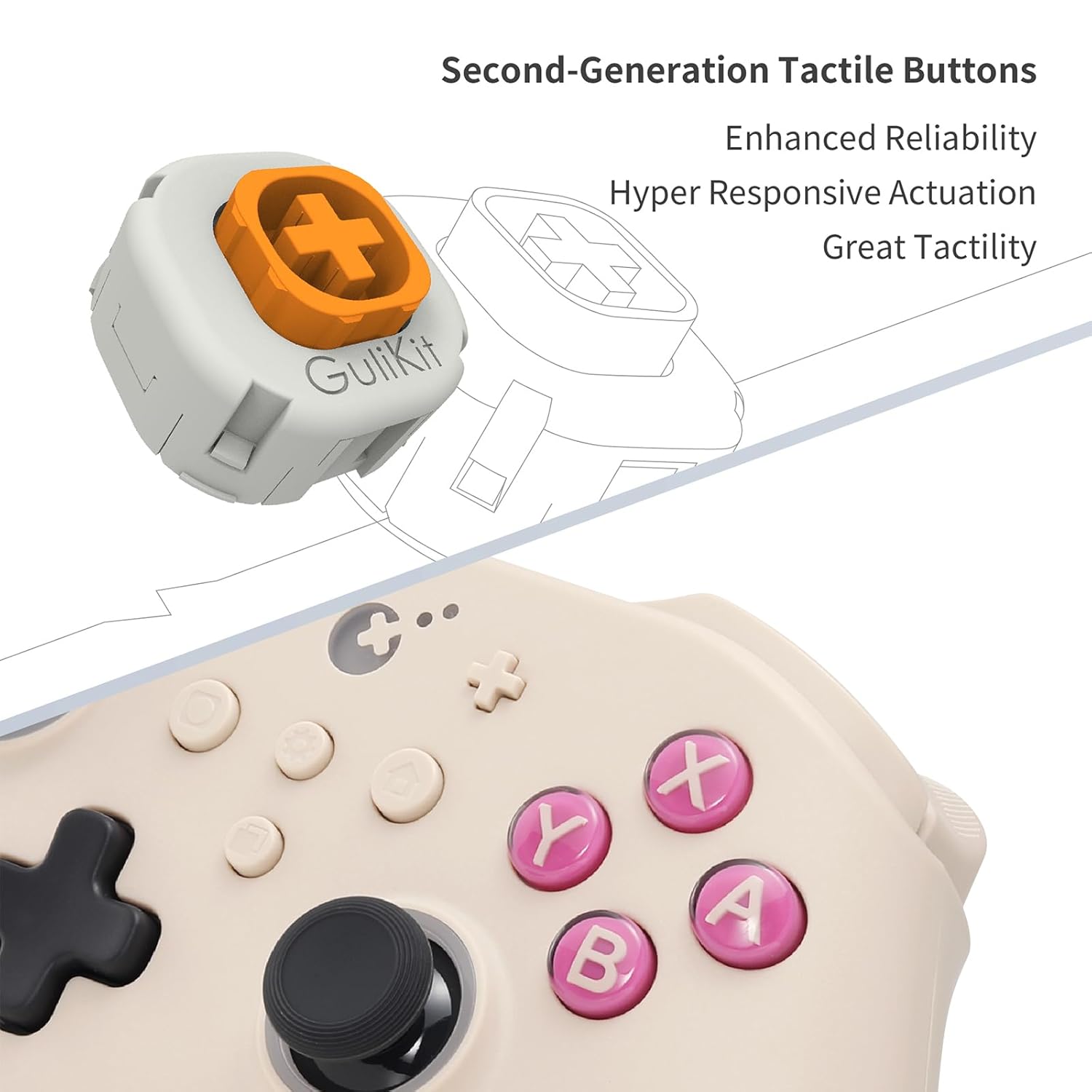
Image 4.2: Close-up view of the tactile ABXY buttons, highlighting their enhanced design.
4.1.3 6-Axis Gyroscope
Experience immersive motion control with the integrated 6-axis gyroscope. This feature provides motion sensing capabilities for compatible games, enhancing gameplay in titles like The Legend of Zelda, Super Mario, and even FPS games on PC.

Image 4.3: The 6-Axis Gyroscope provides immersive motion control for compatible games.
4.1.4 Vibration Modes
The controller offers three distinct vibration modes and two vibration strengths for a customizable haptic feedback experience:
- HD Rumble Mode: Provides precise and nuanced vibrations.
- Maglev Super Haptic Mode: Offers a unique magnetic levitation haptic feedback.
- Rotor Vibration Mode: Standard rotational vibration.
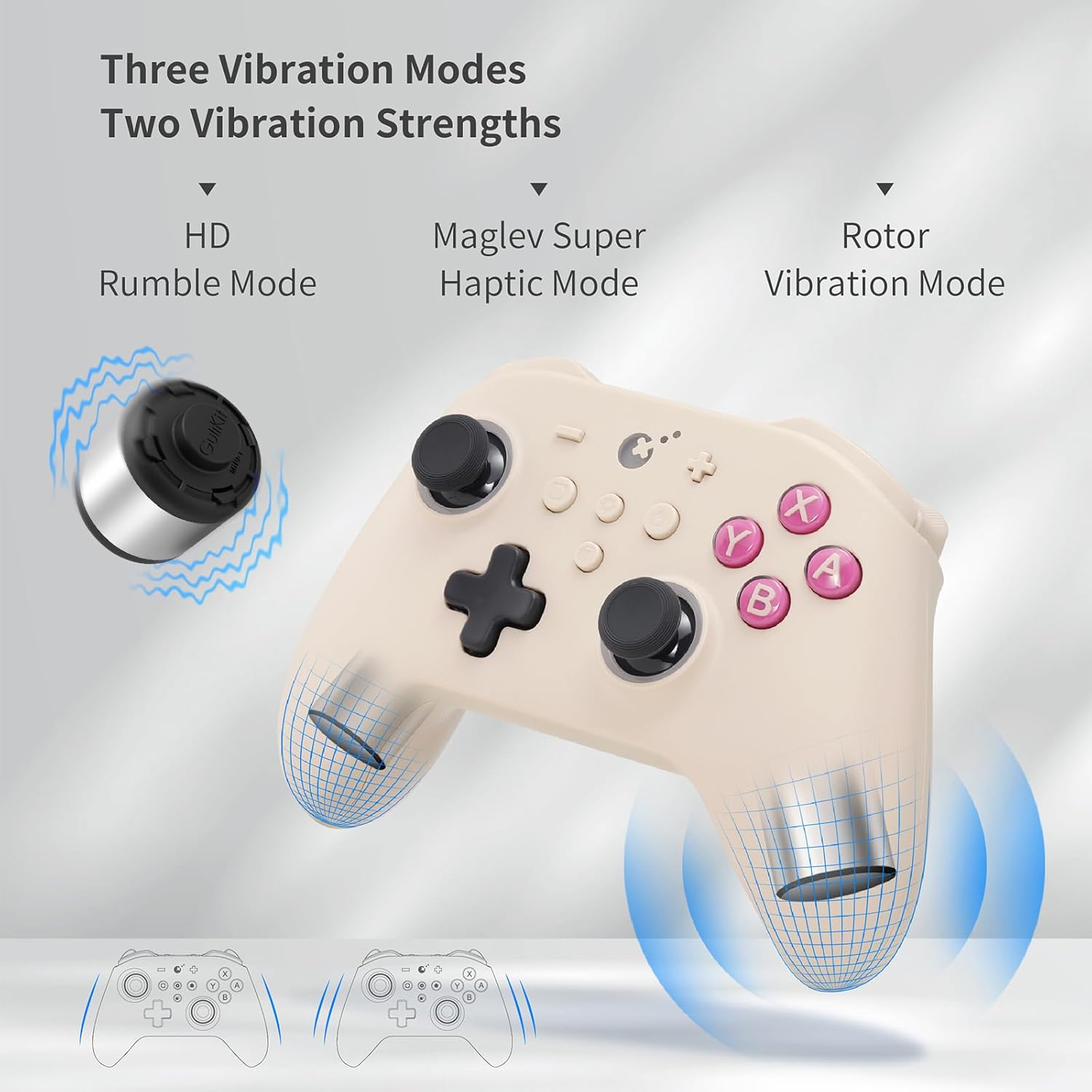
Image 4.4: Visual representation of the three distinct vibration modes available on the controller.
4.1.5 Adjustable Star-Ring RGB Lights
The joysticks feature adjustable RGB lighting, providing visual feedback for function settings and enhancing immersion. Lighting modes include:
- Default Steady On
- Joystick-Activated Flowing Lighting
- Vibration-Activated Lighting
- Trigger-Activated Flowing Lighting
- Off

Image 4.5: The Star-Ring RGB lights around the joysticks can be adjusted for visual indication and aesthetic preference.
4.1.6 APG (Auto-Pilot Gaming) Button
The APG button allows for recording and replaying up to 10 seconds of input, enabling auto-pilot gaming for repetitive tasks or complex combos.
4.2 Customization Options
4.2.1 Adjustable D-Pad
The D-pad supports switching between default 8-direction mode and 4-direction mode to prevent ghosting issues, especially beneficial in FPS games.
4.2.2 Adjustable Joystick Sensitivity
Three sensitivity modes are available for joysticks, allowing users to fine-tune control based on game requirements and personal preference.
4.2.3 Programmable Back Buttons (G1, G2, G3, G4)
The controller includes four programmable back buttons (G1, G2, G3, G4) that can be mapped to various functions for enhanced control and accessibility during gameplay.
5. Maintenance
5.1 Battery Care
To maximize battery lifespan and performance:
- Avoid fully discharging the battery frequently.
- Store the controller in a cool, dry place when not in use for extended periods.
- The battery life is approximately 15-28 hours on a full charge, depending on vibration intensity and RGB light usage.
5.2 Cleaning
Regular cleaning helps maintain the controller's appearance and functionality:
- Use a soft, dry cloth to wipe the surface of the controller.
- For stubborn dirt, slightly dampen the cloth with water or a mild, non-abrasive cleaner.
- Avoid using harsh chemicals or abrasive materials that could damage the surface.
6. Troubleshooting
6.1 Common Issues and Solutions
| Issue | Possible Cause | Solution |
|---|---|---|
| Controller not connecting/pairing. | Low battery, out of range, incorrect pairing mode, interference. | Ensure controller is charged. Move closer to device. Re-enter pairing mode. Check for other wireless devices causing interference. |
| Buttons/Joysticks unresponsive. | Software glitch, physical obstruction, low battery. | Recharge controller. Restart controller and device. Check for firmware updates. Clean around buttons/joysticks. |
| Vibration not working. | Vibration mode off, game does not support vibration, low battery. | Check controller settings for vibration mode. Ensure game supports vibration. Charge controller. |
| Inaccurate motion control (gyroscope). | Calibration needed, interference. | Perform gyroscope calibration (refer to GuliKit official support for specific steps). |
6.2 Resetting the Controller
If the controller is unresponsive or behaving erratically, a soft reset may resolve the issue. Locate the small reset button (often in a pinhole) on the back or bottom of the controller and press it with a thin object (like a paperclip) for a few seconds.
7. Specifications
| Feature | Detail |
|---|---|
| Model Number | NS38 |
| Compatibility | Nintendo Switch, Switch OLED, Switch Lite, Steam Deck, Android, iOS, macOS, Windows |
| Connectivity | Bluetooth, 2.4GHz Wireless (with Hyperlink Adapter), Wired (USB-C) |
| Polling Rate | 1000Hz (via Hyperlink Adapter on PC-Windows) |
| Joysticks | Electromagnetic Hall Effect, Adjustable Sensitivity |
| Triggers | Hall Effect Linear Triggers |
| Buttons | ABXY Tactile Buttons (Interchangeable), Programmable Back Buttons (G1-G4) |
| Vibration | 3 Modes (HD Rumble, Maglev Super Haptic, Rotor), 2 Strengths |
| Motion Control | 6-Axis Gyroscope |
| Battery | 950mAh Li-Polymer (Included) |
| Battery Life | 15-28 hours (depending on usage) |
| Charging Time | Approx. 3 hours |
| Dimensions | 6.22 x 5.98 x 2.87 inches |
| Weight | 15.52 ounces |
8. Warranty and Support
GuliKit products are manufactured with high standards of quality and durability. For specific warranty information regarding your GuliKit KK3 Pro Wireless Controller, please refer to the warranty card included in your product packaging or visit the official GuliKit website.
If you encounter any issues or have questions about your controller, please contact GuliKit customer service. They are committed to providing satisfactory assistance within 24 hours.
Manufacturer: GuliKit
Date First Available: May 13, 2024
For the latest support resources, FAQs, and firmware updates, please visit the official GuliKit website: www.gulikit.com


